Repository navigation
Capturing the screen
A capture freezes the desktop, lets you pick a region or a window, then opens the image in the editor. The file is also saved and listed in the library.
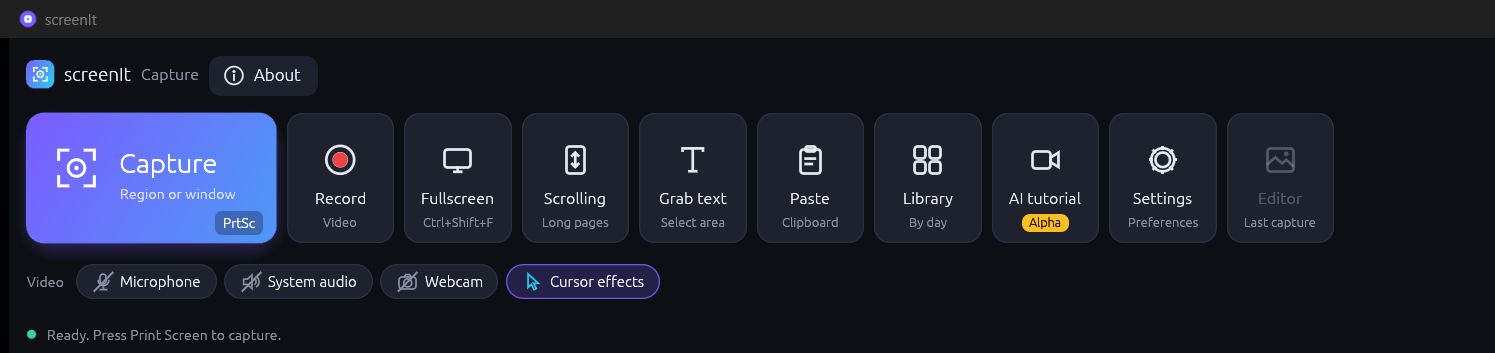
Any of these starts the same overlay:
- Press Print Screen.
- Click the Capture tile. The subtitle is Region or window.
- From the editor or another view, click New capture.
The screen dims and a hint is shown at the top.
| What you do | What screenIt captures |
|---|---|
| Drag a rectangle | That region. A size badge follows the pointer, and an 8× magnifier helps you land on a pixel. |
| Click a window | That window's bounds, including one on another monitor. |
| Esc, or right-click | Cancels. Nothing is saved. |
Fullscreen (Ctrl+Shift+F) skips the overlay and captures the whole monitor immediately.
By default the editor opens on the new image. Two settings change that, both under Settings → General:
| Setting | Effect |
|---|---|
| After a capture → Open in the editor | The default. The window comes forward with the image. |
| After a capture → Save silently and stay out of the way | The image is still saved, copied (if that option is on), and added to the library. The window goes back to where it was. |
| Copy captures to the clipboard | Puts the pixels on the clipboard so you can paste them into another application. |
| Include the mouse cursor | Draws the cursor into the shot when it was inside the captured area. |
The status bar reports the pixel size and the full saved path, with Show in folder beside it.
Every capture is written as a .scit project, named like capture-<time>-<number>.scit, in the save folder (Pictures\screenIt unless you changed it). Annotations you add later stay editable in that file. A flattened PNG is a separate step: Export PNG in the editor.
Paste opens an image that is already on the clipboard and treats it as a capture. Editor on the capture bar returns to the last image without taking a new one.
The overlay is a frozen frame of the desktop, not a live view, so the shot matches what you saw when you pressed the key. Window hit-testing uses that frozen list, which is why clicking a window is reliable even if you move the mouse quickly. On a high-DPI display the overlay is drawn 1:1 with the physical pixels.
The buttons above cover region, window, and full screen. The engine also implements scrolling capture, freehand, multi-area, a fixed rectangle, and the previous region, plus saved presets. Those are commands, not tiles, in this version. See Automation.