Repository navigation
Installation
screenIt 0.2.2 runs on 64-bit Windows 10, version 1903 or later, and on Windows 11. There is no 32-bit build and no macOS or Linux build.
Open the Releases page and take screenit-v0.2.2-windows-x64.zip. The archive contains:
| File | Use it when |
|---|---|
The .msi
|
You want a per-user install, a Start menu shortcut, and (by default) a start with Windows. No administrator rights are required. |
screenit.exe in the portable folder |
You want to run it from any folder, including a USB drive, without an installer. |
The installer is not code-signed. Windows SmartScreen may say it prevented an unrecognised app from starting. More info, then Run anyway, continues the install. That warning is about the missing publisher signature, not about a failed scan reported by this project.
- Run the
.msi. - Finish the wizard. It installs for the current user and adds a Start menu shortcut.
- By default the installer also registers screenIt to start with Windows, minimized to the tray. To skip that, install from a command prompt:
msiexec /i screenit-v0.2.2-windows-x64.msi STARTUP=0
Turn Start with Windows on or off later in Settings. The registry value is the source of truth: HKCU\Software\Microsoft\Windows\CurrentVersion\Run, named screenIt.
Unzip anywhere and run screenit.exe.
| How you start it | What happens |
|---|---|
screenit.exe |
The capture bar opens. |
screenit.exe --minimized |
The process starts in the tray, with no window flash. |
| A second launch | The running instance is brought forward. The new process exits. |
The portable executable can also register itself for startup. The Run value points at that exact .exe, so if you move the folder, open Settings and toggle Start with Windows once so the path is rewritten.
The capture bar is the home screen. The status line should read Ready. Press Print Screen to capture.
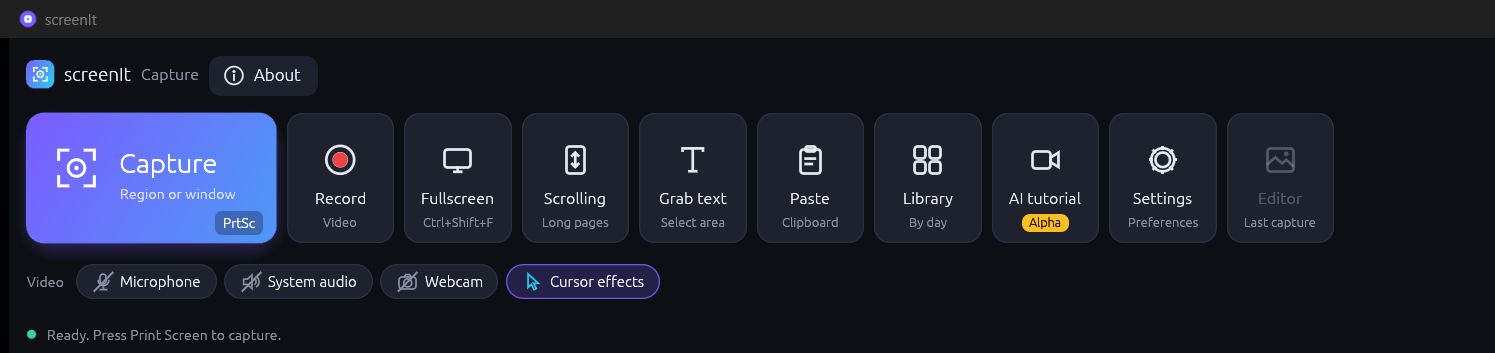
Print Screen is hooked with Raw Input, so it still reaches screenIt when another capture tool has already registered the hotkey. If that other tool is also listening, both can react. screenIt cannot swallow the key in that case.
On startup, screenIt sets PrintScreenKeyForSnippingEnabled to 0 for the current user so the Windows Snipping Tool does not take the key first.
| Item | Location |
|---|---|
| Captures, recordings, grabbed text |
Pictures\screenIt (the Pictures known folder, so OneDrive redirection is honoured). You can set another folder in Settings. |
| Settings | %LOCALAPPDATA%\screenIt\settings.json |
| Your translation edits | %LOCALAPPDATA%\screenIt\locales |
| Automation token |
%LOCALAPPDATA%\screenIt\control.json while the app is running |
Uninstalling the MSI removes the Start menu shortcut and the Run value. It does not delete Pictures\screenIt or %LOCALAPPDATA%\screenIt. Those are your captures and settings.
You need the stable Rust MSVC toolchain and the Visual Studio Build Tools with the Windows SDK.
git clone https://github.com/Busbar2297/screenit
cd screenit
cargo build --release -p screenit -p screenit-cli
.\target\release\screenit.exe
cargo xtask package writes the portable zip. cargo xtask msi downloads the free WiX Toolset v3 on first use and builds the installer. Contributor rules are in AGENTS.md in the repository.