Repository navigation
Editing and annotation
The editor is where a capture becomes a picture you can share. Objects stay editable until you export. Undo and redo cover every change.
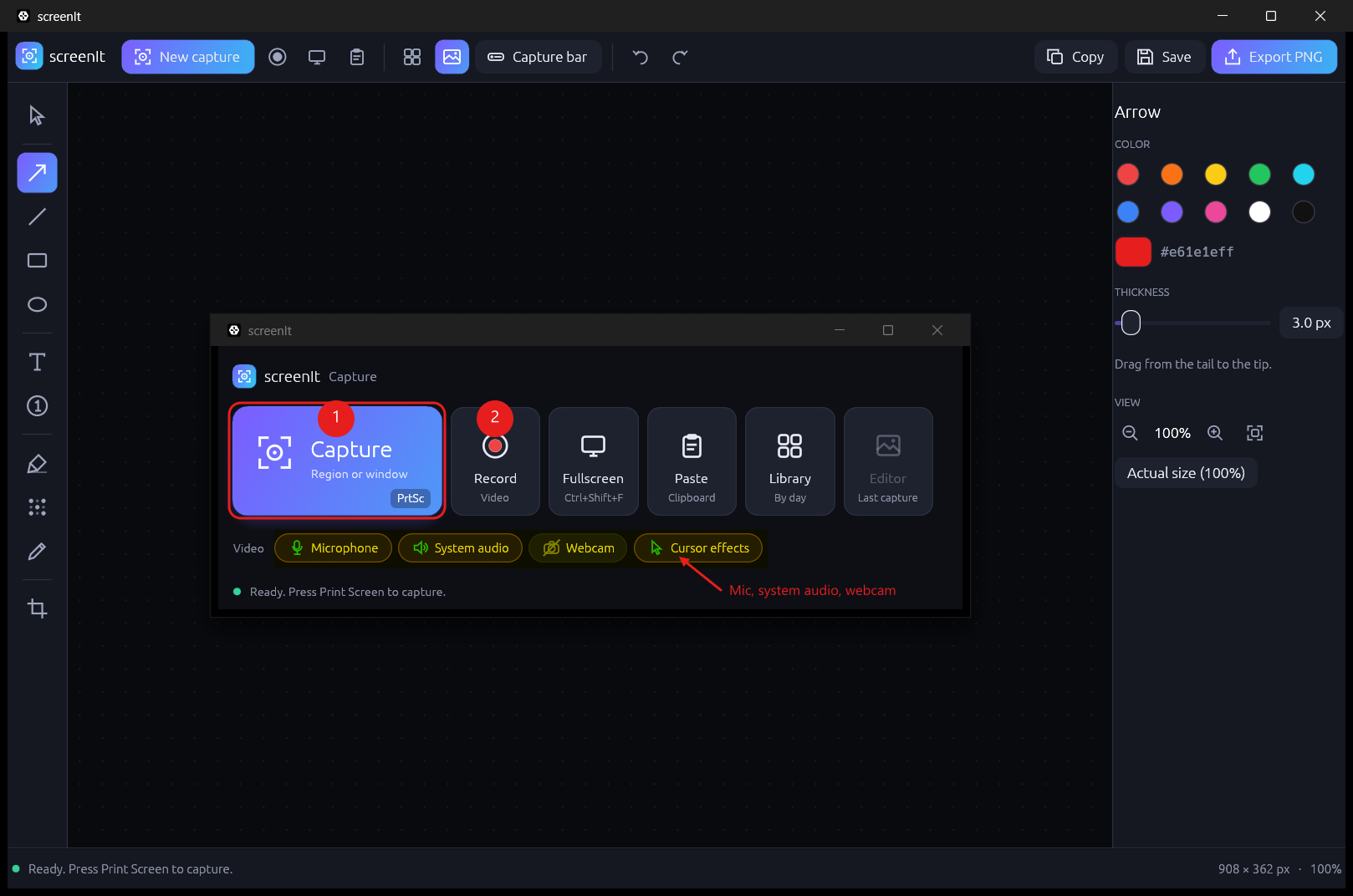
| Region | Role |
|---|---|
| Top bar |
New capture, record, full screen, grab text, paste, library, settings, and Capture bar (Ctrl+Shift+B). On the right: Copy, Save, Export PNG. Undo and redo sit with them. |
| Left rail | The tools. Each tooltip shows the single-key shortcut. |
| Canvas | The image, centred. The dotted area around it is empty canvas, not part of the picture. |
| Right panel | Colour, thickness, and the hint for the active tool, plus zoom. |
| Status bar | The last action, Show in folder when a file was written, and the image size with the zoom percentage. |
Click a tool or press its key. The key is ignored while a text field has focus.
| Key | Tool | How to use it |
|---|---|---|
| V | Select | Click an object to select it. Drag it to move it. |
| A | Arrow | Drag from the tail to the tip. |
| L | Line | Drag a straight line. |
| R | Rectangle | Drag a rectangle. |
| E | Ellipse | Drag an ellipse. |
| T | Text | Click where the text should go, then type. |
| S | Step | Click to drop the next numbered step. Each click advances the number. |
| H | Highlight | Drag over the area to mark. |
| B | Blur | Drag over anything that should be unreadable. |
| P | Pen | Draw freehand. |
| C | Crop | Drag the area to keep. |
Arrow, line, rectangle, ellipse, text, step, and pen use the colour and thickness in the properties panel. Select, highlight, blur, and crop do not. The swatches are a fixed set; the current colour is also shown as a hex value.
Drag previews match the shape that is committed when you release the mouse.
| Action | Result |
|---|---|
| Ctrl + mouse wheel | Zoom toward the pointer. |
| Ctrl+0 | Fit the image to the window. |
| Ctrl+1 | Actual size, 100%. |
| The buttons in the properties panel | Zoom out, zoom in, fit. |
These three do different things. Pick the one that matches what you need to hand to someone else.
| Button | Shortcut | Result |
|---|---|---|
| Copy | Ctrl+C | Flattens the image and puts it on the clipboard. |
| Export PNG | Ctrl+S | A Save As dialog, PNG only. Annotations are burned into the pixels. This is the file to attach to a ticket or a chat. |
| Save | — | A Save As dialog for a .scit project. Annotations remain objects. Open the file later from the library and keep editing. |
The capture itself was already written to Pictures\screenIt as a .scit when you took it. Save is for writing another copy, or for saving after you have annotated. Export PNG never replaces that project file.
Show in folder opens Explorer with the last written file selected.
Ctrl+Z undoes. Ctrl+Y, or Ctrl+Shift+Z, redoes. Each completed gesture is one step: a drag, a step number, a text edit. There is no practical limit exposed in the interface.
When a recording finishes, it opens here with a transport bar: play, pause, and a scrubber. Export frame writes the current frame as a PNG. Export MP4 opens a Save As dialog and writes the recording, audio included. Details are in Recording.