Repository navigation
Settings and languages
Open Settings from the gear on the capture bar or the top bar. Changes apply as you make them and are written to %LOCALAPPDATA%\screenIt\settings.json. You rarely need to press a save button. Reset to defaults restores the factory settings and keeps your capture presets.
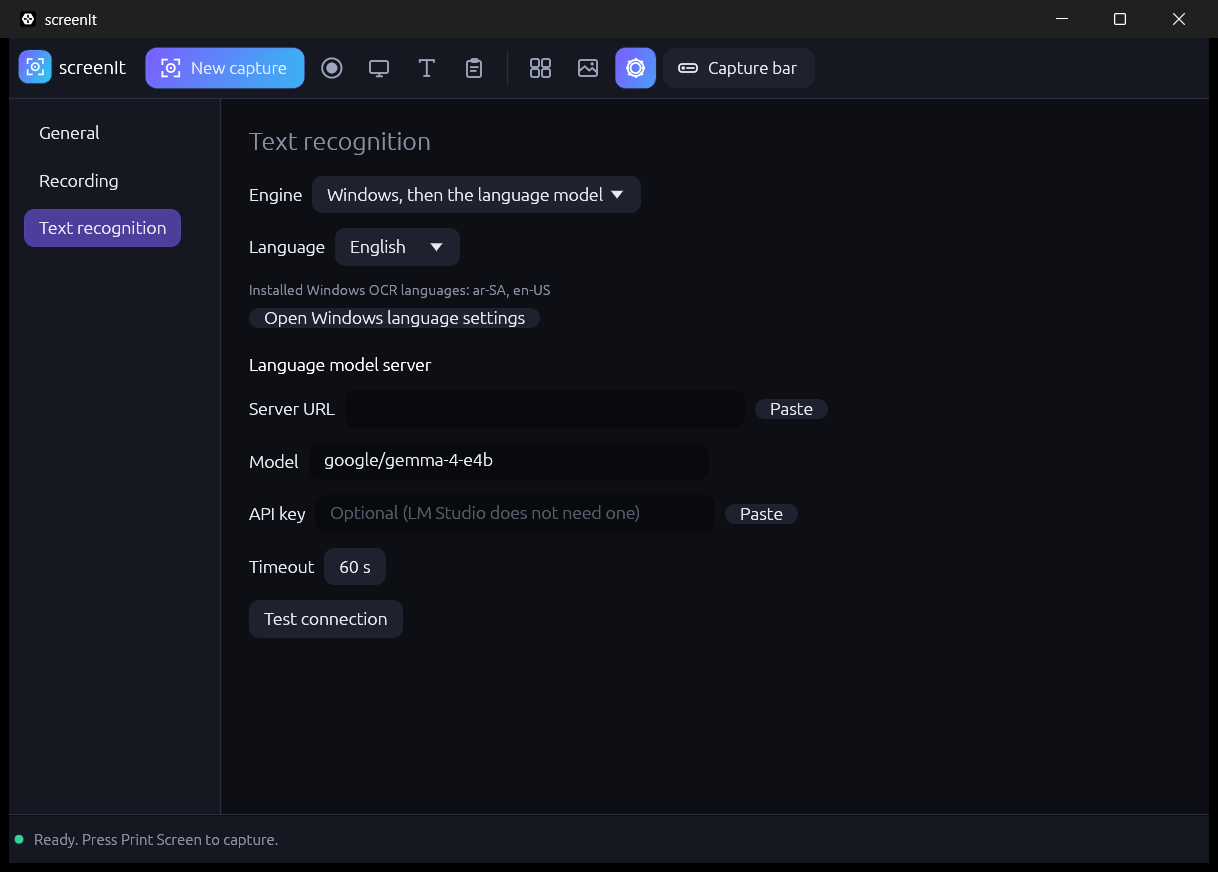
There are three categories: General, Recording, and Text recognition.
| Setting | What it does |
|---|---|
| Language | Switches the interface immediately. |
| After a capture | Open in the editor, or Save silently and stay out of the way. |
| Copy captures to the clipboard | Also places each capture on the clipboard. |
| Include the mouse cursor | Draws the cursor into the shot when it lies inside the region. |
| Save captures to | A folder of your own. The hint Default: Pictures\screenIt applies while this is empty. |
| Start with Windows | Creates or removes the current-user Run value. The registry is checked again at the next launch. |
| Start minimized to the tray | The next start (including the Windows startup launch) parks in the tray. |
Reload translations and Edit translations are here too. They are described below.
Frame rate, codec, and output size. The capture-bar chips for microphone, system audio, webcam, and cursor effects are separate and are not remembered here. See Recording.
Engine, language, and the optional LM Studio connection, including Test connection. The API key, if you set one, is stored in plain text in settings.json. See Grabbing text.
screenIt ships 28 interface languages:
English, Arabic, Bulgarian, Croatian, Czech, Danish, Dutch, Estonian, Finnish, French, German, Greek, Hungarian, Irish, Italian, Japanese, Latvian, Lithuanian, Maltese, Polish, Portuguese, Romanian, Russian, Chinese (Simplified), Slovak, Slovenian, Spanish, and Swedish.
Pick one under Settings → General → Language. It applies immediately, including the fonts needed for Arabic, Japanese, and Chinese.
Arabic is laid out right to left: the capture bar, the settings categories, rows, and the status line mirror. Letters are shaped so they join. An English word or a number inside an Arabic sentence keeps its own order.
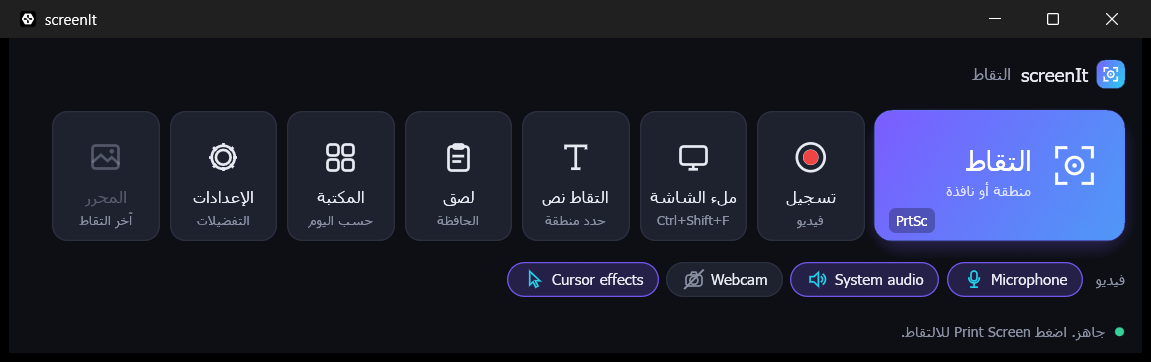
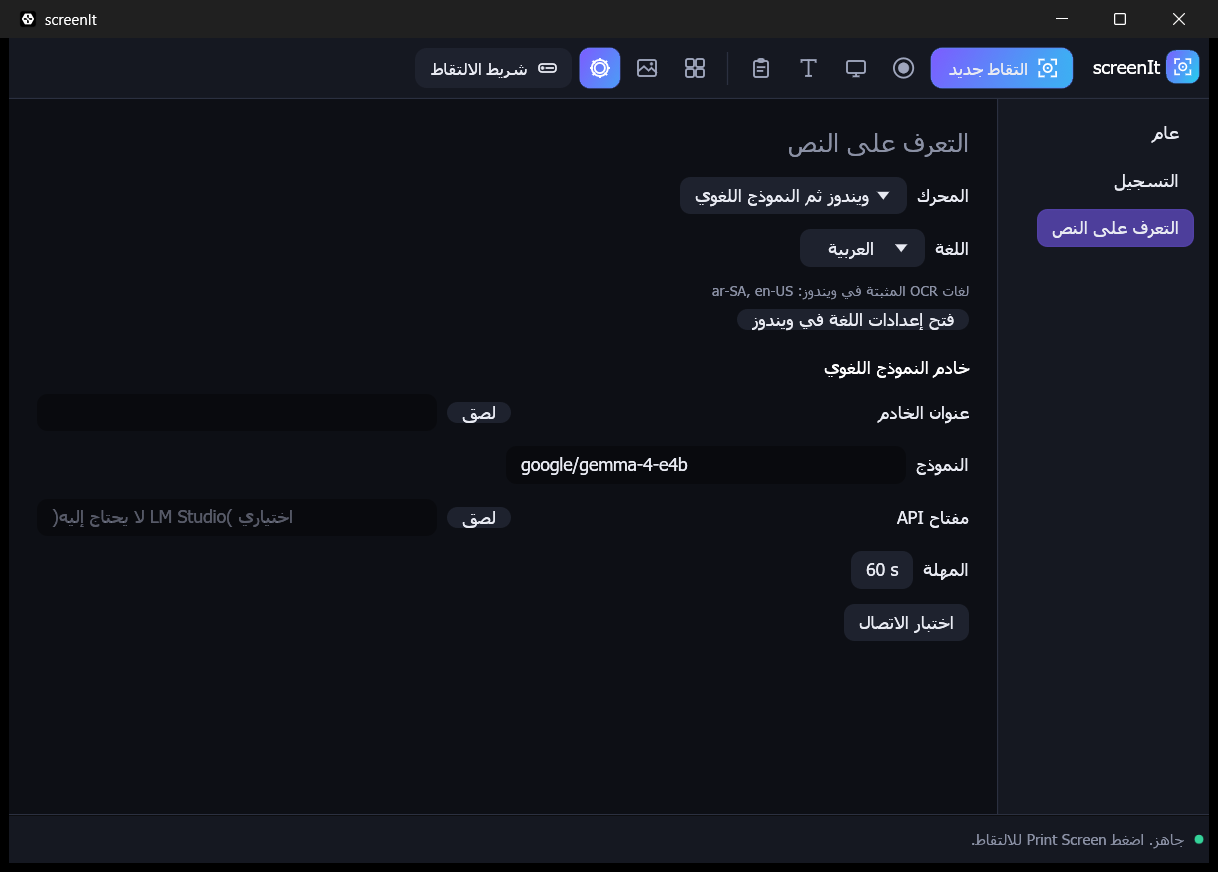
English is the authored language. Arabic has had dedicated layout work. The other translations are machine drafts and welcome correction. They are not presented as a finished localisation.
Interface strings are flat TOML files, one per language. English is the fallback: a missing key shows the English text, and if that is missing too, the key itself.
-
Settings → General → Edit translations. screenIt exports the bundled files into
%LOCALAPPDATA%\screenIt\localesand opens that folder. - Edit
<code>.toml. Keep the keys. Keep{placeholders}exactly, for example{path}and{n}. - Click Reload translations.
A file next to the executable, in an locales folder beside screenit.exe, overrides the bundled text and is itself overridden by the %LOCALAPPDATA% copy. That order lets a portable build carry a team glossary, and lets you override it further for yourself.
cargo xtask i18n in a source checkout checks that every key used in the code exists in English and that every locale file is complete.