Repository navigation
Controls and Shortcuts
CouchLiteOS works with Xbox, PlayStation, Nintendo-style and most other controllers, a keyboard, or a TV remote over HDMI-CEC. Settings > CONTROLS > CONTROLLER BUTTONS shows the buttons with the names printed on your controller.
| Controller | Keyboard | Action |
|---|---|---|
| A / Cross | Enter | Select, OK |
| B / Circle | Esc | Back, cancel |
| D-pad or left stick | Arrow keys | Move (hold to keep moving) |
| X (Xbox) / Triangle (PS) | F12 | On-screen keyboard (in a text field) |
| Y (Xbox) / Square (PS) | Delete / Backspace | Delete a letter; close an app (in ACTIVE APPLICATIONS) |
| Select (View) | F2 | Type on your phone (in a text field) |
| Hold Y / Square on a game | F9 | CHANGE ARTWORK (Game Covers) |
| Hold X / Triangle on a game | F10 | STREAM SETTINGS for that game (Stream Settings) |
| LB/L1, RB/R1, View/Select, Menu/Start | F5, F6, F7, F8 | App shortcuts, if assigned (see Remote Desktop) |
| Tap Guide / PS | Home | The quick menu (in a Moonlight or chiaki-ng stream, Guide goes to the stream instead) |
| Hold Guide / PS for 5 s | - | Sleep (never during a game) |
The bar along the bottom of the screen always shows what the buttons and keys do on the current screen, with the symbols of the pad you hold.
Nintendo pads: the kernel reports their B as "south", so B selects and A goes back; CONTROLLER BUTTONS shows this correctly. Settings > CONTROLLERS > SWAP A/B and SWAP X/Y change this in the CouchLiteOS menus.
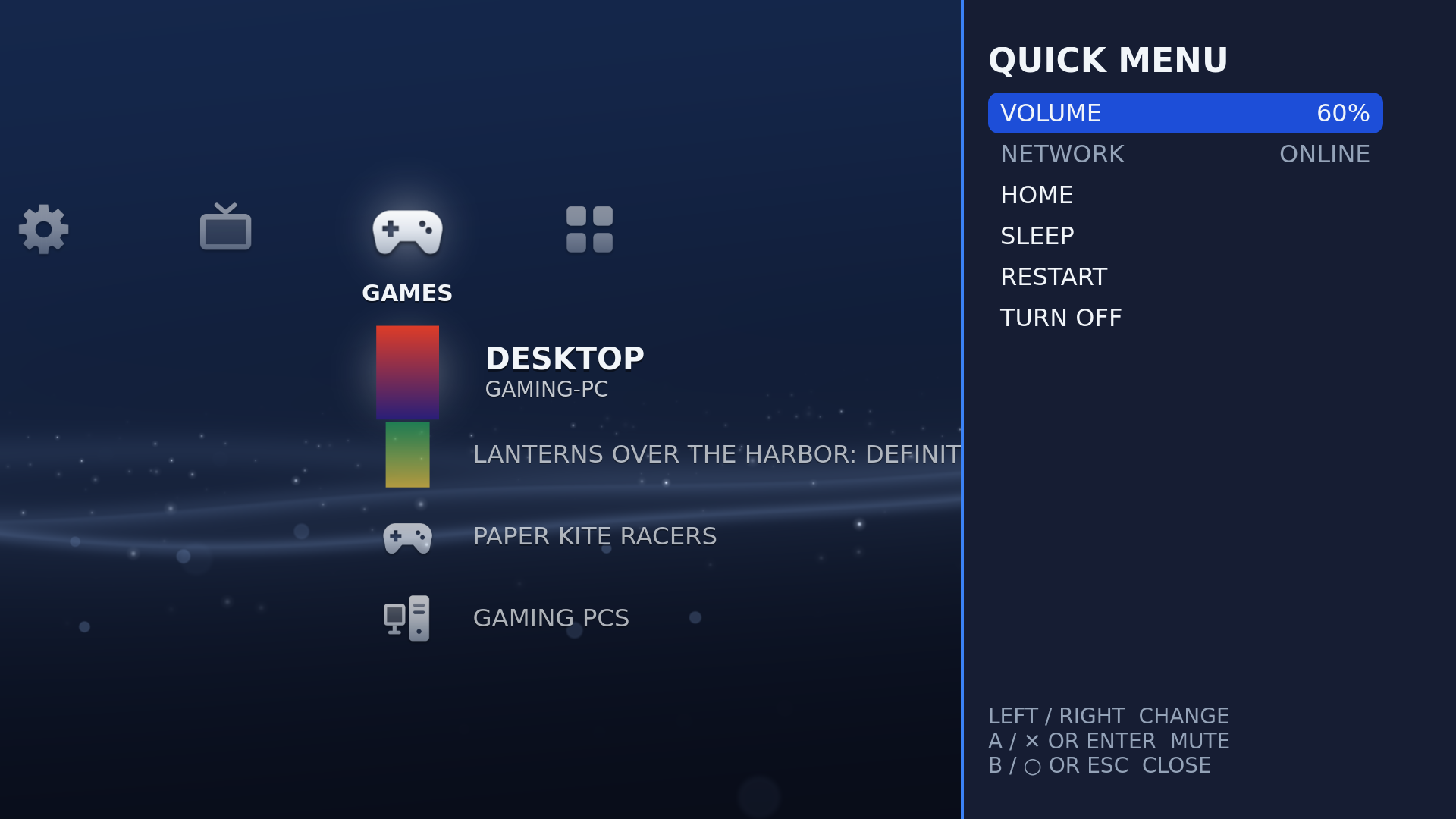
Tap Guide / PS, or press Home on a keyboard, over any screen or app. The quick menu opens as a panel on the side:
| Row | Does |
|---|---|
| APPLICATIONS | Shown while apps run: opens ACTIVE APPLICATIONS (below) |
| VOLUME | Left/Right change it, A / Cross mutes |
| BRIGHTNESS | Left/Right change it (only on PCs with a built-in screen, such as laptops and iMacs) |
| CONTROLLERS | The battery of each connected controller |
| NETWORK | The connection in use |
| HOME | The home screen (apps keep running) |
| SLEEP, RESTART, TURN OFF | Power |
During a Moonlight stream it also shows the STREAM PRESET in use and has SHOW STATS (Moonlight's statistics on or off). Tap Guide again, or press B / Circle (or Esc), to close it and go back to the app you were in.
The held Home shortcuts go straight Home: to ACTIVE APPLICATIONS when apps are running, otherwise to the home screen.
| How | Notes |
|---|---|
| Hold SELECT + START (View + Menu) for 1.5 s | Default, and the way home from a stream whichever Home shortcut you chose. Not while LB or RB is held. |
| Hold L3 + R3 (both sticks in) for 1.5 s | Instead of SELECT+START, if you choose it |
| Ctrl+Alt+H (or the key you chose) | Keyboard; works during a stream or Remote Desktop session too. Change it in Settings > CONTROLS > KEYBOARD HOME KEY. |
| Tap Guide / PS, or Home on a keyboard | Opens the quick menu; HOME there goes to the home screen. During a Moonlight or chiaki-ng stream Guide goes to the stream (Steam Big Picture, the PlayStation menu). |
The Super (Windows) key does not open Home. It goes to the app in front, like on any other desktop.
PlayStation touchpad: while a stream is in front the DualShock 4 and DualSense touchpad goes to the stream (the gaming PC must present your pad as a PlayStation controller, which Sunshine does by default). In the browser and on the home screen it is a mouse again.
While SELECT+START is the Home shortcut, a quick SELECT or START tap acts when you release it, so starting the hold never triggers it.
ACTIVE APPLICATIONS (also in POWER on the home screen) lists the running apps:
| Row | Controls |
|---|---|
| Each running app | A / Cross resumes it; Y / Square closes it; X / Triangle opens the on-screen keyboard and types into it |
| CONTROLLER MOUSE (app) | A / Cross turns it ON or OFF for the app in front |
| QUICK MENU | Opens the quick menu |
| BACK TO HOME | Back to the home screen (apps keep running) |
In the classic interface, Guide opens this menu as in 0.2.x, with VOLUME, BRIGHTNESS and RETURN TO MAIN LAUNCHER rows.
- In CouchLiteOS screens: in any text field press X / Triangle (or F12).
- In a running app: open ACTIVE APPLICATIONS (hold the Home shortcut, or POWER on the home screen), pick the app, press X / Triangle. Or press X / Triangle while the controller mouse is on.
- The keyboard is a panel along the bottom of the screen; the app stays visible above it.
- Keys include SPACE, BACKSPACE, CLEAR, SHIFT, SYMBOLS, MASK/SHOW (for passwords), CANCEL, TYPE and TYPE + ENTER. The text is typed into the app when you choose TYPE or TYPE + ENTER.
- The keyboard takes the colours of the theme.
In a text field, press Select (View) or F2. A QR code appears: scan it with a phone on the same home network (or open the address shown). Type on the phone, send, then confirm the text on the TV. The code works once and runs out after 5 minutes. Handy for Wi-Fi passwords, web addresses and keys.
The text travels over your home network without encryption. For a password, use it only on a home network you trust.
On by default in Firefox, Google Chrome and web apps you add; games and streaming apps keep the controller. Switch it per app in ACTIVE APPLICATIONS (the choice lasts until the launcher restarts).
| Controller | Does |
|---|---|
| Left stick | Move the pointer |
| Right stick | Scroll |
| A / Cross | Click |
| Y (Xbox) / Square (PS) | Right-click |
| B / Circle | Back a page |
| LB / RB | Page up / page down |
| Start | Space (play/pause) |
| Back / Select | Esc (leave full screen, close a pop-up) |
| X / Triangle | On-screen keyboard |
Lists every connected pad as PLAYER 1, 2 and so on, with its battery. Pick a pad for:
| Row | Does |
|---|---|
| MOVE UP, MOVE DOWN | Change the player order (and the player lights, where the pad has them) |
| IDENTIFY | Makes the pad rumble (and blink, where it has lights) so you know which is which |
| TEST | Shows its sticks, triggers and buttons live |
| SWAP A/B, SWAP X/Y | ON or OFF, for Nintendo layouts. Only in the CouchLiteOS menus. |
A stream still gets the pad as it is, in Moonlight's own order.
Left/Right or A / Cross changes a row.
| Row | Choices |
|---|---|
| HOME SHORTCUT | GUIDE OR SELECT+START (HOLD) (default), GUIDE OR L3+R3 (HOLD), GUIDE (SELECT+START IN A STREAM) |
| KEYBOARD HOME KEY | Press A / Cross or Enter, hold the keys you want, then let go. Default CTRL+ALT+H. The screen also turns it off (Y / Square or Delete) and resets it (X / Triangle or F12). A key with Super also reaches the other PC during a stream. |
| CONTROLLER MOUSE SPEED | SLOW, NORMAL, FAST, VERY FAST |
| MOUSE SPEED | SLOW, NORMAL, FAST, VERY FAST (for a real mouse or touchpad) |
| CONTROLLER BUTTONS | The button help screen |
| KEYBOARD KEYS | The keyboard help screen: Enter, Esc, arrows, F5 to F8, F12, your Home key |
Laptop and keyboard brightness keys change the built-in screen's backlight. Volume up/down and mute change the volume. Both work on the home screen and in every app, including Moonlight and Remote Desktop (they control this box, not the remote PC).
With a CEC adapter, the remote's arrows, OK and Back move around the home screen and reach running apps. See First Setup.