Repository navigation
Game Covers and Stream Settings
GAMES on the home screen lists the games of every paired gaming PC, the most recently played first. Press A / Cross (or Enter) on a game to stream it. Two more things can be done on a game:
| Hold | Keyboard | Opens |
|---|---|---|
| Y / Square | F9 | CHANGE ARTWORK: pick the game's cover |
| X / Triangle | F10 | STREAM SETTINGS: settings kept for this game alone |
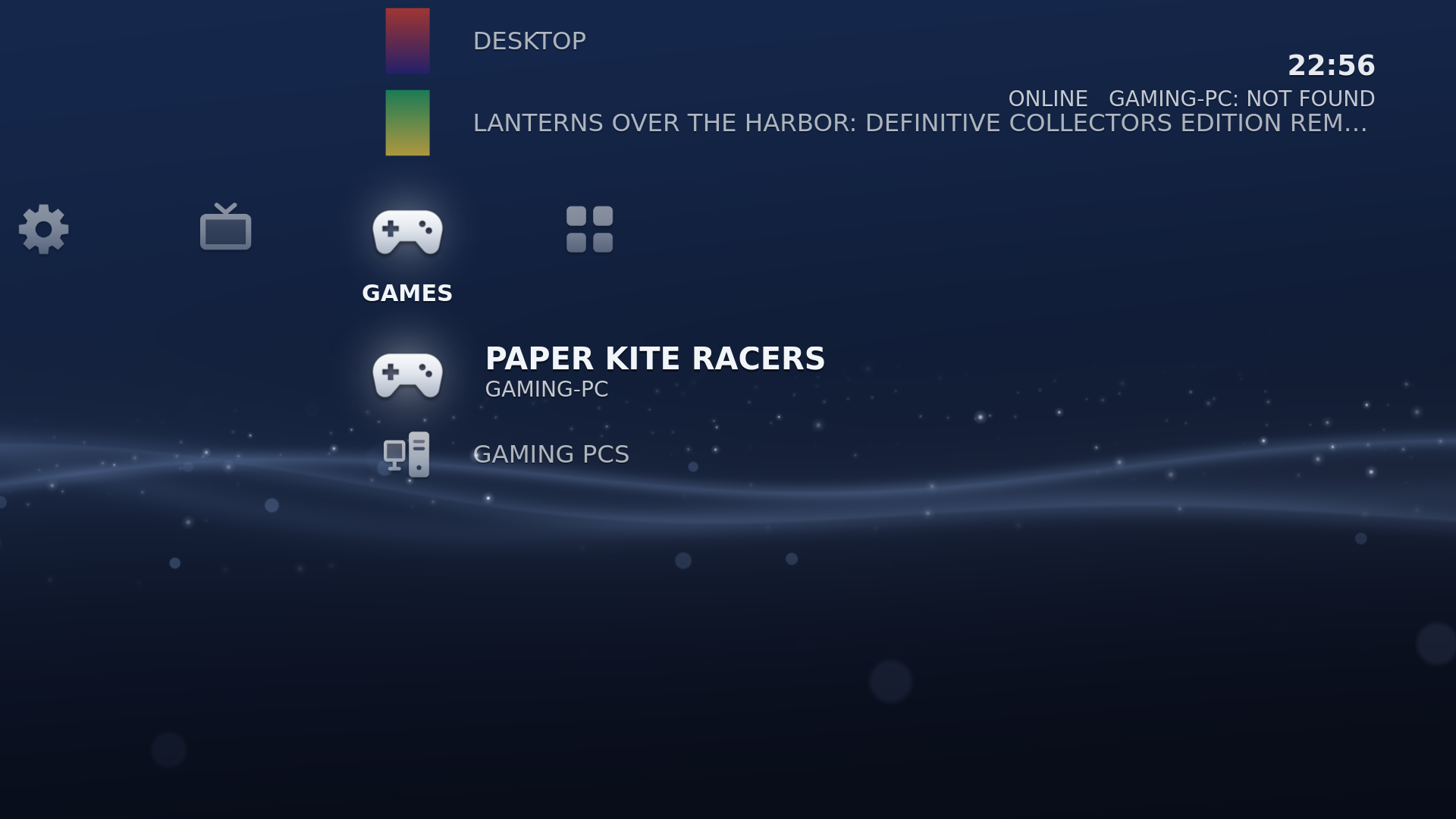
Covers come from Moonlight when the gaming PC sends them. Otherwise CouchLiteOS looks the game up by its name on Steam, or on SteamGridDB if you add your own SteamGridDB key. A game without a cover shows a title card with its name.
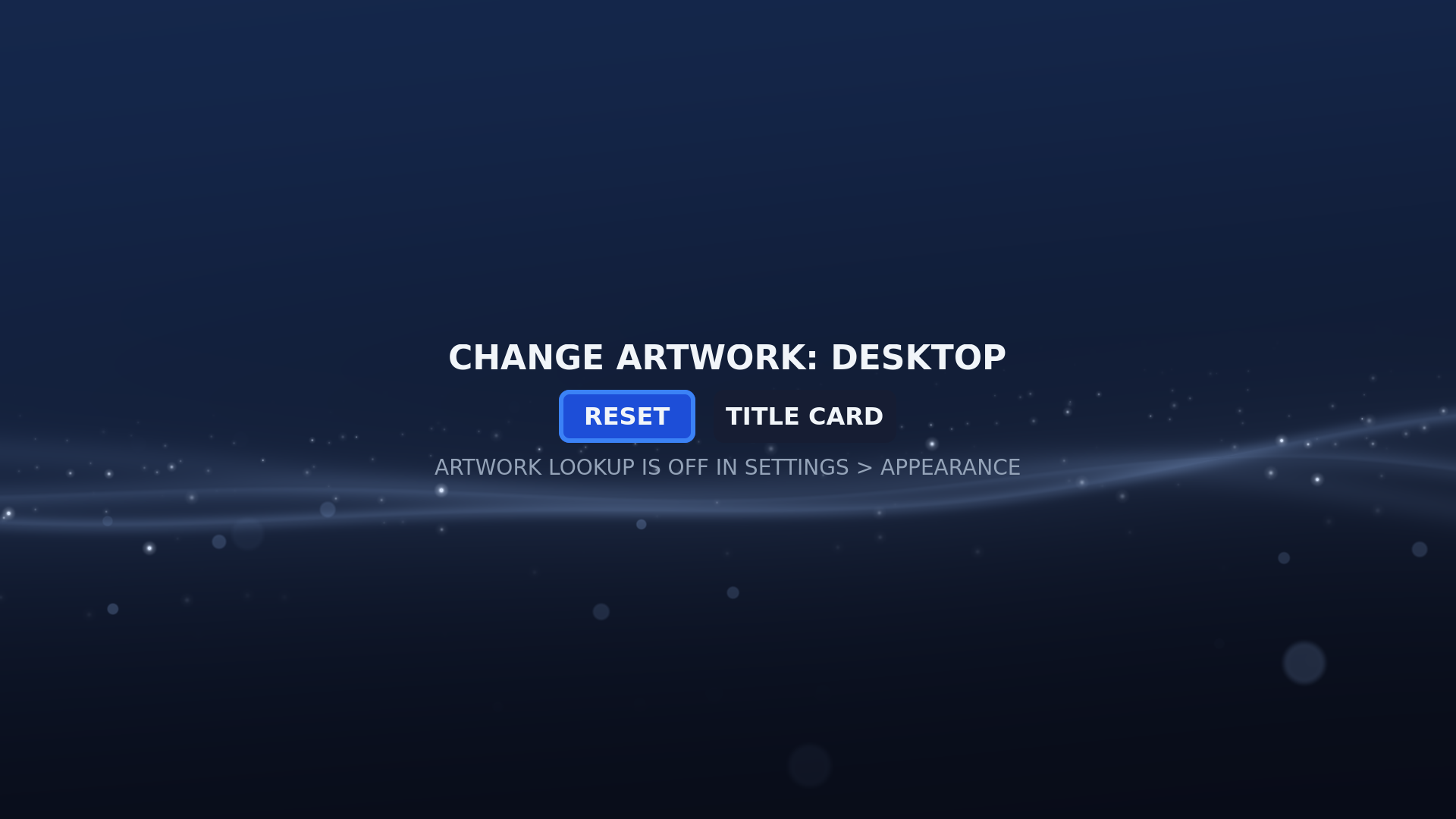
Hold Y / Square (or F9) on a game. CHANGE ARTWORK shows up to 12 covers to pick from, then:
- RESET goes back to the automatic cover.
- TITLE CARD shows a plain card with the game's name instead of a picture (useful when the lookup found the wrong game).
B / Circle (or Esc) leaves without changing anything.
| Row | Does |
|---|---|
| LOOKUP | ON or OFF. The lookup sends only game names, to Steam and to SteamGridDB, over HTTPS. OFF keeps the covers Moonlight has and title cards for the rest. |
| STEAMGRIDDB KEY | Type the API key from your SteamGridDB profile (you can type it on your phone). Leave it empty to remove it. The key is never shown again. |
| UNMATCHED GAMES | The games no cover was found for |
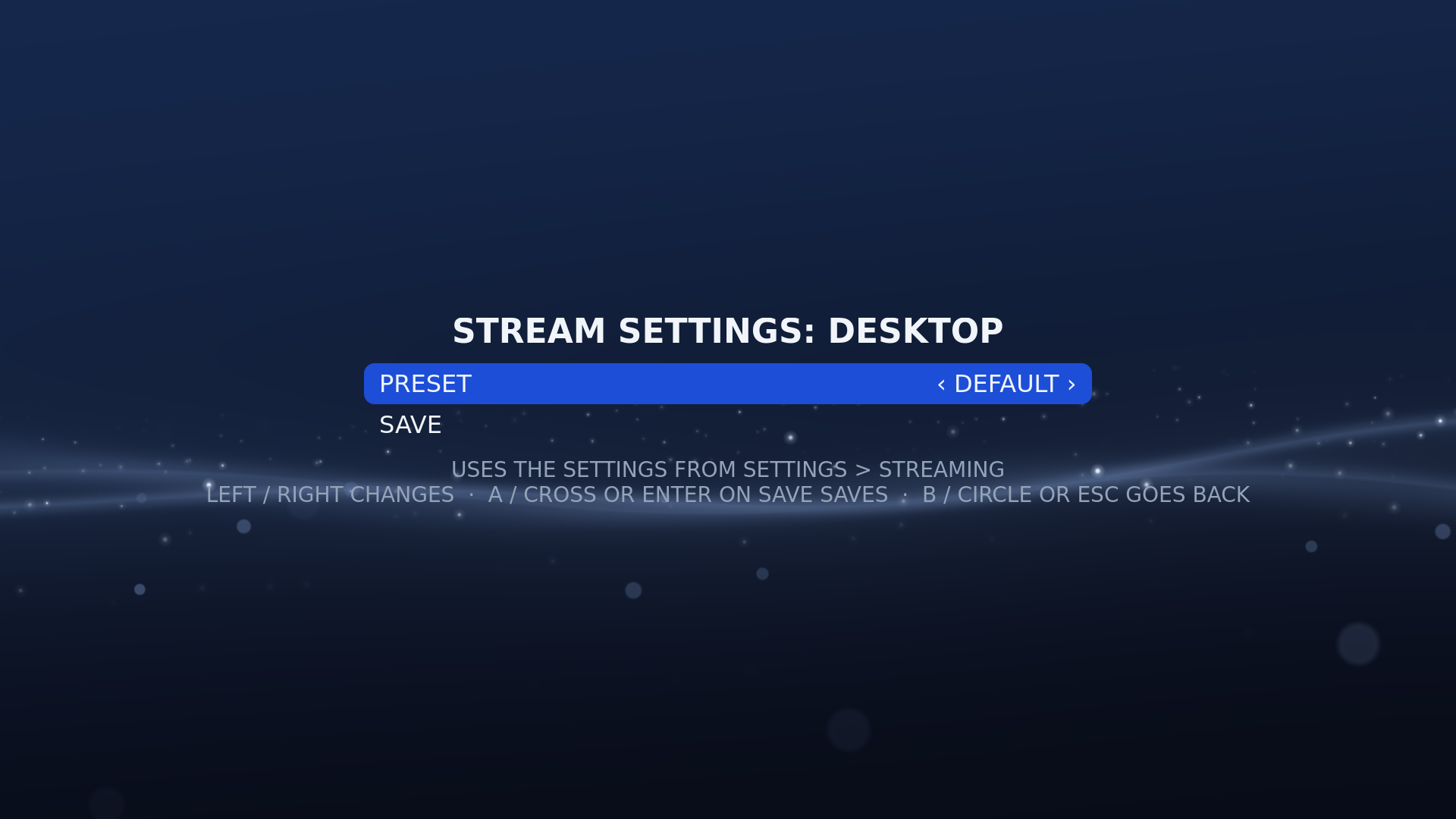
Hold X / Triangle (or F10) on a game. Left/Right changes a row; choose SAVE to keep it.
| Row | Choices |
|---|---|
| PRESET | DEFAULT, PERFORMANCE, BALANCED, QUALITY or CUSTOM |
| RESOLUTION, FRAME RATE, BITRATE, HDR | Only with CUSTOM: 1280x720 to 3840x2160; 30, 60, 90 or 120 FPS; AUTOMATIC or 5 to 150 MBPS; HDR ON or OFF |
| Preset | Streams |
|---|---|
| DEFAULT | No settings of its own: the game uses Settings > STREAMING, like before |
| PERFORMANCE | Lower resolution (720p, or 1080p on a larger screen with hardware decoding) and up to 120 FPS, for the lowest delay |
| BALANCED | What OPTIMIZE STREAM SETTINGS would pick for this TV and network |
| QUALITY | The TV's full resolution, 60 FPS, a higher bitrate, and HDR with hardware decoding |
| CUSTOM | Your own resolution, frame rate, bitrate and HDR |
The screen shows what the choice means on this TV before you save it. The settings never go above what your TV and this PC can show: a PC that decodes in software gets a smaller picture or a lower frame rate, and HDR is asked for only with hardware decoding (HDR is not officially supported; see Known Limitations). They are kept for that game alone; other games, and MOONLIGHT opened from APPS, keep the settings from Settings > STREAMING.
During a stream, the quick menu shows the STREAM PRESET in use and has SHOW STATS, which turns Moonlight's statistics on or off.
More about streaming: Streaming with Moonlight.