Repository navigation
Updating
How you update depends on where CouchLiteOS lives and which version you have.
| Your setup | How to update | Pairings and settings |
|---|---|---|
| Installed to a disk, 0.2.1 or newer | Settings > SOFTWARE UPDATE (below) | Kept: pairings, Wi-Fi, Bluetooth, Remote Desktop connections, Tailscale, and settings |
| Installed to a disk, 0.2.0 or MoonlightOS 0.1.x | Boot the new USB stick and choose UPDATE THE INSTALLED SYSTEM (below) | Kept |
| Live USB with a persistence stick | Write the new ISO to the ISO stick only; keep the persistence stick | Kept on the persistence stick |
| Live USB with storage on the same stick (SET UP STORAGE ON THIS STICK) | Write the new ISO to the stick | Lost: writing the stick erases its storage too |
| Live USB that keeps nothing | Write the new ISO | Nothing was kept anyway |
Writing an ISO to a stick replaces everything on that stick, including any storage or persistence partition on the same stick.
CouchLiteOS was called MoonlightOS before v0.2.0. Live USB persistence sticks made for MoonlightOS keep their settings and pairings; CouchLiteOS uses their old folders automatically.
For boxes installed to a disk, version 0.2.1 or newer.
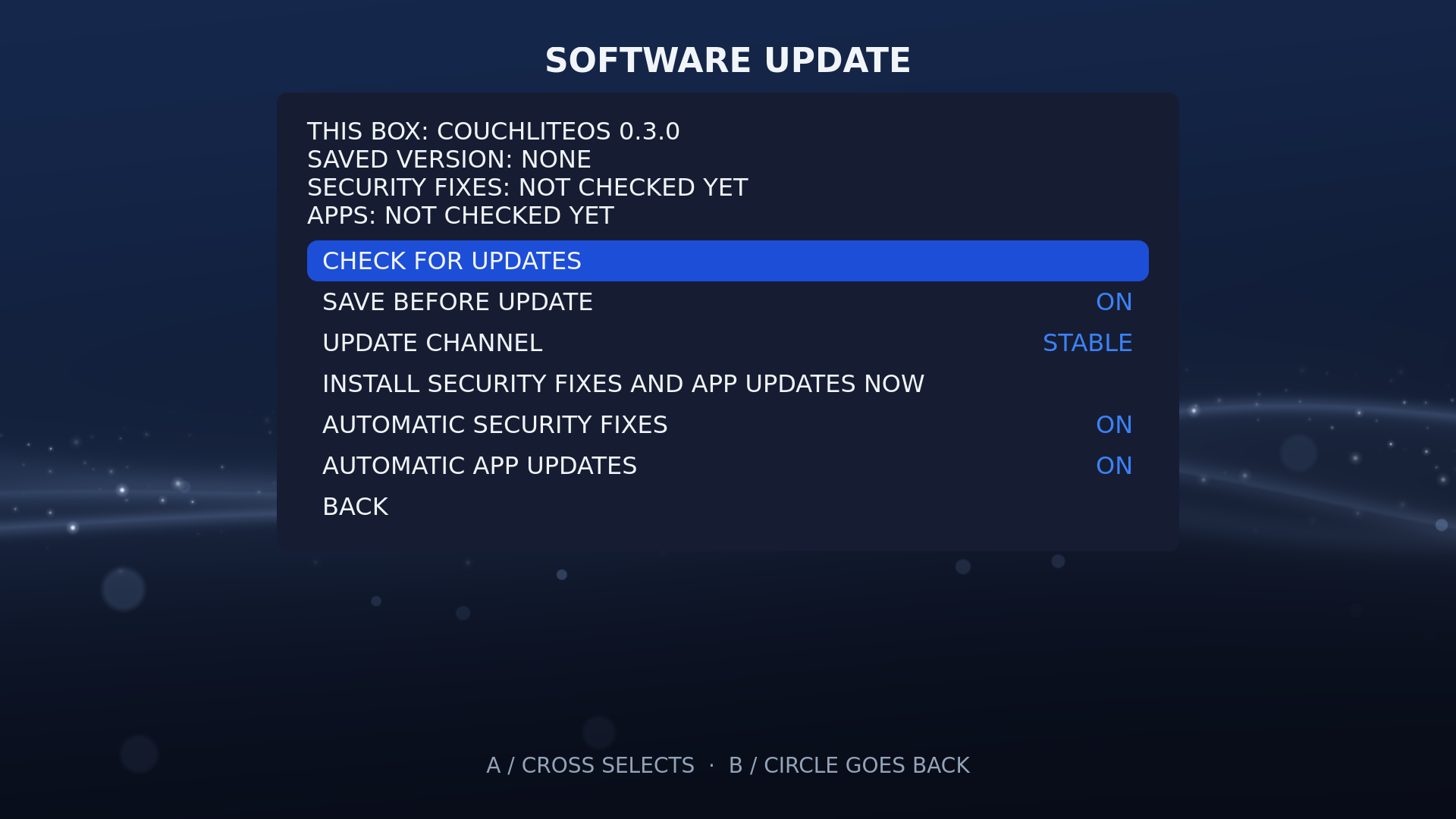
- Connect to the network (Settings > NETWORK) and plug the box into power. Close any running app; the update will not start while one is open.
- Open Settings > SOFTWARE UPDATE. It shows the installed version and ISO type, and the SAVED VERSION. Choose CHECK FOR UPDATES.
- If a newer release has a file for your box (the same kind, general or NVIDIA, that you installed), choose INSTALL UPDATE and confirm. The NVIDIA ISO is added a little after the general one; until then an NVIDIA box says THIS RELEASE HAS NO FILE FOR THIS BOX. Try again later.
- The box downloads the ISO (about 1 GB), checks it against the release's
SHA256SUMS, saves the current system (SAVING THE CURRENT VERSION...), installs the new one, and restarts.- B cancels while it downloads. An interrupted download resumes next time.
- Once it is saving or installing it cannot be stopped. Keep the box plugged in until it restarts.
- After the restart, WHAT'S NEW lists the changes.

On a live USB the SOFTWARE UPDATE screen explains that updates need an installed box and where to get the new ISO.
Every update saves the current system first. If the new version misbehaves:
- Settings > SOFTWARE UPDATE > RESTORE PREVIOUS VERSION restarts the box and puts the saved version back, with the settings and pairings it had then. The row shows the saved version and the day it was saved.
- If the box no longer starts: show the boot menu (hold Shift, or press Esc on UEFI PCs, while the box starts) and choose CouchLiteOS: restore previous version.
One version is kept; the next update replaces it. The update from 0.2.x to 0.3.0 is saved too, so you can go back to 0.2.x.
| Row | Does |
|---|---|
| SAVE BEFORE UPDATE: ON / OFF | ON (the default) saves the current system before every update. Turn it OFF on a small disk. |
| DELETE SAVED VERSION | Frees the space the saved version uses (about 2 GB). The box can then not go back to it. |
| RESTORE PREVIOUS VERSION | Puts the saved version back (above) |
Saving needs about 7 GB free on the disk, besides the download. With less, the update stops before changing anything and says so: free some space, or turn SAVE BEFORE UPDATE off. A disk of 32 GB or more is recommended (Install).
Settings > SOFTWARE UPDATE > UPDATE CHANNEL switches between STABLE and BETA. On BETA the box is also offered test versions, which can have bugs, and moves on to the final release when it comes out. Going back to STABLE never installs an older version: the box waits for the next stable release. A box running a beta starts on BETA.
Settings > CHECK FOR UPDATES switches the background check ON or OFF. When ON, the box looks for a newer release at every start, then every few hours while it stays on. When there is one, a notice says so and the home screen asks once whether to open SOFTWARE UPDATE now (never over a running app or stream). When OFF, nothing is sent. A new CouchLiteOS version is never installed by itself.
Between releases, the box installs Debian security fixes, and new Moonlight and chiaki-ng versions, by itself once a day, never while you stream. Settings > SOFTWARE UPDATE shows the last result for each and has:
| Row | Does |
|---|---|
| INSTALL SECURITY FIXES AND APP UPDATES NOW | Runs both now (they wait while a game streams) |
| AUTOMATIC SECURITY FIXES: ON / OFF | The daily security fixes |
| AUTOMATIC APP UPDATES: ON / OFF | The daily Moonlight and chiaki-ng updates |
| ROLL BACK APP VERSION | Shown for an app on a downloaded version: goes back to the version before it |
An app that fails to start twice after an update goes back by itself.
For a box with CouchLiteOS 0.2.0 or MoonlightOS 0.1.x installed. No reinstall is needed, and pairings and settings are kept.
- Write the new ISO to a USB stick (Install).
- Boot the box from the stick and choose Start CouchLiteOS.
- Open Settings > SOFTWARE UPDATE. It shows the INSTALLED SYSTEM it found on the disk. Choose UPDATE THE INSTALLED SYSTEM (KEEPS PAIRINGS AND SETTINGS).
- When it says UPDATE DONE, remove the USB stick, then restart (POWER > RESTART).
The system on the disk is saved first when there is room for it; with too little room it updates without a saved copy and says so. From then on, the box updates itself with Settings > SOFTWARE UPDATE.
The SOFTWARE UPDATE screen only downloads from GitHub. To install from an ISO file you copied onto an installed box, run in TERMINAL:
sudo /usr/libexec/couchliteos-updater apply-iso /path/to/couchliteos-<version>-amd64.isoIt runs the same checks, saves the current system and installs the same way;
add --no-reboot to stop before the restart.
- Packages you added yourself with
aptstay on the disk but are not rebuilt; they may stop working after an update. - Every update downloads the whole ISO.
- A box updated from 0.2.x keeps the Firefox or Google Chrome it had.
- If the power is cut while the update is saving or installing and the box no longer starts, try CouchLiteOS: restore previous version in the boot menu. If that does not help, reinstall from the ISO, which erases the disk.