Repository navigation
First Setup
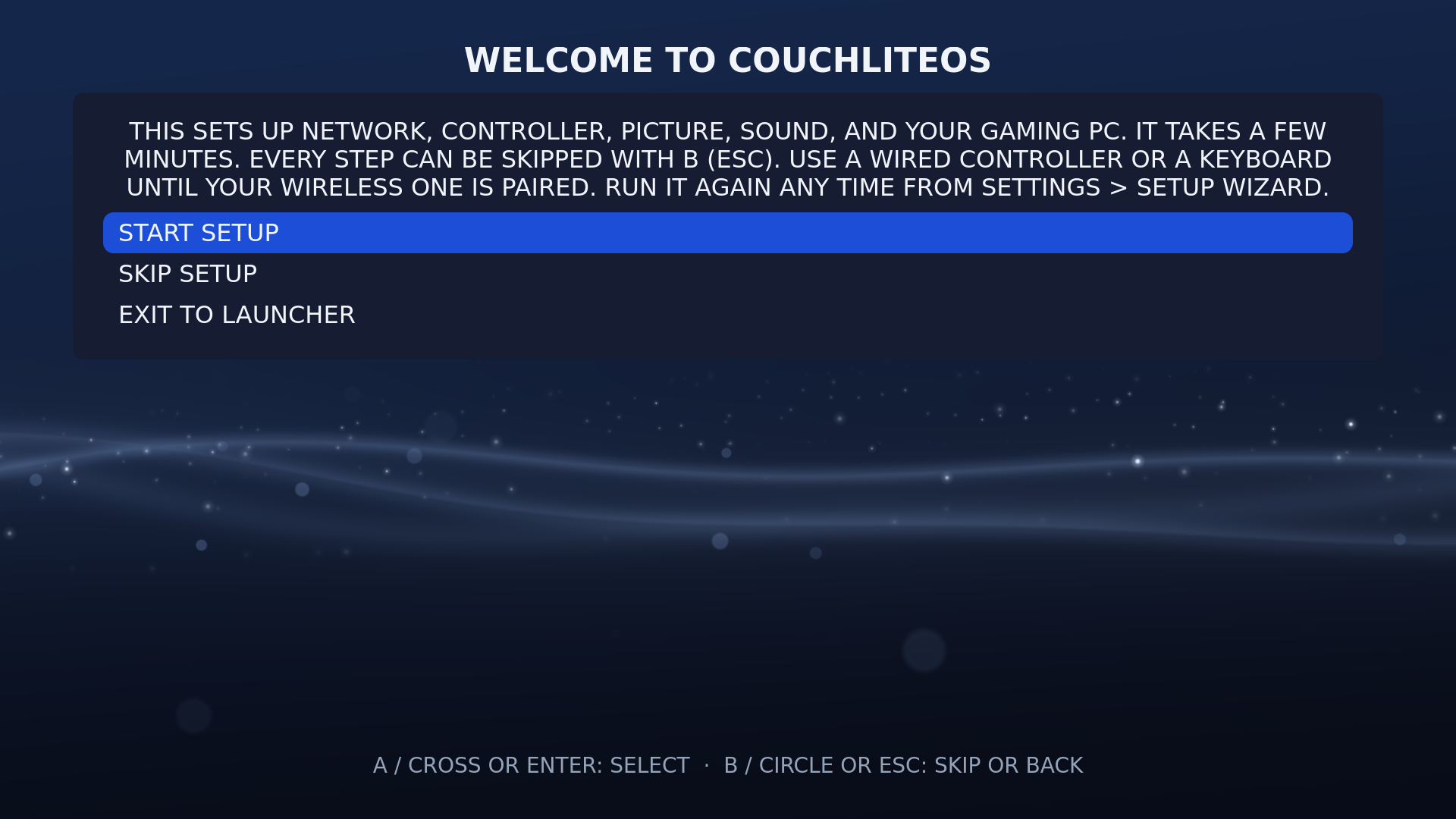
The first time CouchLiteOS starts, the Setup Wizard opens. It works the same from a controller or a keyboard. Choose START SETUP, SKIP SETUP, or EXIT TO LAUNCHER; if you left it halfway, it offers CONTINUE SETUP or START OVER.
| Step | What it does |
|---|---|
| NETWORK | Joins Wi-Fi (including hidden networks via OTHER NETWORK (HIDDEN)) or confirms the cable. A wrong password is reported as such and not saved. |
| CONTROLLER | Pairs a wireless controller over Bluetooth, or checks a wired one. Use a wired controller or a keyboard until the wireless one is paired. |
| DISPLAY AND SOUND | Picks the picture size (NATIVE is usually best) and plays a test tone on each output until you hear it. |
| STREAMING PC | Finds and pairs your gaming PC for Moonlight (see Streaming with Moonlight). |
| TV CONTROL | Only when an HDMI-CEC adapter and TV are found. |
| TAILSCALE, CHIAKI-NG | Optional extras. |
| WEB BROWSER | Installs FIREFOX or GOOGLE CHROME from the internet, or NOT NOW. The download has no browser of its own; see Web Apps and Browsers. |
| MORE APPS | Optional extras. |
Every step has SKIP THIS STEP. Rerun it any time from Settings > SETUP WIZARD; at the end, REDO SKIPPED OR FAILED STEPS repeats only what is not done.
The installer does not ask for a user name or passwords, and the box never asks you to log in: CouchLiteOS starts by itself.
On a live USB that keeps nothing, setup and pairings are forgotten at power-off; see Install.
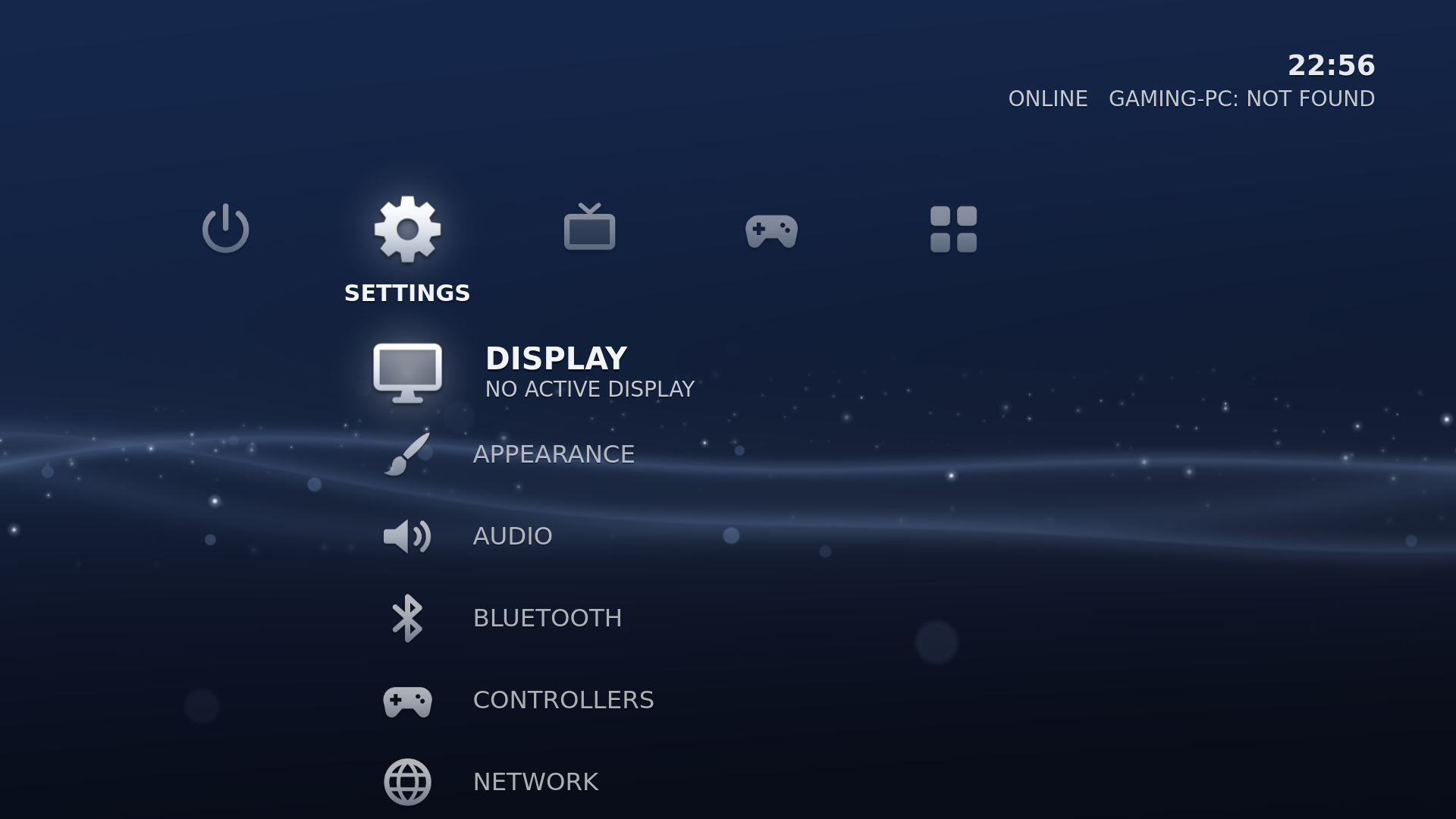
After setup you land on the TV home screen, on GAMES. Left and Right choose a category (POWER, SETTINGS, TV & VIDEO, GAMES, APPS), Up and Down choose what is in it. The whole tour is on The Home Screen, and Settings > HELP shows the button tour again.
| Settings row | What is there |
|---|---|
| DISPLAY | RESOLUTION, REFRESH RATE, APPLY DISPLAY MODE (15-second preview: if the picture is bad it goes back by itself), SCREEN EDGES (for TVs that cut off the picture), TEXT SIZE |
| APPEARANCE | THEME, ACCENT, BACKGROUND, SOUNDS, ARTWORK, INTERFACE (Themes and Appearance) |
| AUDIO | The AUDIO OUTPUT list (TV over HDMI/DisplayPort, speakers, Bluetooth), VOLUME, MUTE, MICROPHONE and BLUETOOTH DELAY (below) |
| BLUETOOTH | Turn Bluetooth on/off, scan, pair, connect, forget devices: controllers, headphones, speakers and keyboards |
| CONTROLLERS | Connected pads, player order, battery, IDENTIFY, TEST, SWAP A/B and SWAP X/Y (Controls and Shortcuts) |
| NETWORK | JOIN A WI-FI NETWORK; ADVANCED NETWORK SETTINGS (NEEDS A KEYBOARD) |
| SLEEP & SCREEN | BLANK SCREEN AFTER, SLEEP AFTER, and what can wake the box (WAKE-ON-LAN, WAKE FROM). On a PC with a battery also BLANK SCREEN ON BATTERY. |
| APPLICATIONS | Enable, disable, reorder (Left/Right) or delete apps; ADD COMMAND APPLICATION, ADD WEB APPLICATION, ADD A WEB BROWSER |
| REMOTE DESKTOP | Saved RDP connections (Remote Desktop) |
| STREAMING | AUTO-STREAM AT STARTUP, PC, APPLICATION, WAKE PC, OPTIMIZE STREAM SETTINGS, PAIR A / ANOTHER GAMING PC, STREAM CHECK, SMOOTHER STREAM, VIDEO DECODER FIRMWARE (older NVIDIA only) |
| TAILSCALE | Optional remote access (Streaming with Moonlight) |
| TV CONTROL | HDMI-CEC switches and TEST REMOTE BUTTONS (below) |
| SOFTWARE UPDATE, CHECK FOR UPDATES | Updating |
| CONTROLS | Home shortcuts, mouse speeds, CONTROLLER BUTTONS help (Controls and Shortcuts) |
| SETUP WIZARD | Rerun setup |
| GENERATE SUPPORT FILE | Save diagnostics to a USB drive (Reporting a Bug) |
| SYSTEM DIAGNOSTICS | Hardware, driver, network and audio details on screen |
| HELP | Short answers to common questions, and the tour again |
ACTIVE APPLICATIONS (bring back or close a running app) is under POWER on the home screen.
- Pair headphones or a speaker in Settings > BLUETOOTH. The sound moves to them when they connect and back when they disconnect.
-
Settings > AUDIO picks the output (
*marks the one in use; Bluetooth outputs say BLUETOOTH and their codec), and has VOLUME and MUTE. - MICROPHONE picks the microphone, sets its LEVEL and MUTE, and has a TEST that records a few seconds and plays them back. Moonlight streams do not carry the microphone (Moonlight and Sunshine have no microphone passthrough); ABOUT VOICE CHAT explains the options. PS5 Remote Play with chiaki-ng does send the microphone to the PS5.
- BLUETOOTH DELAY shifts the sound of each Bluetooth audio device to match the picture. Wired or HDMI audio is best for fast games.
- In the classic interface, MIC LIVE shows while an app is recording.
- Sleep: hold Guide / PS for 5 seconds, or choose SLEEP in POWER on the home screen or in the quick menu. It never sleeps while a game has the controller.
- Wake the box: a Bluetooth controller (through a USB Bluetooth adapter), a USB keyboard, or the power button. SLEEP warns if nothing connected can wake it. Settings > SLEEP & SCREEN shows what can.
- Wake the gaming PC: starting a game, opening MOONLIGHT, or STREAM PC NAME in the classic interface wakes it (Wake-on-LAN) first; Settings > STREAMING > WAKE PC does it by hand. The PC needs Wake-on-LAN turned on, and Moonlight must have seen it awake once.
- After waking, auto-stream counts down 15 seconds so the TV and controller can come back first.
Most PCs cannot talk HDMI-CEC on their own; you need a USB CEC adapter (such as a Pulse-Eight). With one, Settings > TV CONTROL offers:
- TURN TV ON AT START/WAKE (and switch to this input)
- SLEEP WHEN TV TURNS OFF
- TV STANDBY WHEN PC SLEEPS (only if the TV is showing CouchLiteOS)
- TEST REMOTE BUTTONS: shows which TV remote buttons reach the box
The TV remote's arrows, OK and Back move around the home screen and reach running apps. Without an adapter the screen says NO CEC ADAPTER FOUND.