Settings AI
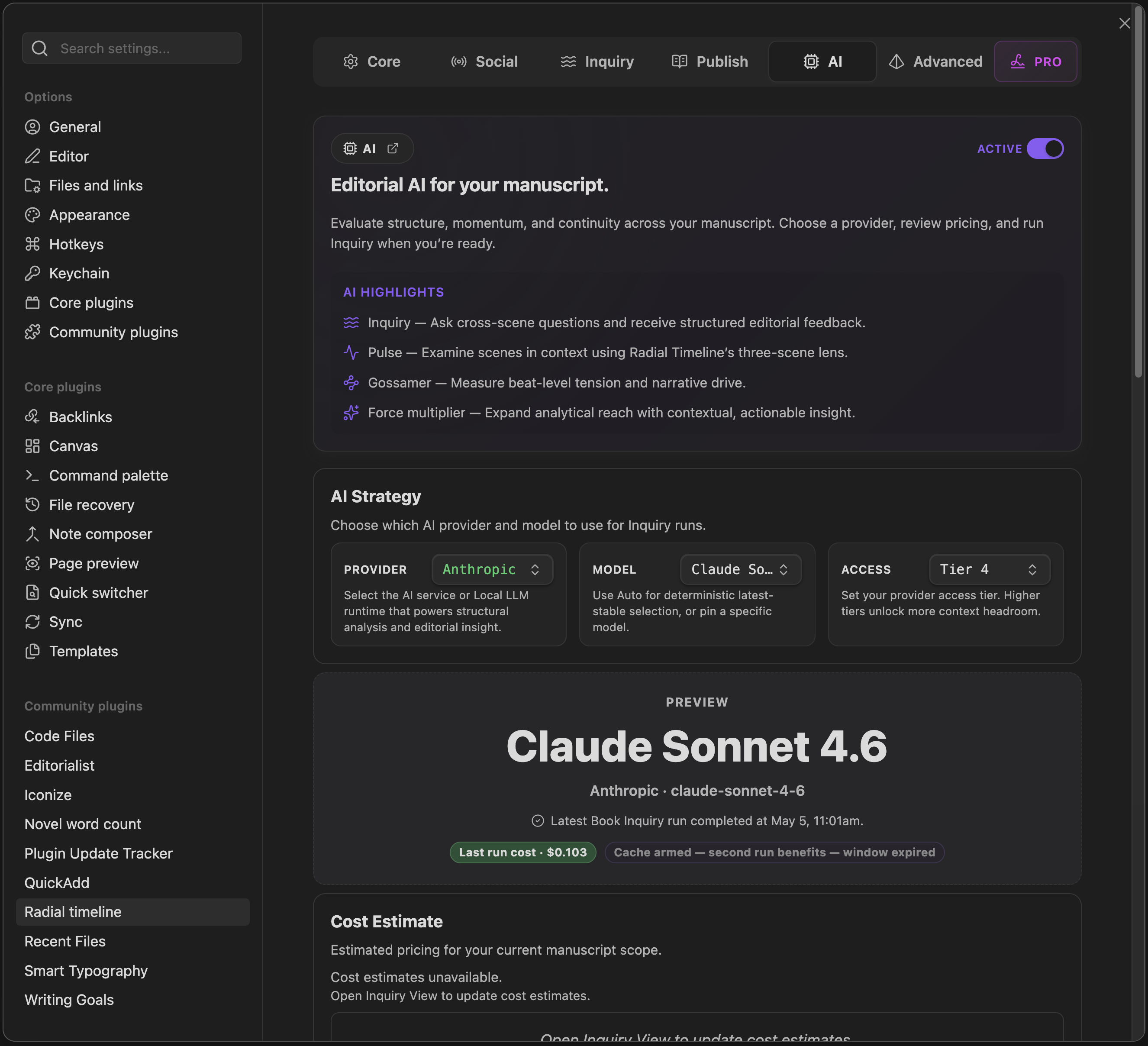
The AI tab controls provider setup, model selection, prompt framing, cost awareness, and the defaults used by Inquiry, Pulse, Gossamer, and Summary Refresh.
- Enable AI LLM features: Turns AI-driven commands and scene-analysis UI on or off. Disabling AI hides those surfaces but does not delete existing note properties.
This is the main routing section for cloud and local AI.
- Provider: Choose Anthropic, OpenAI, Google, or Local LLM.
- Model: Leave it on the latest stable lane or pin a specific model.
- Access: Set the tier that your provider account has granted you. These tiers are applied for and approved by the provider, then reflected here for context limits and capability headroom.
- Cost Estimate: Shows estimated Inquiry pricing for your current manuscript scope.
- What gets sent to the AI: Breakdown cards for Inquiry and Gossamer so you can see the rough corpus, prompt, output, and processing footprint.
- AI prompt role & context template: Controls the shared editorial framing used across AI features.
- Manage context templates: Use the gear button to edit templates and switch the active one.
Provider API keys are configured here.
- Keys are validated against the selected provider.
- Saved keys show a live status such as Ready, Not configured, Key rejected, or Provider validation failed.
- When supported by the current Obsidian build, Radial Timeline uses secure key storage instead of plain-text settings fields.
These settings control AI feature defaults rather than provider identity.
- Enable citations (temporarily unavailable): Strict provider-level inline citations are still paused.
- Inquiry currently uses a looser partial-citation path instead, centered on per-finding evidence quotes and Sources blocks in the result view.
- Pulse context: Include previous and next scene analysis in the scene hover reveal.
- Synopsis max words: Base target for stored Synopsis generation.
- Target summary length: Default word target when opening Summary Refresh.
- Treat summary as weak if under: Default threshold for selecting scenes as weak/stale in the Inquiry View Corpus model.
-
Also update Synopsis: When enabled, Summary Refresh also rewrites
Synopsisusing the configured cap.
- Log AI interactions to file: Saves AI request and response diagnostics to the AI output folder.
Choose Provider → Local LLM when you want to use a local runtime such as Ollama, LM Studio, or another OpenAI-compatible server.
- Local server: Select the runtime behind the Local LLM path.
- Base URL: Endpoint for the selected server.
- Manual model ID (fallback): Only use this when automatic model discovery cannot find the model you want.
This section is the health check for local AI.
- Load Servers: Detect available local runtimes.
- Load Models: Query the selected runtime for installed models.
- Validate Local LLM: Run connection and capability checks.
- The status area reports connection, model availability, validation state, and rough capability strength.
Pulse is more demanding than a simple one-shot text task.
It sends the previous, current, and next scenes together, then expects clean structured output that Radial Timeline can parse into scene hover properties. That means a local model has to do both of these reliably:
- handle a larger three-scene prompt without falling apart
- return stable structured output instead of chatty or malformed output
That is why Local LLM support can be limited for Pulse even when a model works fine for lighter tasks. For now, Pulse is most reliable with the hosted providers.
- Use Anthropic, OpenAI, or Google when you want the most reliable Pulse and Inquiry behavior.
- Use Local LLM when you want private/local experimentation, summary work, lighter editorial tasks, or compatibility testing against your own runtime.