Repository navigation
Stereochemistry
Home · Quick start · Illustrated tutorial · 日本語
Use the 2D drawing to specify a configuration, then inspect the generated 3D structure. A pleasant-looking 3D model alone does not confirm stereochemistry.
- Draw the atom and its substituents with the correct elements, bonds, and charges.
- Choose Toggle R/S (R⇌S, between Dash and E/Z on the toolbar), then click the stereocenter to cycle R → S → unspecified. Alternatively hover the atom and press
R. - Right-click in that tool to remove the assigned R/S label. Only stereocenters can be labelled.
- Inspect the
(R)or(S)next to the atom. This is an explicit configuration label, rather than the element symbol.
The label takes priority over conflicting wedge/hash bonds; the drawing updates conflicting stereo bonds to match. It is retained in projects, undo/redo, and copied fragments. Exporting a 2D MOL writes stereochemistry as wedge bonds for other software to read.
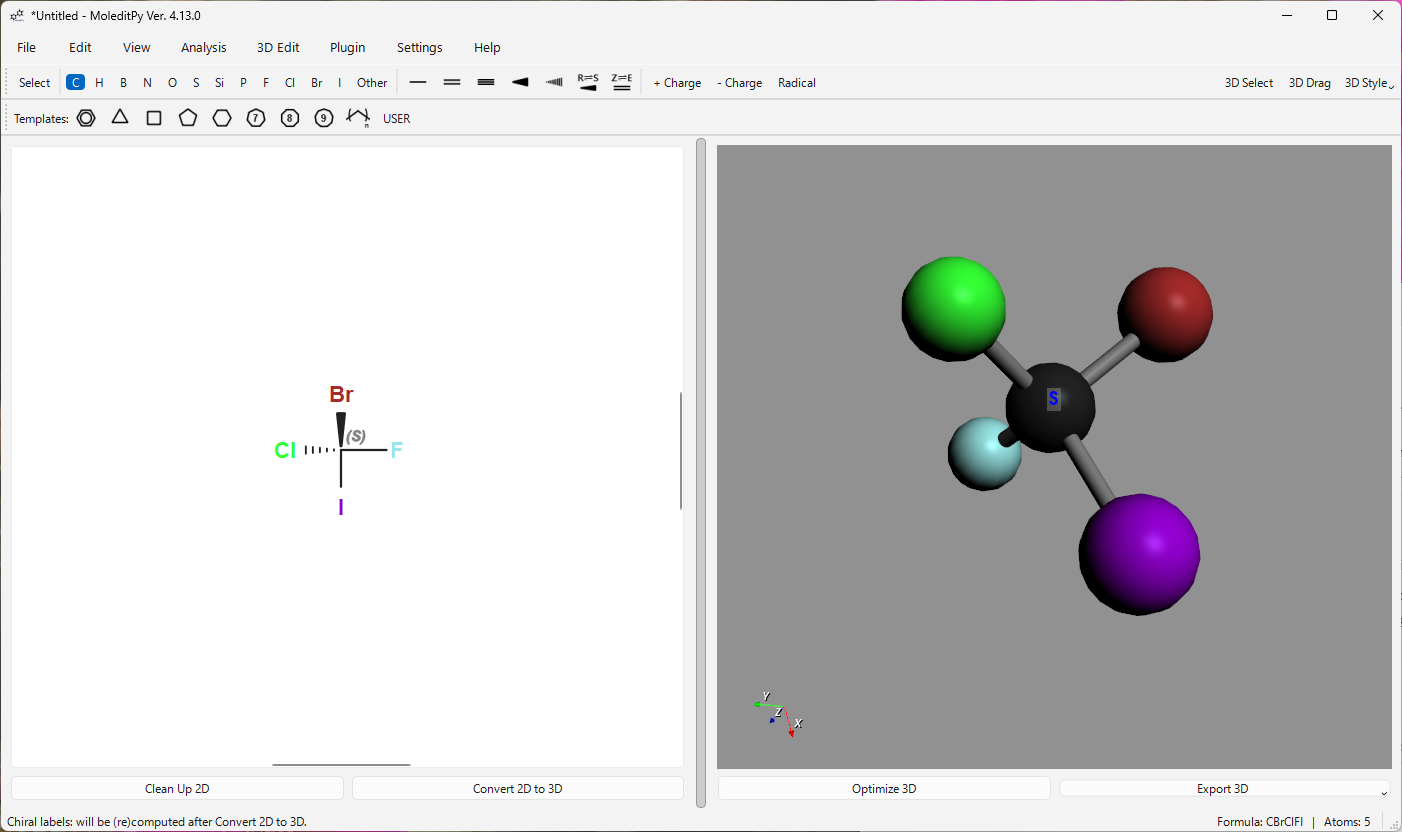
The 2D (S) and the 3D S refer to the same center. Rotating the camera changes the view, not the configuration.
Use the E/Z tool on a stereogenic double bond and check the label. Then convert to 3D. See the User Manual for drawing tools and the shortcut reference for context-sensitive keys.
Settings > Settings... > 3D Scene controls the stereochemistry check. Check After 3D Conversion is on by default; checking after optimization is optional.
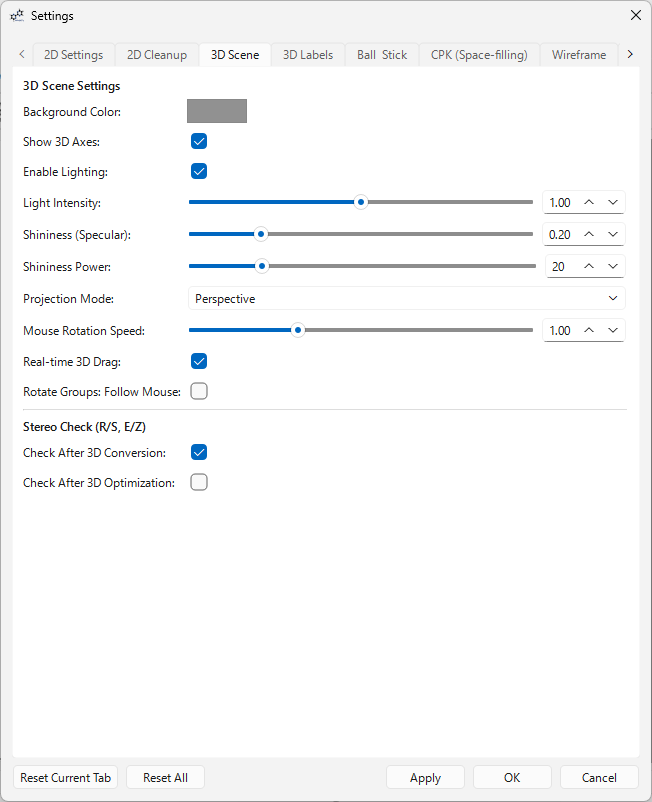
The lower part of the tab controls checking; the 3D Labels tab controls label appearance.
When a specified center or double bond is inverted or loses its configuration, Stereochemistry Check lists it. Ambiguous wedge drawings are also reported. While the window is open, stereo labels are displayed in 3D, with mismatches highlighted in red. Closing it restores the prior label-display setting.
- Confirm the intended configuration in the 2D drawing. Prefer a clear R/S label or an unambiguous wedge/hash arrangement.
- Check the conversion method. Direct transfers drawing coordinates and is especially likely to need manual stereo correction.
- Correct the 3D structure using the 3D editing tools, then inspect it again before export. The warning does not automatically repair the structure.
- Save the project and export a format suitable for the receiving program. XYZ has no explicit bond-order or stereo fields; a receiving program must infer these from geometry.
See 2D-to-3D conversion, 3D editing, and File Formats.