Troubleshooting EN
When encountering issues, check the Event Log under the "Others" tab and make a backup before changing settings.
| Symptom | Items to Check |
|---|---|
| Not showing up in OBS | Custom Browser Dock URL & local installation folder path |
| Twitch operations fail | Linked account, Access Token, and API Scopes |
| External sound alerts silent | Re-selecting the sound folder |
| OBS & standard browser data differ | Independent storage & data backups |
| Raids or alerts not detected | Authentication status, EventSub connection, toggle switches |
- Re-enter the local URL specified in
OBS_Dock_URL.txt. - On Windows, ensure the URL starts with
file:///C:/...format. - Verify that the installation directory or unzipped folder has not been moved.
- Check if
TwitchManageris checked under OBS's Docks menu.
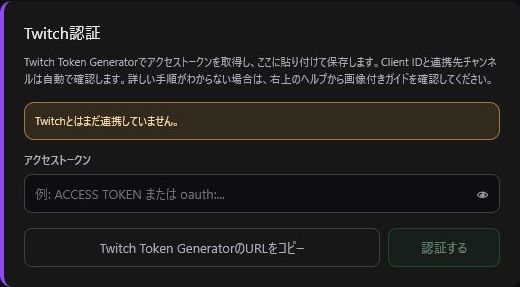
- Verify that your linked Twitch username appears in Settings.
- Regenerate an Access Token with all necessary Scopes checked.
- Review the Event Log for authorization error details.
channel:read:redemptions scope is required for Channel Point logs, and channel:manage:raids is required for launching raids.
If Twitch's native OBS Stream Information dock doesn't reflect title updates immediately, refresh that dock manually.
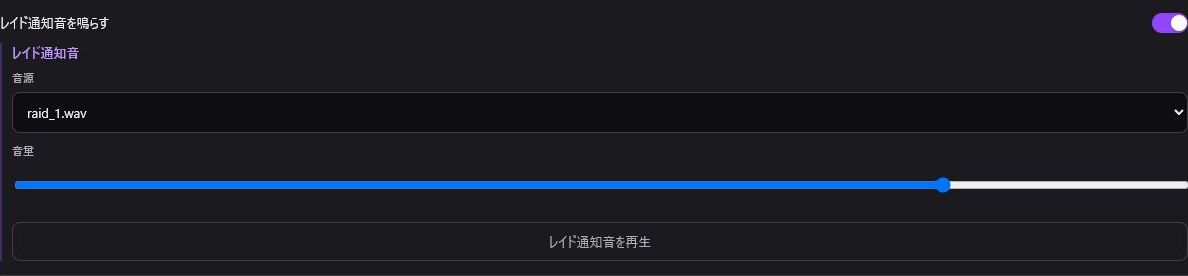
- Click "Select Sound Folder" and re-select your audio folder.
- Select sound files for each event type.
- Test play and save.
Due to web security rules, folders must be re-selected after reloading the page or restarting OBS. If sounds still don't play, check event switches, volume, muted user list, OBS Audio Mixer settings, or test with .wav/.mp3 files.
Clearing browser cache or site data can clear local storage. Restore your data from a previously exported backup file under the "Others" tab.
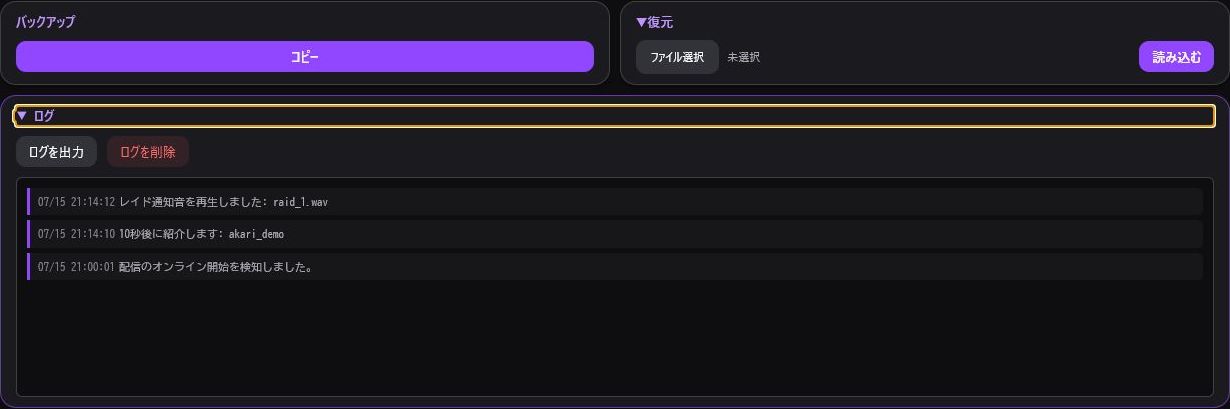
Prepare details including your OS, OBS version, steps to reproduce, timestamp, screenshots, and Event Logs. Never share your Access Token or personal authentication credentials publicly.