Pages and Templates
Create, organize, and choose the right template for each page.
Saves take effect immediately for visitors. There is no separate publish step. See Getting-Started.
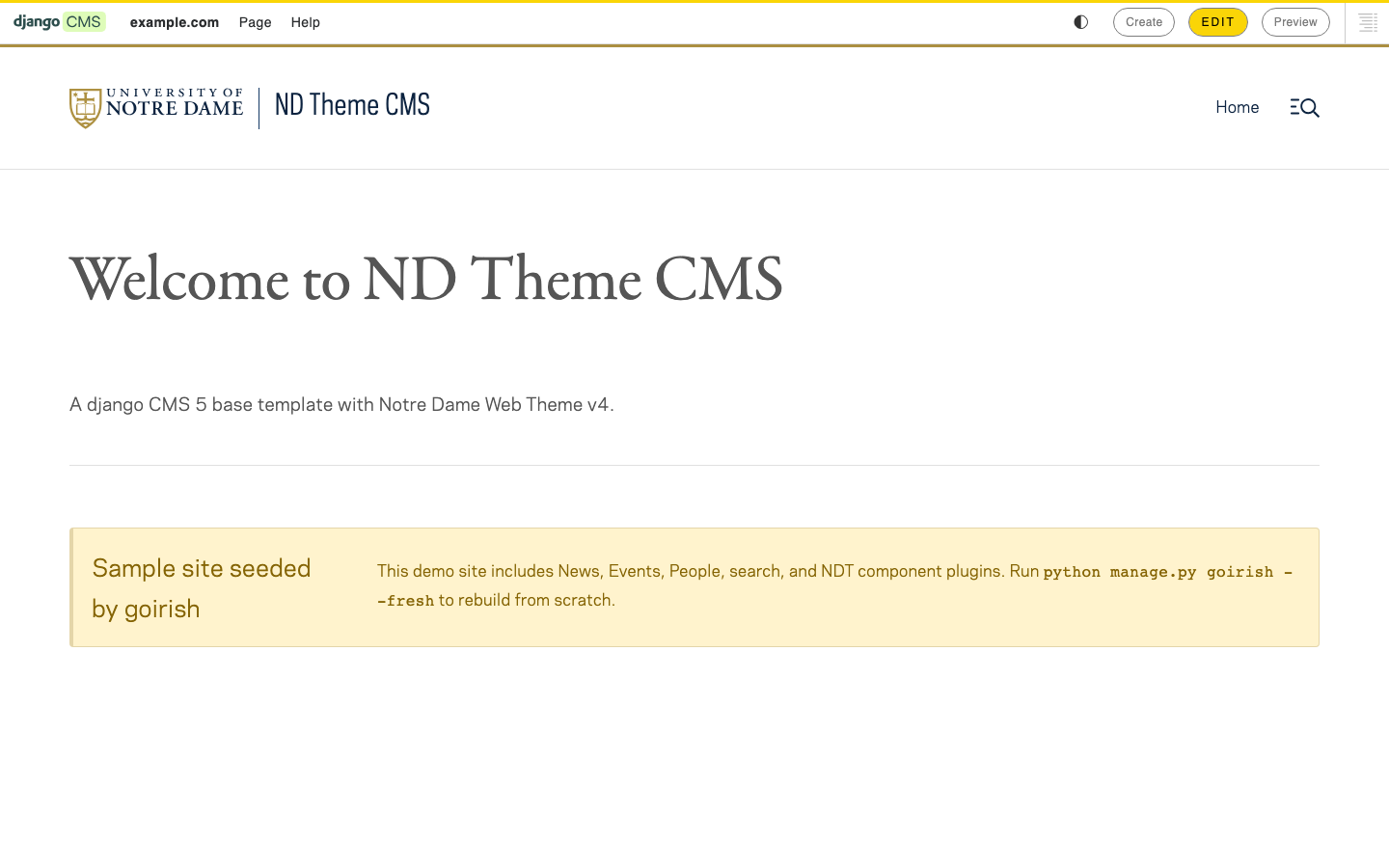
- Log in and open the site with the CMS toolbar visible.
- Use Create in the toolbar, or open the page tree (Pages) from Structure / the CMS pages UI.
- Enter a title and choose a template (see Templates below).
- Place the page under the correct parent if it should be a subpage.
- Save, then add content in the page’s placeholders.
Event and Event Series pages are often created from the Events admin rather than Create — see Events.
- Open the Pages tree (page management board).
- Drag pages to a new order, or move them under a different parent.
- Confirm the change.
Navigation order usually follows the page tree for pages marked in navigation.
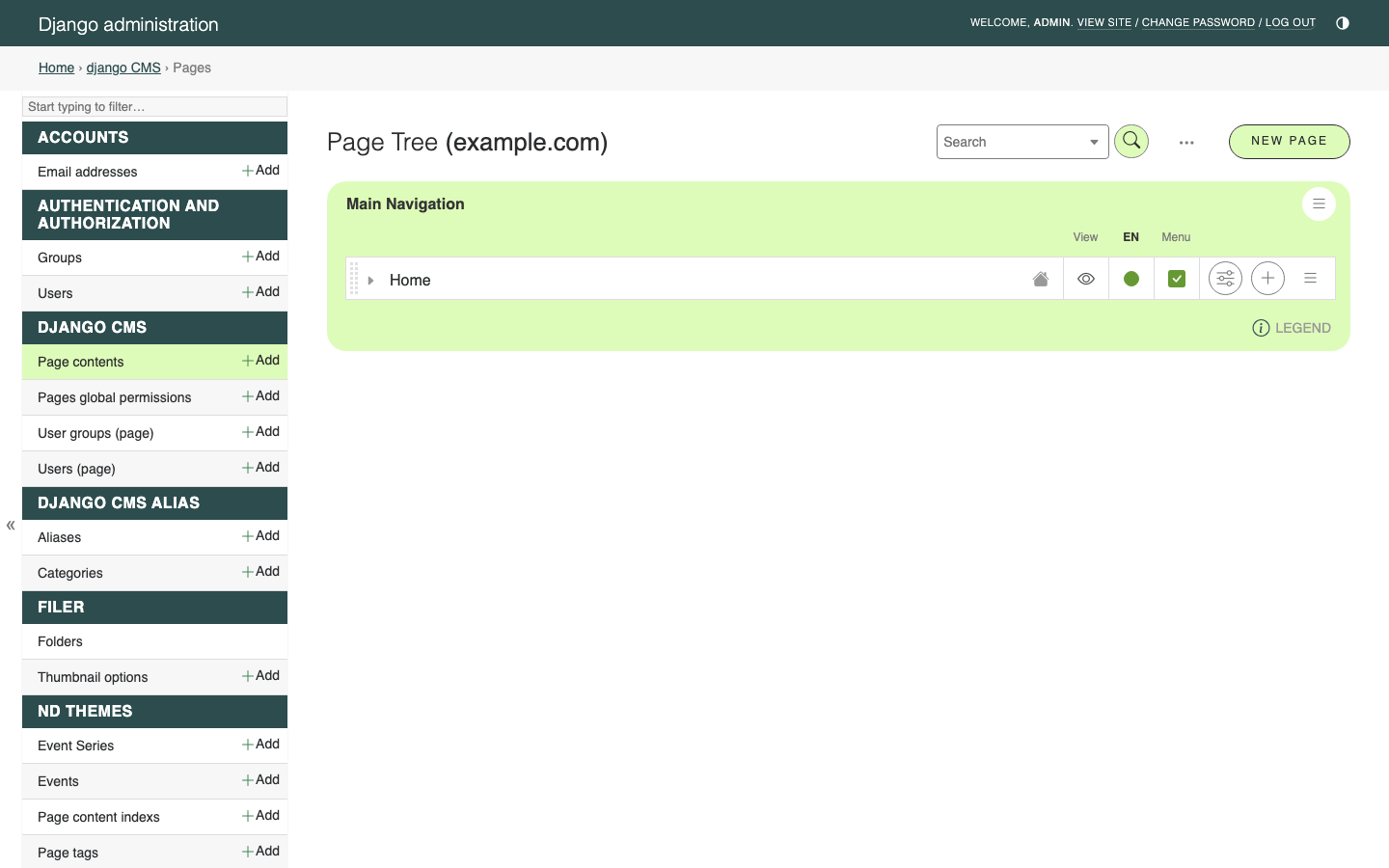
Each page can appear in site menus or stay out of them.
| Setting | Effect |
|---|---|
| In navigation (on) | The page can show in primary navigation (and in side-nav lists that respect this setting). |
| In navigation (off) | The page stays off those menus. It can still have a public URL if it is not archived or restricted. |
Turn this on or off in Page settings (toolbar Page menu). Use it for utility pages, detail pages you link from cards or listings, and anything that should not clutter the main menu.
- Open Pages or Page settings for that page.
- Choose delete and confirm.
Deleting a page removes its content and widgets. Deleting an Event or Event Series from the Django admin also deletes the linked CMS page — see Events.
From the toolbar Page menu, open Page settings to change things like:
| Area | Typical uses |
|---|---|
| Titles | Page title, menu title, and related title fields |
| URL / slug | The path segment for this page |
| Template | Switch to a different layout (placeholders may differ — check the tables below) |
| Navigation | In navigation (show or hide in menus) |
After changing the template, review Structure mode so you know which placeholders the new layout expects.
Related toolbar items:
- Page-Meta — preview image, summary, tags, publish date
- Archiving — Archive controls for soft-hiding from active listings
Choose a template when you create a page (or change it later in Page settings). Each template has fixed placeholders — regions where you add widgets.
Landing layout with a standard page header and primary/secondary content areas.
| Placeholder | Typical use |
|---|---|
| Page Image | Hero / header image |
| Page Title | Main headline (editable in the header) |
| Page Lede | Short supporting line under the title |
| Page Intro | Opening content above the main body |
| Page Content | Main body widgets |
| Page Secondary | Secondary / supporting section |
Same content regions as Home page, with a full-bleed (edge-to-edge) dark header treatment.
| Placeholder | Typical use |
|---|---|
| Page Image | Full-bleed header image |
| Page Title | Main headline |
| Page Lede | Short supporting line |
| Page Intro | Opening content |
| Page Content | Main body (full-width primary column) |
| Page Secondary | Secondary / supporting section |
General interior page. The page title comes from Page settings; you build the body in one main placeholder.
| Placeholder | Typical use |
|---|---|
| Page Content | All main page content |
Shows breadcrumbs above the content.
Interior page with a section side navigation column.
| Placeholder | Typical use |
|---|---|
| Page Content | Main content |
| Side Navigation | Side nav widgets (child lists, page links, filters — see Navigation-and-Search and Widgets-Legacy) |
Index for news. Put introductory content in Page Content, and the list of stories in News List.
| Placeholder | Typical use |
|---|---|
| Page Lede | Short intro under the page title |
| Page Content | Intro copy, featured blocks, etc. |
| News List | Widgets that list news (for example Child Page List) |
Workflow details: News.
Individual article layout.
| Placeholder | Typical use |
|---|---|
| Publish Date | Date shown in the story byline area |
| Author | Author name in the byline |
| Story Body | Article content |
Also set Page-Meta (preview image, summary, tags, publish date for sorting in lists). The on-page Publish Date placeholder is display content in the story header; the Page Meta publish date drives sorting in listings and archives.
Index for events.
| Placeholder | Typical use |
|---|---|
| Page Lede | Short intro under the page title |
| Page Content | Intro copy and related widgets |
| Events List | Event listing widgets |
See Events.
Single event detail. Date/time and location placeholders sync with the Event admin record when those widgets are saved.
| Placeholder | Typical use |
|---|---|
| date_time | Date and Time widget |
| location | Location widget |
| content | Event description and other body widgets |
Prefer creating events from admin when you want the linked page and sync behavior set up for you — Events.
Hub for a series of related events.
| Placeholder | Typical use |
|---|---|
| Page Lede | Short intro under the page title |
| Page Content | Series description and related content |
| Series Events | List of events in the series (often an Event List set to child events) |
Profile layout for a person.
| Placeholder | Typical use |
|---|---|
| Person Title | Job title / role line |
| Profile Picture | Photo |
| Address | Office / address |
| Phone | Phone number |
| About | Biography and other profile content |
Set Page-Meta so people lists can show the preview image. See People.
Site search results layout. The search form and results are built into the template; you can still add extra widgets below.
| Placeholder | Typical use |
|---|---|
| Page Content | Optional content below search results |
Search result snippets use each page’s Page-Meta summary when present. See Navigation-and-Search.
Landing or supporting page for archive-related content. Browsing archived items also uses dedicated archive URLs — see Archiving.
| Placeholder | Typical use |
|---|---|
| Page Lede | Short intro under the page title |
| Page Content | Intro or explanatory content |
| Archive Results | Archive listing / related widgets |
| If you need… | Use |
|---|---|
| Site home | Home page or Home page (full-bleed) |
| Standard article/section page | Page |
| Section with left/side menu | Page with side-nav |
| News index / news article | News Landing Page / News Story |
| Events index / event / series | Event Listing Page / Event Page / Event Series Page |
| Profile | Person Page |
| Site search | Search Page |
| Archive support page | Archive Results Page |