Repository navigation
Pilot Guide
Everything you need to fly a drop, in the order you do it. For the one-minute version see Quick Start.
- Carry a CARP Computer. It is an item in the Arsenal. Without it there is no CARP entry in your interaction menu and you do not share the crew's drop. A mission can turn that requirement off.
- Any aircraft will fly a drop. The C-17 and the C-130J are the calibrated airframes. Anything else uses the C-17's numbers — the maths still runs and the solution is a normal one, but the accuracy figures were measured on the calibrated aircraft and do not transfer. See Accuracy.
- On a server, the mod has to be on the server too. Cargo is usually owned by the server, and that is the machine that performs the release.
Sit in the aircraft and press your ACE Interact key, then choose TLB CARP. The action lives on the airframe, so it only appears from a seat inside it. You can also bind Open TLB CARP under Options → Controls → Configure Addons → TLB CARP.
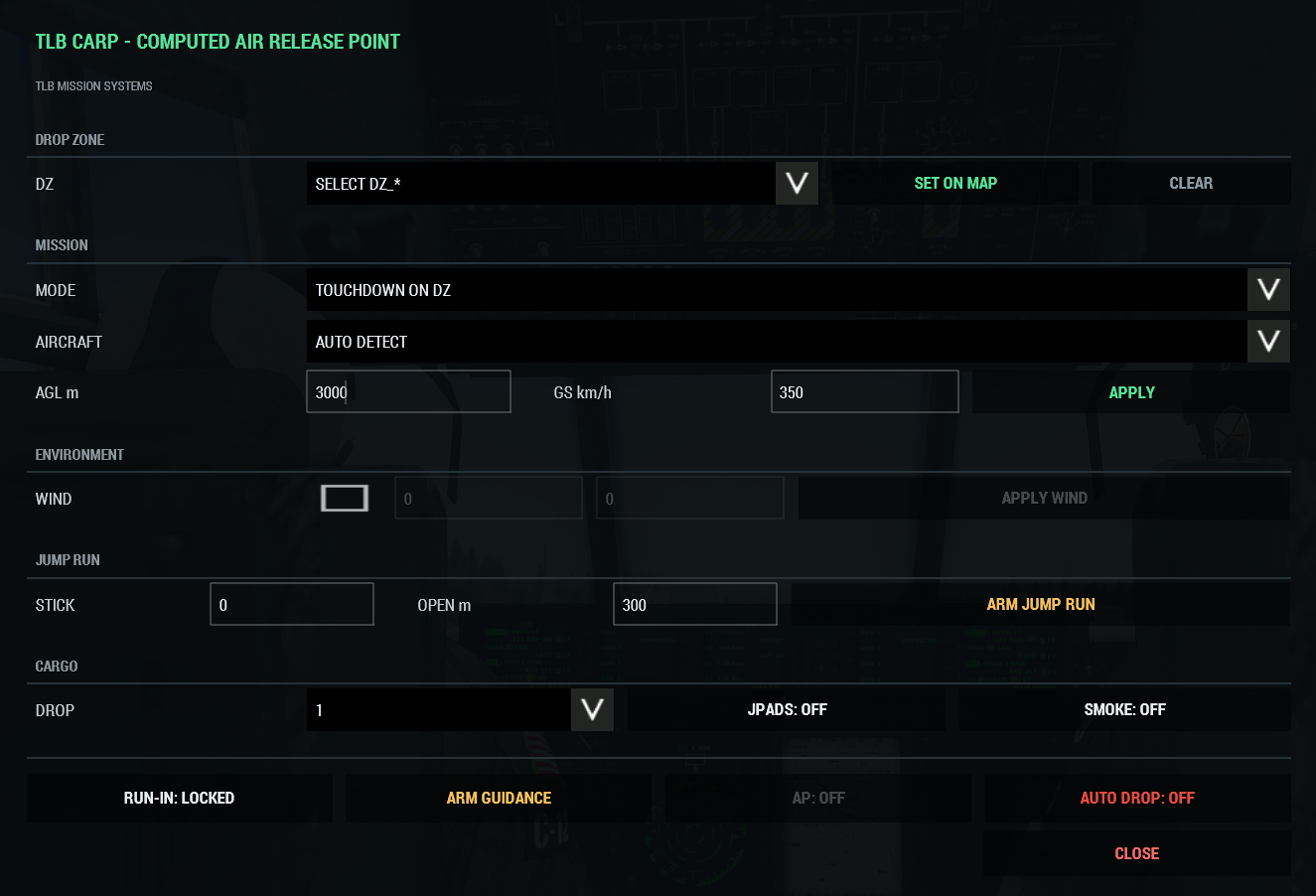
There are two surfaces and they do different jobs. The Panel is where you set a drop up. The HUD is the instrument you fly — once guidance is armed the panel can stay shut.
Walk up to the vehicle, not the aircraft: the load action sits on the thing being loaded and works out which aircraft you mean.
CARP drops cargo from four places, and all four drop the same way — see Cargo.
Loads stack forward from the ramp and come out back to front, so the one nearest the ramp is the first one out. Unloading is refused above 3 m: the drop is the only way cargo leaves a flying aircraft.
DROP ZONE. Pick a DZ_* marker from the list, or press SET ON MAP and click your
point. CLEAR wipes it.
MISSION.
| Field | What it means |
|---|---|
| MODE — TOUCHDOWN ON DZ | The load lands on your point. This is what you want for cargo. |
| MODE — CHUTE ON DZ | Canopy opening happens over the point instead. |
| MODE — HALO JUMP | Switches to a jump run. See Jump Run. |
| AIRCRAFT | Leave on AUTO DETECT unless you are deliberately forcing the C-17 or C-130 profile. |
| TARGET AGL / TARGET GS | The height and ground speed you intend to run in at. Press APPLY. |
Target height and speed are a plan, not a constraint. If you arrive higher or faster, the release point moves to match — they are what the autopilot flies to, not limits on the maths.
ENVIRONMENT. Manual wind, for missions whose weather CARP cannot read. Most of the time leave it alone: it reads the engine wind directly.
CARGO. How many loads this pass drops, plus the JPADS and SMOKE toggles. Both are shared with the crew, because they belong to the drop rather than to you.
This is the one that catches people.
When you press RUN-IN, CARP takes the direction you are actually travelling at that moment and makes it your final drop heading. Not your nose, not a bearing to the DZ — your ground track, right then.
So roll out on the heading you intend to drop on, let the aircraft settle, then lock. Lock in a turn and you have told CARP your run-in is halfway through a turn.
Once locked you get the run-in line on the map and a release point on it.
ARM GUIDANCE lights the HUD.
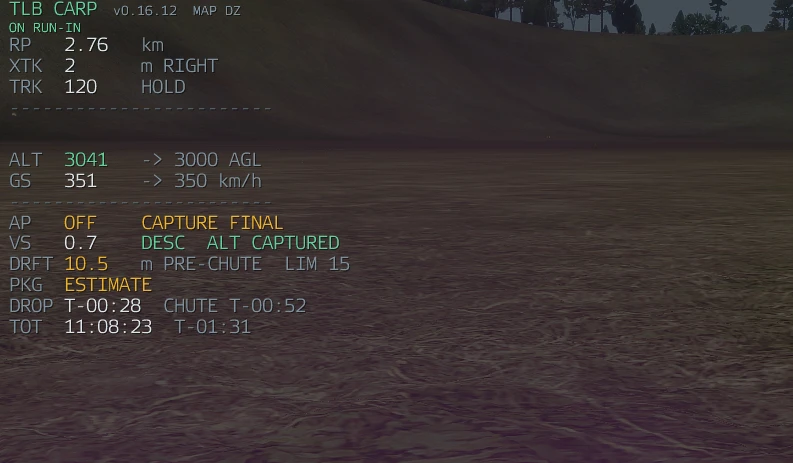
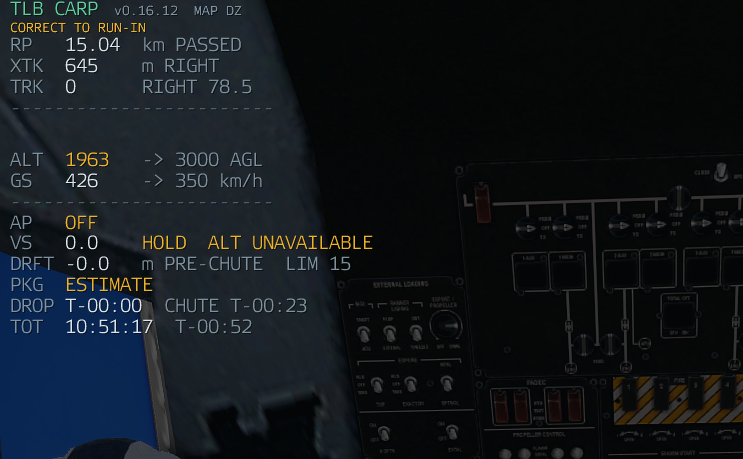
Every row is explained on The HUD. The short version: fly it like an ILS —
centre the cross-track, get the track correction to HOLD, and have the numbers small
before the count runs out.
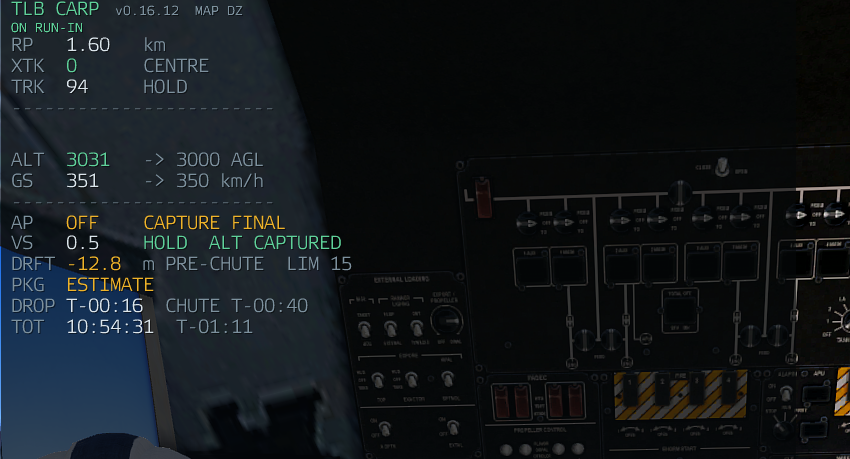
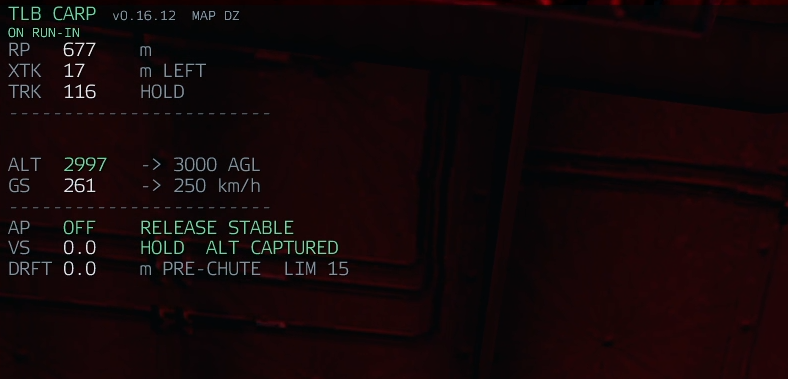
STANDBY appears as the release approaches, and the HUD turns green at RELEASE STABLE — that is the pass the gate will accept.
AP intercepts the run-in line, captures it, holds your height and speed, and keeps the aircraft steady through release. It flies with control forces, so it banks and pitches like an aeroplane rather than being dragged onto a rail.
It is yours again the moment you touch the controls, and it tells you why it disconnected. Opening the map or using freelook does not disconnect it. How gentle it is lives in Settings → Autopilot.
On a server the autopilot only arms on the machine that owns the aircraft. A non-pilot sees
AIRCRAFT NOT LOCAL — see Crew and Multiplayer.
AUTO DROP releases at the right instant. It is red when off and green when armed.
It will refuse. Inside the final stretch CARP checks that you are:
- within 25 m of the run-in line,
- within 2° of the locked run-in heading,
- and that the load will not inherit more than 25 m of predicted sideways drift (adjustable — Release Drift Limit).
Miss one and it does not drop, and the HUD tells you which.
That is deliberate: a load released off the line misses by about as much as you were off. Go around and fly it again.
Prefer to do it by hand? Leave AUTO DROP off and release on the cue.
There are no altitude, ground-speed or vertical-speed gates. Being high or fast moves the release point; it does not block the drop. That is the whole point of solving from your actual state.
The HUD keeps tracking it: RELEASED → CHUTE → ARRIVED, with the time on target
rebased on the real canopy event rather than the prediction.
SMOKE marks the load on the way down so the people on the DZ can see it coming — one shell per load, however many players are watching.
Set the CARGO number and one pass drops that many, spaced along the run-in in the order they were packed, nearest the ramp first. See Cargo → Sticks.
JPADS makes each load steer itself onto the drop zone after its canopy opens, which takes most of the wind error out of the problem. See Guided Cargo.
| You see | It means |
|---|---|
CORRECT TO RUN-IN |
You are not on the line yet. |
ON RUN-IN |
On the line, inside tolerance. |
CAPTURE FINAL / FINAL RUN
|
The path manager is capturing, then holding, the final line. |
RELEASE STABLE |
The gate will accept this pass. |
NO DROP — GO AROUND |
The gate refused. Reposition and run it again. |
ALT HIGH / ALT UNAVAILABLE
|
You are above the target height, or there is no valid vertical solution. |
INVALID |
No solution at all — unsupported aircraft, or the solve failed. Nothing will drop. |
[OBSERVING] |
This client is not the one flying the aircraft. |
AIRCRAFT NOT LOCAL |
The autopilot cannot fly an aircraft this machine does not own. |
JPADS REMOTE |
Another machine is flying this canopy. |
UNSTEERED — NO OWNER |
No machine is flying this canopy. This one is a bug; report it. |