Repository navigation
Exporting
Open a meeting, click Export at the top right and pick a format. Windows asks where to save the file.
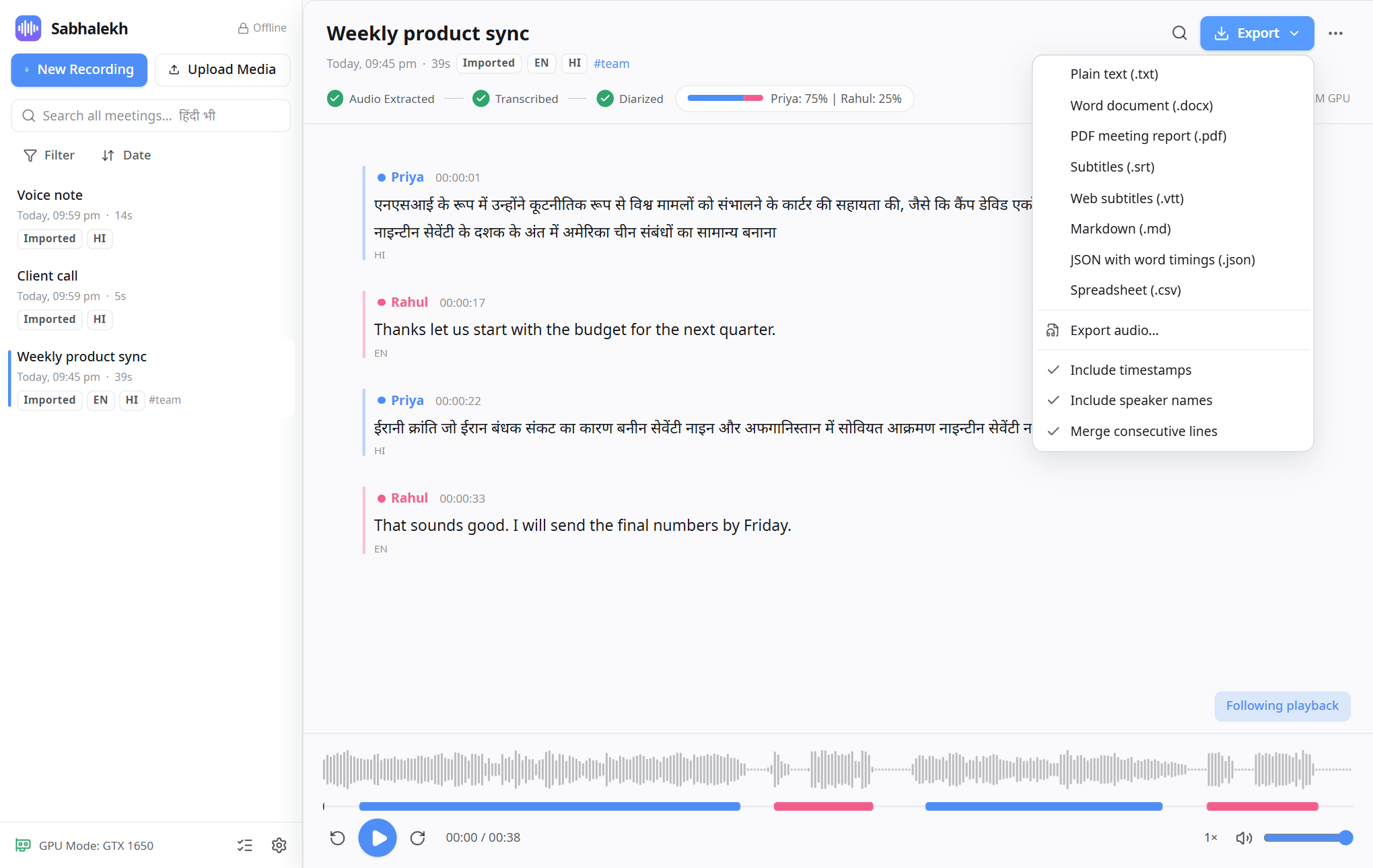
| Format | Good for |
|---|---|
| Word document (.docx) | Editing, minutes, sharing by email. Hindi displays correctly in Word. |
| PDF meeting report (.pdf) | A tidy report with the title, date, a speaker summary with talk time, and the transcript. |
| Plain text (.txt) | Pasting anywhere, WhatsApp, notes apps. |
| Markdown (.md) | Notion, Obsidian, GitHub, wikis. |
| Subtitles (.srt) | Captions for the meeting video in VLC, YouTube or video editors. |
| Web subtitles (.vtt) | Captions for web players. |
| JSON with word timings (.json) | Developers: every word with its start and end time and confidence. |
| Spreadsheet (.csv) | Excel or Google Sheets: one row per line, with speaker and times. |
At the bottom of the Export menu you can switch these on or off. Sabhalekh remembers your choice.
-
Include timestamps:
[00:12:34]before each line. -
Include speaker names:
Rahul:before each line. - Merge consecutive lines: joins lines when the same person keeps talking, so the text reads like paragraphs.
Your exported file always uses the names you gave the speakers and includes your edits.
Export → Export audio… saves the meeting's audio as a file you can play anywhere or keep as an archive.
Press Ctrl+Shift+E in the main window. Tick the meetings and formats you want, and Sabhalekh saves them all in one ZIP file.