Repository navigation
Working with Transcripts
Open a meeting by clicking it in the list on the left.
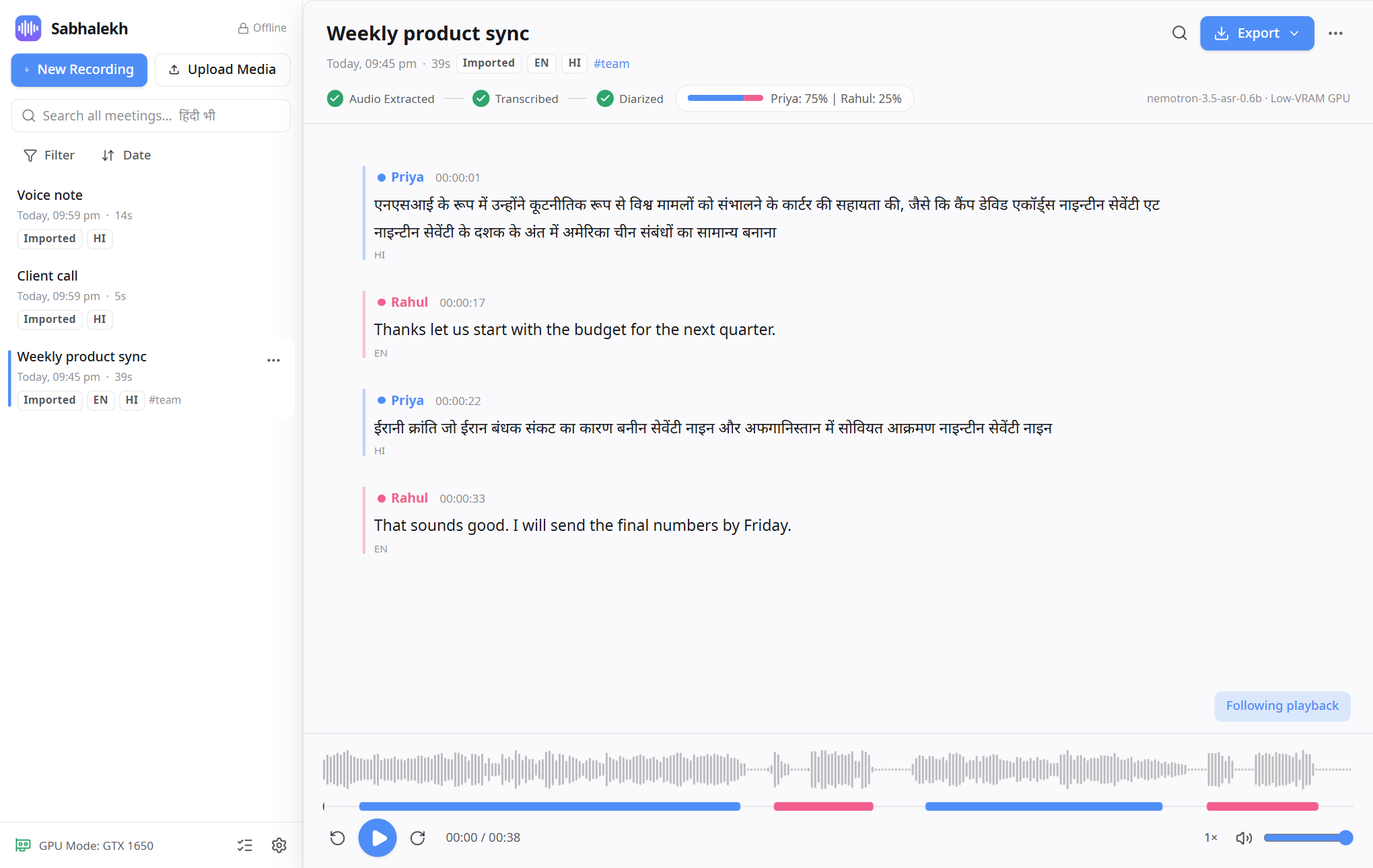
- Click any word (or a timestamp) to play the audio from that point.
- While playing, the current sentence is highlighted and the current word is underlined, like karaoke. The transcript scrolls along; scroll away and it stops following until you click Following playback again.
- The coloured bar under the waveform shows who spoke when. Click anywhere on the waveform to jump there.
- Space plays and pauses, ← and → skip back and forward 10 seconds. You can also slow down or speed up playback (0.5× to 2×).
Sabhalekh labels voices as Speaker 1, Speaker 2 and so on, in the order they first speak. Your own microphone in a recording is always You.
To rename a speaker everywhere in the meeting:
- Click the speaker's name above any of their lines.
- Choose Rename "Speaker 1"…
- Type the name (English or Hindi, for example Rahul Sharma or राहुल शर्मा) and press Enter.
Names are saved per meeting. Renaming Speaker 1 in one meeting doesn't change other meetings.
Speaker detection is good but not perfect, especially when two people sound alike or talk over each other. To fix a single line:
- Click the speaker's name on that line.
- Pick the right person from the list, or Assign to a new speaker… if the voice isn't listed.
Lines where several people talk at once are marked overlap.
Hover over a line to see its buttons:
| Button | What it does |
|---|---|
| ✏️ Edit text | Change the words. Press Enter to save, Esc to cancel. While editing, Split at cursor cuts the line in two at the cursor. |
| Merge with next segment | Joins this line with the one below. |
| ↩️ Revert to original | Undoes your edits and speaker changes for this line. Only shown on lines you changed. |
| Copy | Copies the line to the clipboard. |
Your edits never overwrite the original. To throw away every change in a meeting, use ⋯ → Revert all edits.
Press Ctrl+F (or click the magnifier at the top right). Type a word; matches are highlighted. Enter goes to the next match, Shift+Enter to the previous one, Esc closes the search.
To search across all your meetings, use the search box in the sidebar instead. See Searching.
The ⋯ button at the top right of a meeting has:
- Re-process…: transcribe again with a different language, script, model or speaker count. Your edits to the old transcript are replaced.
- Tags…: add labels like team or client and filter by them in the sidebar.
- Copy transcript: the whole meeting to the clipboard.
- Revert all edits
- Delete…: removes the meeting and its audio for good.
Next to the processing steps, a small bar shows how much each person spoke, for example Priya: 75% | Rahul: 25%. Hover over it to see the exact minutes. The PDF and Word exports include the same summary.