Repository navigation
Getting Started
The first time Sabhalekh opens, it walks you through four short steps. You can skip it at any time and change everything later in Settings.
-
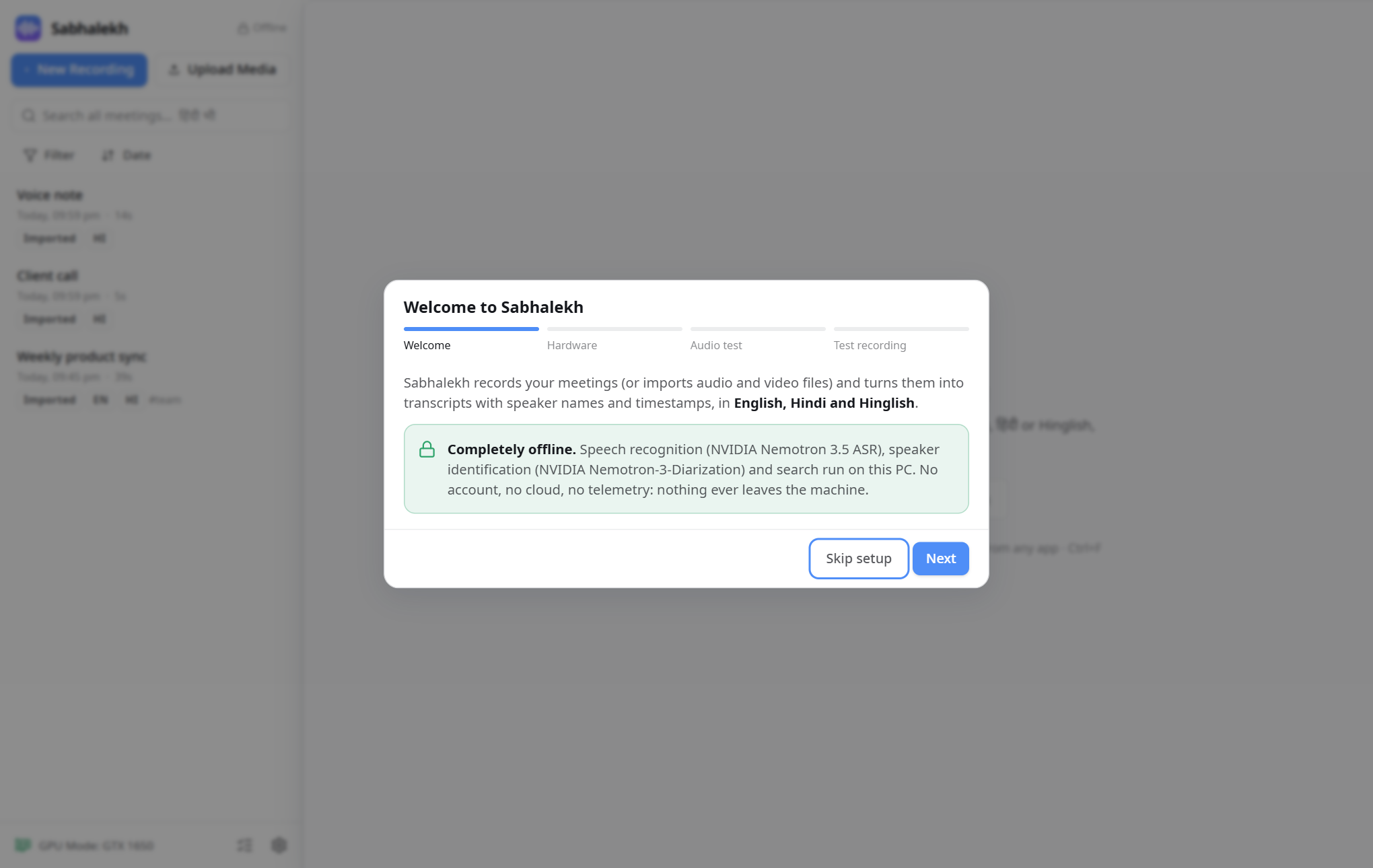
Welcome. A reminder that everything stays on your PC.
-
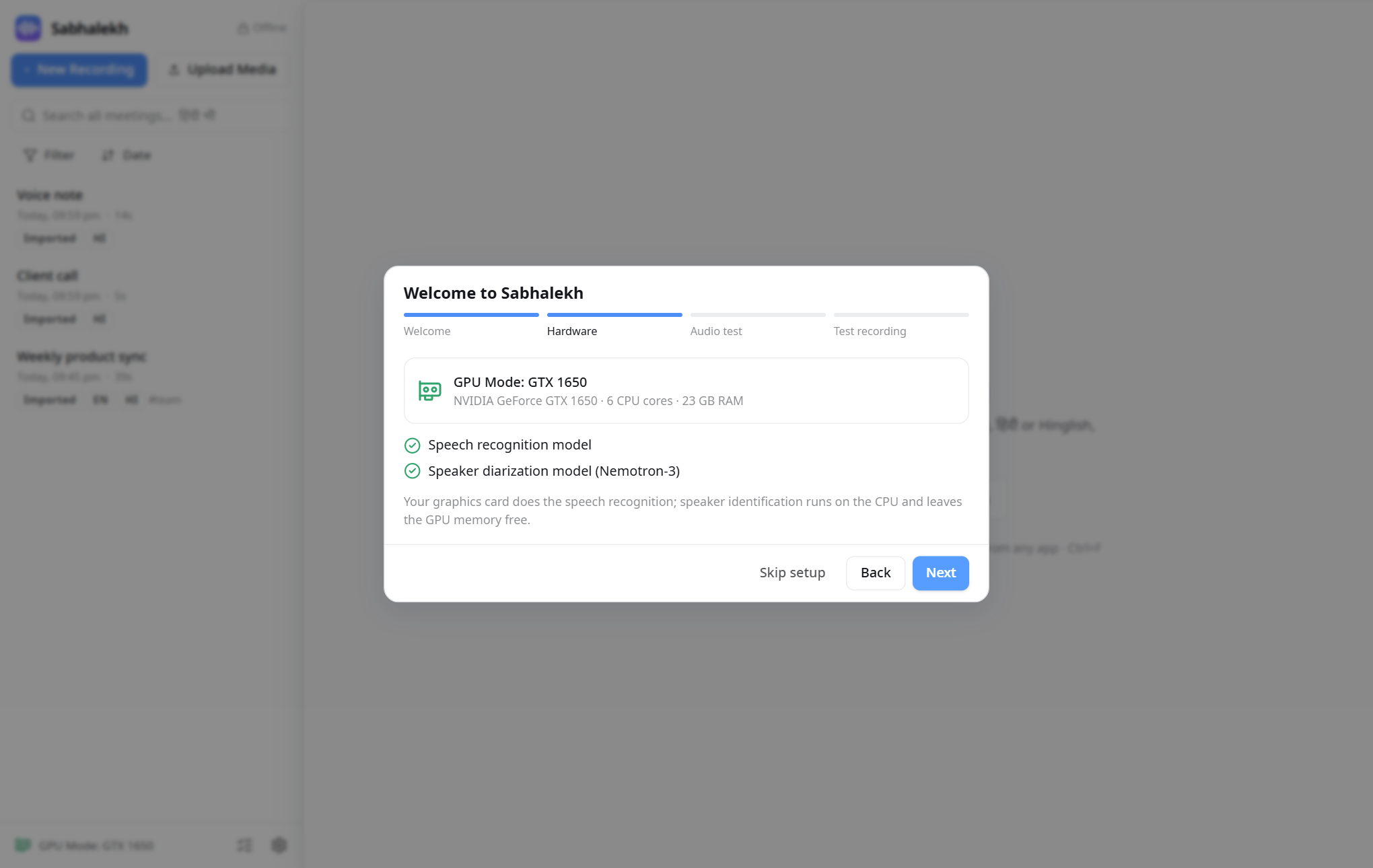
Hardware. Sabhalekh looks at your PC and shows where speech recognition will run: your graphics card, your processor's built-in graphics, or the CPU. Green ticks mean the speech models are ready.
-
Audio test. Click Start test, then say something and play any sound (a YouTube video, music) for four seconds. Both lines should turn green:
- Microphone works: Sabhalekh can hear you.
- System audio works: Sabhalekh can hear what your PC plays, which is how it hears the other people in a call.
If one stays red, see Troubleshooting.
-
Test recording. Click Record 10 seconds and say a sentence in English or Hindi. A few seconds later your first transcript appears in the list on the left.
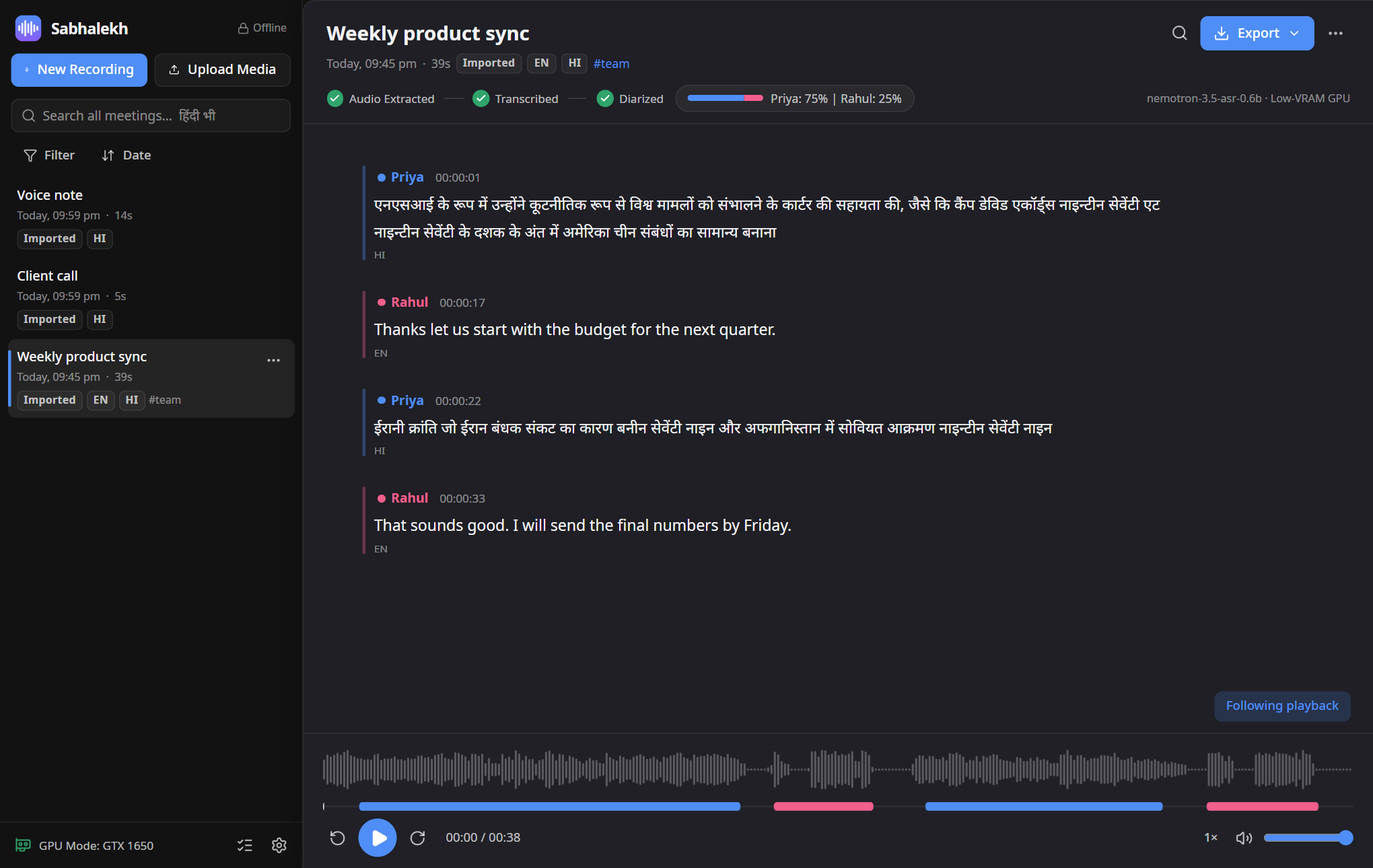
On the left (the sidebar):
- New Recording starts recording a meeting.
- Upload Media transcribes audio or video files you already have.
- Search all meetings looks through every transcript at once.
- Filter and Date narrow down and sort the list.
- Your meetings, newest first. Click one to open it.
- At the bottom: the hardware badge (for example GPU Mode: GTX 1650), the processing queue, and Settings.
On the right: the open meeting.
- The title at the top. Click it to rename the meeting.
- The steps (Audio extracted → Transcribed → Diarized) and the talk time of each speaker.
- The transcript: each line has the speaker's name, the time, the words and the language (EN or HI).
- The player at the bottom: waveform, a coloured bar showing who spoke when, play/pause, skip ±10 seconds, speed and volume.
- The meeting appears in the list straight away, marked as processing.
- Sabhalekh extracts the audio, finds where people speak, works out who is who, and writes down the words.
- When it's done you get a Windows notification, and the transcript opens.
A one-hour meeting takes about 5 minutes on a laptop with a graphics card and about 10 minutes on the CPU. You can keep working, and keep recording, while it processes.
- Record your first real call: Recording a meeting
- Put names to the voices and fix mistakes: Working with transcripts
- Share the result: Exporting