Repository navigation
Settings Reference
Open Settings with the ⚙️ button at the bottom left. Changes apply immediately; there is no Save button.
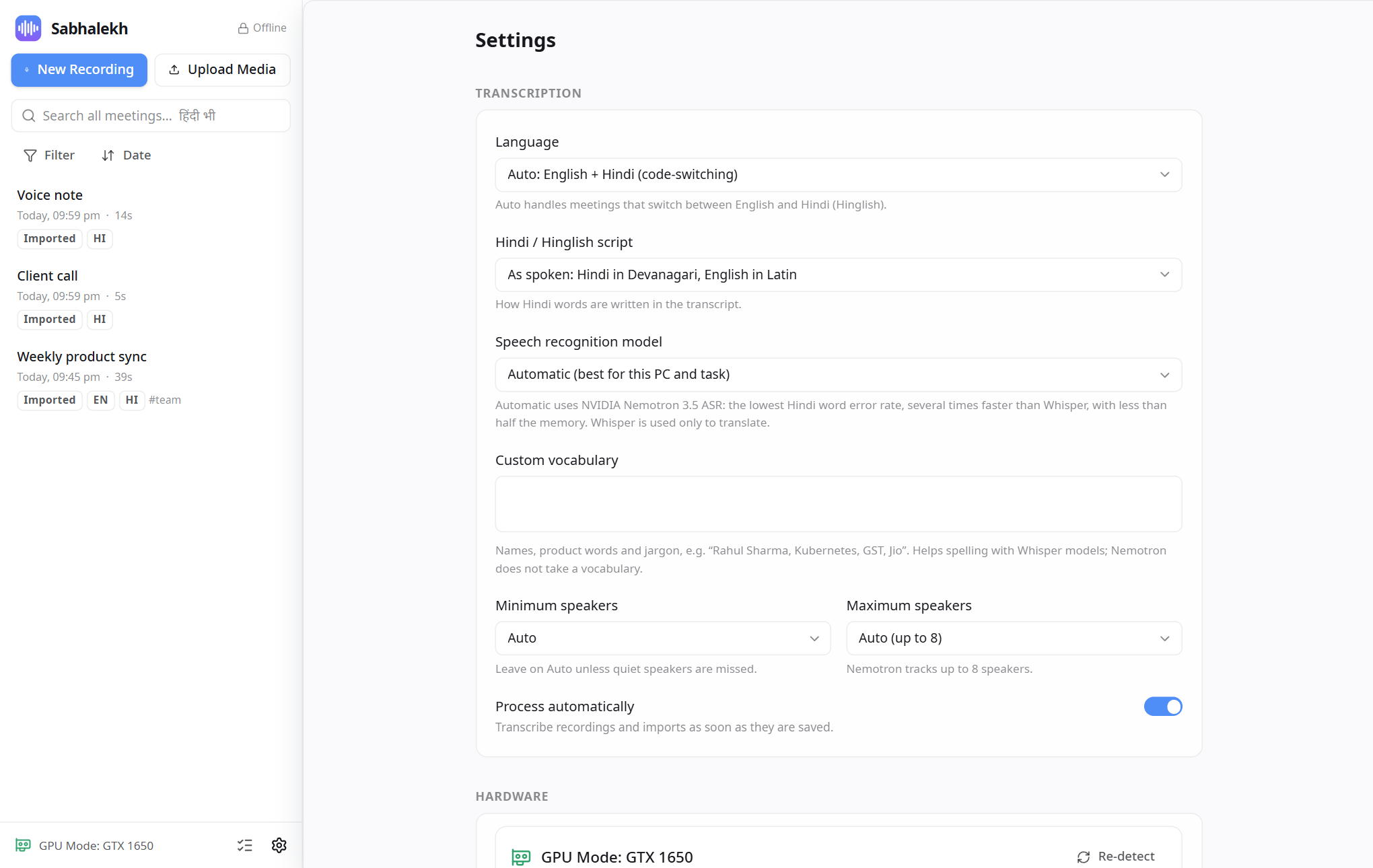
| Setting | What it does | Default |
|---|---|---|
| Language | Auto (English + Hindi), English only, Hindi only, or Translate Hindi to English. See Languages and Hindi. | Auto |
| Hindi / Hinglish script | As spoken, Devanagari, or Roman letters. | As spoken |
| Speech recognition model | Automatic uses Nemotron 3.5 ASR, and Whisper only for translation. Pick a model to force it. Whisper models appear here once you import a model pack. | Automatic |
| Custom vocabulary | Names and jargon, separated by commas. Used only by Whisper models. | Empty |
| Minimum speakers | Raise it if a quiet speaker is missed. | Auto |
| Maximum speakers | Lower it if one person is split into several speakers. Up to 8. | Auto (up to 8) |
| Process automatically | Transcribe recordings and imports as soon as they're saved. | On |
Shows what Sabhalekh found on your PC and lets you choose the Processing profile (Auto, graphics card, built-in graphics, CPU or Fast CPU). See Hardware and speed.
Lists the installed models and their status, with:
- Import Offline Model Pack…: add models from a folder. See Offline model packs.
- Verify model files: re-check every model file against its checksum. Sabhalekh also does this quietly at every start; a damaged model is marked unavailable with the reason.
| Setting | What it does | Default |
|---|---|---|
| Microphone (your voice) | The microphone to record you with. | Windows default |
| System audio (other participants) | The speakers or headset whose sound is recorded. | Windows default output |
| Playback audio quality | Size of the audio copy kept for playback: Compact (~22 MB/hour), Standard (~29 MB/hour) or High (~43 MB/hour). Transcription always uses full quality. | Standard |
| Test devices | Records four seconds and checks that both devices hear something. |
"Windows default" follows Windows when you plug in a headset, even during a recording.
| Setting | Options |
|---|---|
| Theme | Follow Windows, Dark, Light |
| Accent color | The colour of buttons and highlights |
| Text size | Makes the whole window larger or smaller |
| Setting | What it does | Default |
|---|---|---|
| Start / stop recording hotkey | Works in every app. Click the box and press the keys. | Ctrl+Shift+R |
| Start with Windows | Opens minimised in the tray when you sign in. | Off |
| Keep running in the tray when the window is closed | Closing the window keeps Sabhalekh (and any recording) running. Quit from the tray icon. | On |
Shows how much space recordings, the database and model packs use, and the free disk space.
| Setting | What it does | Default |
|---|---|---|
| Delete audio automatically | Removes the audio of finished meetings after 7, 30 or 90 days or a year. Transcripts are kept. | Never |
| Open data folder / Open logs folder | Opens them in File Explorer. | |
| Apply auto-delete now | Runs the clean-up straight away instead of waiting. |
Confirms that nothing leaves the PC and shows how many network attempts were blocked this session. See Privacy.
The version number, the models in use, licence information, and links to this guide, the issue tracker and the source code (they open in your browser).