Repository navigation
Recording a Meeting
Sabhalekh records two things at the same time:
- Your microphone: your own voice. In the transcript this becomes "You".
- Your PC's sound output: everything your speakers or headset play, which in a call means the other participants.
That's why it works with any meeting app: Microsoft Teams, Zoom, Google Meet in the browser, WhatsApp desktop, Webex, or a video you are watching. Sabhalekh never joins the call and the other people don't see a bot.
Always tell people when you record a meeting. In many countries and companies you need their consent. Sabhalekh shows a reminder the first time you record.
-
Before the call, check that your meeting app uses the same speakers or headset as Windows. (If you never changed it, it does.)
-
Click New Recording in Sabhalekh, or press Ctrl+Shift+R from any app.
-
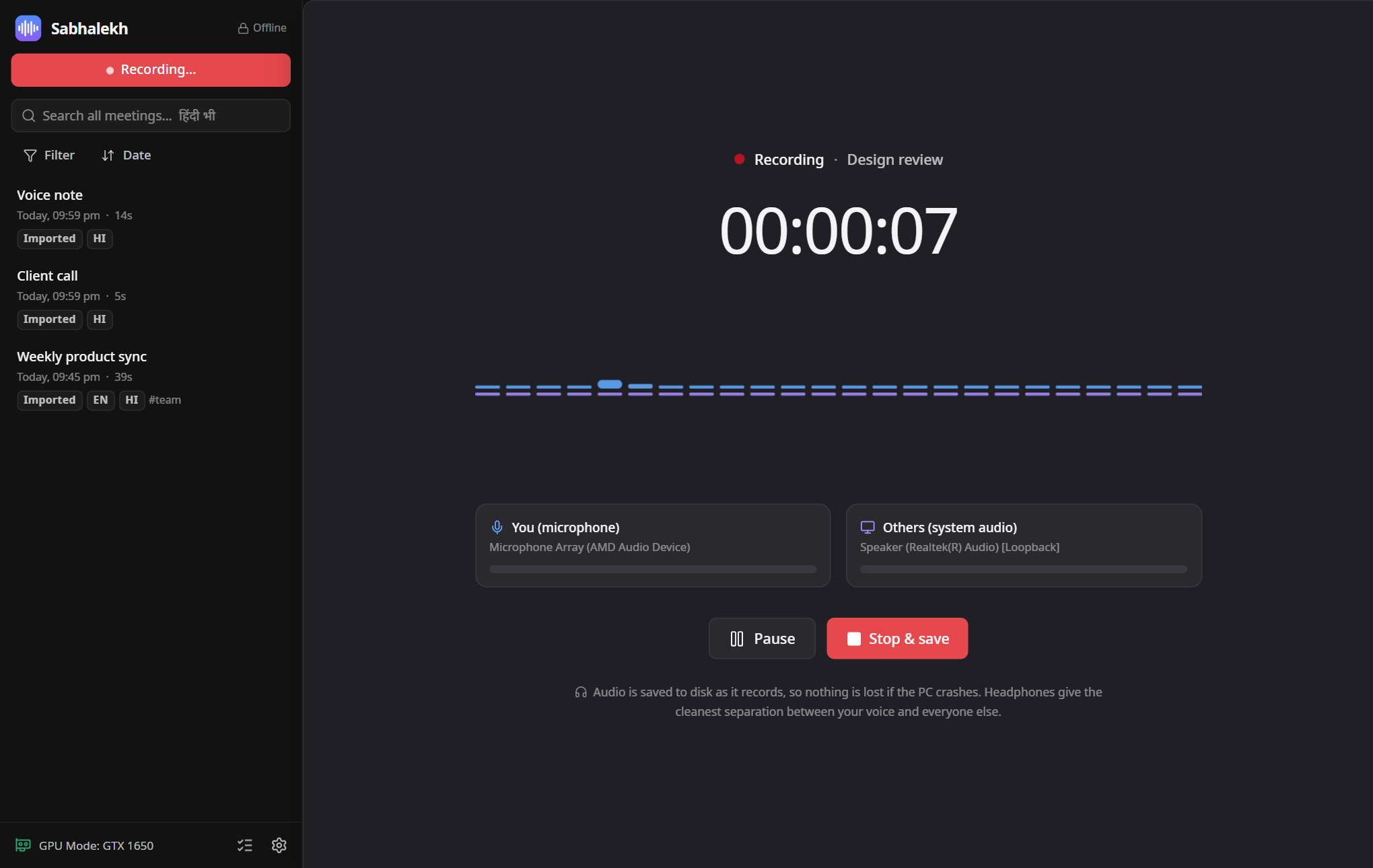
Join your call as usual. Sabhalekh shows a timer and two level meters:
- You (microphone) moves when you speak.
- Others (system audio) moves when the other people speak.
-
Need a break? Click Pause, then Resume.
-
When the meeting ends, click Stop & save (or press Ctrl+Shift+R again).
The recording appears in your list and is transcribed automatically. You'll get a notification when it's ready.
While recording, a red dot shows in the window title and in the tray icon, so you always know it's on. You can minimise Sabhalekh, or close the window; with Keep running in the tray turned on (the default) it keeps recording in the background.
- Use headphones if you can. Without them, your microphone also picks up the other people from your speakers. Sabhalekh removes most of that echo, but headphones remove all of it and make the transcript cleaner.
- Watch the "Others" meter in the first minute. If it doesn't move when someone talks, see Others' voices are missing.
- Bluetooth headsets sometimes switch to a separate "Hands-Free" device during calls. Pick that device under Settings → Audio devices before recording.
- In-person meetings work too: put the laptop in the middle of the table. If nothing played through the speakers, Sabhalekh separates the speakers from the microphone recording instead.
By default Sabhalekh uses the Windows default microphone and speakers and follows them if you plug in a headset during the meeting. To pick specific ones, go to Settings → Audio devices:
- Microphone (your voice): the microphone you talk into.
- System audio (other participants): the speakers or headset you listen on.
Click Test devices to check both.
Audio is written to disk continuously. If Windows crashes, the battery dies or the app is closed while recording, the next time you open Sabhalekh it offers to Recover the unfinished recording. At most the last two seconds are lost.