Repository navigation
Connecting Your Radio
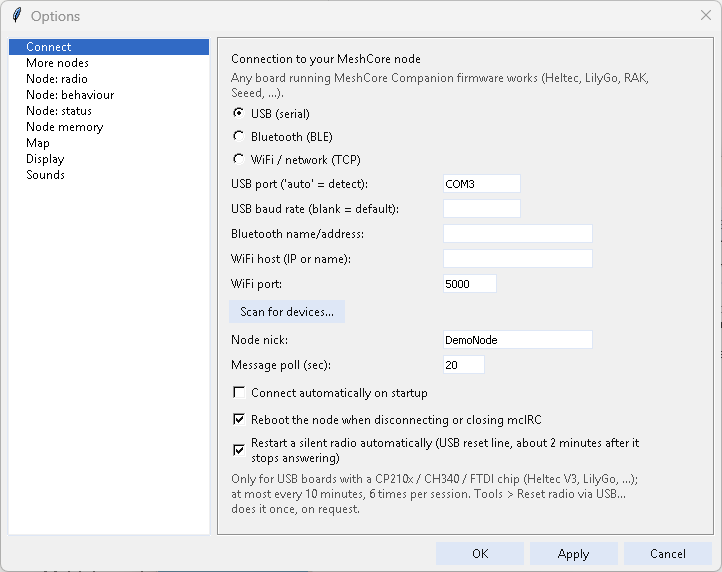
mcIRC drives your node through meshcore-cli. Open Options > Connect:
| Connection | Use when |
|---|---|
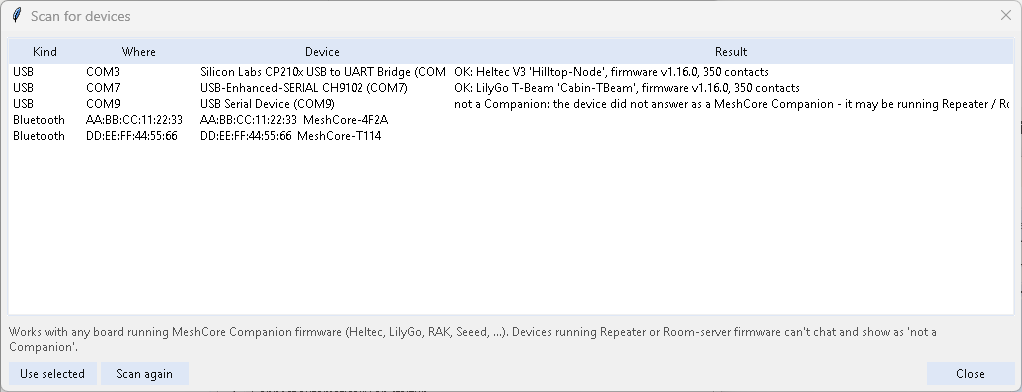
| USB | Node plugged into the PC. Scan for devices lists the COM ports and picks the likely one. |
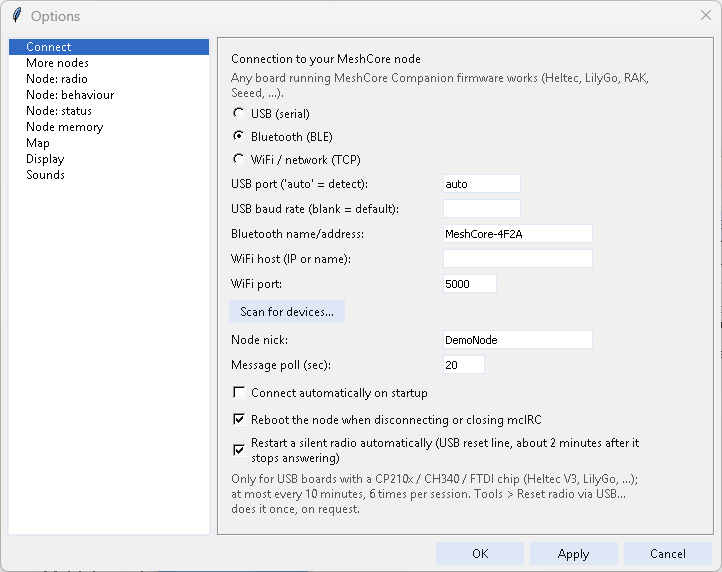
| Bluetooth | Companion BLE firmware. Pair the node in Windows first (Settings > Bluetooth & devices > Add device) with its PIN - see below. Scan lists nearby devices. |
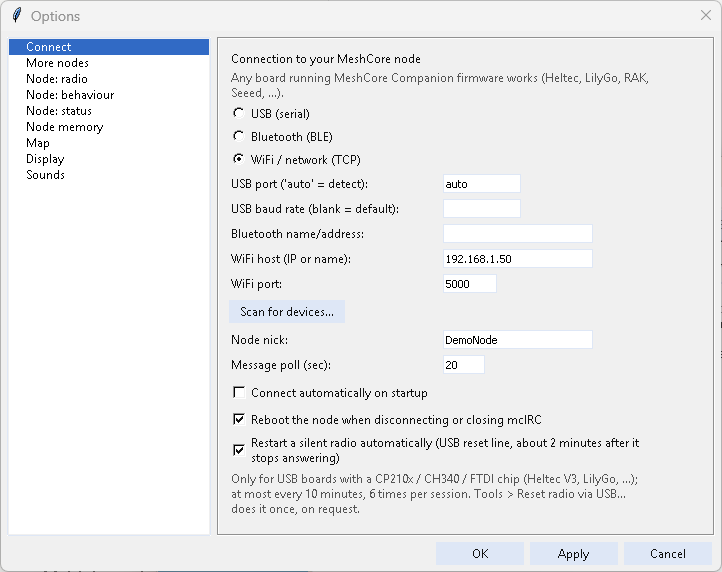
| WiFi / TCP | Node on your network running MeshCore's Wi-Fi companion firmware - enter its address (port 5000). The Firmware builder builds and flashes that firmware for you. |
- Plug the node in. Options > Connect, choose USB (serial).
-
Scan for devices... lists the COM ports with a node on them (Heltec, LilyGo, RAK, ...) and its name. Pick it, OK - or type the port (
COM3);autofinds it by itself. - OK, then File > Connect.
-
Pair the node in Windows first: Windows Settings > Bluetooth & devices > Add device > Bluetooth, pick
MeshCore-..., type its PIN (see The Bluetooth PIN below). - In mcIRC: Options > Connect, choose Bluetooth (BLE). Scan for devices... lists the nodes nearby - pick yours, or type its name (
MeshCore-4F2A) or address. - OK, then File > Connect. The first connection takes a few seconds; after that mcIRC keeps it open (see Staying connected).
- The node needs MeshCore's Wi-Fi companion firmware - the Firmware builder builds and flashes it with your Wi-Fi name and password. Its screen then shows its address (e.g.
192.168.1.50). - Options > Connect, choose WiFi / network (TCP), type the address as WiFi host; the port is 5000.
- OK, then File > Connect. Only one program can use the node over Wi-Fi at a time - close the phone app's Wi-Fi connection first.
mcIRC remembers the last port you used. File > Connect starts, File > Disconnect stops; pressing Connect again while it is trying cancels the attempt.
More radios at the same time (other frequencies, Wi-Fi, Bluetooth): Options > More nodes - see Multiple Nodes.
Between polls mcIRC keeps one connection to your node open (Options > Node memory > Listen between polls, on by default): messages arrive the moment the node has them, and the messages mcIRC sends - yours and the bots' - go out through that same connection in a fraction of a second. Over Bluetooth, where every new connection takes several seconds, everything else mcIRC and the addons ask the node (clock, statistics, contacts) goes through it too, so a bot answers about as fast as over USB or Wi-Fi: after its own wait (5 seconds by default, see Addons). If Windows refuses a Bluetooth connection now and then, mcIRC simply tries again.
MeshCore asks for a PIN before it accepts a Bluetooth connection. A node with a screen and no PIN set makes up a new random PIN at every start and shows it on its screen; a node without a screen uses 123456. If Windows says That PIN didn't work, wake the node's screen (press its button) and use the number shown, or set a fixed PIN of your own from the node's settings, restart the node, remove it in Windows and pair again.
Setting a fixed PIN, step by step:
- Connect to the node by USB (or Wi-Fi) as above.
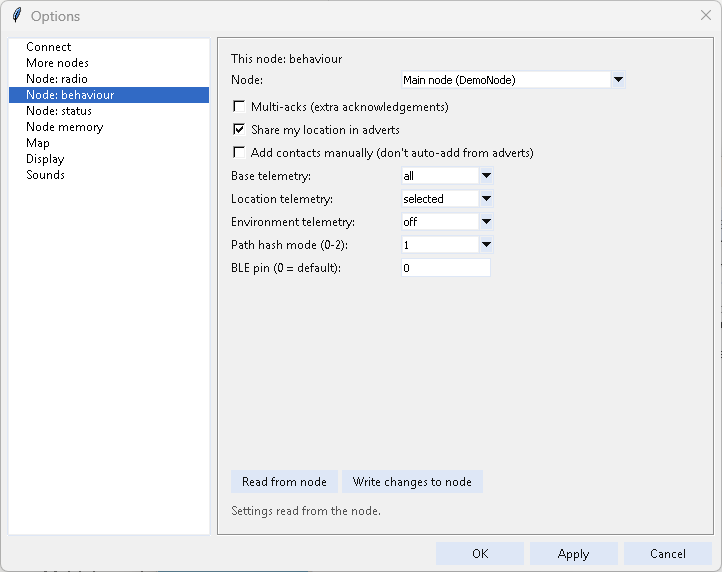
- Options > Node: behaviour. The BLE pin box shows the node's PIN (0 = MeshCore's default: random on a node with a screen, 123456 without).
- Type six digits (e.g.
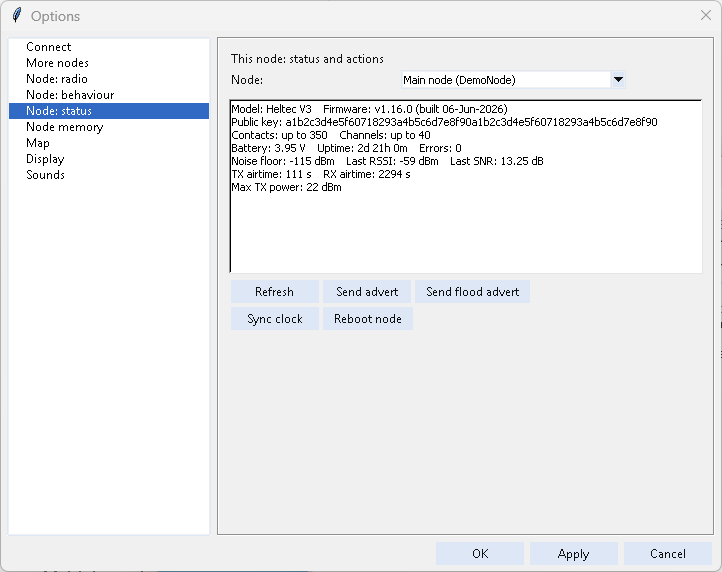
123456) and press Write changes to node. - Restart the node (Options > Node: status > Reboot, or its reset button).
- In Windows Settings > Bluetooth & devices, remove the node, then Add device again and type the new PIN.
Any board running MeshCore Companion firmware: Heltec V3/V4/T114, LilyGo T-Beam/T-Deck/T-Echo, RAK WisBlock, Seeed Xiao/Wio Tracker, Station G2, and others. Tested on a Heltec V3 and a Heltec V4.
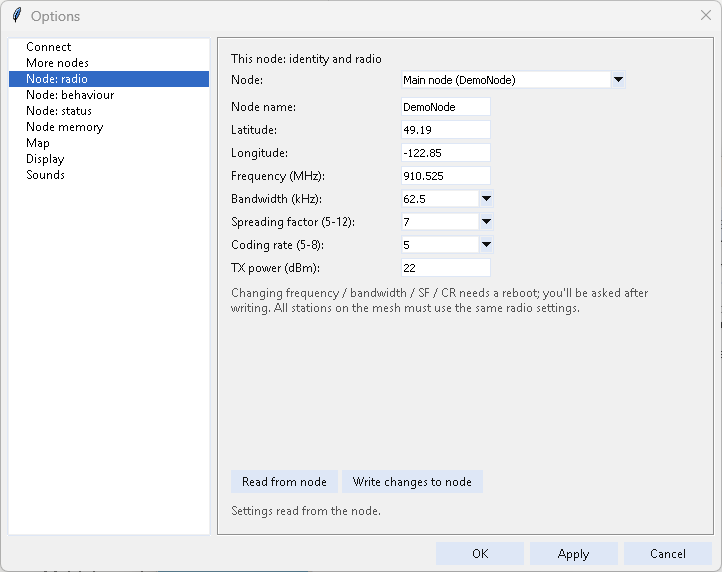
Options > Node: ... pages (or Tools > This node's settings...) cover name, position, frequency / bandwidth / SF / CR, TX power, telemetry, advert policy, path hash mode and more, plus battery/airtime status, send advert, clock sync and reboot. The Node: list at the top of these pages picks which of your nodes they read and change.
If the radio doesn't answer, see Troubleshooting.