Repository navigation
Multiple Nodes
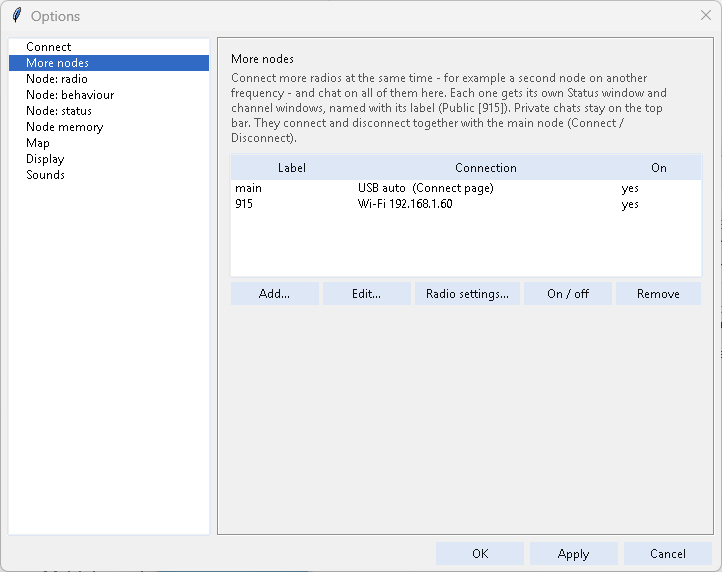
Multiple nodes, multiple frequencies, one chat box (mcIRC 2.0). Connect several radios at the same time - USB, Wi-Fi or Bluetooth - for example one node on your local network's frequency and another on a neighbouring network's, and chat on all of them from one window.
Options > More nodes lists every node, the main one first (the main node is set on the Connect page).
-
Add... - a short label (e.g.
915orwifi 1; letters, digits, spaces,._-) and the connection: USB port, Wi-Fi address and port (5000), or Bluetooth name. - Edit..., On / off, Remove.
- Radio settings... - name, frequency, bandwidth, SF, CR and TX power of that node; a radio change restarts it.
Extra nodes connect and disconnect together with the main node (File > Connect / Disconnect).
- Each extra node gets its own Status window and its own channel windows, named with its label:
Status [915],Public [915],#weather [915], grouped under Node 915 in the window tree like the main node's: its Status first, then a Channels folder (right-click it: Join channel... on that node). What you type in them goes out on that node only. - Private chats stay on the top bar, whatever node they come from. mcIRC remembers which node each person is on, and your replies go back through that node.
-
Right-click a node in the window tree > Remove node... disconnects it, takes it out of More nodes and closes its windows (their logs stay in the
logsfolder). Use it for a leftover group after renaming a node.
Options > Node: radio / behaviour / status and the MeshCore tools have a Node: list at the top: choose the main node or any connected extra node, then read, write, reboot, sync its clock, manage its channels, back it up, and so on.
Bots and addons work on the main node by default. To use one on other nodes, double-click it in Tools > Addons and tick them under Use on these nodes (or, on a node's own tab, Use this addon on node ...). The channels an addon uses there are added to that node for you - when it connects, when you save the settings or switch the addon on - in its first free channel slot; Status says what was added, or that the node has no free slot. Every setting can also be different per node: the settings window has a tab for each node (see Addons). Answers to a message use the settings of the node it came in on; what an addon does on its own (checks, warnings, announcements) uses the main node's tab. An extra node's tab only holds what you change for that node; everything else follows the main node.
The map's Heard by box has one checkbox per node, with its frequency and connection (e.g. main - <frequency> MHz, USB, attic - <frequency> MHz, Wi-Fi). Untick a node to hide what only it has heard; clicking a marker shows which of your nodes heard it. See Map and Node Memory.
MeshCore has no ready-made Wi-Fi firmware: the network name and password are built into it. Addons > MeshCore tools > Firmware builder... builds and flashes it for you and adds the board here - see MeshCore Tools.