Repository navigation
Getting Started
- Windows 10 or 11 and Python 3 (Linux and macOS: see below)
- A LoRa node running MeshCore Companion firmware (USB, Bluetooth or WiFi/TCP). Repeater and Room-server firmware cannot chat - flash the Companion build.
- The packages in
requirements.txt(meshcore-cli, pyserial, tkintermapview, pillow):pip install -r requirements.txt, or with uv:uv syncthenuv run mcIRC.py
- Download the latest release from https://github.com/bclml/mcIRC/releases (or clone the repo) into its own folder.
-
pip install -r requirements.txt(with uv instead:uv run mcIRC.pyinstalls what it needs and starts the app) - Double-click
Run_GUI.bat. It finds Python on your PC, installs the packages on the first start, and opens mcIRC without a console window; if Python is missing it says so and opens the download page. For a desktop icon with the logo use Tools > Create desktop shortcut (or double-clickMake_Shortcut.bat).
The same code runs there but has had far less testing, so please report problems (Help > Report a bug).
- Python 3 with Tk: Debian/Ubuntu
sudo apt install python3-tk, Fedorasudo dnf install python3-tkinter, macOSbrew install python-tk(or the python.org installer). -
pip install -r requirements.txt(oruv run mcIRC.py) -
Linux USB:
sudo usermod -aG dialout $USER(some distros:uucp), then log out and in. Ports look like/dev/ttyUSB0//dev/ttyACM0. macOS USB:/dev/cu.usbserial-.... - Start with
./Run_GUI.sh(Linux), double-clickRun_GUI.command(macOS; first timechmod +x Run_GUI.sh Run_GUI.command), orpython3 mcIRC.py.
Known differences: macOS ignores button colours (unread private buttons are less obvious), right-click is Control-click on a one-button mouse, sounds use afplay / canberra-gtk-play / paplay.
python mcIRC.py --demo
Demo mode uses made-up nodes and messages and never transmits.
-
Open Options > Connect and choose how your node is connected: USB, Bluetooth or WiFi.
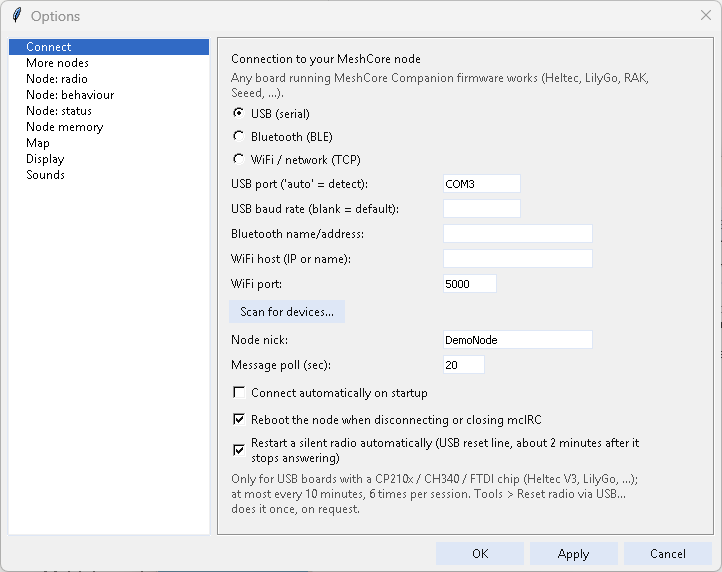
-
Press Scan for devices...: mcIRC lists the nodes it finds on USB and Bluetooth. Pick yours and press OK; the Connect page is filled in for you.
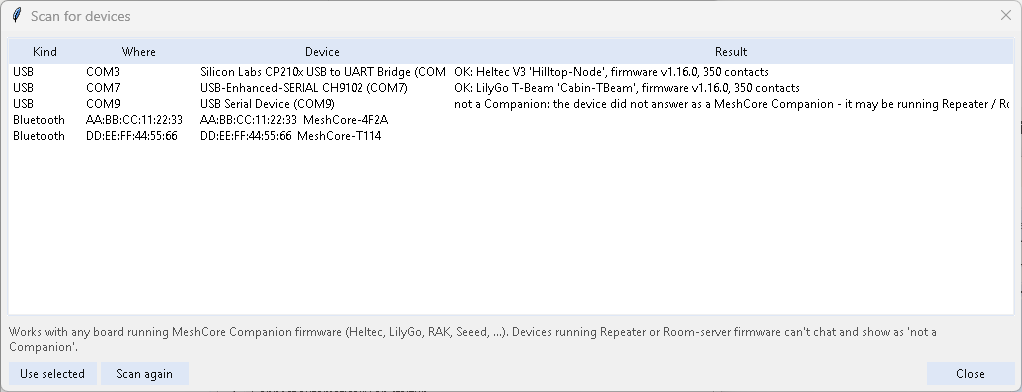
-
Press OK, then File > Connect (or the green button on the toolbar).
Details for each connection, the Bluetooth PIN and your node's settings: Connecting Your Radio.
Only one program can use the radio at a time: close other MeshCore apps and the console bot (Run_Agent.bat) first. mcIRC itself only runs one copy.
Next: Chatting.