Repository navigation
Themes Sounds and Mentions
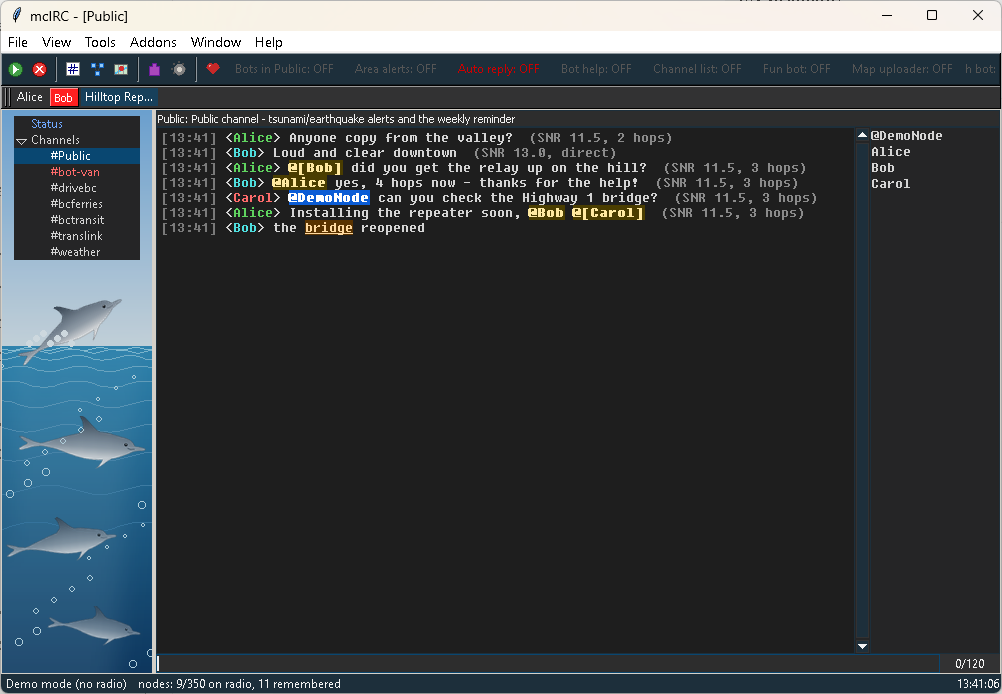
@nickname and @[nick name] are highlighted in messages. When it is your node's name the highlight is stronger. Old lines replayed from the logs get the same highlighting. Use @[Name With Spaces] when replying to someone whose name has spaces.
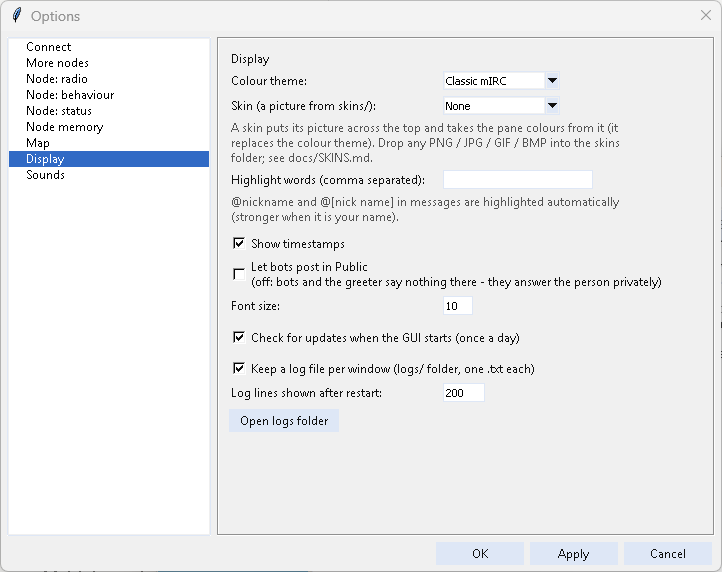
Options > Display > Highlight words: comma-separated words that are underlined and highlighted whenever they appear.
Options > Display > Colour theme: Classic mIRC, Night, Terminal, Ocean, Paper. Applied live.
Emoji in messages - the forecast pictures, 🚨 alerts, faces - are shown as small pictures in the chat windows (mcIRC 2026.10.15-3), in Windows' emoji and symbol fonts at the chat's text size. They are black and white: Python's window toolkit (Tk 8.6) can't draw colour emoji; phones on the mesh still see them in colour. On an older Tk (before 8.6.10) they are left out, as before. What is sent and logged never changes.

The Dolphins addon puts a picture behind the channel list, with each channel name in a box so it stays readable. It is on as soon as the addon is on and shows a pod of dolphins drawn by mcIRC. To change it, double-click Dolphins in Tools > Addons:
- Picture: empty for the dolphins, or Browse... for your own (PNG, JPG, GIF or BMP)
- Fit: cover (fill and crop), stretch, or tile
- Fade: softens a busy picture towards the list's colour
- untick Show a picture behind the channel list to switch it off
It follows your colour theme and skin. It needs Pillow (a free picture library, normally installed with mcIRC); if it is missing, mcIRC says so in the Status window, offers once to download and install it, and the addon's settings have an Install Pillow button.
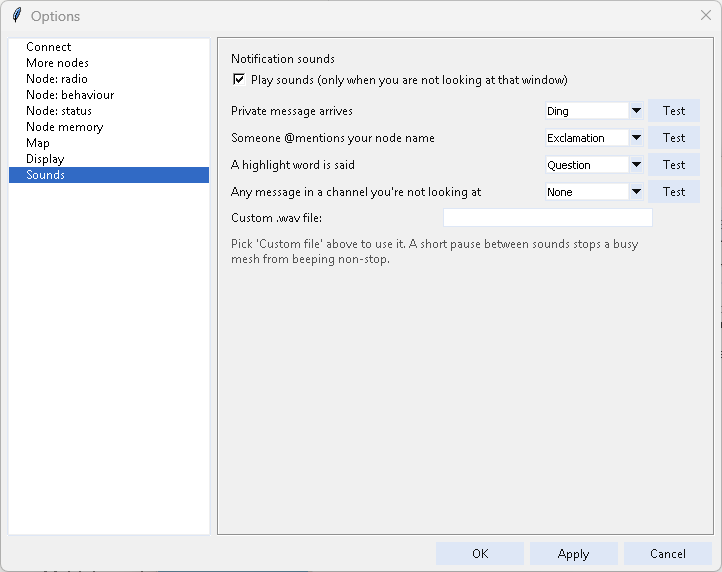
Options > Sounds: pick a sound for private messages, @mentions, highlight words and channel messages, with a Test button for each. Sounds only play when you are not looking at that window, with a short pause between sounds so a busy mesh doesn't beep non-stop. You can use a custom .wav file.
If your Windows sound scheme is "No Sounds", the Windows system sounds are silent - mcIRC plays a distinct beep instead.