Repository navigation
Editing
bluerig is used without learning: F9 opens the menu, and every command shows
its key there and on the bar of function keys at the bottom. This page is a
tour of what is worth knowing beyond that. The full list of keys is in the
manual (man bluerig, or F1).
Alt can always be typed as Esc followed by the key, which helps in a
terminal that keeps Alt for itself.
| Key | Does |
|---|---|
| F2, F12 | Save, save as |
| F3, F13 | Start or end a block, start a column block |
| Shift-arrows, Alt-arrows | Mark a block, mark a column block |
| F5, F6, F8 | Copy, move, delete the block |
| Ctrl-Ins, Shift-Ins, Shift-Del | Copy to, paste from, cut to the clipboard file |
| F7, F4 | Search, replace |
| Ctrl-U, Alt-r | Undo, redo |
| Ctrl-T | The undo history |
| Ctrl-Y, Ctrl-K | Delete the line, delete to the end of the line |
| Alt-l, Alt-b | Go to a line, go to the matching bracket |
| Alt-k, Alt-j, Alt-i | Set a bookmark, go to the next one, the previous one |
| Alt-Tab | Complete the word from the words of the open files |
| Alt-n | Show or hide the line numbers |
| Ctrl-S | Syntax highlighting on or off |
| Ctrl-N | A new window |
| F10, Esc | Close the window |
Every file opens in a window of its own, full screen at first. A window can be moved and resized with the mouse or from the Window menu, shown full screen and back by a double click on its title, and listed with Window > List. With sticky windows on, windows that touch resize together, the way tiled windows do.
The windows of the plugins, the tree of the project, the Preview, the panel of the debugger, the terminal and the output of the build, stand in docks at the right and at the bottom of the screen. Window > Layout keeps arrangements of them under a name, and the windows of a project come back when bluerig starts again with one of its files.
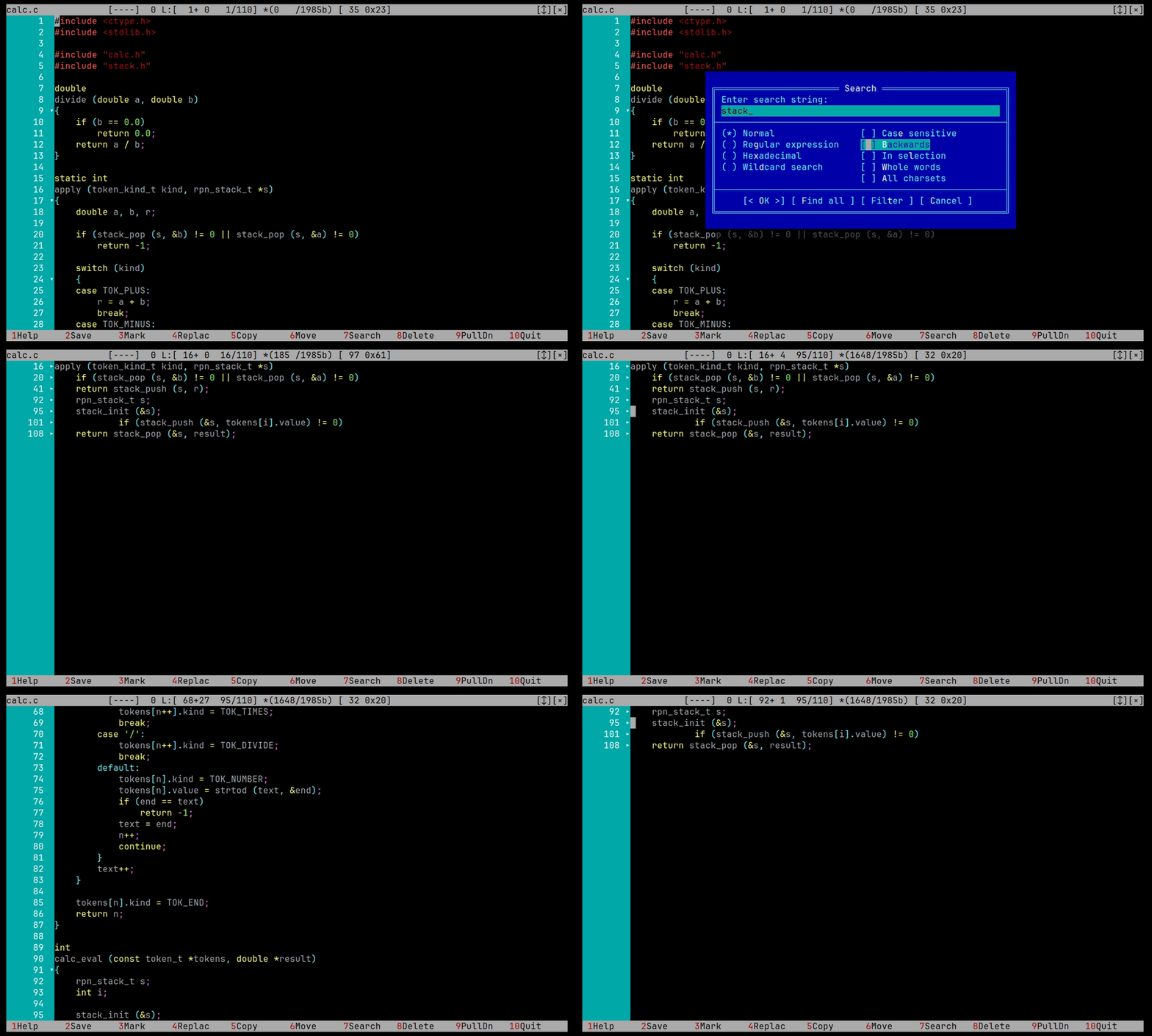
The search dialog (F7) looks for a plain string, a regular expression,
hexadecimal bytes or a shell pattern, forwards or backwards, in the block or
in the whole file, and in every encoding the file might be in. Find all
sets a bookmark on every line that matches. In a replacement with a regular
expression, \1 to \9 stand for the groups of the match.
The Filter button hides every line that does not match. The lines keep their numbers, and the gutter marks where lines are hidden. Alt-s lifts the filter and puts it back; Alt-Shift-S filters at once by the word under the cursor or by the block.
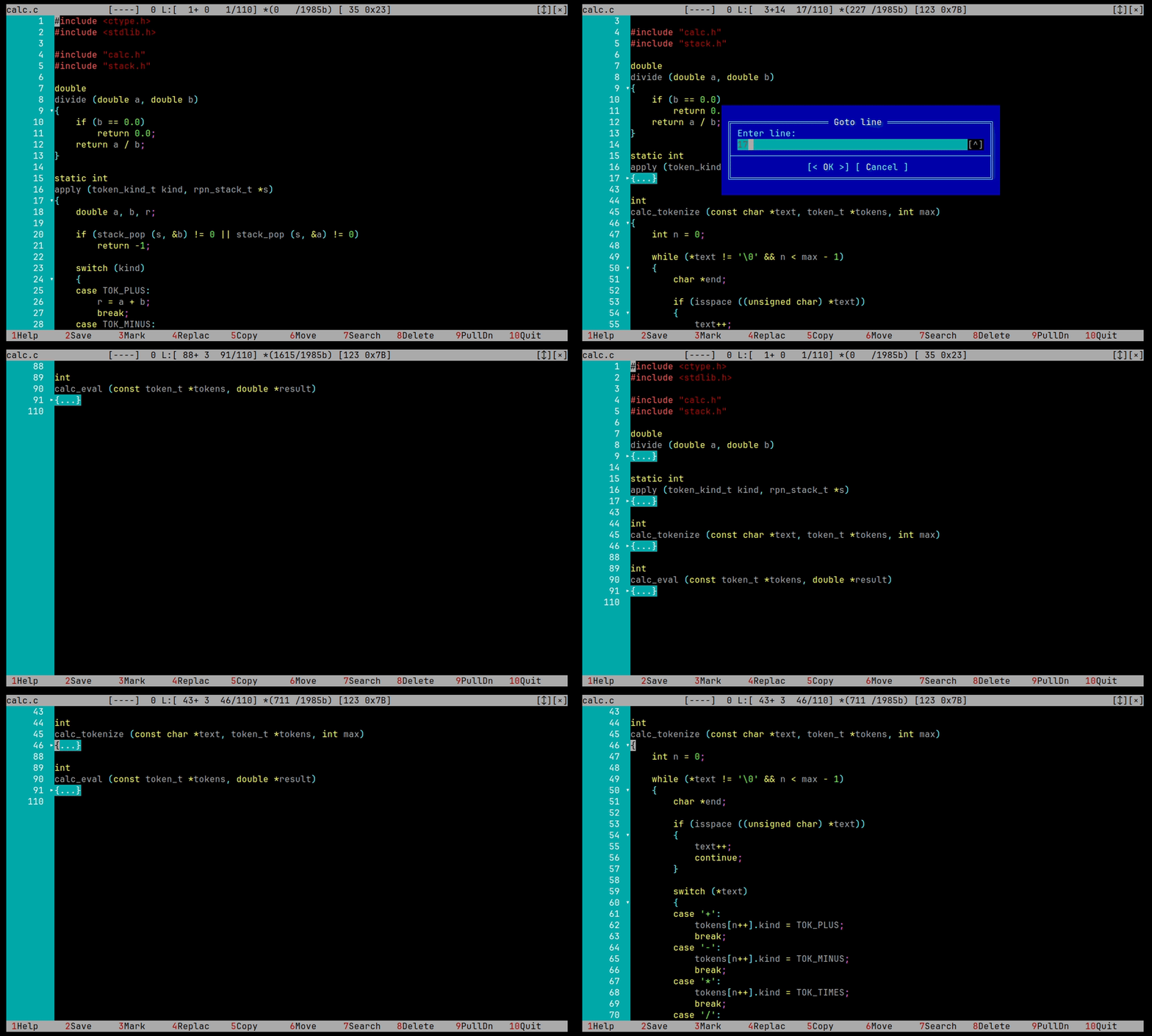
Alt-Shift-F on a line with a bracket folds the block up to the bracket that matches it; with a block marked, it folds the block. The first line of a fold stays on the screen, with a mark in the gutter, and Alt-Shift-F on it unfolds it again. Command > Unfold all opens every fold.
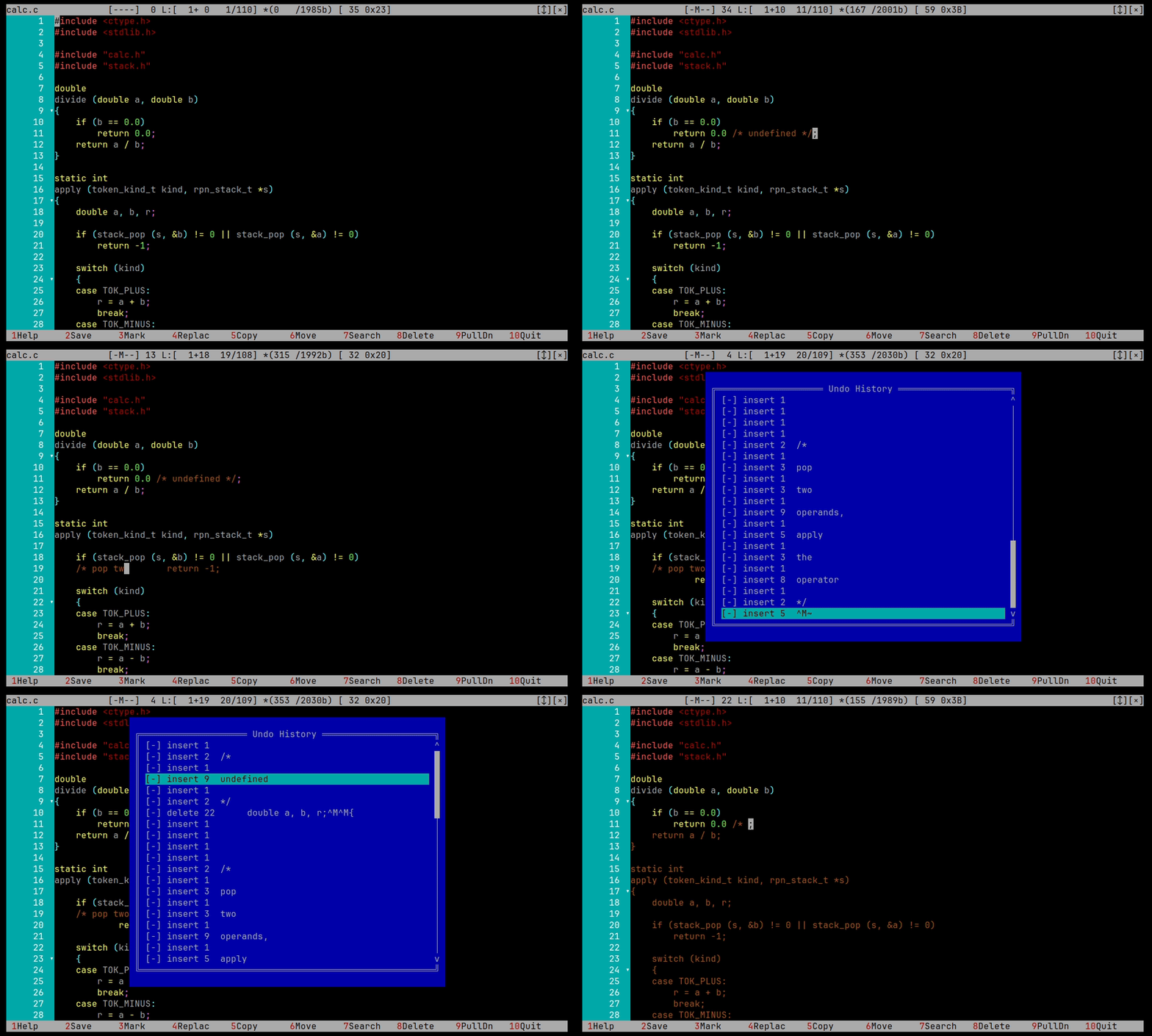
Ctrl-T, Alt-Shift-U or Edit > Undo history lists the groups of changes that can be undone and redone, each with its line, what it did and a preview of the text. Enter on one takes the file back, or forward, to that point at once, instead of pressing Ctrl-U over and over.
-
Alt-t sorts the marked lines, Alt-p formats the paragraph,
Alt-u inserts the output of a shell command, and Ctrl-Q inserts a key
or a code point given as
U+XXXX. These four are Lua scripts. - Ctrl-P checks the spelling of the word under the cursor with aspell or hunspell; the Plugins menu checks the whole file.
- Alt-e chooses the encoding the text is in, and the file is shown in the encoding of the terminal.
- A file that needs root is saved through sudo when you are not root.
- Alt-_ shows the tabs and the trailing spaces.