Repository navigation
Macros and user menu
Ctrl-R starts recording. Type the keys the macro should repeat, press Ctrl-R again, and then the key the macro is to answer to. From then on that key, or Ctrl-A followed by it, plays the macro back.
The demo turns a list of words into lines of a C table: the macro is recorded on the first line, bound to Alt-z, and played on the other three.
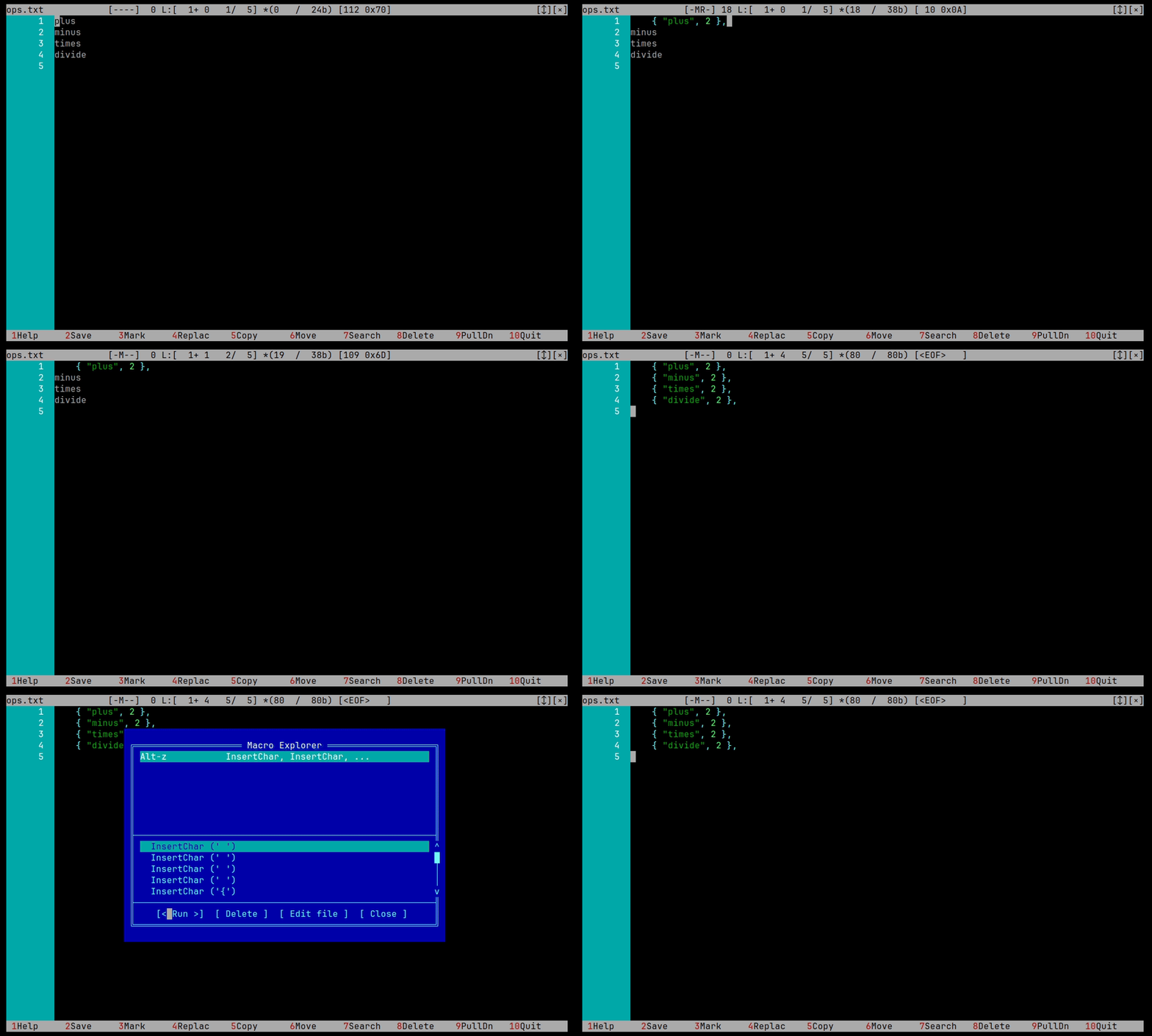
Command > Record/Repeat actions is the quick variant: it records what follows until it is chosen again, then asks how many times to repeat it.
Alt-Shift-M lists the macros with the key each one answers to and the
actions it is made of. Run plays one, Delete removes it, and Edit
file opens the file they are kept in,
~/.local/share/bluerig/macros.
A macro can run a shell script instead of keys. A line in the [editor]
section of the macros file
[editor]
ctrl-W=ExecuteScript:25;
makes Ctrl-W run ~/.local/share/bluerig/macros.d/macro.25.sh. The scripts have
the format of the entries of the user menu below and take the same %
macros; a first line #silent runs one without asking for its parameters.
Examples are installed in the examples/macros.d/ directory of the data
directory (bluerig -f prints it).
F11 opens a menu of shell commands that run on the file being edited or on the block. The menu comes from the first file found of:
-
.bluerig.menuin the current directory (only when it belongs to you or to root, and nobody else can write it), -
~/.config/bluerig/menu, -
~/bluerig.menu, -
bluerig.menuof the system configuration, then of the data directory.
Options > Menu file opens it in the editor. A line that starts with a letter is an entry, the letter its hot key; the lines under it that start with a blank are the commands. Before they run, a few macros are replaced:
| Macro | Stands for |
|---|---|
%f, %p
|
the name of the file |
%n |
the name without its extension |
%x |
the extension |
%d |
the current directory |
%c |
the position of the cursor |
%i |
blanks as wide as the column of the cursor |
%b |
a file with the block; what the command leaves there replaces the block |
%y |
the syntax type of the file |
%{prompt} |
what you type into an input box with that prompt |
%view |
(at the start) the output opens in a new editor window |
A few entries:
s       Sort the block
	sort %b > %b.tmp && mv -f %b.tmp %b

w       Count the words of the file
	%view wc %f

g       Grep the directory for a word
	%view grep -n %{Word to look for} *
The Git commit message window has a user menu of its own, with trailers, checks and a message written by AI.