Repository navigation
Getting started
From Obsidian: Settings → Community plugins → Browse → search Authors Toolbox → Install → Enable.
Manually:
- Download
main.js,manifest.jsonandstyles.cssfrom the latest release. - Copy them into
<your vault>/.obsidian/plugins/authors-toolbox/(create the folder if needed). - Reload Obsidian and enable Authors Toolbox under Settings → Community plugins.
Beta versions: add danielroa98/Authors-Toolbox to the BRAT plugin.
After enabling, two icons appear in the ribbon: the pen opens the writing panel and the flame opens writing habits. The writing panel also opens on its own the first time.
Authors Toolbox works with any folder structure. Three settings tell it where your writing lives:
| Setting | What it's for | Example |
|---|---|---|
| Story folders (Stories) | Notes here are treated as stories (dialogue dash on). | Writing/Stories |
| Scripts folder (Screenplays) | Where new scripts and adaptations are created. | Writing/Scripts |
| Writing folders (Writing habits) | Notes counted in the genre, form and project breakdowns, and kept as daily drafts. | Writing |
You don't need any of them to start: a type property on a note does the same job (see Note properties).
-
Create a note and add these properties (or put the note in a story folder):
---
type: story
lang: en          # or es; leave it out to auto-detect
genre: [mystery]
word_goal: 3000
---
-
Write a title as the first
#heading, then the text. Use##headings for chapters and a line with* * *,---or#for scene breaks. -
Open the writing panel (pen icon). The Stats tab shows your word count, goal and readability; Outline lists chapters and scenes; Style points out repetitions and crutch words.
-
When you're ready to revise, Save a draft in the Revise tab, so you can compare later.
-
To submit, use Export manuscript… in the note's ⋯ menu.
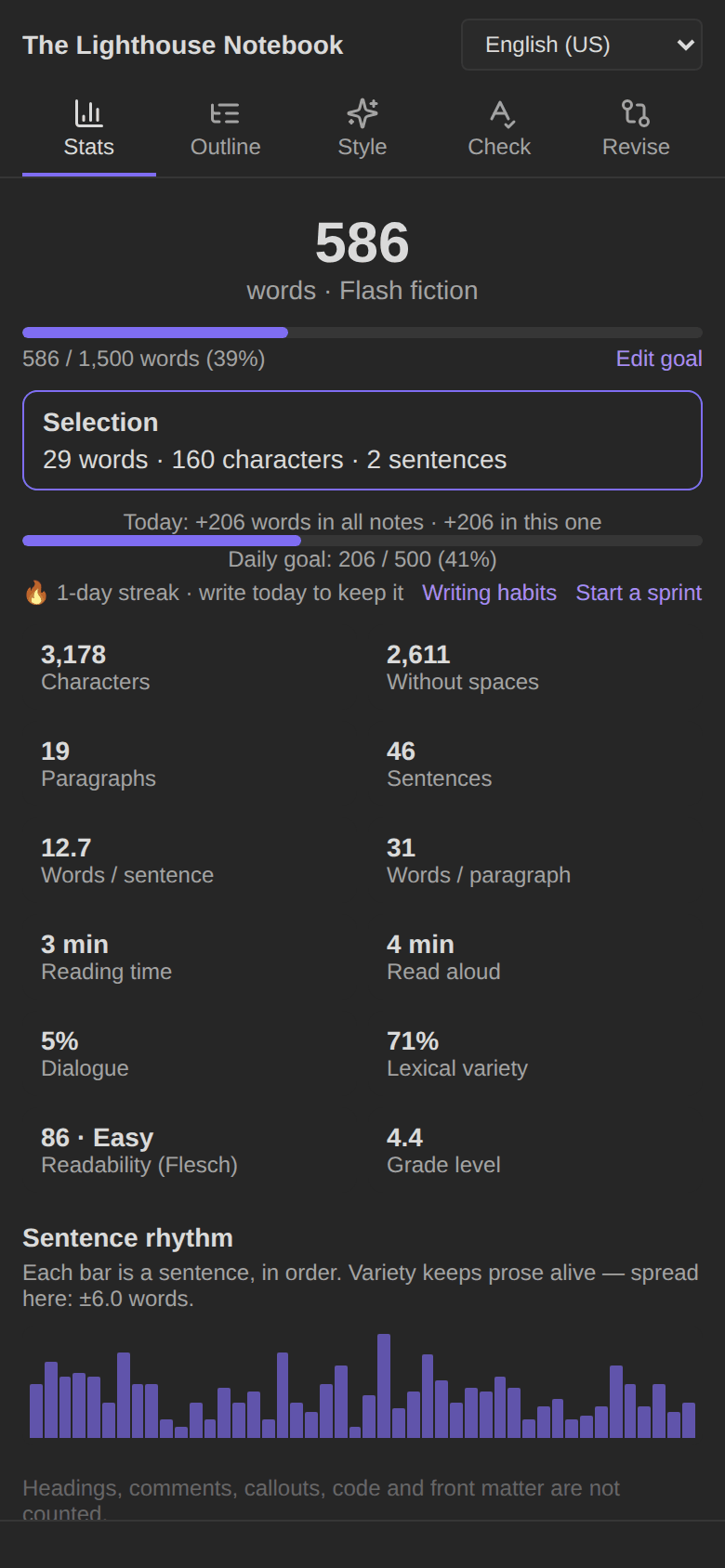
Every feature works on mobile. Open the writing panel from the ribbon (swipe from the right edge), and add the commands you use most (for example Save a draft of this note… or Start a writing sprint…) to the mobile toolbar in Settings → Mobile.
If you use the Templater or core Templates plugin, a story template only needs the properties above. For poems use type: poem; for screenplays, run Screenplay: new script…, which creates a script from a built-in template (English or Spanish).