Repository navigation
Manuscript export
Turn a story, a poem or a whole project into files ready to submit: Word (.docx), PDF, EPUB 3 and plain text. Everything is generated inside Obsidian, without an internet connection, on desktop and mobile.
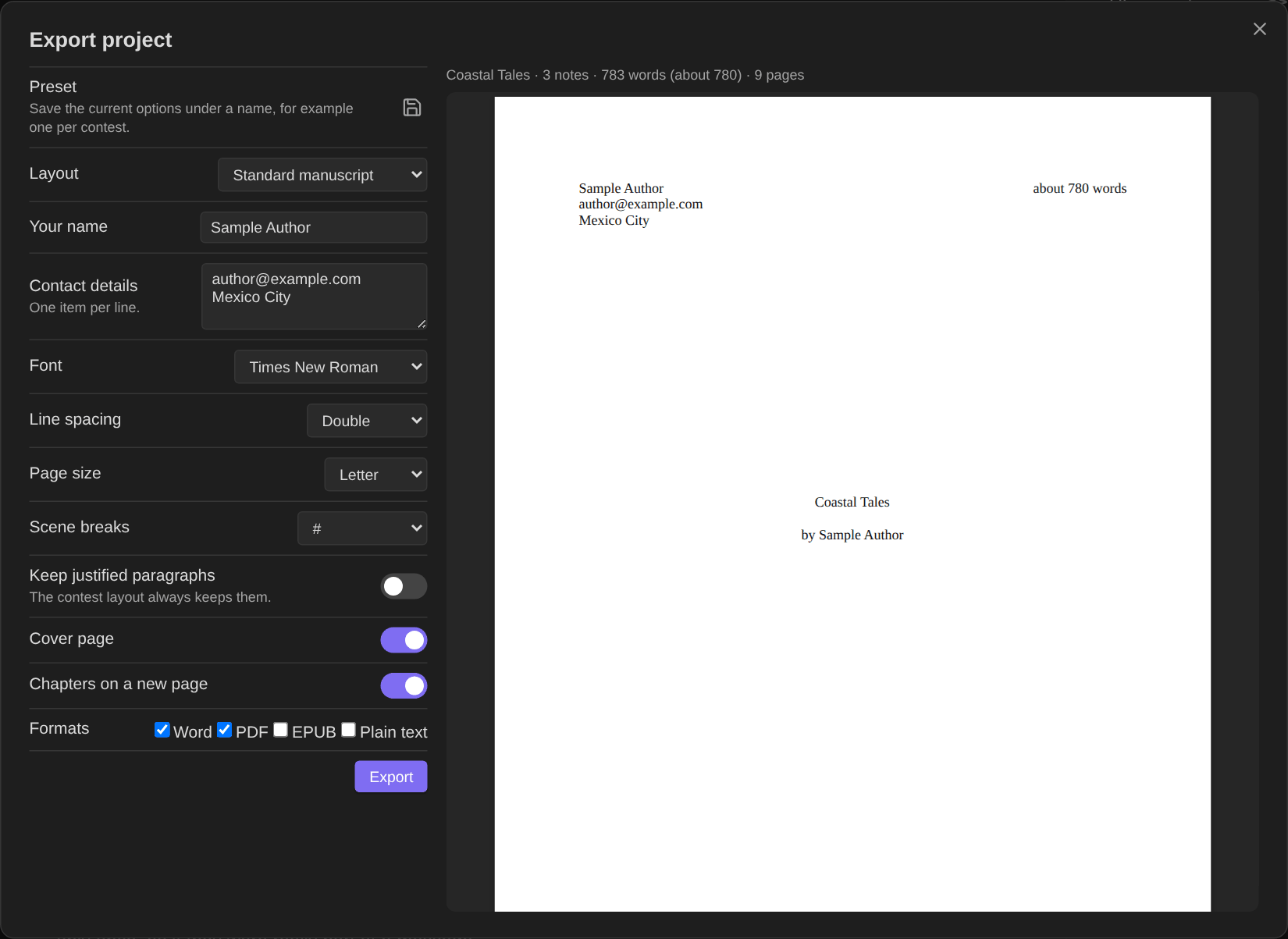
Open it with Export manuscript… in the note's ⋯ menu or the file explorer, or the command Export manuscript as a document or PDF….
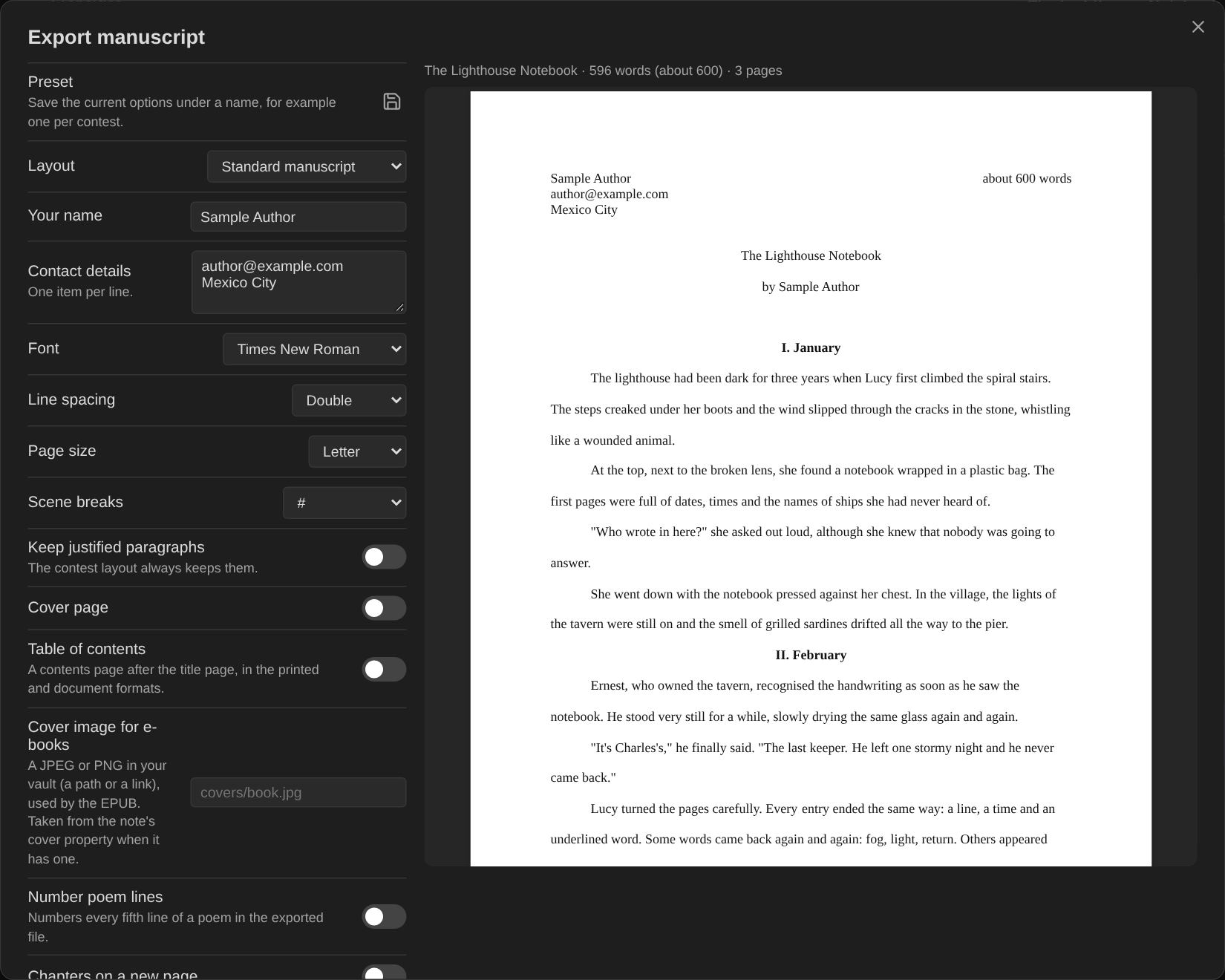
On the left, the options; on the right, a live preview of every page, redrawn as you change anything. The PDF is printed from exactly this layout, so what you see is what you get. The summary above the preview shows the title, the word count (exact and rounded, as manuscripts state it) and the number of pages.
| Option | Choices |
|---|---|
| Preset | Save the current options under a name (for example one per contest or magazine) and apply them in one tap. Presets never store your name or contact details. |
| Layout | Standard manuscript or Contest (anonymous). |
| Your name / contact details | For the standard layout (city, email, phone… one per line). Also set in the settings. |
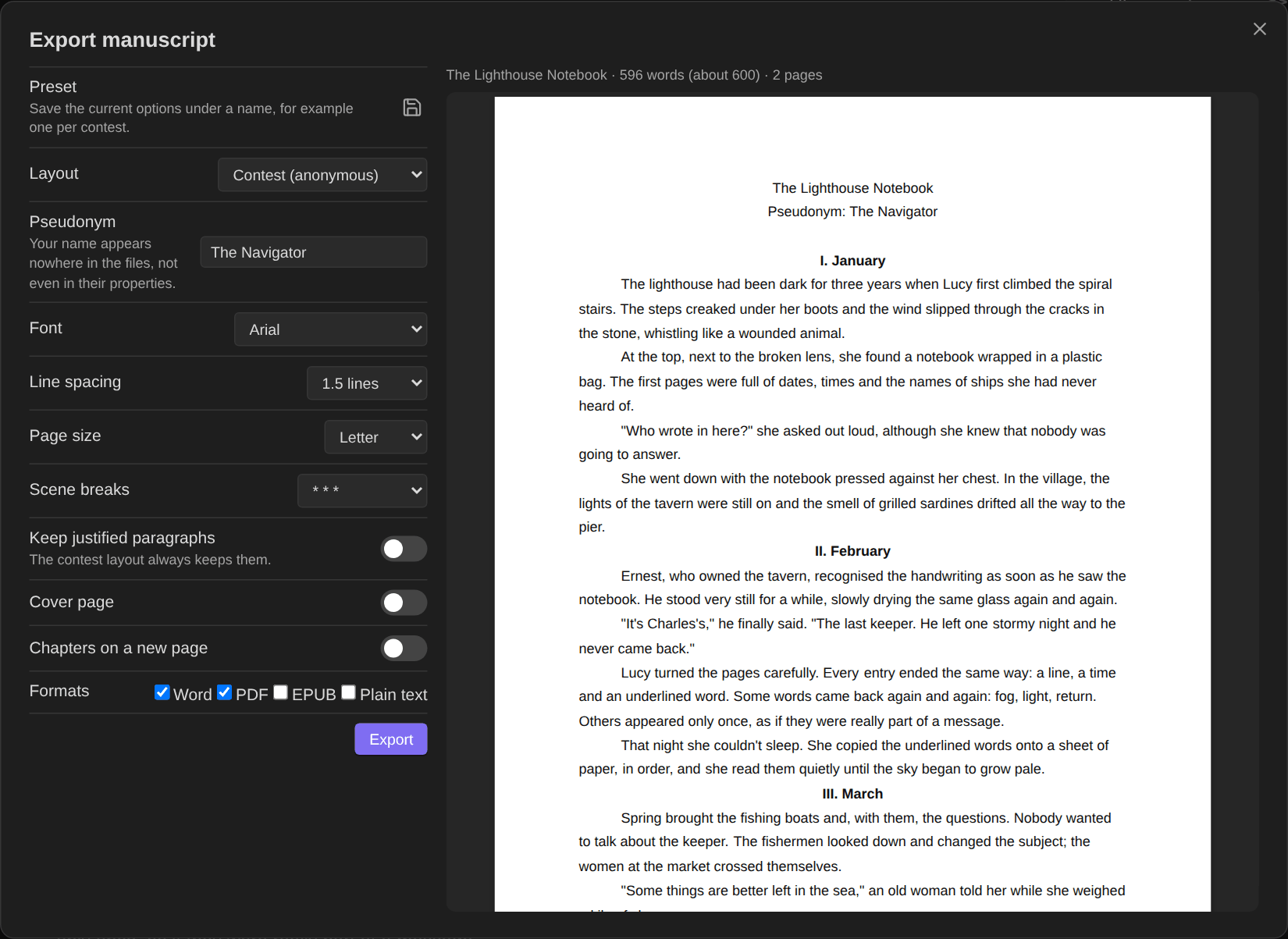
| Pseudonym | For the contest layout. A note's pseudonym property overrides the default. |
| Font | Times New Roman, Courier or Arial, 12 pt. |
| Line spacing | Double or 1.5. |
| Page size | Letter or A4. |
| Scene breaks |
#, * * *, — or a blank line. |
| Keep justified paragraphs | Paragraphs marked as justified stay justified in the standard layout (the contest layout always keeps them). |
| Cover page | The title on a page of its own; the text starts on page 2. |
| Table of contents | A contents page after the title page (PDF and Word), listing the chapters of a project or the top-level headings of a story. The title then has its own page. |
| Cover image for e-books | A JPEG or PNG in your vault for the EPUB (a path or a link). Filled in from the note's cover property when it has one. |
| Chapters on a new page | Each top-level heading starts a new page. |
| Formats | Any combination of Word, PDF, EPUB and plain text. |
The files are saved in an Exports folder next to the note (or inside the exported folder), named after the note; contest files get (contest) / (concurso) in the name.
The format most publishers and agents ask for:
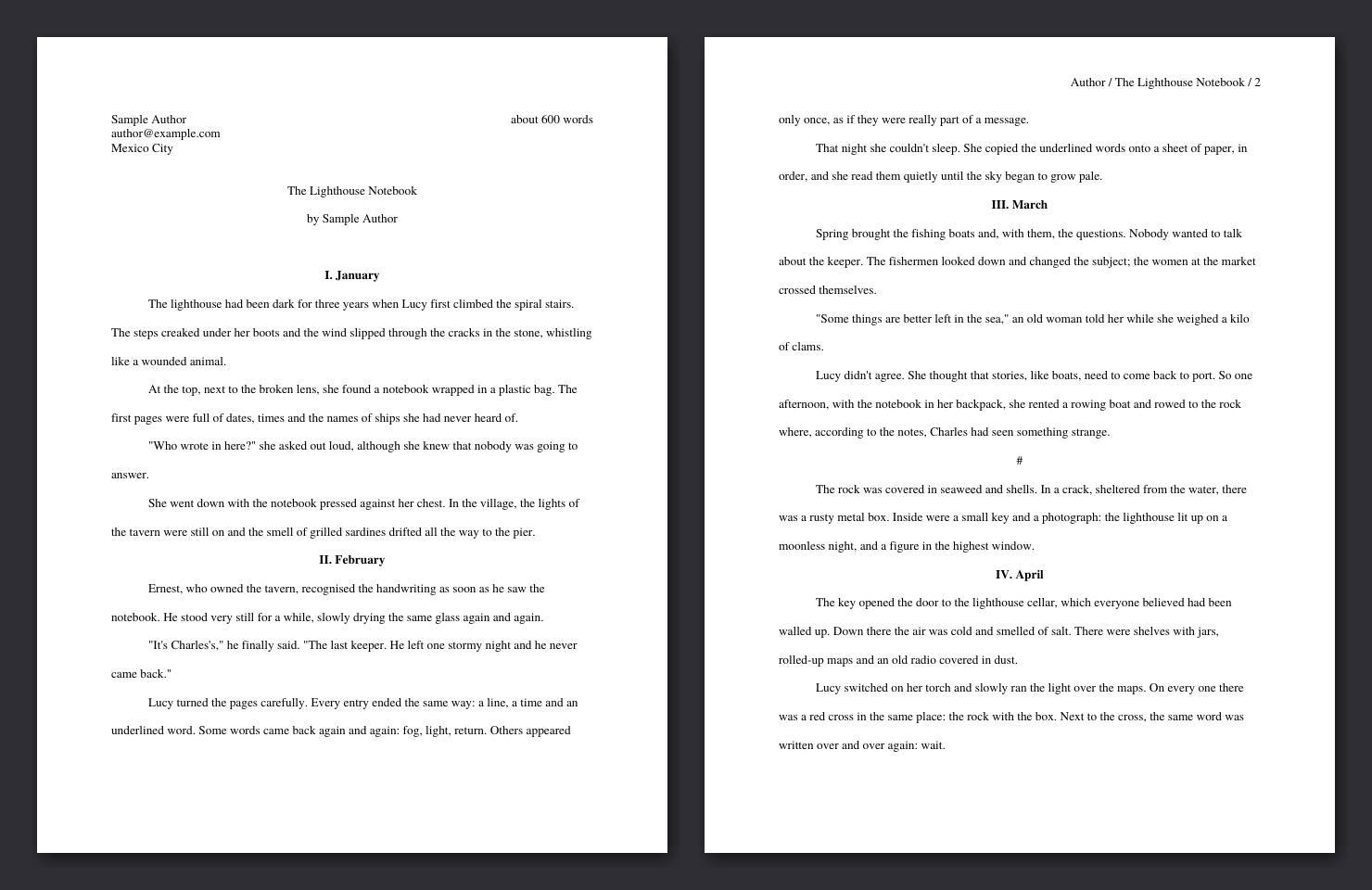
- Your name and contact details top left, the word count rounded (about 600 words) top right.
- The title and a byline (by Sample Author) one line below; if the note has a subtitle that already names you (Un relato de …), it replaces the byline.
- From page 2, a running header: Surname / Title / page number.
- First-line indents, no blank lines between paragraphs, END / FIN at the end.
For contests with blind judging:
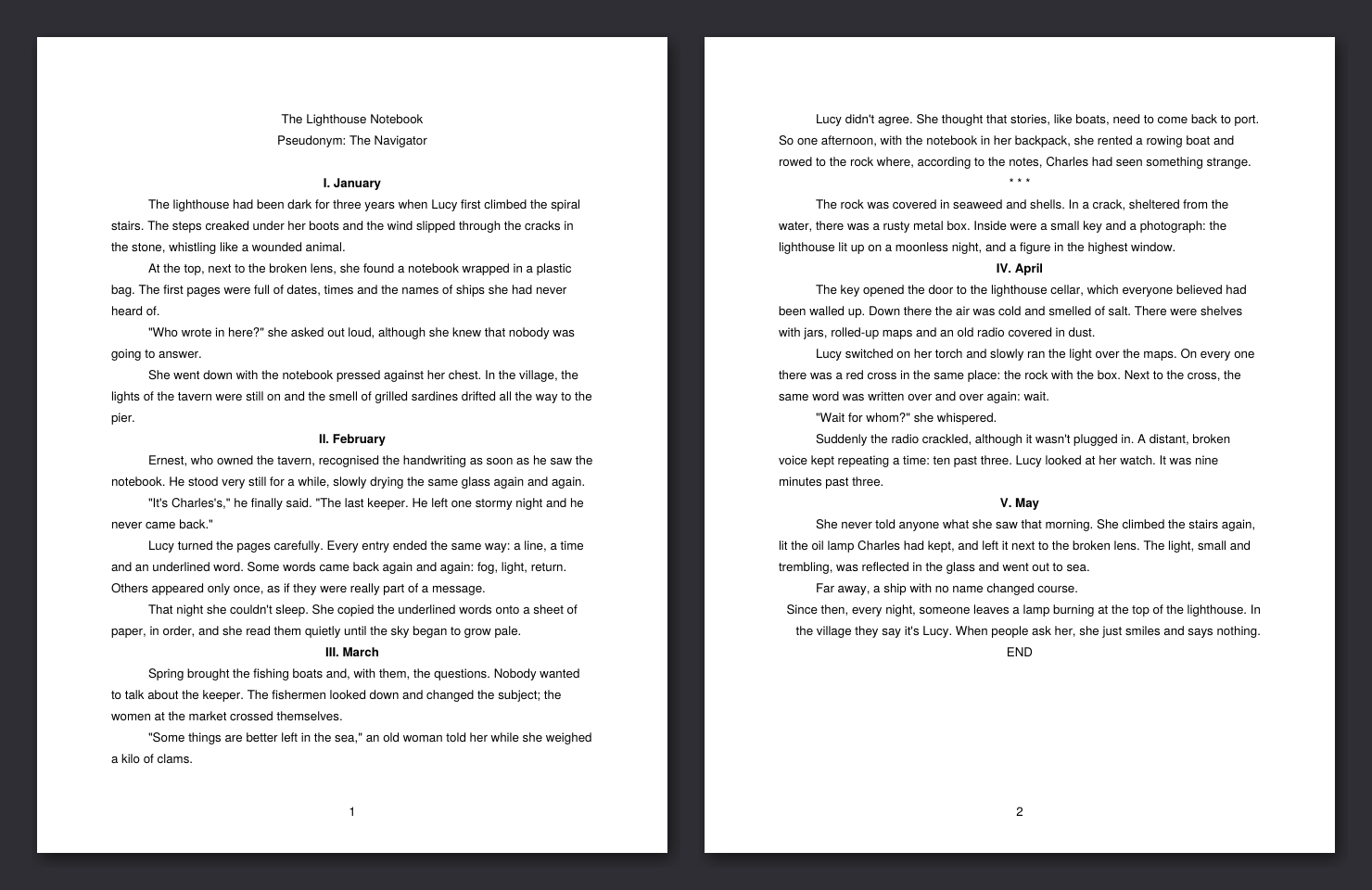
- Only the title and Pseudonym: …, page numbers at the bottom.
- Your name appears nowhere: not in the text, not in a subtitle that names you (it's left out), not in the files' properties or metadata.
The note is converted to a manuscript model first, the same for every format:
- The first
#heading is the title (or thetitleproperty). A heading right under it is the subtitle, unless it is your name (a byline, dropped) or the first of several sections at its level (a story that opens with## Chapter 1). - Every line is a paragraph, the way it reads in Obsidian. Italics and bold are kept.
- Headings become section titles; scene-break lines (
***,---,* * *,#,⁂…) become the chosen symbol. - Alignment markers are respected: centred and right-aligned paragraphs keep their alignment; justified ones are justified in the contest layout or with Keep justified paragraphs.
-
Left out: front matter, callouts (concept art, notes to self), comments, images, tables, code, footnote markers, block IDs, and link syntax (
[[note|shown]]prints shown). - Poems keep their lines, indentation and stanzas (see Poetry). Number poem lines numbers every fifth line in Word, PDF and EPUB; epigraph and dedication callouts are set apart in italics.
Export several notes as one manuscript:
-
An anthology note: run the export on a note with
type: anthology. It collects the notes linked from it, then every story whoseanthologyproperty links to it. - A folder: right-click a folder → Export folder as one manuscript…. Subfolders are included in name order.
Notes are ordered by their order property, then date_created, then name. Each note becomes a chapter that starts on a new page, titled with the note's title (its byline or subtitle is dropped), and the first page shows the total word count. All formats and both layouts work with projects; the EPUB gets one chapter per note with a table of contents.
- PDF: the contents page has the exact page numbers, with dot leaders; a long list continues on a second page.
- Word: a real table-of-contents field built from the headings (they carry an outline level), already filled in so it shows as soon as the file opens, with page numbers from the plugin's own layout. Word's pagination can differ a little: right-click the table → Update field to refresh it. Nothing asks you to update when the file opens.
- EPUB: always has a table of contents (the reader's own contents menu).
Export a folder or an anthology note of poems as one book: each poem starts on its own page with its title, line numbers restart with each poem, and with the table of contents on you get a poetry collection ready to print. Put type: anthology on a note that links the poems, or export their folder.
Choose the image in Cover image for e-books, or add cover: "[[covers/book.jpg]]" (or a plain path) to the note or anthology note. JPEG and PNG are accepted, recognised by their content. The cover is the EPUB 3 cover image, so library apps show it, and it is also the first page of the book. Over 3 MB the export warns you: some e-readers and stores struggle with heavy covers.
| Format | Details |
|---|---|
| Word (.docx) | Uses the real fonts, page size, margins (1 inch), header or footer with the page number, line spacing and indents. Opens in Word, Pages, Google Docs and LibreOffice. |
| Drawn page by page from the preview layout with exact font metrics, using the PDF standard fonts (Times, Helvetica for Arial, Courier). | |
| EPUB 3 | A valid e-book (checked with EPUBCheck): optional cover image, title page, one file per chapter, navigation and a table of contents for older readers, language and author or pseudonym metadata. |
| Plain text | For submission forms that ask you to paste the story: no markup, scene breaks kept, emphasis dropped. |
For the Word file with tracked changes since a draft, see Revision mode.
The PDF standard fonts cover English, Spanish and other Western European languages; characters outside that set (Greek, Cyrillic, CJK) print as "?" in the PDF. Word files use the real fonts and have no such limit.