Repository navigation
Revision mode
Drafting and revising are different jobs. While you draft, the word count goes up and the habits dashboard cheers you on. While you revise, the count may go down, and what matters is what changed: which paragraphs you rewrote, what you cut, whether a chapter grew, whether your sentences got tighter. Revision mode keeps drafts of a note and shows the changes between any two versions.

A draft is a copy of the whole note at a moment in time.
-
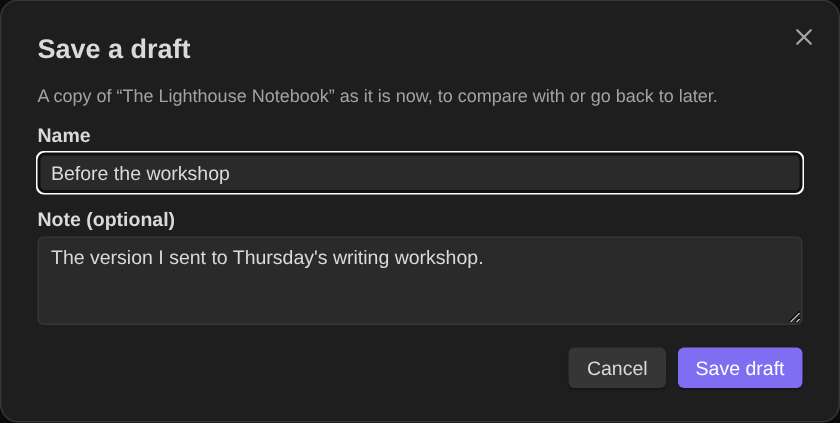
Save a draft: the Revise tab of the writing panel, the note's ⋯ menu, or Save a draft of this note…. Give it a name (Before the workshop) and, if you like, a note (The version I sent to Thursday's workshop).
-
Daily drafts: the first time you open a note from your writing folders each day, its text is kept automatically as Start of 14 Oct, if it changed since the last draft. You can always see what you changed today, and go back. Automatic drafts are marked ◦ and kept for 30 days (a setting); renaming one makes it permanent. Named drafts stay until you delete them.
-
Drafts are stored in your vault in a hidden folder,
.authors-toolbox/drafts(a setting), one small file per note. See where drafts live.
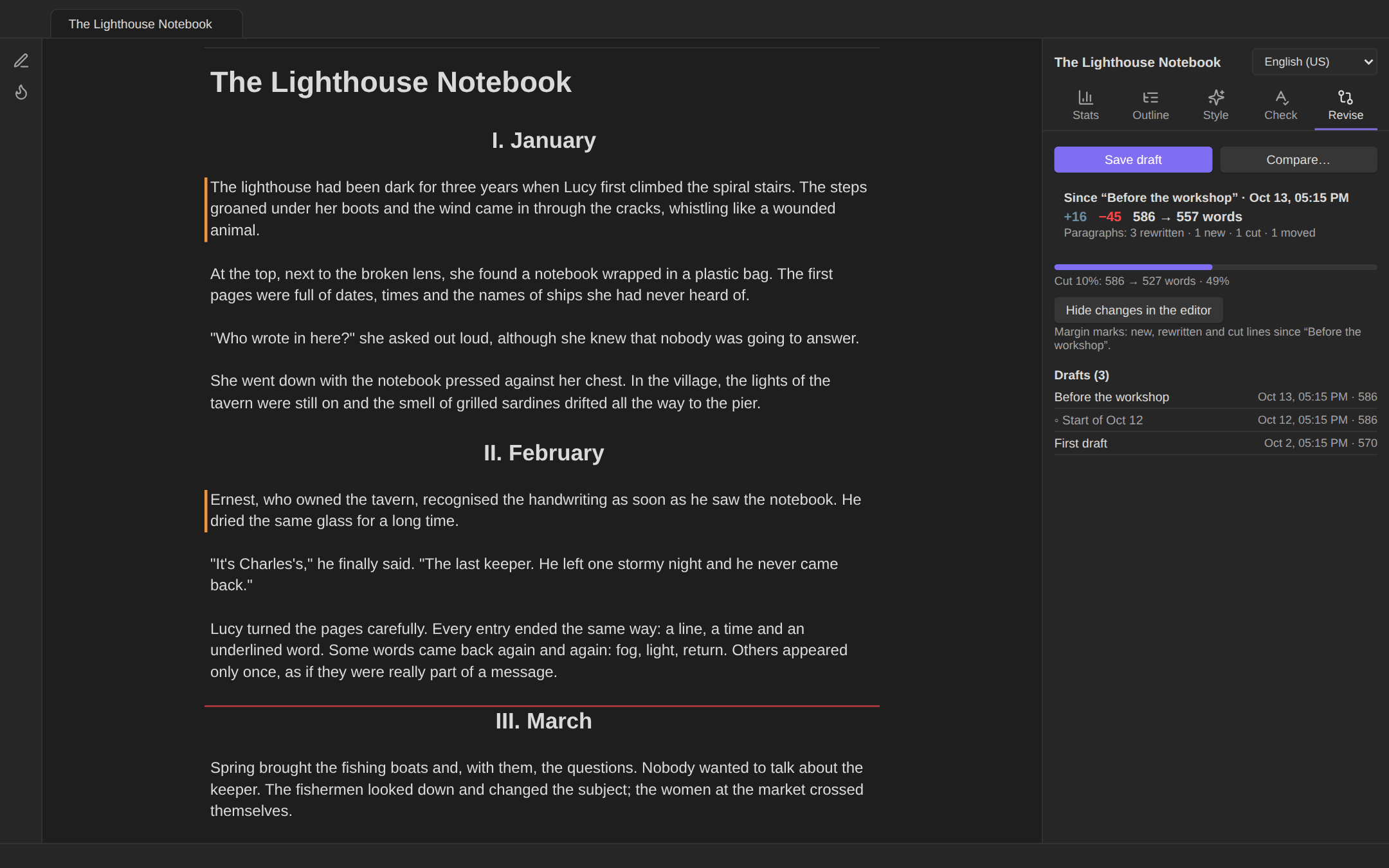
In the writing panel, for the current note:
- Save draft and Compare…
- Since the last draft: words added and cut, words before → after, and paragraphs rewritten, new, cut and moved. (It compares with the latest draft that differs from the note.)
- The revision goal, if there is one, with a progress bar.
- Show changes in the editor (see below).
- The six most recent drafts; tap one to compare it with the note.
Compare… or Compare drafts of this note opens the revision page. At the top, choose the older version (a draft) and the newer version (The note now or another draft). Then:
Words before → after, words added, words cut, how much of the text changed (added + cut over the words of both versions), and paragraphs rewritten · new · cut · moved.
A goal measured from a draft: cut a percentage (cut 10%: 586 → 527 words) or reach a number of words (reach 5,000 words). The bar shows how far along you are; it turns green when you get there. Set it from the revision page, the Revise tab or Set a revision goal for this note….
Every heading is a section. For each: words before and after (with two small bars to compare at a glance), words added and cut, and its status:
| Status | Meaning |
|---|---|
| Revised | Text was added or cut inside it. |
| Renamed | Only its heading changed. |
| Moved | It changed place relative to the other sections. |
| New / Cut | It exists in only one of the versions. |
Paragraphs moved from one chapter to another change both chapters' word counts but don't count as added or cut.
Before → after for the numbers that change when you revise: words, sentences, average sentence length, long sentences, readability (Flesch or INFLESZ), dialogue share, adverbs and crutch words per 1,000 words, and lexical variety. A ▲ or ▼ marks what moved.
The newer version with the changes marked:
-
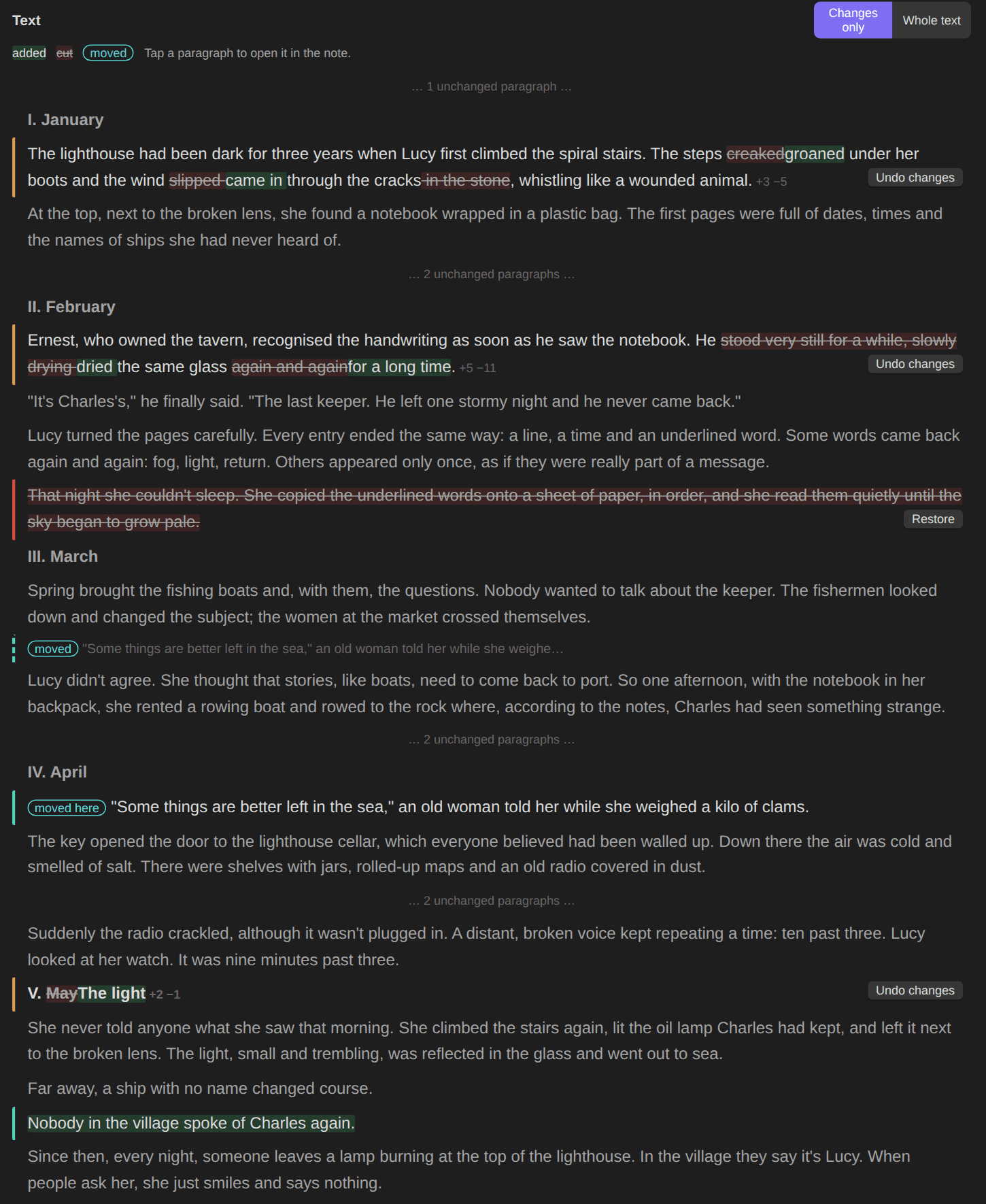
New paragraphs with a green bar; cut paragraphs struck through with a red bar; rewritten paragraphs with an orange bar and the words cut and added marked inside (The steps
creakedgroaned under her boots), with a count like +3 −5. - Moved paragraphs are tagged moved here, with a faint moved line where they used to be.
- Changes only (the default) shows each change with one paragraph of context and folds the rest (… 5 unchanged paragraphs …); Whole text shows everything.
- Tap a paragraph to open the note at that line.
- Restore puts a cut paragraph back where it was; Undo changes brings back a rewritten paragraph's earlier wording. Both only work if the note still reads as compared, and both can be undone in the editor.
On a phone the page stacks into one column:

At the bottom, every draft with its date, words and change from the previous draft, and its note. For each:

- Compare with the note now;
- Rename or add a note (renaming an automatic draft makes it permanent);
- Restore this draft: the note's text is replaced by the draft's. The current text is saved as a draft first (Before restoring "…"), and the note keeps its current properties (status, genre…);
- Copy to a new note, next to the original;
- Delete.
Show changes in the editor (Revise tab, revision page, or the command Show or hide changes since the last draft in the editor) marks the margin of the editor:
- a green bar on new lines,
- an orange bar on rewritten lines,
- a red line where text was cut.
The marks update as you type, so you can revise with the old version in mind without opening it. Run the command again to hide them.
Export with tracked changes (revision page) or Export the changes since the last draft with tracked changes (.docx) writes a Word manuscript of the note where every change since the draft is a real tracked change, with your name as the author. Your editor or workshop can see exactly what you changed and accept or reject each change in Word, Pages, Google Docs or LibreOffice. Track changes is left on in the file, so their edits are tracked too.
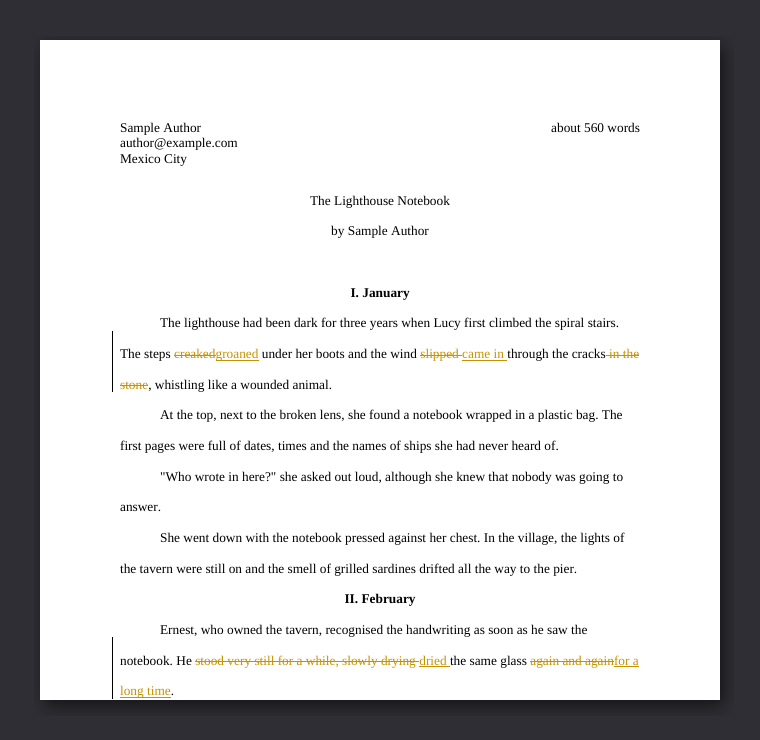
The file uses your manuscript export settings (font, spacing, page size, name and contact) and is saved in the Exports folder as Story (changes since Draft 1).docx.
Drafts outlive the notes they belong to. The command Recover a deleted note… lists the notes that no longer exist but still have drafts, newest first. For each one choose a draft (the latest is first) and Restore where it was (the folders are recreated) or Restore to Recovered (a Recovered folder at the top of the vault). A note is never overwritten: if something now sits at the old path, the restored note goes to Recovered. Restoring at the old path means the note's drafts are attached to it again.
Only notes in your writing folders have drafts, and automatic drafts are dropped after the number of days in the settings (the latest draft of a note is always kept).
- One JSON file per note in
.authors-toolbox/draftsat the root of your vault, named after the note plus a short hash of its path. - The leading dot hides the folder from Obsidian: drafts never appear in search, the graph, the file explorer, Dataview queries or word counts.
- They are ordinary files in your vault folder, so they sync with iCloud, Dropbox, Git or Obsidian Sync (for Obsidian Sync, hidden folders follow its settings), and they stay if you uninstall the plugin.
- Renaming a note keeps its drafts. Deleting a note keeps them too, so the text can still be recovered.
- To keep drafts somewhere visible, change Drafts folder in the settings to a normal folder.
See How it works → Comparing versions for the algorithm: paragraph alignment with a Myers diff, pairing rewritten paragraphs by similarity, word-level differences, move detection and section matching.