Repository navigation
Admin UI basics
Open WHM → Plugins → MSFE-NG. The app is a single page with a left rail; every tab is described on its own wiki page.
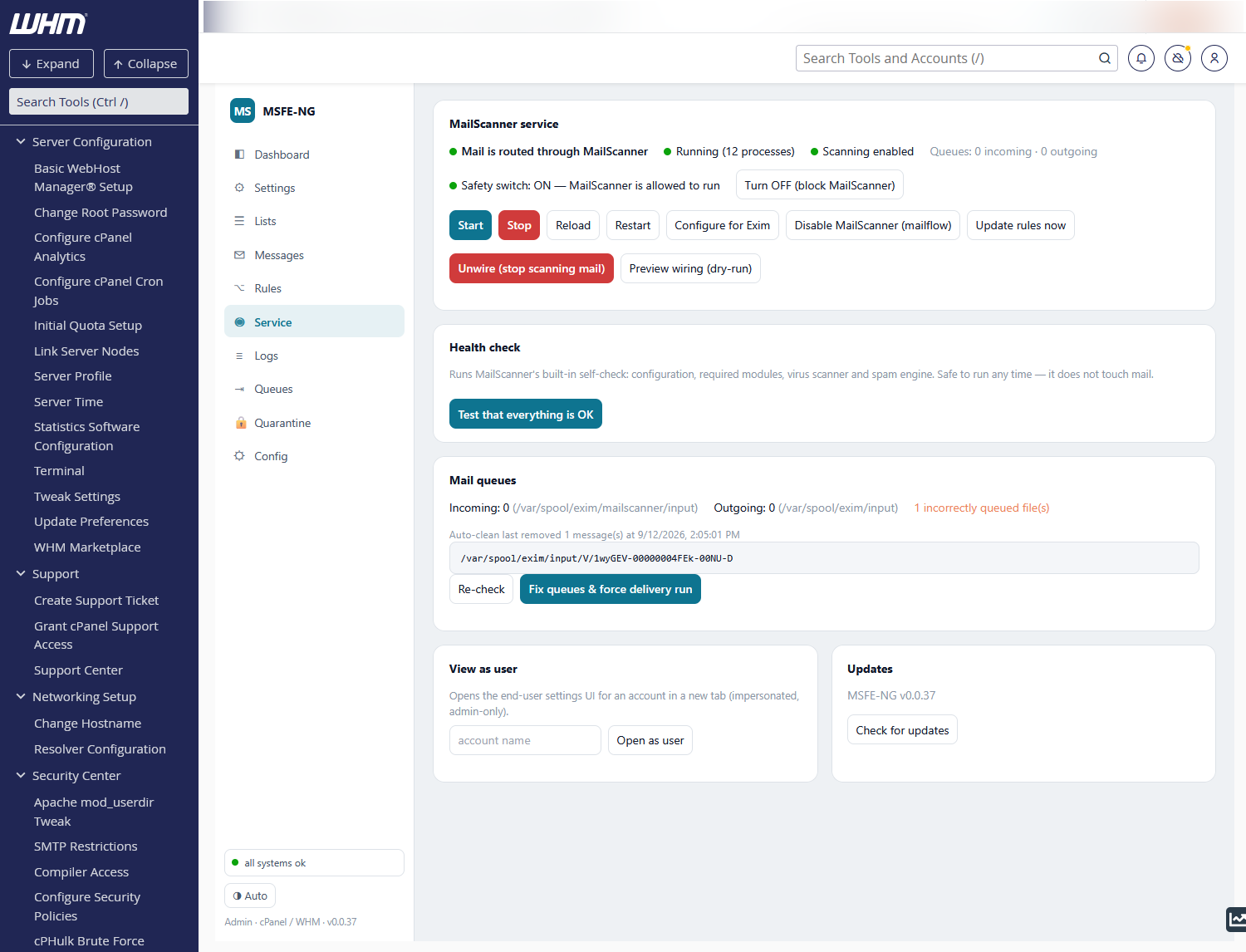
- Tabs — Dashboard, Service, Messages, Lists, Rules, Queues, Delivery, Logs, Settings, Config. Messages holds two views, switched at the top of the card: Log (the message log) and Quarantine (what is on disk). Delivery holds two views, switched by the pills at the top: Address test (the delivery test for one address) and Account DNS (SPF, DKIM and DMARC for every hosted domain).
- Message ids (the Exim id shown in a message's title, the Quarantine view and Queues lists, the test-message line) are click-to-copy: one click puts the id on the clipboard, for a log search or a support ticket.
- IP and email addresses in a message's headers and content preview (and in the Quarantine view's header viewer) are links to their history and actions; the small copy icon beside each puts the bare address on the clipboard.
-
Health dot (bottom) — mirrors
msfe-ng doctor, refreshed every minute: green all systems ok, amber N notices, red N problems, plus · N acknowledged when notices are silenced. Click it for the notices dialog: the current notices with an Acknowledge… button each, and every acknowledged notice with its status (hidden, showing again, resolved), when and until when, your note, and Unacknowledge. - Theme — cycles Auto → Light → Dark; remembered in the browser.
- Version — the running daemon's version, with links to the project on GitHub, this wiki and the issue tracker. ★ Star opens the GitHub page: if MSFE-NG is useful to you, a star helps other MailScanner admins find it.
When any doctor check is not OK, a banner appears above the content on every tab. Expand it to see each finding with its level (fail / warn), a one-line explanation and the fix — usually the exact CLI command or the button to click. Fix what can be fixed applies the mechanical ones in one go (see Troubleshooting, Start with the doctor); what needs a decision stays listed — and where the decision is a concrete setting, the finding carries an Apply: … button: it states the change, asks you to confirm, and carries it out through the same validated save the Config tab uses (lint, previous version kept, reload or restart as the file requires) or runs the named commands.
A notice you have looked at and decided to live with — a raised limit that is
fine at 1 %, a kept exiscan — can be acknowledged: Acknowledge… on the
finding asks for how long (7, 30, 90 days or for good) and an optional note.
The notice then leaves the banner and the health dot while it stays at that
level or improves; a warning that turns into a failure shows again at once,
and so does an expired acknowledgement. Nothing is forgotten: the health dot's
dialog lists every acknowledgement, and msfe-ng doctor prints the count
(--all shows them, doctor acks the details, doctor ack / doctor unack
do the same from a shell). Acknowledgements live in
/etc/msfe-ng/acknowledged.json.
The banner disappears on its own once every check passes.
- Destructive actions (stop, delete, purge, block, wire/unwire) always ask for confirmation and say what will happen.
- Long-running actions write a transcript into a console box under the button (the exact commands run and their output) — copy it into an issue if something fails.
- Values shown in monospace (message ids, IPs, scores) are data; clicking a sender address or a client IP opens an action modal (see Messages).
- Preferences such as rows per page, auto-refresh and "open details in a new window" live in Settings → Interface & release.