Repository navigation
Messages
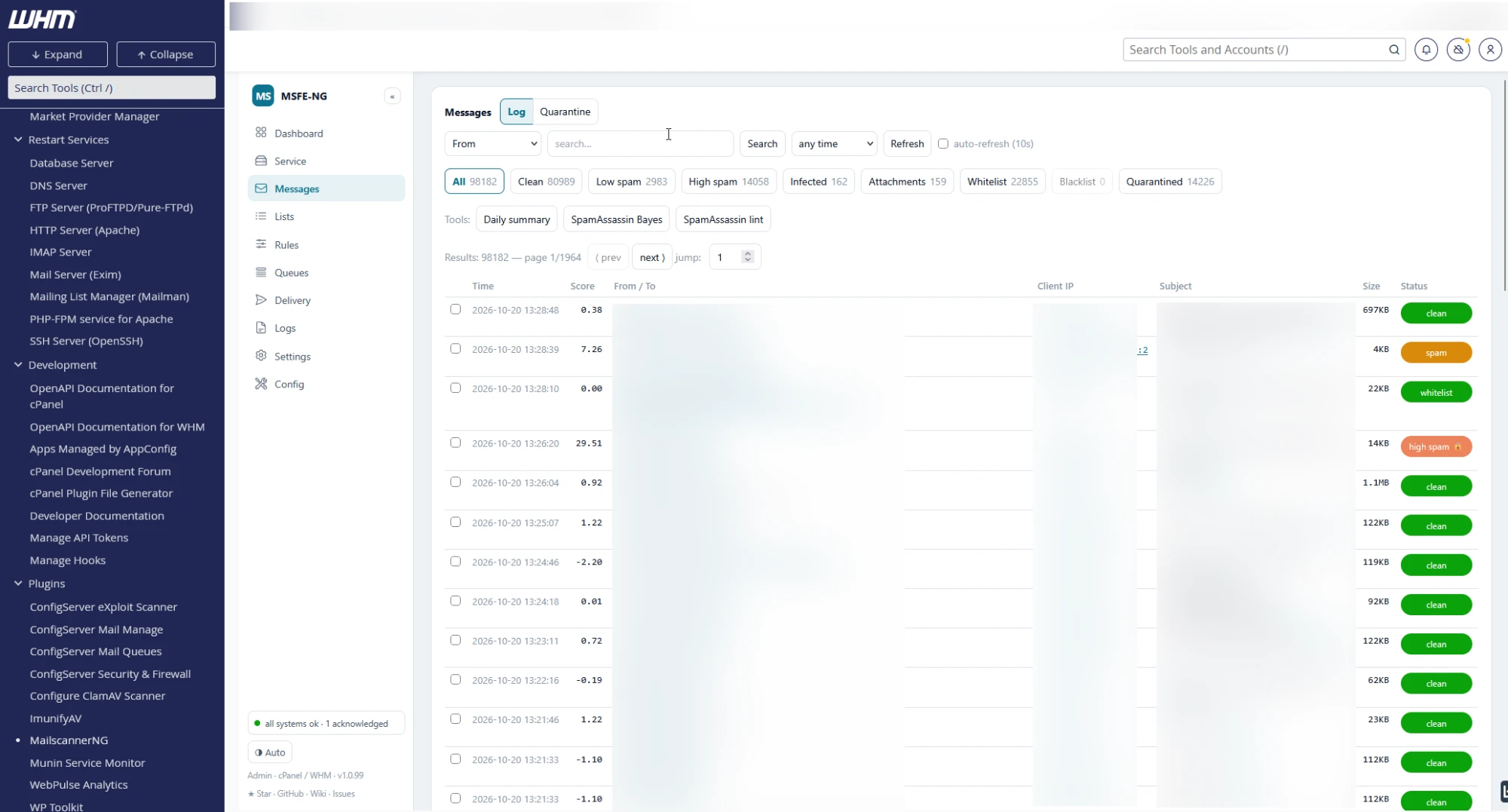
One panel, two views, switched at the top of the card:
- Log — the message log: one row per message MailScanner scanned, with time, score, From/To, client IP, subject, size and a status badge (clean, spam, high spam, infected, whitelist, blacklist, held; a 🔒 means a copy is in quarantine).
- Quarantine — what is actually on disk in the quarantine directory, in the same columns, client IP included when the message log knows the message; see Quarantine.
The chosen view, the search and the filter are kept while you open a message and come back, and when you leave the tab and return to it.
- Search — pick the field (From, Sender domain, To, Subject, Message ID, Client IP), type, Search; combine with a time window (24 hours … 90 days). The bar is shared by both views: in Quarantine the text searches sender, recipient, subject and message id at once (the field select is greyed out) and the window becomes the first quarantine date. For what MailScanner and Exim actually did with a message, search its id on the Logs tab.
- Status chips — in Log: All, Clean, Low spam, High spam, Infected, Attachments, Whitelist, Blacklist, Quarantined; in Quarantine: All, Spam, Held. Each chip shows how many messages it holds for the current search and window, so an empty filter is visible before you click it; a chip at 0 is dimmed. Quarantined is mail held in quarantine — a copy on disk can be released. Attachments, Whitelist and Blacklist are often 0 on a quiet server.
- Active filters — a search or a window shows as pills under the chips (Sender domain: example.com ✕, last 7 days ✕); ✕ removes one, Clear all removes both. An empty result names what is filtered (No messages match — Clean, sender domain example.com, last 7 days.) with a Clear search button.
- Sort — click a column header; again to flip. In Log the whole log is sorted; in Quarantine the 2000 newest copies on screen are.
- The Dashboard's Show messages from link opens the Log view with a Sender domain search and the Dashboard's window already set — the pills show it.
- Refresh / auto-refresh (interval from Settings; a refresh waits while messages are selected).
- Paging (Log): prev / next / jump to page; page size from Settings.
- Daily summary — per-day totals (clean/spam/high/infected/quarantined, volume) over 7–90 days.
- SpamAssassin Bayes — token counts and training state of the Bayes DB.
-
SpamAssassin lint — runs
spamassassin --lintand shows the verdict.
Tick rows and a selection bar appears.
- Log — only messages whose body is still on disk have a checkbox. Optionally type a forward address, then Release selected: they are re-sent through Exim to their original recipients (or forwarded). A per-message result list is shown for anything that could not be released.
- Quarantine — Copy to INBOX, Release selected (the selected copies that have a message log row; same forward box) and Purge selected. See Quarantine.
Click a row (opens in place, or in a new window per Settings). It shows the
scan status, envelope, size, client IP, the scan report for an infected
message (MailScanner's verdict per attachment — the virus signature, or the
filename/content rule that matched — as logged from the current plugin
onwards), spam report and RBL report, the SpamAssassin component scores
(rule, score, description), the header
IPs from the Received: chain (only the last one outside your network can
be trusted) and the full headers. In the headers every IP address and
email address is a link: an IP opens the client-IP view (history, reverse DNS,
location, csf ban of the address or its /24 or /16), an address opens the
sender view (history, black/white list for the address or its domain, and
Ban rule… — an auto-ban match rule that blocks mail from it and bans the
IP that sends it; every match rule is listed in the Rules tab, and
the ban modals link there with All match rules →). Message-ID, References and similar headers stay plain; the
Quarantine view's header viewer links the same way.
Message content (needs a stored copy — quarantine or archive):
- View source — the raw message, escaped, in a new tab.
-
Download .eml — the stored copy, byte for byte, as
<message id>.eml: open it in a mail client, hand it to whoever needs the original, or upload it to the Delivery test (Analyse a saved message). -
View rendered — the decoded message in a sandboxed tab, transfer
encodings and charsets decoded, inline
cid:images embedded; scripts and any network access are blocked by a Content-Security-Policy. Alternative parts show HTML over plain text; everything else is shown in order, so a bounce reads as notification → delivery status → returned headers, a forwarded/encapsulated message gets a From/To/Date/Subject summary plus its own rendered body, and other attachments are listed by name, type and size.
Actions (also need the stored copy):
-
Learn as ham / spam / spam & report / Forget — trains SpamAssassin's Bayes
filter (report also submits to Razor/Pyzor — see Troubleshooting for the
one-time setup
engine configuredoes). The message is trained whatever its size (sa-learn --max-size 0; sa-learn alone skips anything over 500 KB and reports "0 message(s) examined" — which the transcript now calls a failure rather than a success). With "Reclassify the database" on, the log entry's spam flag follows. -
Release (resend) — to the original recipients, with the original
envelope sender kept (a bounce is re-sent as
<>), so the remote server sees the message as coming from the sender, not from this host. Release (forward) — to the address typed in the box. Deliver to INBOX — straight into a local account's mailbox via Dovecot LDA. - Report to SpamCop — appears when a SpamCop address is configured.
The small paper-plane icon next to the recipient runs a Delivery test for that address: it opens the tab with the address filled in and starts the run at once, with the server audit included when the domain is hosted here — the quickest way from "this message did not arrive" to the report. The same icon sits next to senders and recipients in the Queues tab.
Each row has a ban rule link next to the subject, and the message view a Ban rule… button. Pick what to act on: Subject contains ⟨this subject⟩ or From address ⟨this sender⟩ opens the match-rule editor prefilled (block delivery on, ban the source for a day — change anything, test it against recent mail, save: it is live after the reload); Ban the client IP now opens the client-IP modal for a one-off csf block. See Config, Auto-ban spam sources.
Click any From address: 30-day history for that address and its whole
domain, current list status, and buttons to blacklist / whitelist the
address or the whole domain (*@domain). Changes regenerate the rules
and reload MailScanner immediately.
Click a client IP: reverse DNS, 30-day activity (messages, spam ratio,
average score, first/last seen, top senders and recipients), location
(third-party lookup via the configured geoip_url, cached 30 days; clear the
key to disable) and the ConfigServer csf section: current deny status,
then Block in firewall for the address, its /24 or /16 (wider than /24
asks twice), permanent or for 1 h / 24 h / 7 days, with a reason that goes into
csf.deny, optionally restarting csf. Unblock removes the entry.
Between the csf status and the block controls, Report to AbuseIPDB sends the address to AbuseIPDB — typically a bot that posts unsolicited web forms. It is manual only: nothing is ever reported automatically (auto-ban does not report). The block shows what AbuseIPDB already knows (confidence score, number of reports, last report, usage type, ISP), the categories (Web Spam and Bad Web Bot ticked; Email Spam, Brute-Force, Web App Attack, Port Scan on offer — hover for what each means) and a comment prefilled with the category names and, when known, how many messages this server saw from the address in the last 30 days.
- What is sent: the single address (never the /24 or /16 you may have blocked), the categories and the comment. The comment is public on AbuseIPDB: never put addresses, names or domains of your users in it.
- Report now sends it at once; also report to AbuseIPDB next to Block in firewall sends it right after a successful block, with the categories and comment of the block above. The outcome is appended to the csf transcript.
- AbuseIPDB accepts the same address once every 15 minutes; a second report within that window shows as already reported, not as an error.
- Refused before anything is sent: private, loopback, reserved and this
server's own addresses, addresses in
csf.allow/csf.ignore, no category, a comment over 1024 characters. - The key is set in the Config tab, Telegram alerts card (AbuseIPDB API
key,
abuseipdb_key); without it the block only says so. - Every report that reached AbuseIPDB is kept in
<backup_dir>/reports.jsonl(readable by root only) and listed under the block for that address;msfe-ng report listshows them all (see CLI).