Repository navigation
Writing and Pictures
Paper, parchment, books, journals and letters can be written in and read. Maps, portraits and handouts can be just a picture.
The pencil button on a row (or Write in it in the item's details) opens the writing window.
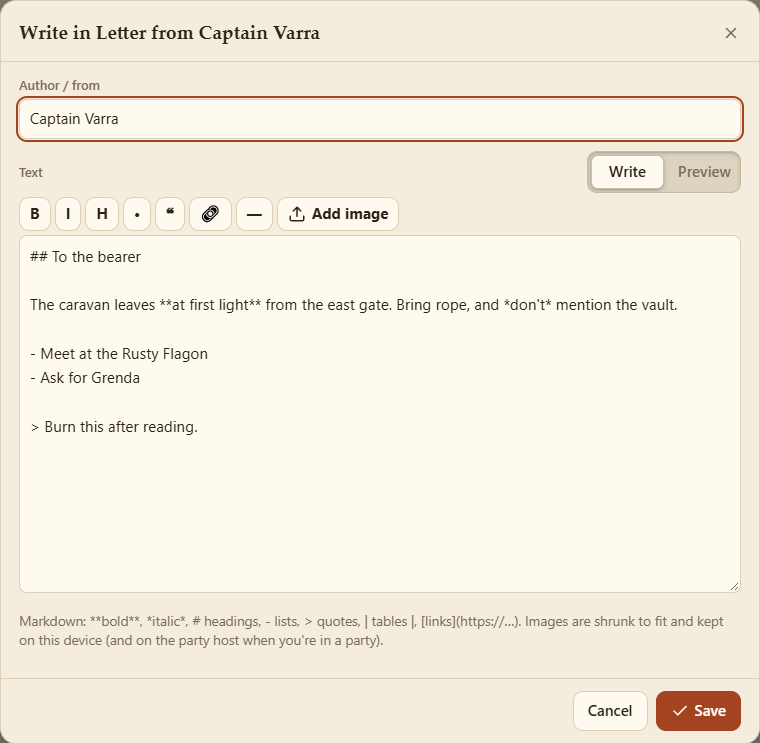
- Write with the formatting buttons, or in Markdown:
**bold**,*italic*,## heading,- list,> quote, tables and links. Preview shows how it will look. - Add image puts a picture (a map, a sketch) into the text. Big photos are shrunk.
- Author / from is shown under the title.
Writing on one sheet of a stack of paper takes that sheet off the stack, so the rest stay blank.
Once something's written, the row's book button (or Read) opens the reader.
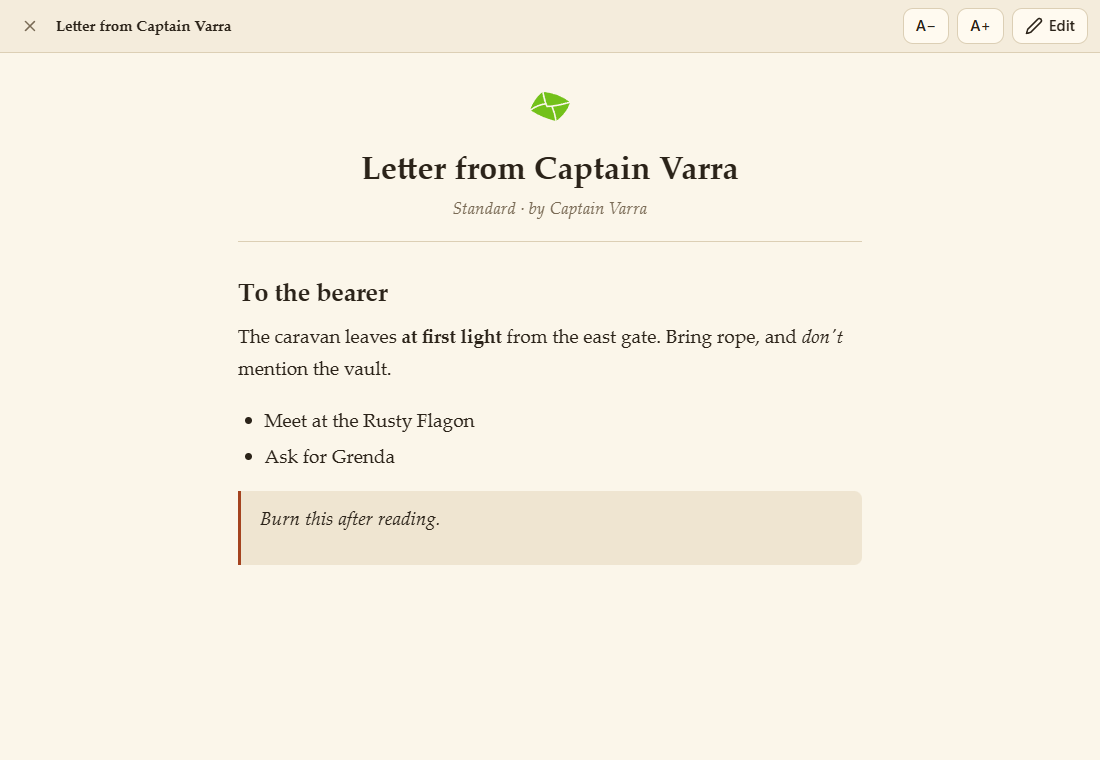
Use A− and A+ for the text size, and tap a picture to see it full size. Edit goes back to writing.
An item with the Picture feature (see Item Features) is just an image: a map, a portrait, a handout. View opens it full screen on a dark background, fitted to the screen:
- Zoom with the buttons, the mouse wheel, a double-click or a pinch, and drag to look around.
- An item with several pictures pages left and right with the arrows.
- Add a picture / Change picture in the details sets or changes them, each with an optional caption.
Pictures are kept on your device, not inside the item, so they don't slow anything down. In a party they're sent to the host once, so a letter or map you trade to another player still shows its pictures. Backups include them.