Captions
Live on-screen captions from a fully offline speech-to-text engine. No cloud service, nothing leaves your machine. This feature is marked experimental.
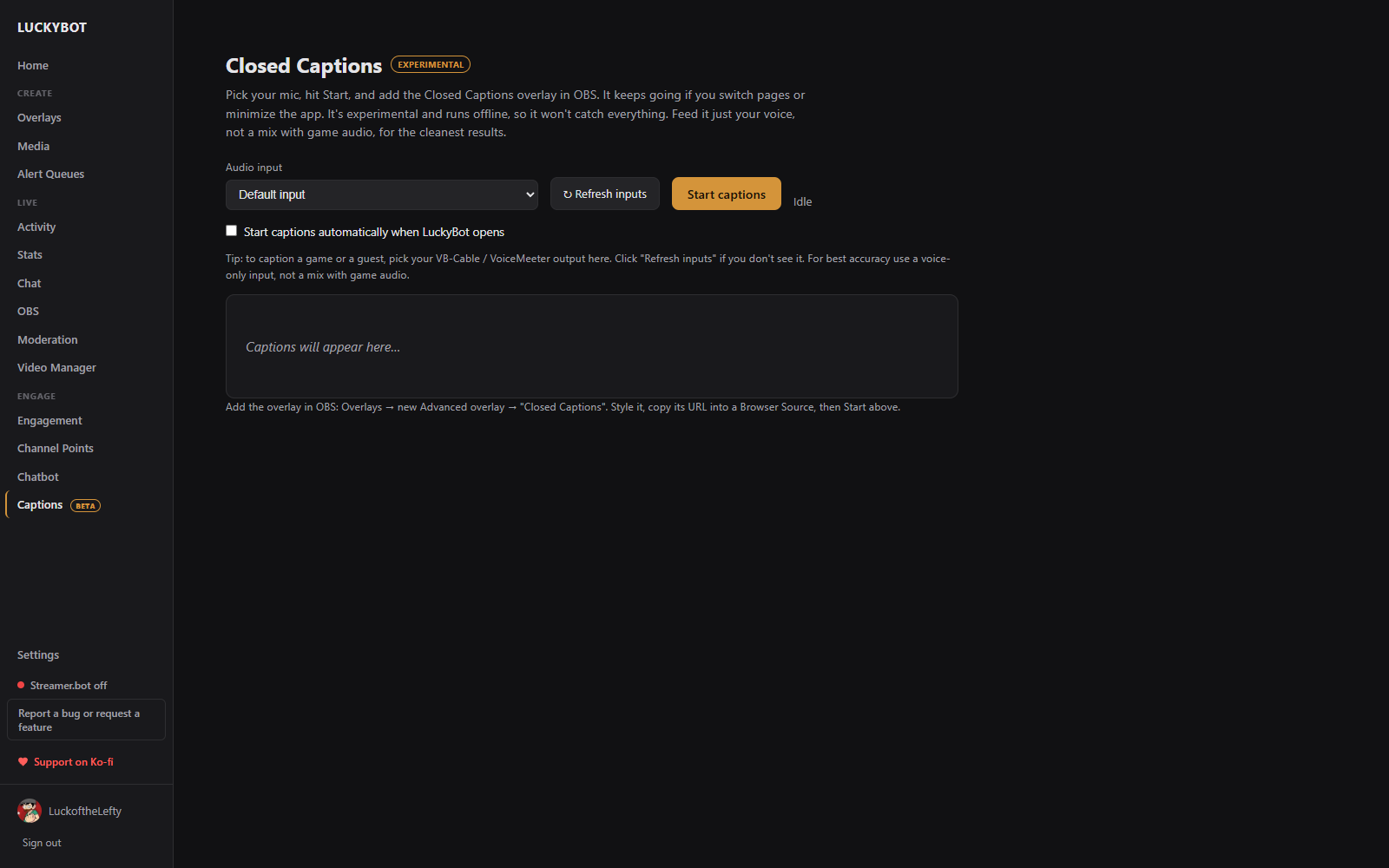
- Add the Closed Captions overlay (Advanced tab of the New Overlay browser) to OBS and style it: font, colors, outline, position, line count, hold time, and a profanity filter.
- On the Captions page, pick your microphone and click Start captions. The first start downloads the speech model (about 40 MB). Captions keep running if you switch pages or minimize the app.
- A live preview shows what viewers see. An option starts captions automatically when LuckyBot opens.
Feed it just your voice, not a mix with game audio, for the cleanest results. To caption a guest or a game, pick a virtual audio cable as the input.