Getting Started
- Windows 10 or later (64-bit)
- OBS Studio or any software that supports browser sources
- A Twitch account
That is everything. LuckyBot connects to Twitch directly with your login, so events, chat, and channel actions work with no other software. Streamer.bot and LuckyBot Cloud are optional add-ons covered in Step 5.
Download the latest installer from the Releases page and run it. LuckyBot is added to your Start menu and desktop, and updates itself when new versions come out, taking a database backup first.
Open LuckyBot. A local server starts on port 58315 and an embedded database initializes automatically. There is nothing else to install or configure.
Click Sign in with Twitch. The app shows a code and a link. Open the link in your browser, enter the code, and approve the login. The dashboard opens on the Home page.

Home has a Getting started card with the four steps below, a Stream info editor for your title, category, and tags, quick actions, and your recent events and overlays.
Click Overlays in the sidebar, then + New Overlay.

The template browser has six tabs:
- Starter: ready-made drop-ins. Stream Alerts gives you a full alert set (follow, sub, resub, gift sub, gift bomb, bits, raid) in one click. Charity Goal shows a live progress bar for an active Twitch charity campaign.
- Basic: event-driven alerts built in the drag-and-drop visual editor.
- Static: always-on graphics.
- Widget: goals and live counters, including ready-made follower, sub, and bits goals that need no setup.
- Reactive: a character that reacts to events, moving along paths you draw and returning to an idle loop.
- Advanced: an HTML/CSS/JS code sandbox, with templates like Spotify Now Playing, Twitch Polls, a subathon timer, and Closed Captions.
Each tab also lists community templates from the Shared Library. Pick a template, give it a name, and click Create. The fastest path for a new setup is the Starter tab's Stream Alerts.
On the overlay card, click Copy URL. In OBS:
- Add a new Browser Source.
- Paste the copied URL into the URL field.
- Set the width and height to match the canvas size shown on the overlay card (usually 1920 x 1080).
Leave "Shutdown source when not visible" off for alert overlays, so the page keeps its connection to LuckyBot between scenes.
Open the overlay and click any alert to open the editor.
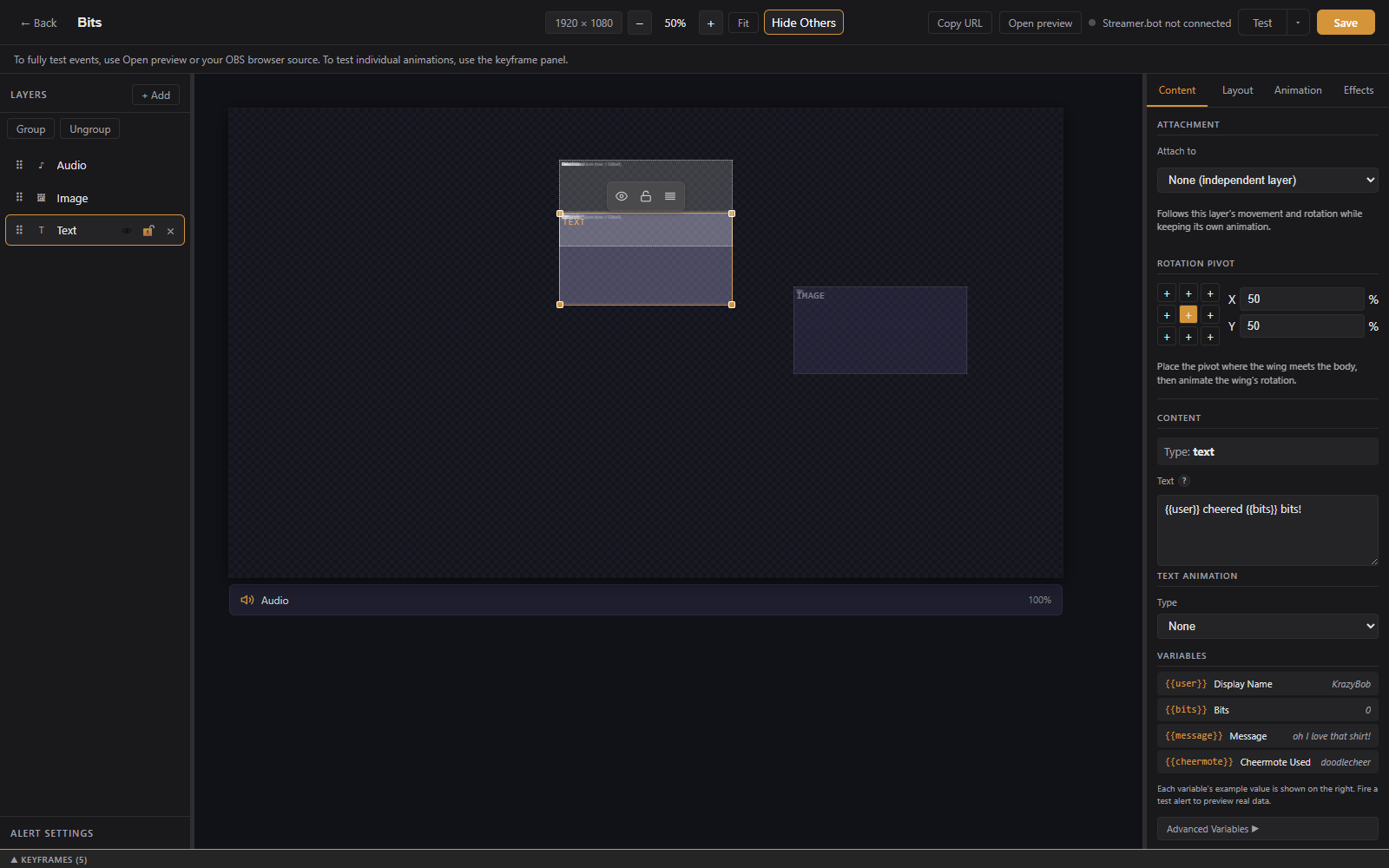
- Pick which events trigger it in the Event tab of the Alert Settings panel.
- Add and style layers (text, image, video, GIF, audio, shapes) on the canvas.
- Set show and hide animations, or use the keyframe animator for full timelines.
- Set the hold duration in the Duration tab.
- Click Save or press Ctrl+S.
See Alerts and Variants and the Visual Editor for details.
Click Test in the editor's top bar to play the alert with sample data. Use the arrow next to it and check Live if you also want the test to fire in OBS, not just the preview.
You can also fire test events for any source from the Activity Feed, or replay any real past event from there.
LuckyBot works fully on its own. Two optional connections add more sources:
Connecting a local Streamer.bot instance adds YouTube events and anything else your Streamer.bot connects to. In Streamer.bot, enable the WebSocket server (Servers/Clients > WebSocket Server, default 127.0.0.1:8080), then set the URL in Settings > Connections > Streamer.bot and click Save & Reconnect.
LuckyBot Cloud relays events from services such as Ko-fi, Streamlabs, StreamElements, Fourthwall, and custom WebSocket feeds, and includes a mobile companion. Get a token at cloud.luckybot.app, paste it in Settings > Connections > LuckyBot Cloud, and click Save & Connect.
When more than one source delivers the same Twitch event, LuckyBot fires exactly one alert. Twitch's own feed wins, then Streamer.bot, then Cloud.
Other connections (OBS Studio, Lumia Stream, Spotify, StreamElements, TikTok LIVE, TreatStream) are described in Settings.
- Overlays: manage overlays, import from StreamElements, export and import
- Alerts and Variants: conditions, variants, match modes, the Deck
- Visual Editor: layers, shapes, paths, animations, and the canvas
- Reactive Overlays: a character that reacts to events
- Advanced Editor: the HTML/CSS/JS sandbox and its API
- Widgets: goals, counters, and live stats on screen
- Chat: the built-in chat client, moderation tools, and the OBS chat overlay
- Chatbot: commands, timers, currency, watch time, games, song requests, and bot imports
- Commands: every response type, variable, and multi-action step, with examples
- Stream Tools: stats, polls, predictions, channel points, moderation, OBS control, captions
- Thons: subathons and point-a-thons with a live timer and goals
- Activity Feed: view, test, and replay stream events
- Alert Queues: control how alerts are ordered and timed
- Media Library: your images, video, and audio
- Settings: connections, audio, appearance, and system options