OBS Control
Connect OBS under Settings > Connections > OBS Studio (enable the WebSocket server in OBS first). The OBS page then gives you:
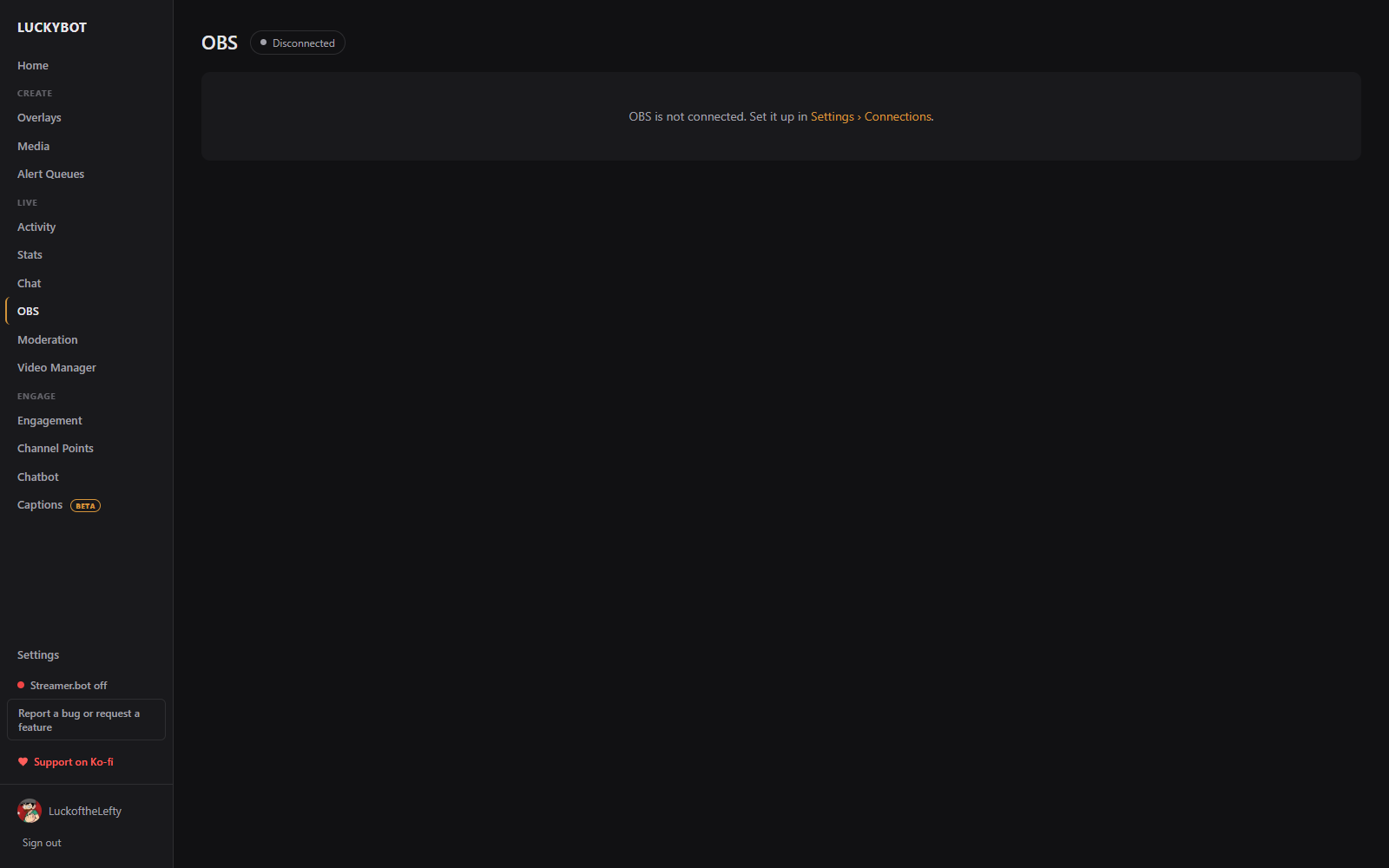
- Go Live / Stop Stream and Record / Stop Rec buttons with a status pill, each with a confirmation.
- A scene switcher with the live scene tagged.
- A Sources panel to toggle source visibility in the current scene.
- An Audio Mixer with per-input mute and volume, split into Visible and Hidden sources.
The same connection lets chatbot steps switch scenes, toggle sources and filters, and mute inputs, and lets LuckyBot refresh one of its own browser sources automatically if the page stops responding.