Repository navigation
Settings and Accessibility
Language: English · Português (Brasil)
The Settings screen opens from the gear icon at the top of the Home Hub. Every row applies
live — there is no Apply button and nothing needs a restart — and every change is written to
settings.json at once, so the game starts the way you left it. The rows are longer than the
screen, so the list scrolls; the two buttons you must always be able to reach, Restore
defaults and Back, sit in a fixed footer bar instead.
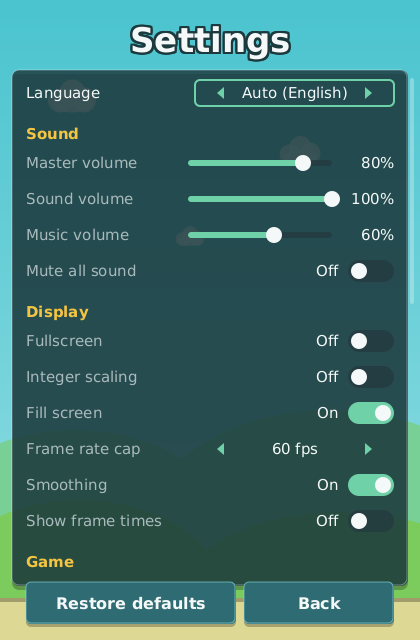
The Settings screen: the language row, then the Sound, Display, Game, Controls and About sections, with Restore defaults and Back fixed at the bottom.
The first row is Language with three options: Auto, which follows the system locale and
shows what it resolved to ("Auto (English)"), English and Portuguese (Brazil). The switch
is immediate: the toast "Language: …" confirms it and the hub behind the screen re-labels itself.
The --lang en / --lang pt_BR launch flag overrides this row for one launch only (see
Getting Started).
| Row | Default | Notes |
|---|---|---|
| Master volume | 80 % | gain applied to every voice |
| Sound volume | 100 % | sound effects |
| Music volume | 60 % | the per-world chiptune loop |
| Mute all sound | off | the same switch the M key flips on every screen |
All audio is synthesised at run time; there are no audio files to install. If no sound device
can be opened the game plays exactly the same, silently (see the --no-audio flag in the FAQ).
| Row | Default | What it does |
|---|---|---|
| Fullscreen | off | borderless fullscreen; F11 toggles it on every screen |
| Integer scaling | off | snaps the 420×640 playfield to whole-pixel scales (1×, 2×, 3× …) instead of stretching to the window |
| Fill screen | on | on windows taller than 420:640 the renderers paint sky and earth over what would be letterbox bars; purely cosmetic, gameplay stays inside the playfield |
| Frame rate cap | 60 fps | 60 fps, 120 fps, 144 fps, Uncapped or Match refresh rate; the simulation always runs at 60 Hz, the cap only paces rendering |
| Smoothing | on | allows bilinear smoothing when the scale is not a whole number |
| Show frame times | off | the debug overlay (tick rate, frame time, seed) that F3 toggles |
| Row | Default | What it does |
|---|---|---|
| High contrast | off | stronger hazard and bird outlines, opaque HUD panels and a cap on world darkness, so veiled worlds stay readable |
| Colour-blind palette | None | Protanopia, Deuteranopia or Tritanopia re-tint every world palette and the semantic colours (danger telegraphs, coins, flames) while keeping hazard, telegraph and coin luminance apart |
| Reduce flashing | on | honoured by lightning, telegraphs and particles; also caps the START RUN glow on the hub |
| Text size | 1.00 | a slider from 0.75 to 1.50 in steps of 0.05; every screen reflows |
| Hold to flap | off | holding the flap input flaps continuously (every 24 ticks) instead of once per press |
These five, plus the key bindings and the sound rows, are the accessibility settings. They are all live and all persisted, so a colour-blind palette or a larger text size set once stays set.
The Controls section has one row per rebindable action, showing its current keys:
| Action | Default keys |
|---|---|
| Flap |
Space, Up (left mouse button, always) |
| Ability |
X, Shift (right mouse button, always) |
| Pause | Esc |
| Confirm | Enter |
| Mute | M |
| Debug overlay | F3 |
| Fullscreen | F11 |
Press a row and the screen asks "Press a key, or Esc to cancel"; the next key pressed becomes the
binding, and a toast confirms it ("Flap: F"). A key that another action already uses is refused
with "key is already used by action". The arrow keys, Esc-to-go-back and the mouse buttons
are fixed and cannot be rebound. The full list of what each key does is on Controls.
The last section is informational: the game version (v0.2.2), the Java runtime it is running
on ("Java 17" and so on) and a reminder of the global keys, "F3 debug F11 fullscreen". On the
desktop it also carries the Quit row — the other way out of the game besides pressing Esc
twice on the hub. On Android the row does not exist; the app is left through the system's own
Back gesture.
M (mute), F3 (debug overlay) and F11 (fullscreen) work on every screen, including inside a
run. They are not engine switches: each one flips the matching row of this screen and saves it,
so the Settings screen always shows what is actually in force and the state survives a restart.
The footer's Restore defaults returns every row — language, volumes, display, game options and key bindings — to the values in the tables above, applies them at once and confirms with "Settings restored to their defaults".
Settings live in settings.json inside the profile directory, next to the save:
| OS | Profile directory |
|---|---|
| Linux / BSD | ~/.flapforge |
| Windows | %APPDATA%\Flapforge |
| macOS | ~/Library/Application Support/Flapforge |
The directory can be moved with the --home DIR flag, the flapforge.home system property or
the FLAPFORGE_HOME environment variable, in that order of precedence. Every write is crash-safe:
the file is written to a temporary name, flushed and renamed atomically.
The file carries a version field (currently 1). A settings.json whose version differs from
the build's is not loaded: the defaults are restored and the old file is kept beside it as
settings.v<N>.json (settings.v<N>-2.json, -3 … when one already exists), with a warning
toast naming the file. A file with no version key at all is treated as a missing key rather
than a mismatch, so a hand-edited file keeps its values. keyBindings holds exactly the seven
rebindable actions; the focus arrows and Back are never written.
Tip: if a setting is not remembered between launches, check that the profile directory is writable — a failed write raises a "Could not save" toast rather than crashing the game.