YamlCardAlarm
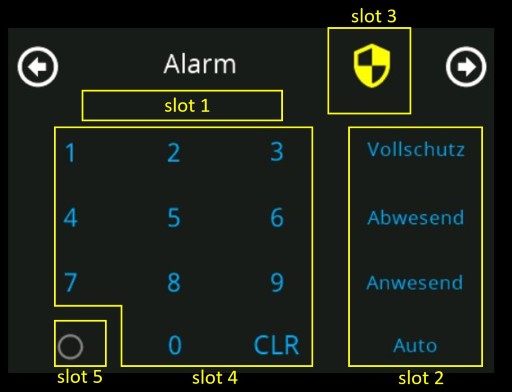
The card type cardAlarm shows a keypad. You can use it to switch between different modes in your house pritected with a PIN.
You need to define 2 slots with a reference to string items in openHAB and 3 addtional optional slots. They are describes in the following table
| Slot number | OH item type | slot type | default value | optional / Mandetory | Description |
|---|---|---|---|---|---|
| 1 | String | text | - | M | Ihis item will receive the key/PIN after entering in the keypad and pressing one of the buttons |
| 2 | String with options defined | input_sel | - | M | This item defines the buttons shown on the right side of the card. Up to 4 buttons can be defined via options. |
| 3 | String | text | icon and color from skin | O | This optional String item can be used to define the icon and the icon color shown on the top of the card. This icon can also flash. The String must have a specific format: "{ON/OFF}|{icon}|{color}". Example "ON|\ue482|red" shows a flashing red security icon |
| 4 | Switch | switch | enable | O | You can disable the complete keypad with this switch over openHAB |
| 5 | Switch | switch | disable | O | On the right lower corner of the card can be an addtional icon placed to control an openHAB switch item |
Example item configuration:
// MQTT topic with active card
String NsPanel01CurrentCard "current card" { channel="mqtt:topic:mosquitto:nspanel01:current_card" }

//
// Special Alarm card items in openHAB
//
Switch NsPanels_SW_AlarmKeypadEnable "Enable Keypad"
String NsPanels_STRNG_AlarmMode "Alarm mode" {stateDescription=""[options="vollschutz=Vollschutz,abwesend=Abwesend,anwesend=Anwesend,auto=Auto"]}
String NsPanels_STRNG_AlarmKey "Key"
String NsPanels_STRNG_AlarmIcon "Icon"
Example card definition:
cards:
  - name: Alarm
    title: Alarm
    type: cardAlarm
    slots:
      - class: ohItem
        type: text
        item: NsPanels_STRNG_AlarmKey
      - class: ohItem
        type: input_sel
        item: NsPanels_STRNG_AlarmMode
        #options: mode1="Vollschutz",mode2="Zuhause",mode3="Nacht",mode4="Besuch"
      - class: ohItem
        type: text
        item: NsPanels_STRNG_AlarmIcon
        icon: "\ue482"
        iconColor: "red"
      - class: ohItem
        type: switch
        item: NsPanels_SW_AlarmKeypadEnable
      - class: ohItem
        type: switch
        item: Switch_Kugellampe
#        icon: "\ue482"
#        iconColor: "red"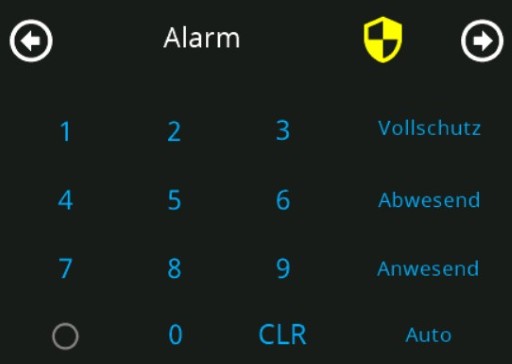
Example rule in openHAB for such a card:
val String PIN = "0000" //Secret PIN to switch between the states

rule "nspanel alarm card"
	when Item NsPanels_STRNG_AlarmKey changed or
	Item NsPanels_STRNG_AlarmMode changed
then
	if( NsPanels_STRNG_AlarmKey.state == PIN) {
		if (NsPanels_STRNG_AlarmMode.state == "anwesend") {
            // do someting with this state

			sendCommand(NsPanels_STRNG_AlarmKey,"")
		} else {
			if (NsPanels_STRNG_AlarmMode.state == "abwesend") {
                // do someting with this state

				sendCommand(NsPanels_STRNG_AlarmKey,"")
			} else {
				if (NsPanels_STRNG_AlarmMode.state == "auto") {
                    // do someting with this state

					sendCommand(NsPanels_STRNG_AlarmKey,"")
				} else {
					if (NsPanels_STRNG_AlarmMode.state == "vollschutz") {
                        // do someting with this state

						sendCommand(NsPanels_STRNG_AlarmKey,"")
					}
				}
			}
		}
	}
  //decide how the icon should look like, depending on your state at home
  if (itemBlBla.state == "blablub") {
    sendCommand(NsPanels_STRNG_AlarmIcon, "ON|\uE482|yellow")
  }
end

Introduction
NSPanel Preparation
- Preparation
- Prepare NSPanel (extern)
- Flashing Tasmota to NSPanel (extern german)
- Configuring NSPanel and flash HMI jobr99 (extern)
- Flash latest HMI versions of ticaki (extern german)
- NSPanel Emulator (external german)
Installation of the Bridge
Yaml configuration
Further Concepts
Compatible HMI projects
Usefull Links