Repository navigation
The List
The column next to the map shows everything about the network, in tabs. The tab Hints shows the number of warnings and hints. Which tab you chose is remembered by the browser. While a device is selected, its detail panel takes the place of the network panel; ‹ Network brings it back. On narrow screens (e.g. a phone) the column is below the map; the handle at its top makes it taller or lower again.
From version 1.7.0. In version 1.6.0 the panel is below the map and opens with 📊 Network in the toolbar; up to version 1.5.2 the button is called ☰ Show list and the panel is one long list with all sections below each other.
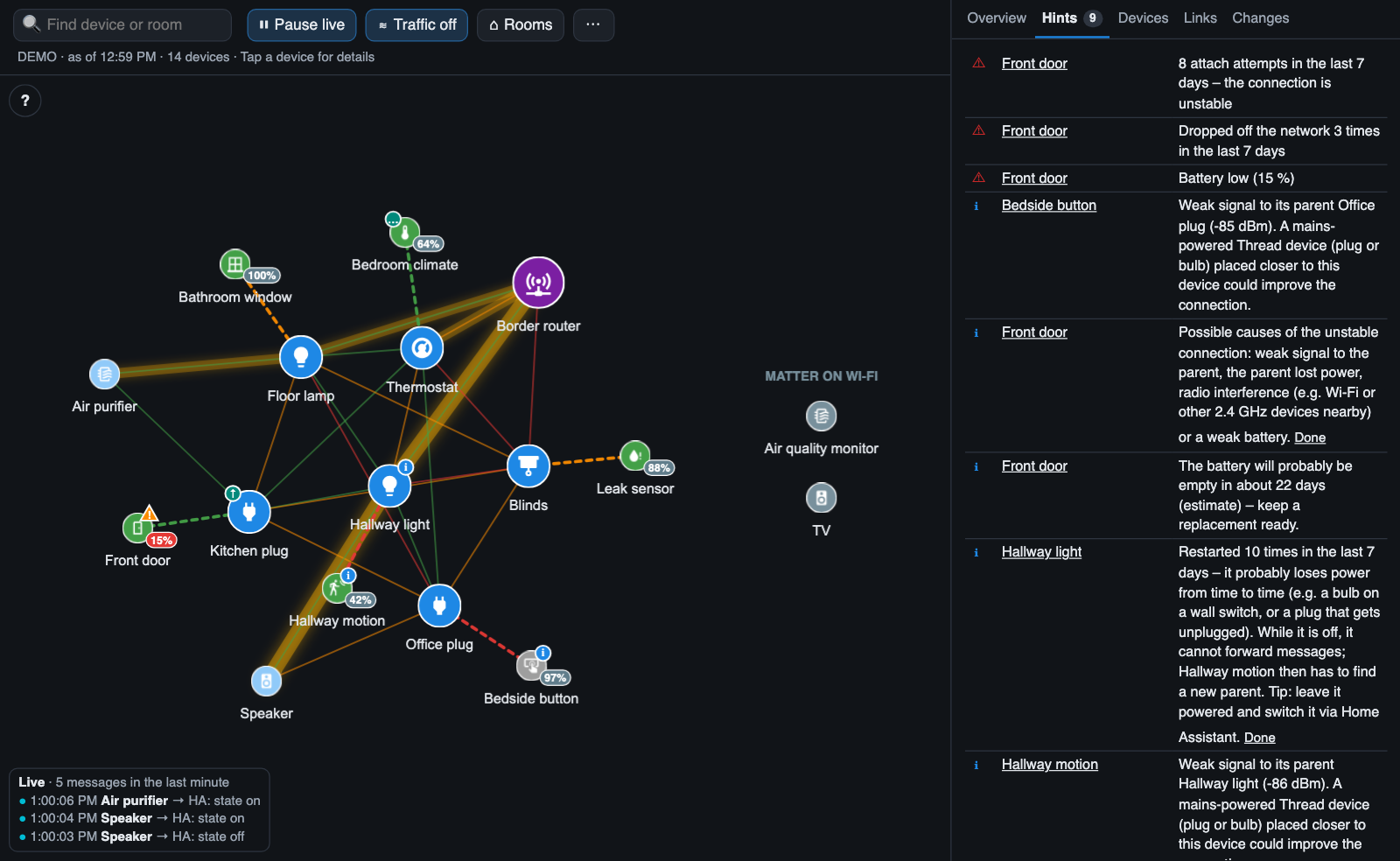
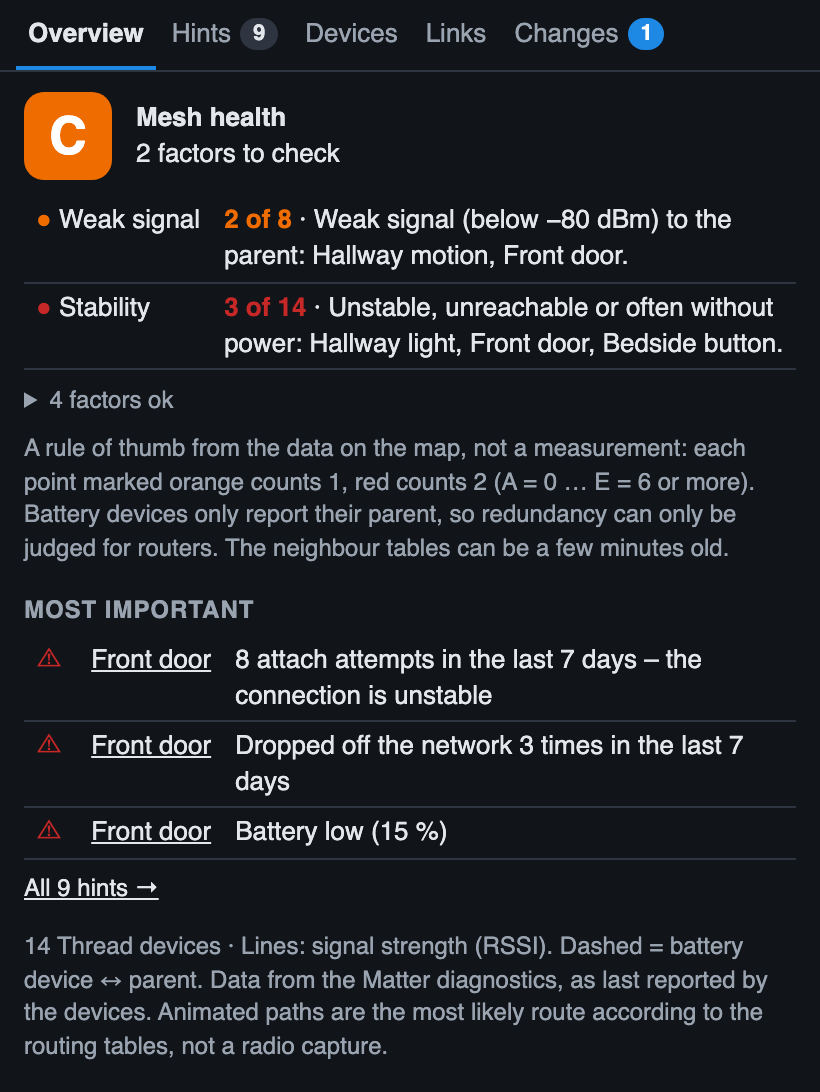
- The mesh health grade as a large card. Only the factors that need checking (orange, red) are shown; the others are folded into one line, e.g. 4 factors ok – tap it to see them.
- Most important: the first three warnings and hints, warnings first, with All n hints → to the hints tab.
- A footnote: number of Thread devices and where the data comes from.
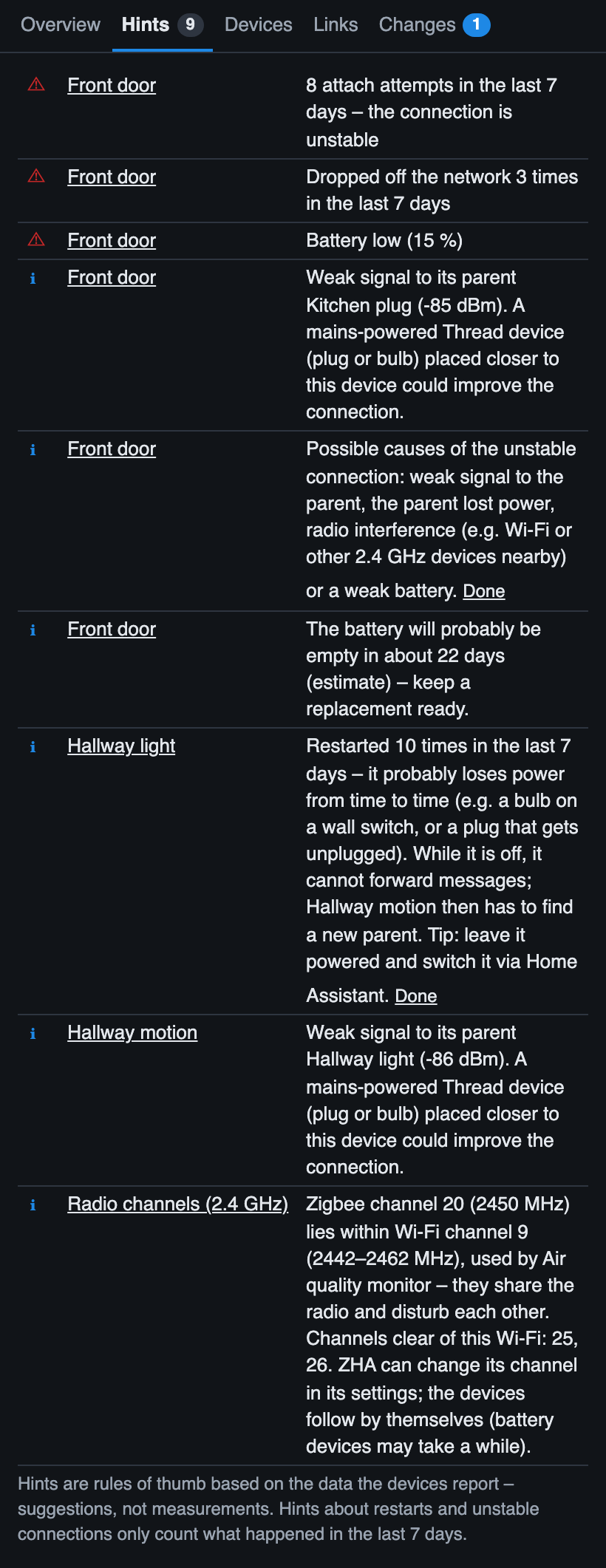
All warnings and hints of all devices: ⚠ warnings first (red), then ℹ hints (blue) – the same as in the detail panels. The tab shows how many there are. Device names are links to their detail panel.
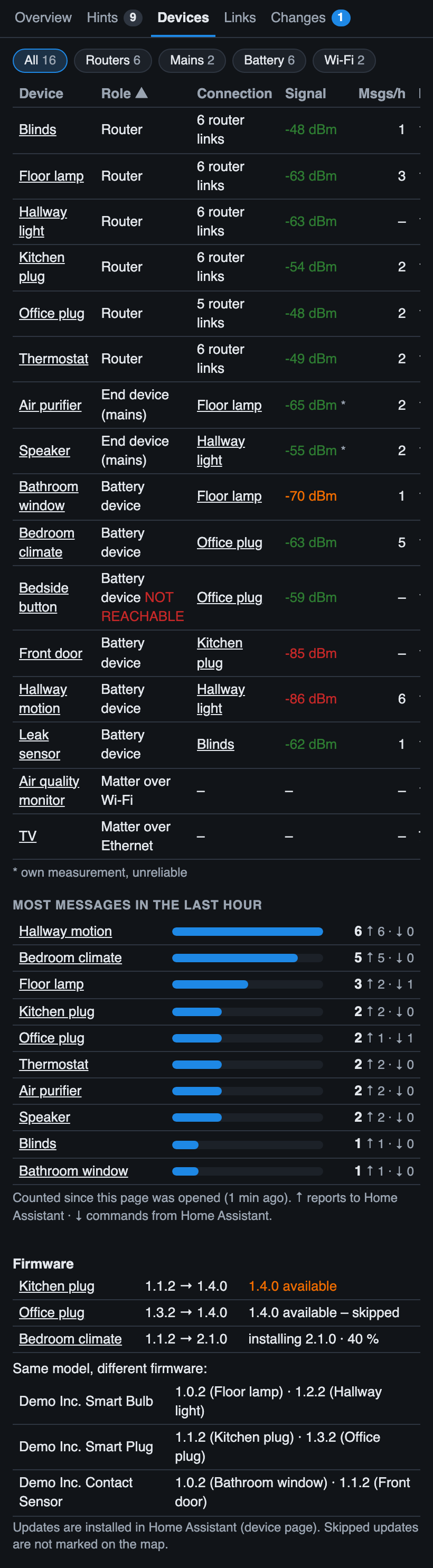
One table with every device:
| Column | Content |
|---|---|
| Device | Name – a link to the detail panel |
| Role | Router, end device (mains), battery device, Matter over Wi-Fi / Ethernet; NOT REACHABLE when Home Assistant reports it as unavailable |
| Connection | The parent router a device talks through; for routers the number of links to other routers |
| Signal | Signal to the parent; for routers the best link to another router. Colours as on the map; * = measured only by the device itself, unreliable |
| Firmware | Installed version; → 1.4.0 in orange when an update is available or being installed |
| Msgs/h | Messages of the device in the last hour (reports and commands) (from version 1.7.0) |
- Sort: tap a column header (tap again to reverse).
- Filter: All, Routers, Mains, Battery, Wi-Fi – with the number of devices.
- Below the table: Most messages in the last hour (from version 1.7.0) – the ten devices that sent or received the most messages, with a bar and the split ↑ reports to Home Assistant / ↓ commands from Home Assistant. Tap a name to open the device.
- Reports of the hour before the page was opened come from Home Assistant's history (each state change counts; changes of several entities within 0.4 s count as one radio message, like the live counter). Commands are not in the history – they only count since the page was opened.
- Plugs that measure power report every few seconds – several hundred to a thousand messages an hour are normal for them. Battery devices normally send a few to about 20 an hour.
- Below that: the firmware overview – devices with an update (available, skipped or being installed) and models whose devices run different firmware versions, e.g. MYGGBETT door/window sensor: 1.0.9 (4) · 1.1.4 (Front door).
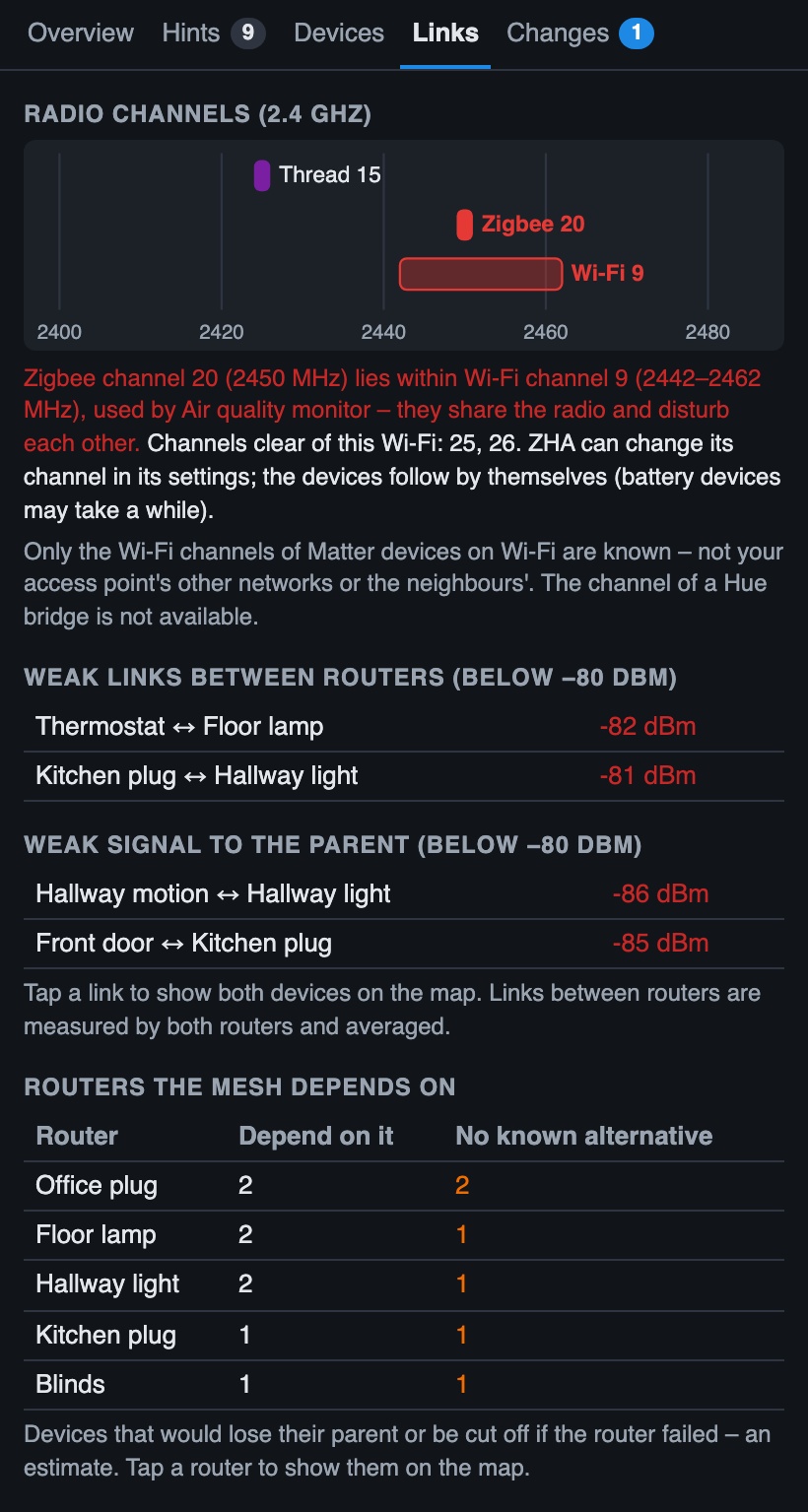
Radio channels (from version 1.7.0): Thread, Zigbee and Wi-Fi channels on one frequency axis, overlaps in red with a suggestion – see Radio channels.
- Weak links between routers (below −80 dBm), weakest first
- Weak signal to the parent (below −80 dBm)
Routers the mesh depends on (from version 1.6.0): every router with the number of devices that would lose their parent or be cut off if it failed, and how many of them have no known alternative – most important first. Tap a router to show the affected devices. Details: If this router fails.
Tap a link to show both devices on the map: all other devices fade out, as with the search. A small note on the map (2 marked · Show all) ends it; so does Esc or a new search. No weak links when all links are −80 dBm or better.
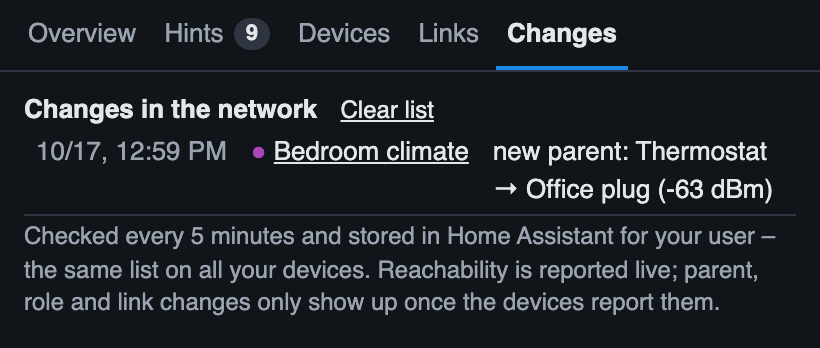
The change log: latest changes with time, device and what changed. Clear list empties it. The tab shows how many entries are new since you last looked at it.
In the overview, tap a factor of the mesh health (e.g. Stability) to show the devices it names on the map. In the links tab, tap a link. The marking stays after the automatic refresh; Show all ends it.
If the map cannot be loaded, the panel opens automatically and shows the error – see Troubleshooting & FAQ.