Install Guide Bottles

Bottles is a tool that manages Wine prefixes ("bottles") through a graphical interface. This page covers two working methods for running Affinity in Bottles. Pick one. They are alternatives, not a primary and a fallback:
- Method A: Custom Wine runner. You download a patched Wine build yourself (ElementalWarrior or Wine-TKG-affinity) and import a ready-made install script. Fewer manual steps once the runner is in place, but you depend on a third-party Wine build.
- Method B: Stock kron4ek runner. You use a plain upstream Wine build that Bottles downloads for you. You then set up fonts, .NET, and two Affinity-specific files by hand. More manual steps, but no custom Wine build to track. This method was fully tested end to end on a current Bottles release, including the exact errors you will hit and how to fix them. Its troubleshooting content below is the most detailed on this page.
Before doing anything, make sure you have a .exe version of an Affinity app. Download Affinity apps from the official Affinity websites:
- Affinity by Canva (select "Enterprise (Intel/AMD)" from the "Download for Windows" drop-down menu to download the EXE installer)
- Affinity Photo V2
- Affinity Designer V2
- Affinity Publisher V2
- Affinity Photo V1
- Affinity Designer V1
- Affinity Publisher V1
Visit the download page of Bottles' official website, and follow the instructions to download and install Bottles. Flatpak is recommended. It is the only officially supported install method for Bottles.
Alternately, you may want to install Bottles using the unofficial AppImage.
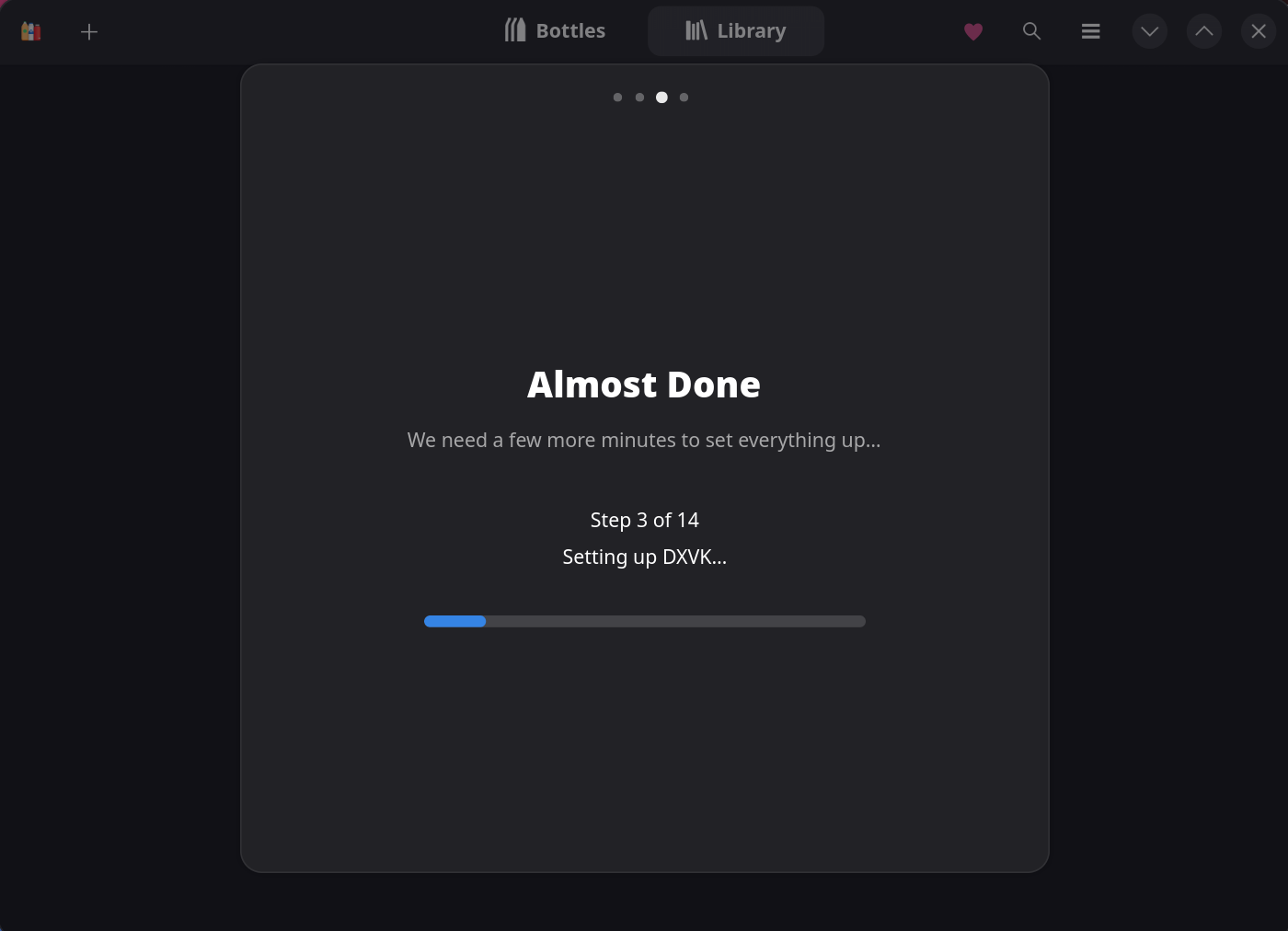
Bottles has two top tabs, Bottles and Library.
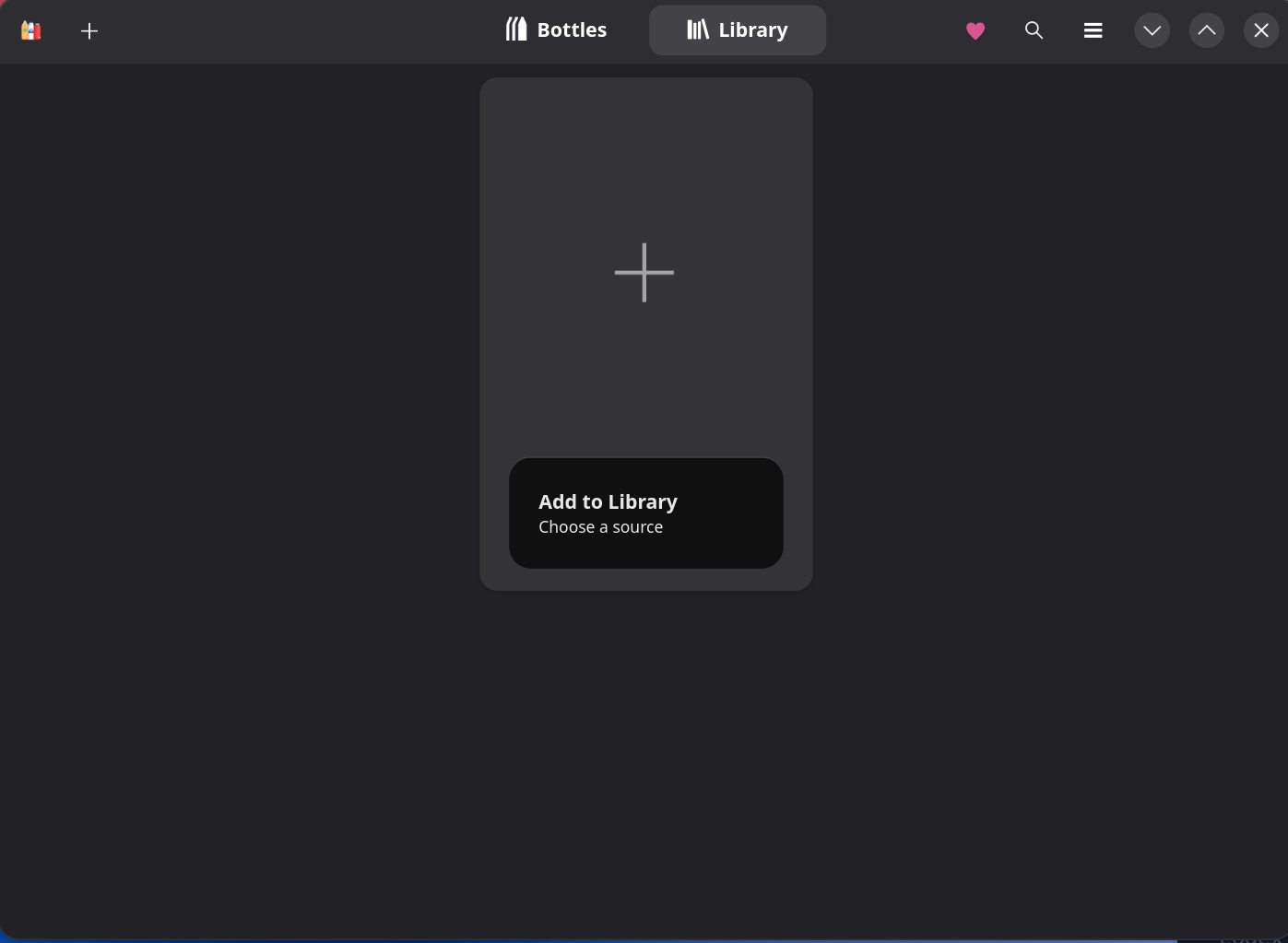
Use the Bottles tab for both methods below, not Library. The Library tab's "New" wizard is Proton/gaming-only and cannot select a custom or kron4ek Wine runner.
Choose one of the following forks of Wine, and download and extract it:
-
ElementalWarrior-x86_64 (Recommended): After downloading the
ElementalWarriorWine-x86_64.tar.gzarchive file, right click and extract the archive into anElementalWarriorWine-x86_64folder. -
Wine-TKG-affinity: Download the
wine-tkg-affinity-archbuilt.tar.zstarchive file, then extract theusr/folder from the archive and rename the folder towine-tkg-affinity-x86_64.
Bottles' Wine-related folders can be found in a hidden directory within your home folder. If you can't see hidden folders in your file browser, you can usually enable them by pressing Ctrl + H.
- If you installed Bottles via Flatpak, navigate to
/home/$USER/.var/app/com.usebottles.bottles/data/bottles/runners/ - If you installed Bottles via AppImage, navigate to
/home/$USER/.local/share/bottles/runners/
Copy and paste the Wine fork folder you extracted in the previous step into this folder. This is also known as your Wine runner.
- Open Bottles and click on the plus icon.
- Name it "Affinity" or "Serif".
- Set the environment to Custom.
- Keep Architecture ->
64bit. - Set the runner to ElementalWarriorWine or wine-tkg-affinity, depending on your choice of Wine fork.
- Download the
.yamlinstall script that matches your Wine fork. Click the download button at the top right of the linked file's page: - In Bottles, import the install script file for your Wine fork:
Import Configuration -> Affinity-ew.yaml. - Click Create.

- Download the
WinMetadata.ziparchive file. - Extract the
WinMetadatafolder from the archive intodrive_c/windows/system32.
The Affinity app should now work inside that bottle.
-
Open Bottles and click on the hamburger/3-dots menu button.
-
Go to Preferences.
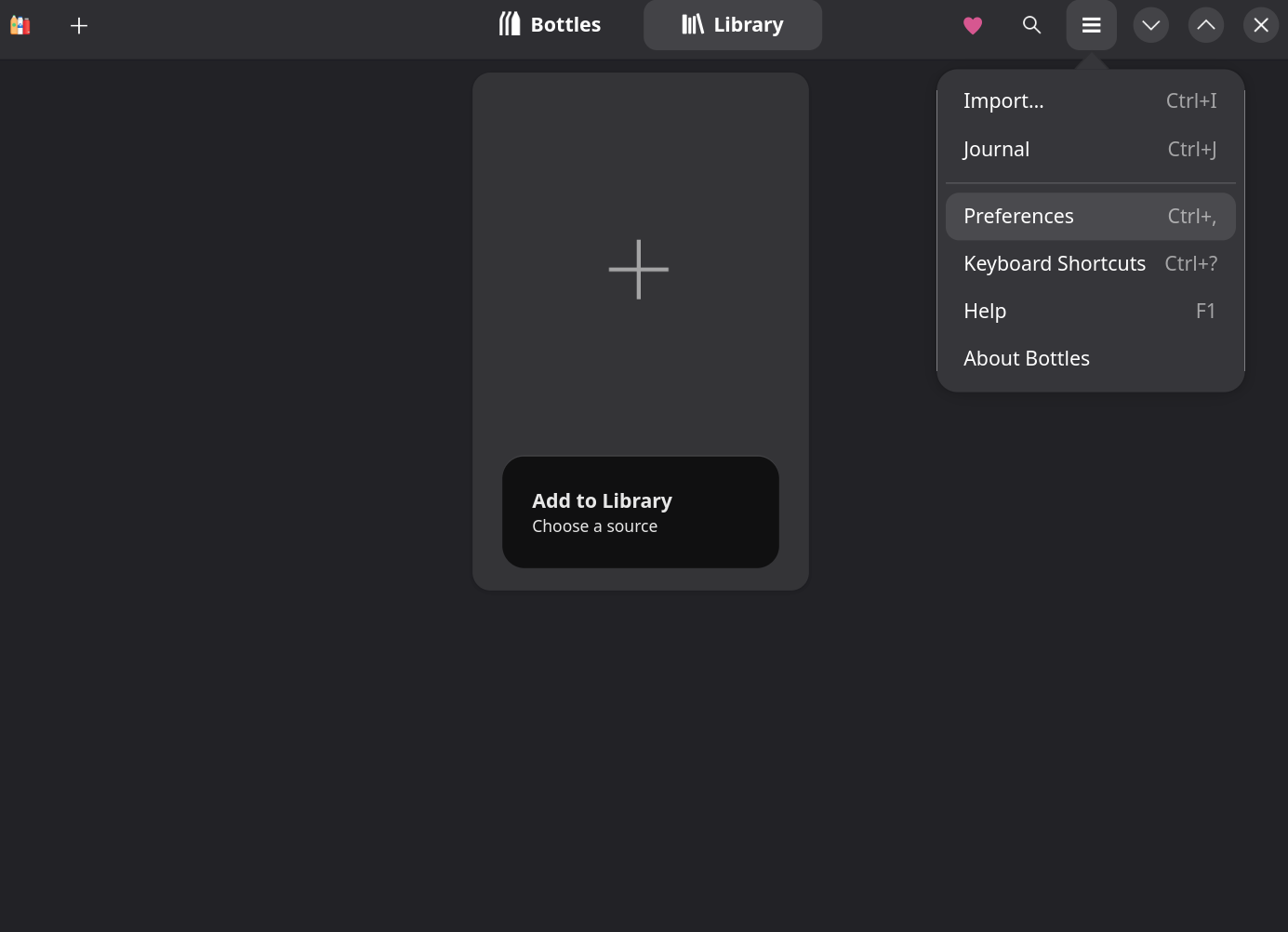
-
Go to the Runners tab.
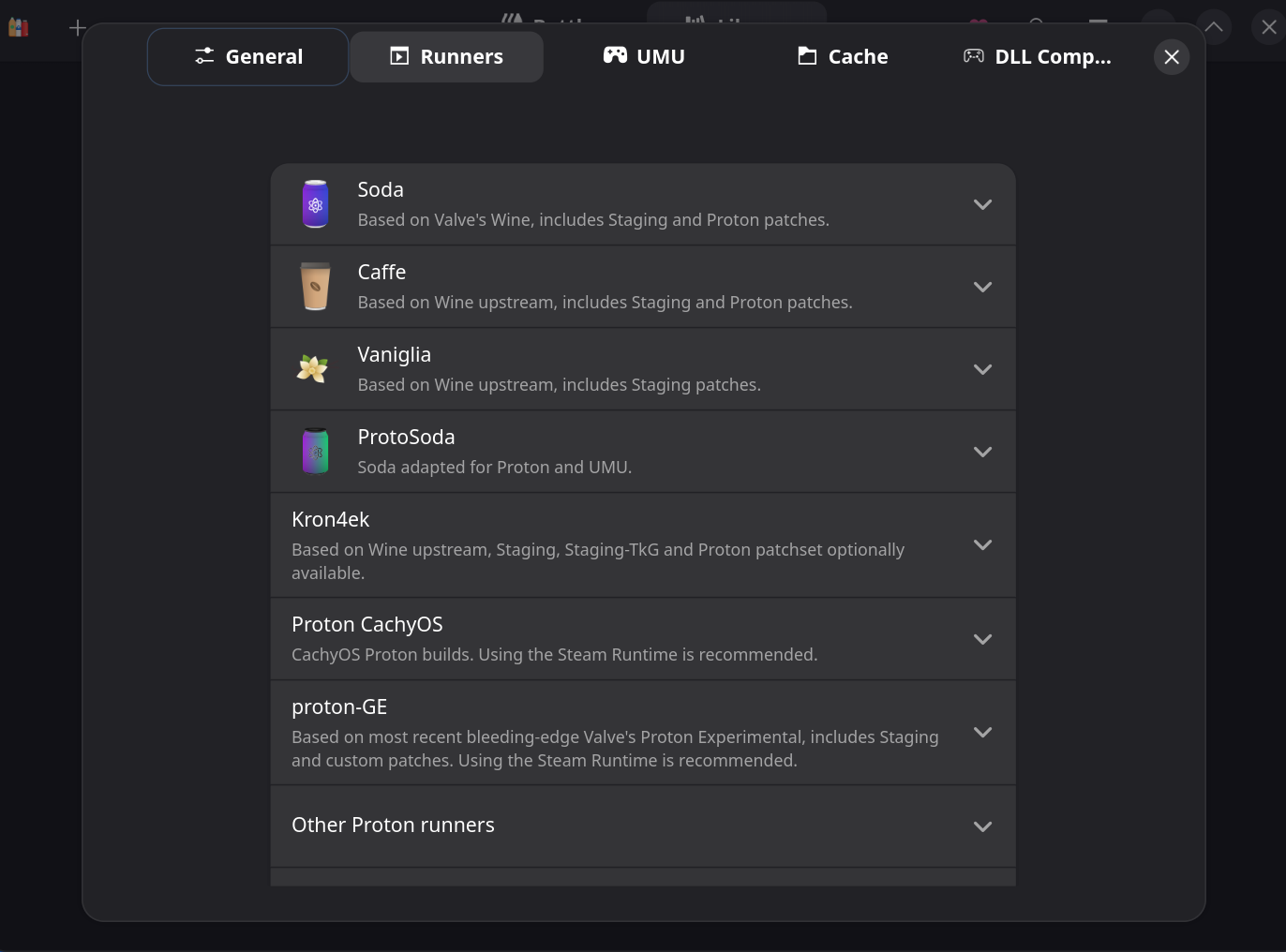
-
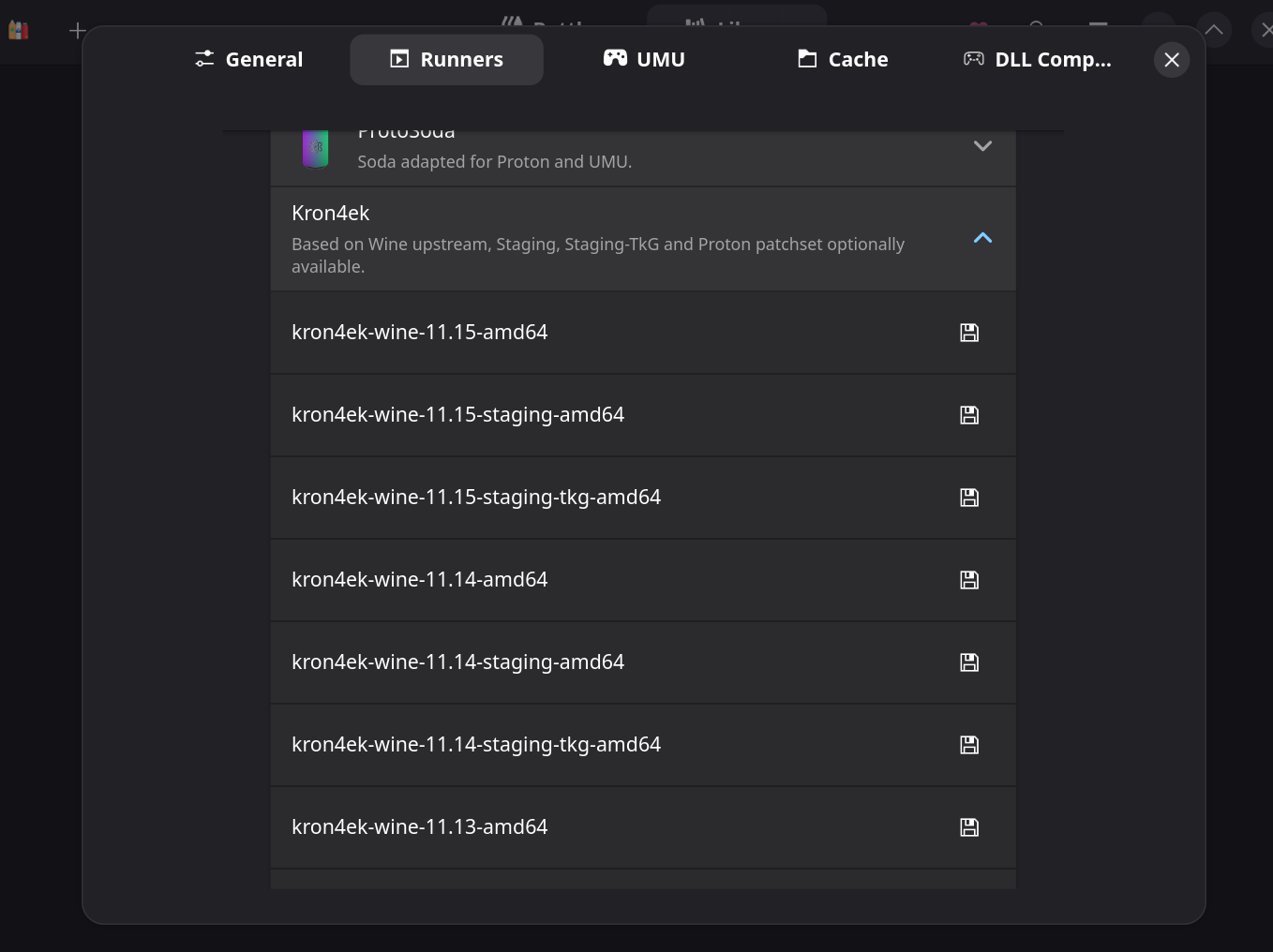
Unfold the kron4ek section and download the latest Wine version. Staging vs. TKG does not matter based on testing.
Note
Recent Bottles releases group runners by Wine build (Kron4ek, Caffe, Proton, ...) with a save icon next to each version. Click that icon on the newest kron4ek-wine-<version>-amd64 entry (non-staging is fine) to download it.
Recent Bottles releases removed the install-script (.yaml) importer that older versions used, so the steps below use Bottles' own bottle-creation wizard instead. If your Bottles still has an "Import Configuration" option, the old affinity-nu.yaml install script still works the same way it always did.
-
Stay on the Bottles tab (not Library). If you go to Library first and click its "New" button by mistake, you get a game-install wizard instead: an intro screen, a prompt to pick an installer file, and a step to name the entry and pick a runner.
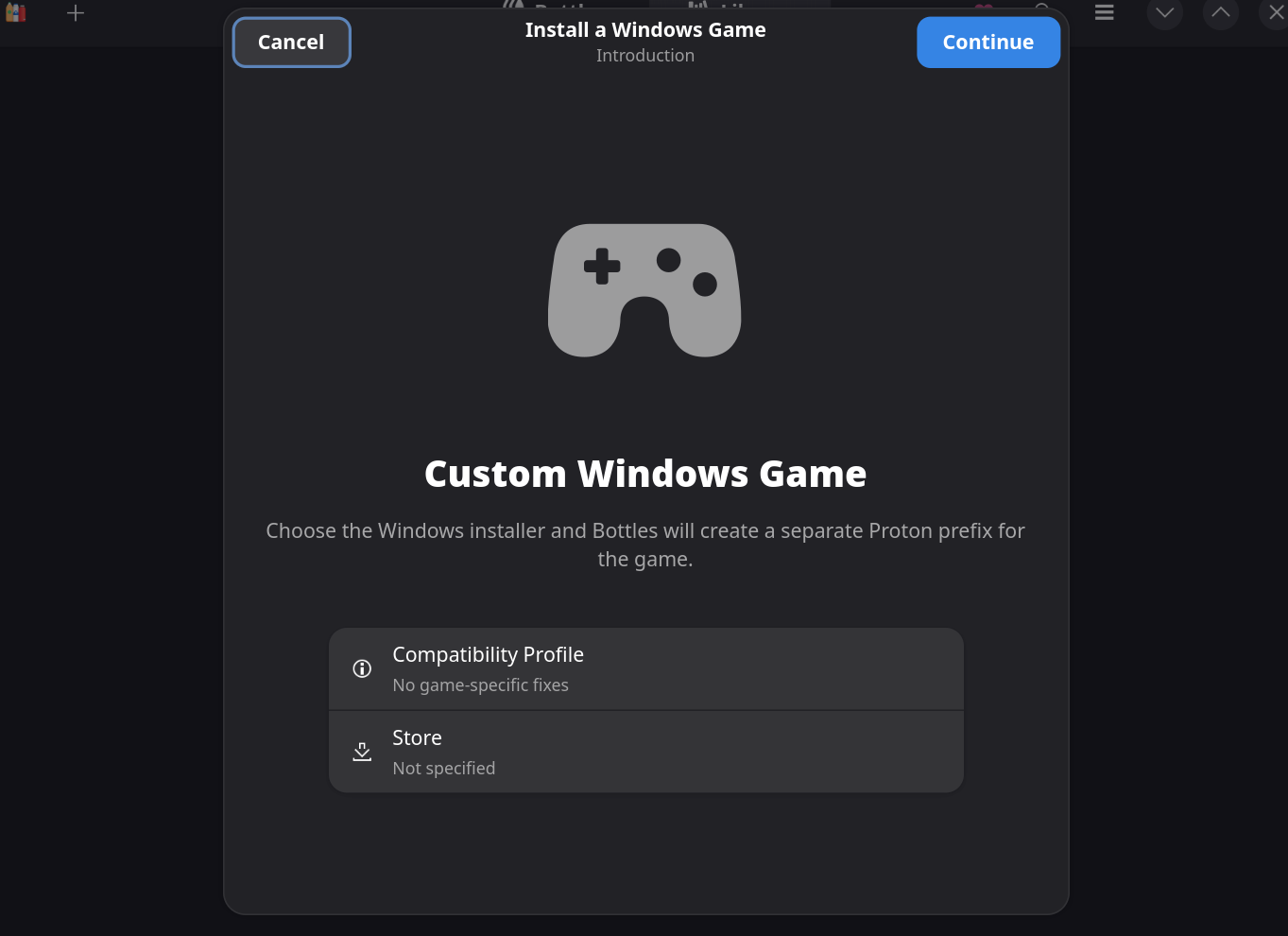
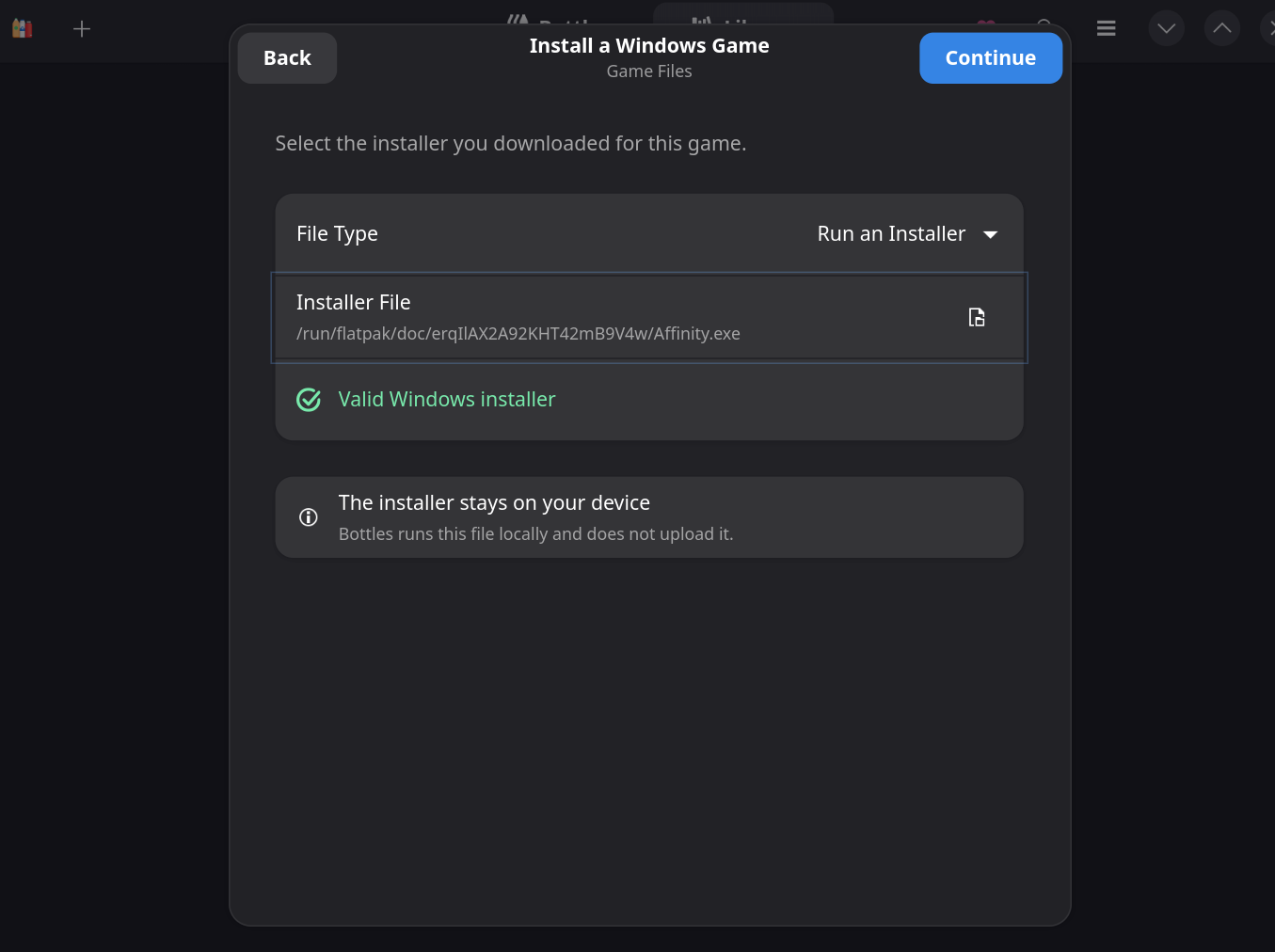
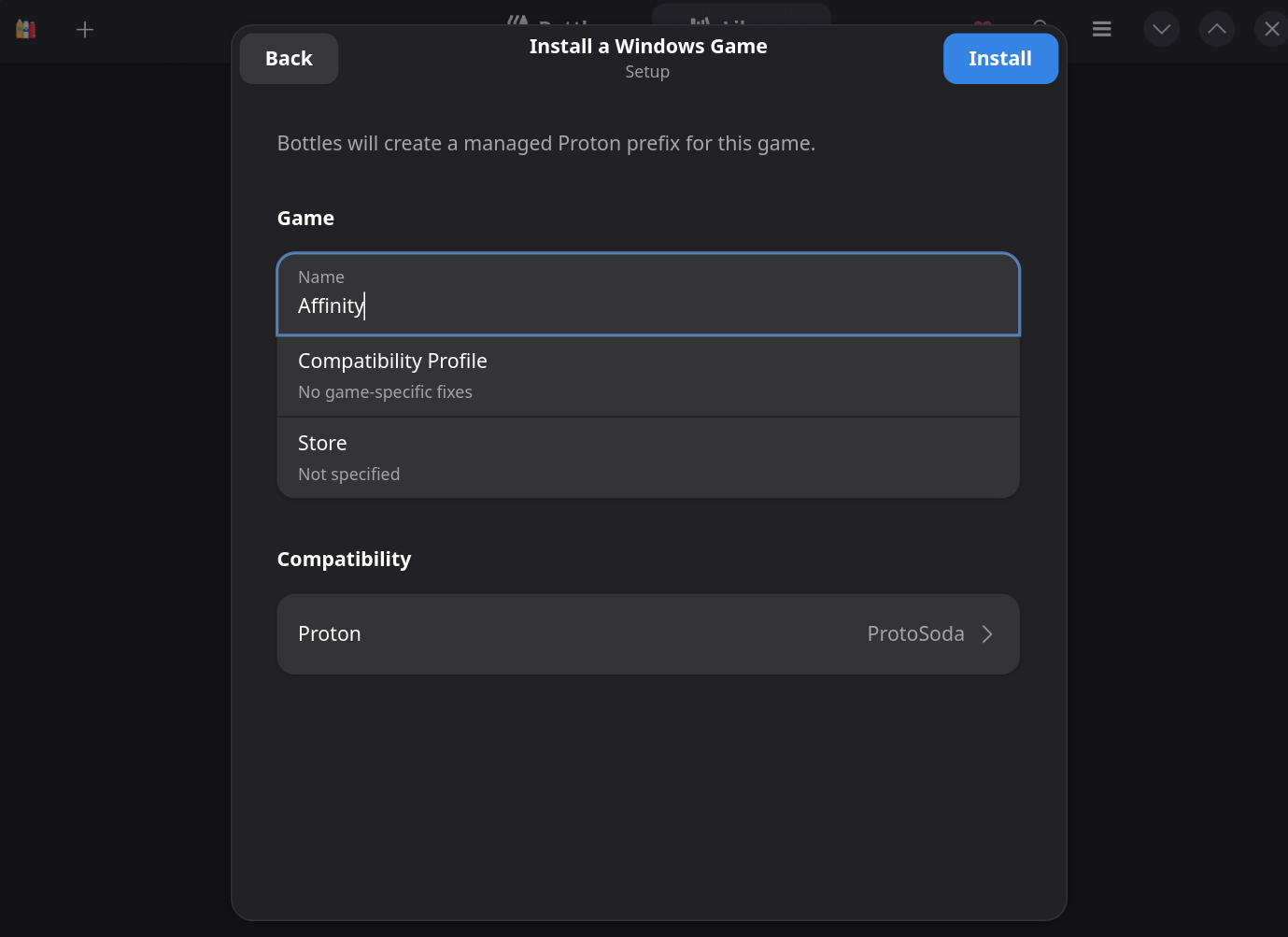
That wizard's runner picker only offers Proton-style runners, with no kron4ek option, so it's a dead end for this method.
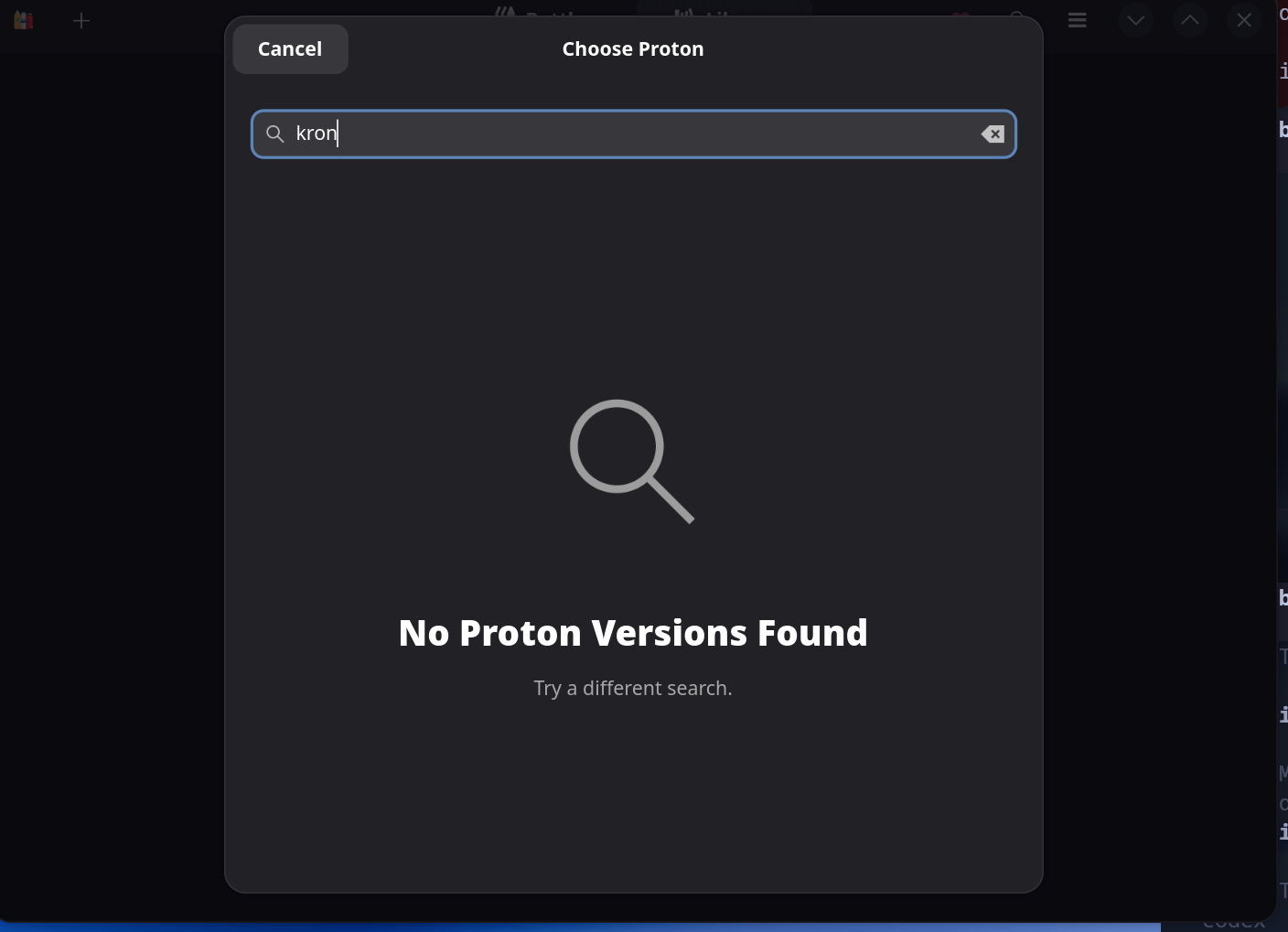
-
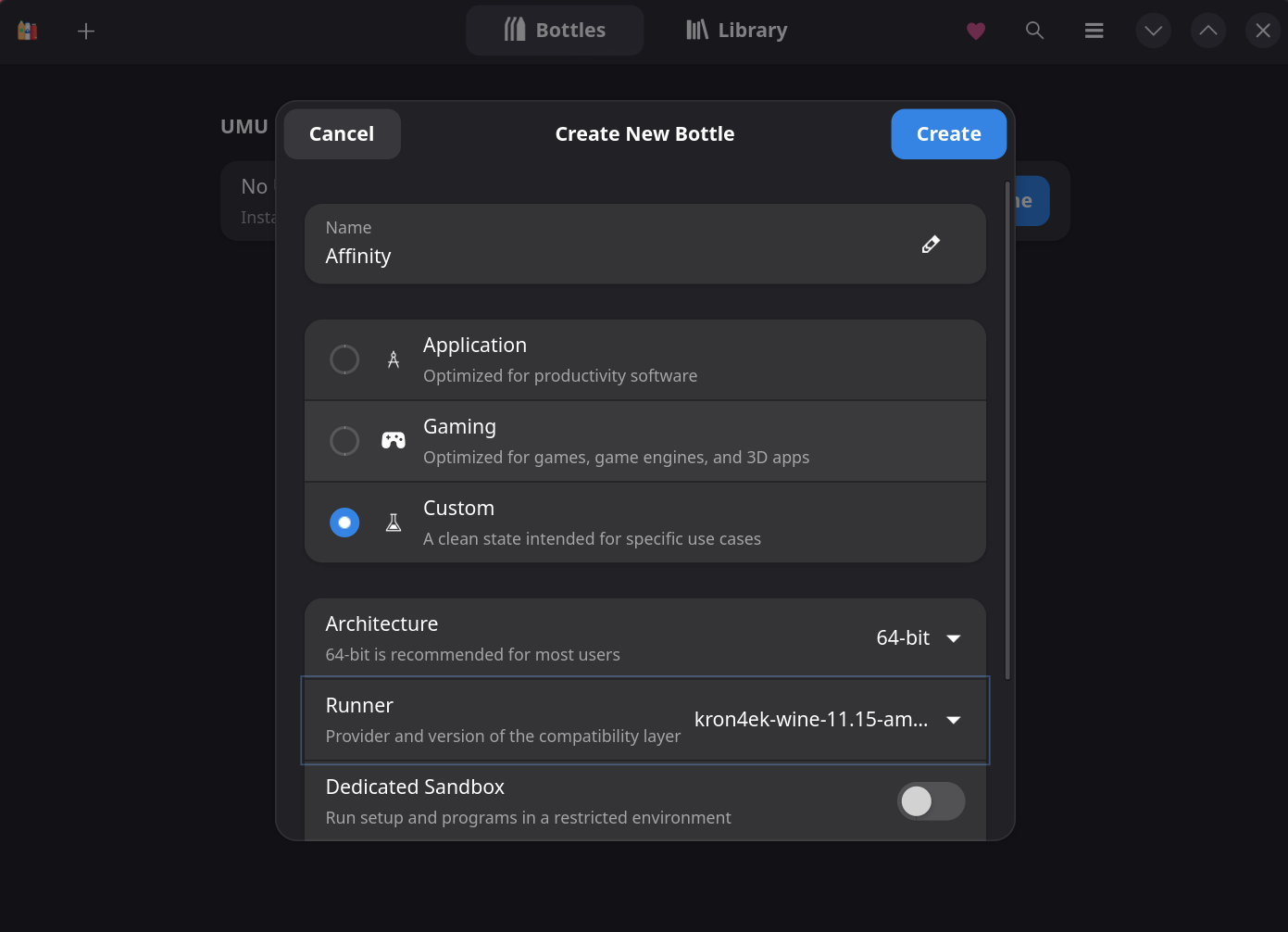
On the Bottles tab, click the + icon to create a new bottle.
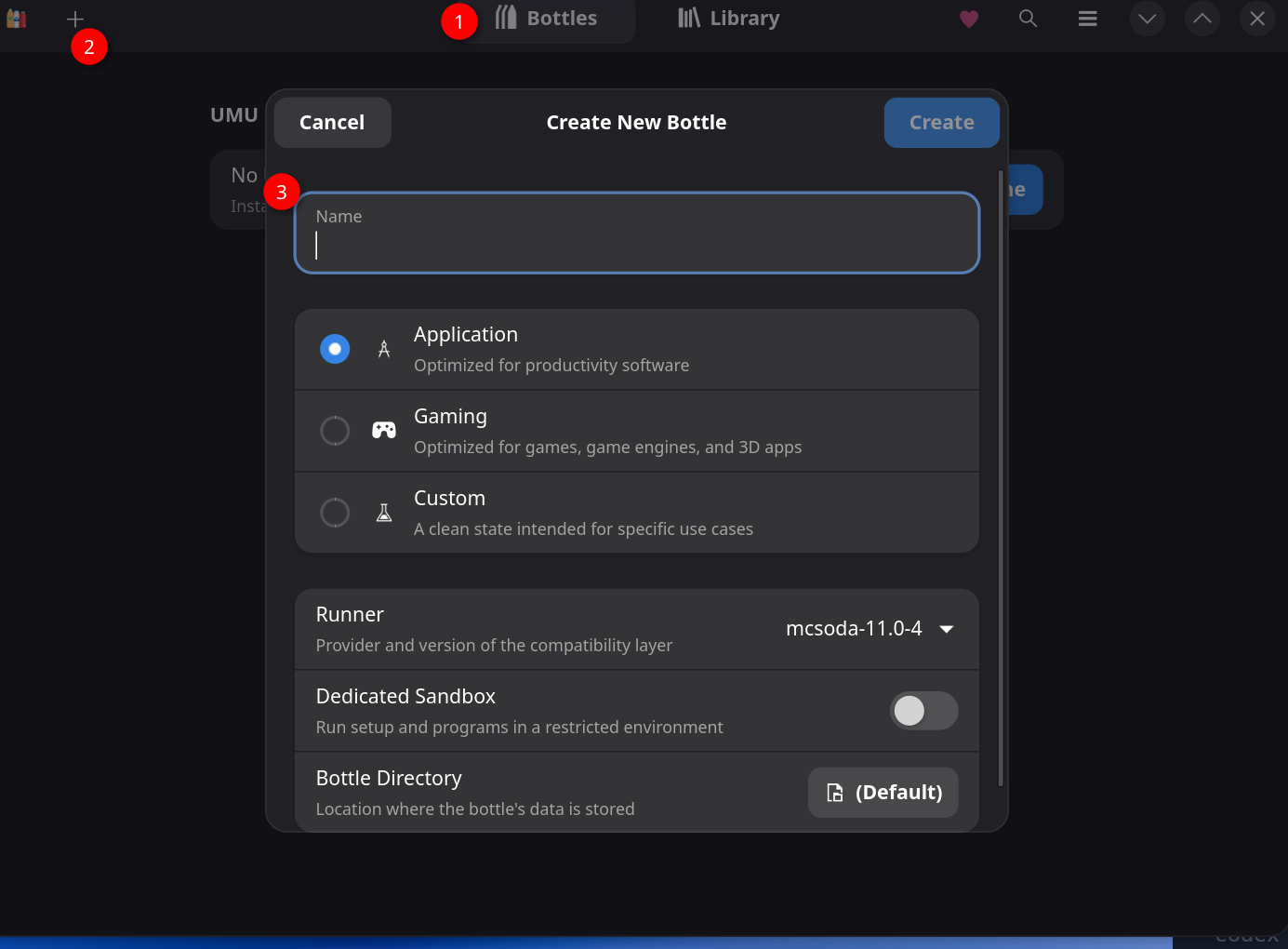
-
Name it "Affinity" or "Serif".
-
Pick Application (productivity software) rather than the literal "Custom" option. It fits Affinity better, and both work.
-
Keep Architecture ->
64bit. -
Set the runner to kron4ek-wine--amd64.
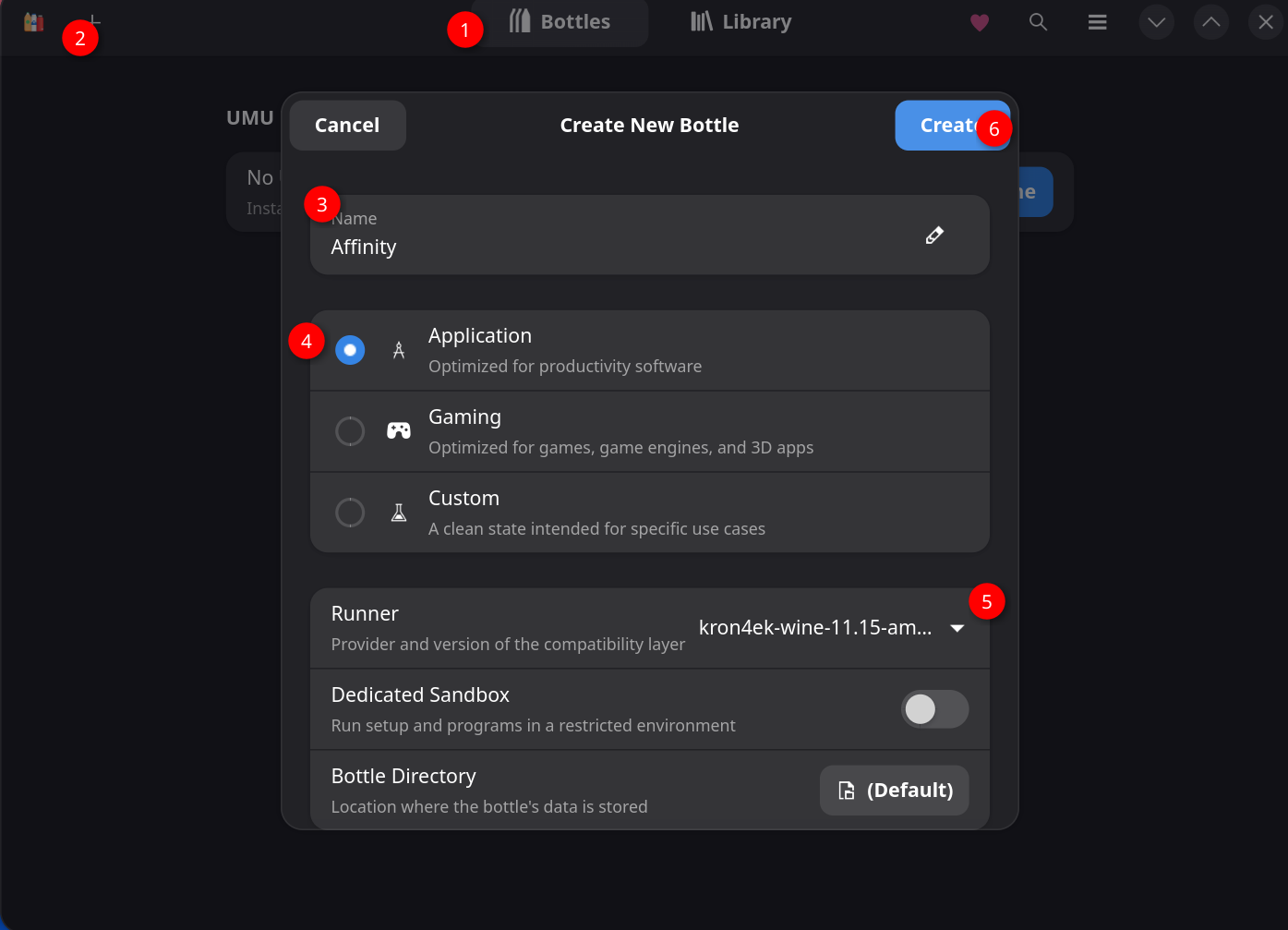
-
Click Create, and wait for bottle creation to finish.
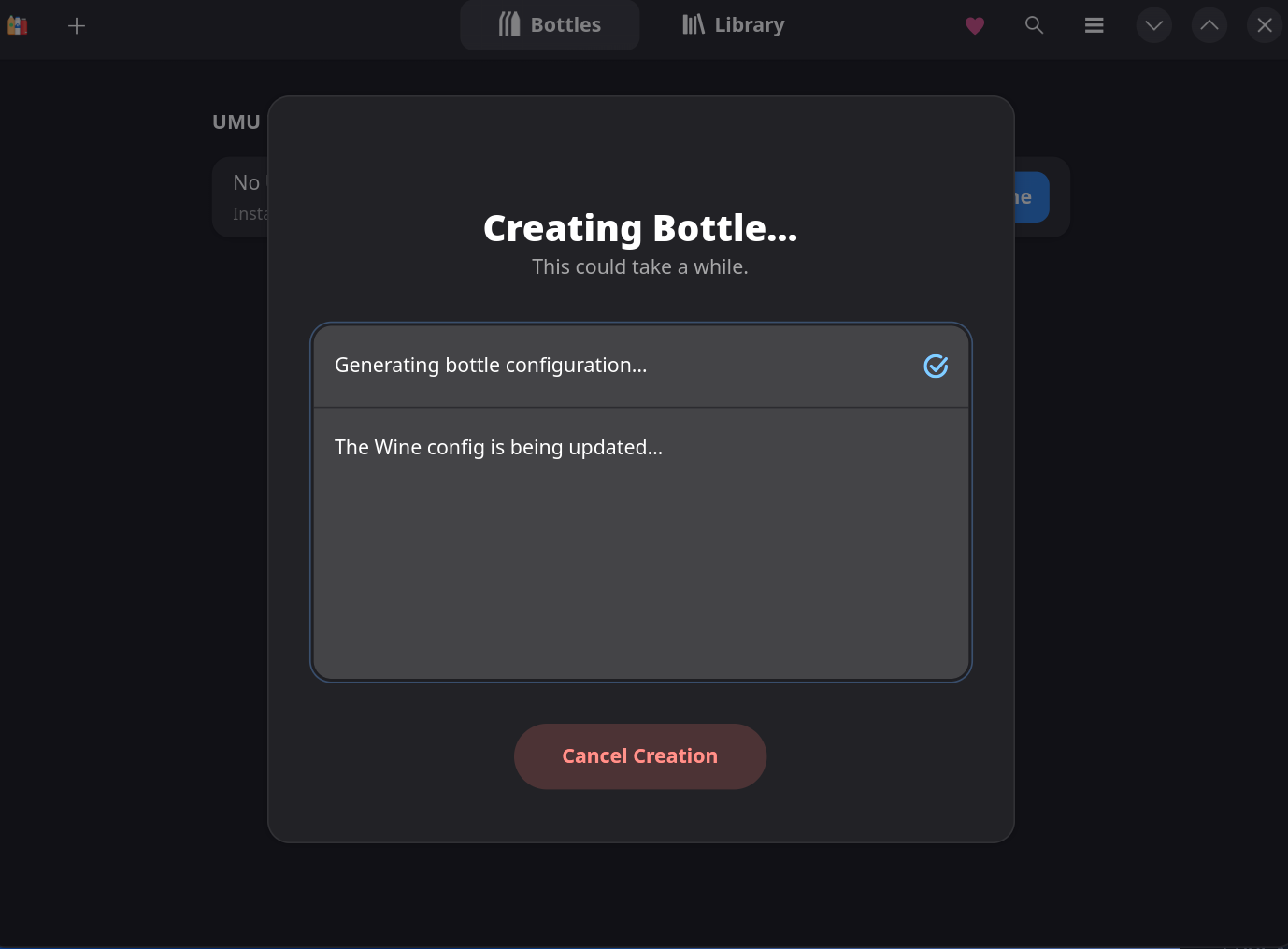

Bottle creation may fail partway through with "Unable to Create Bottle", stuck on a step like "Installing dependency: Microsoft Arial Font".
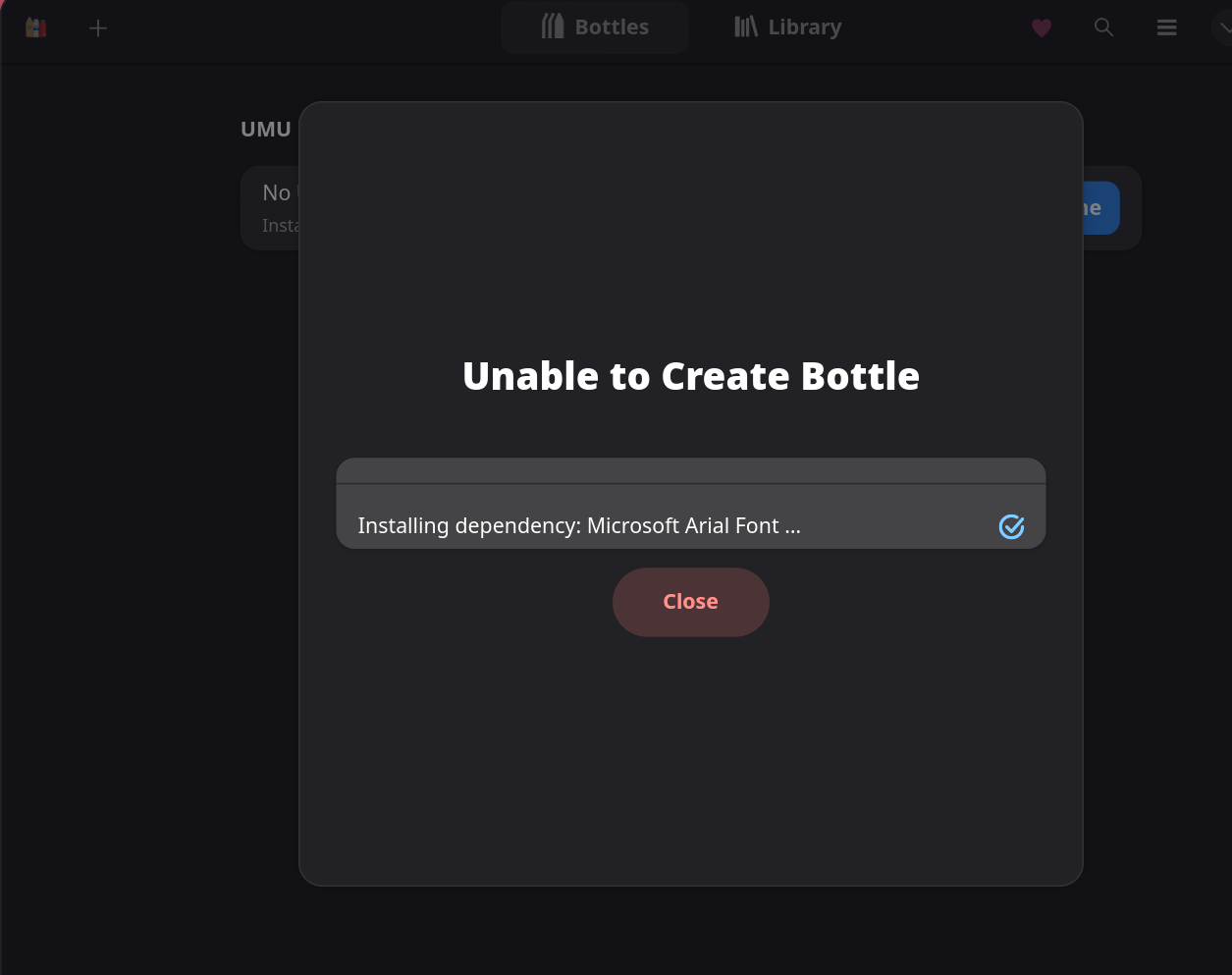
This is a bug in current Bottles Flatpak builds: the font-installer step fails inside the Flatpak sandbox even though the underlying download URL is fine (confirmed by fetching the same URL from a normal terminal, checksum matched). The bottle is still created despite the error, just without fonts. See No fonts / crash when opening a document in Troubleshooting below to finish setting it up. Retrying bottle creation from scratch does not reliably fix this. Installing the fonts manually afterward does.
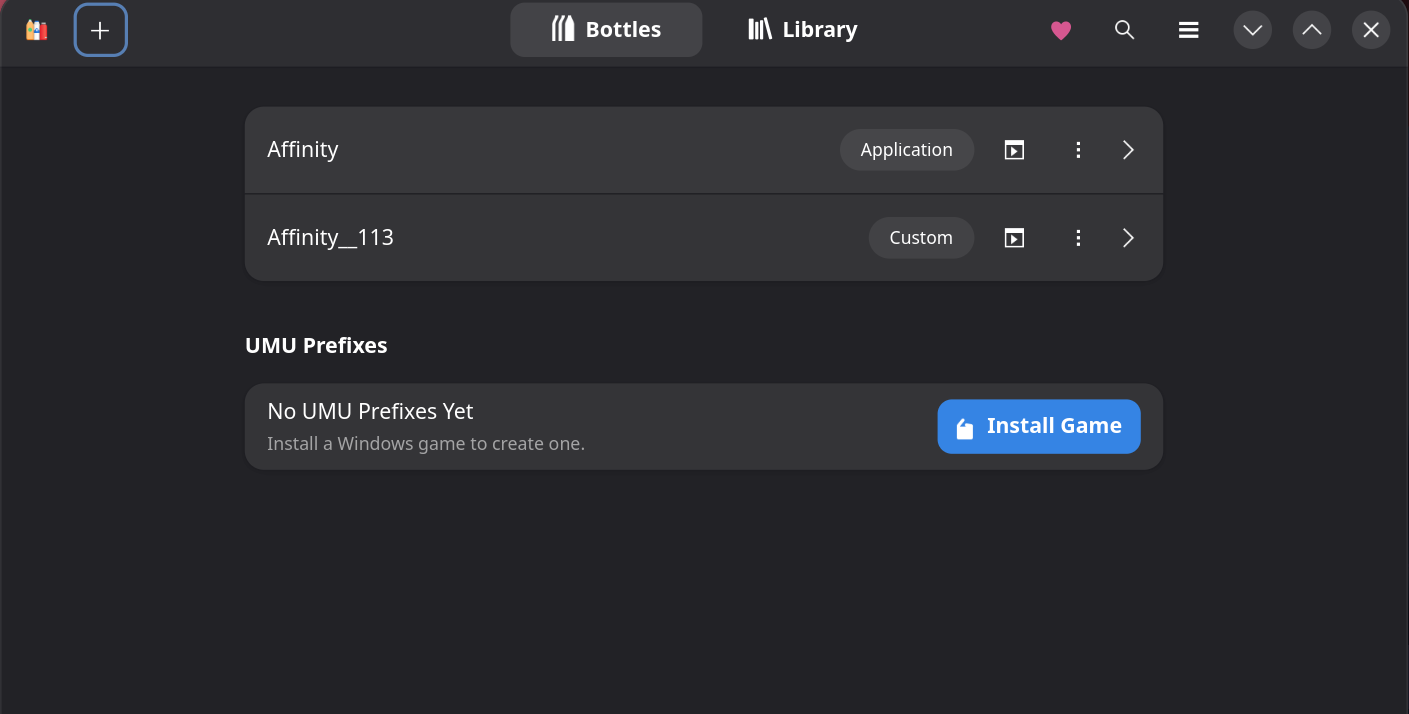
If you retry, you may end up with more than one bottle listed. Delete the broken one, or just keep going with whichever bottle has the runner set correctly.
Since there's no install script to automate this anymore, install .NET 4.8 by hand.
-
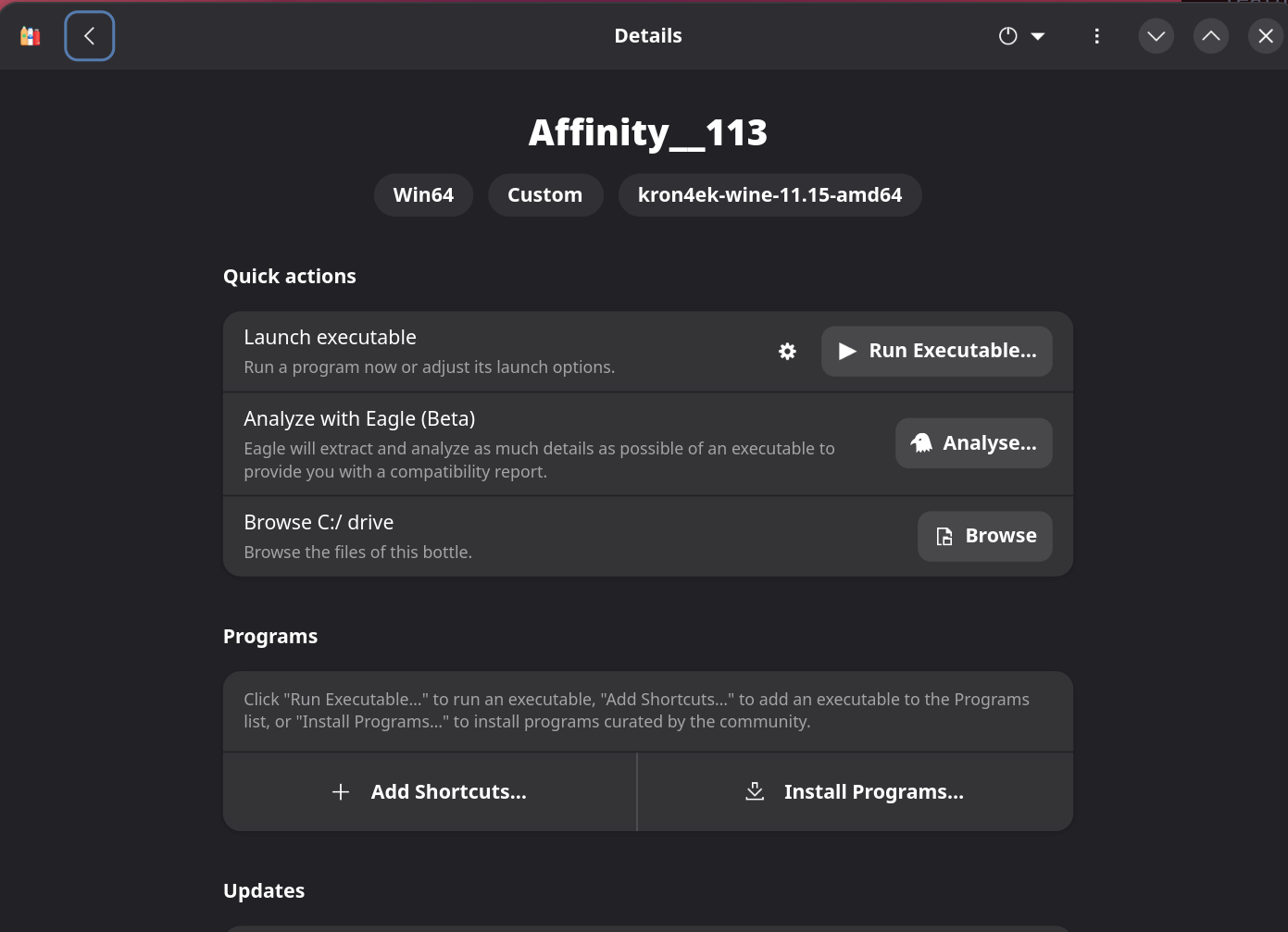
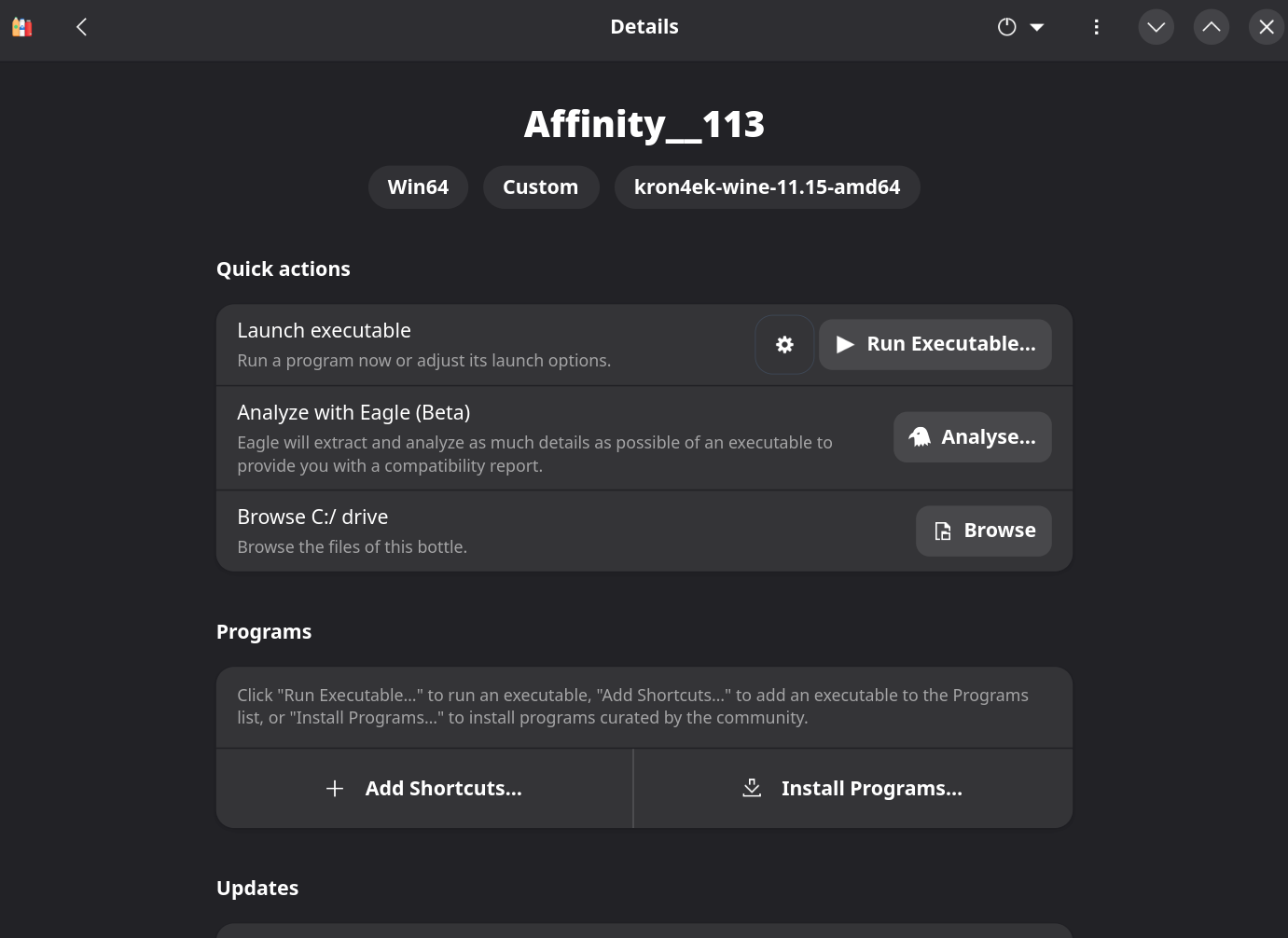
Open the bottle's Details page.
-
Scroll to Options -> Dependencies.
-
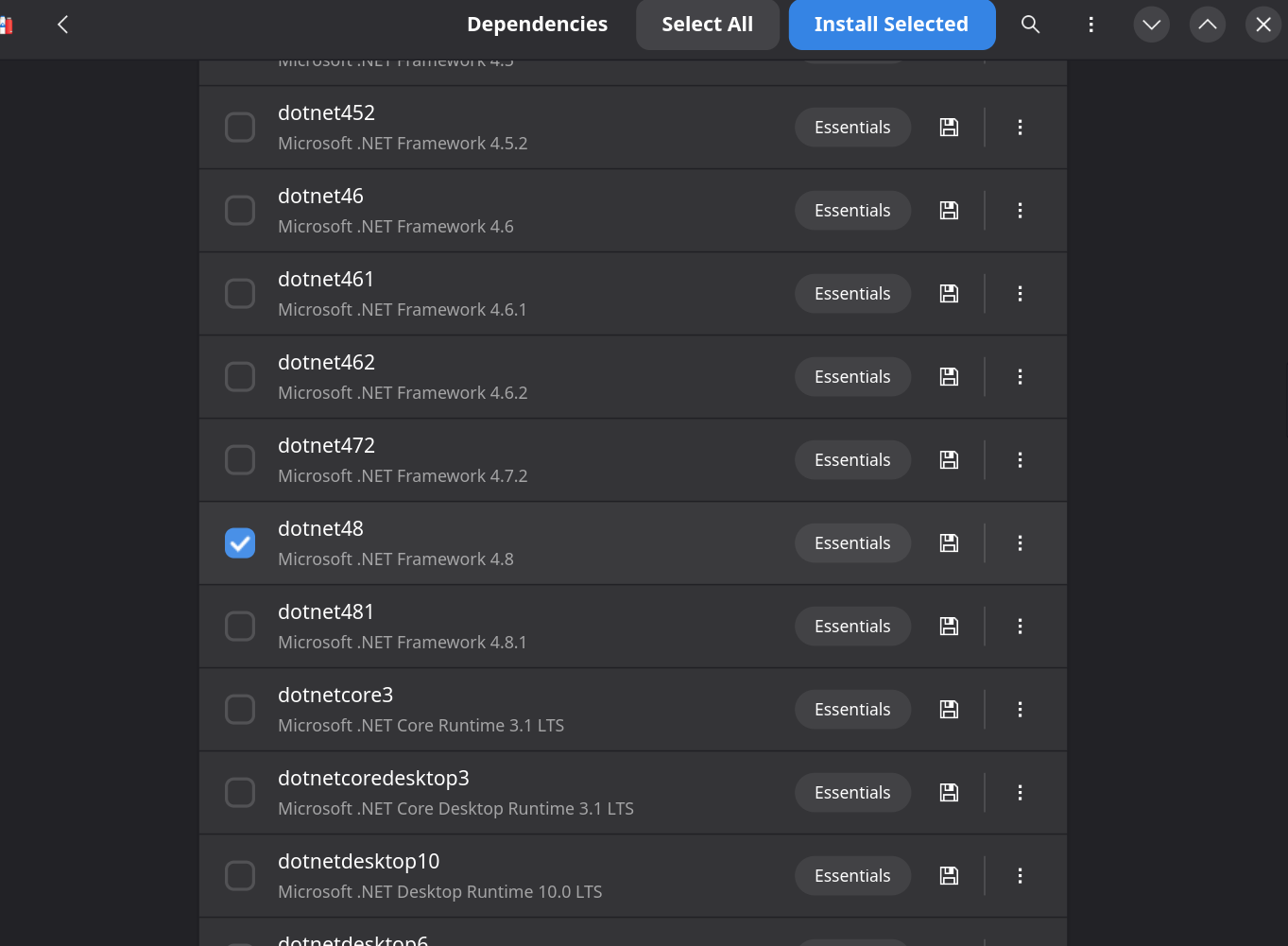
Find dotnet48 (Microsoft .NET Framework 4.8) and check it.
-
Click Install Selected, and wait for it to finish (this can take several minutes).
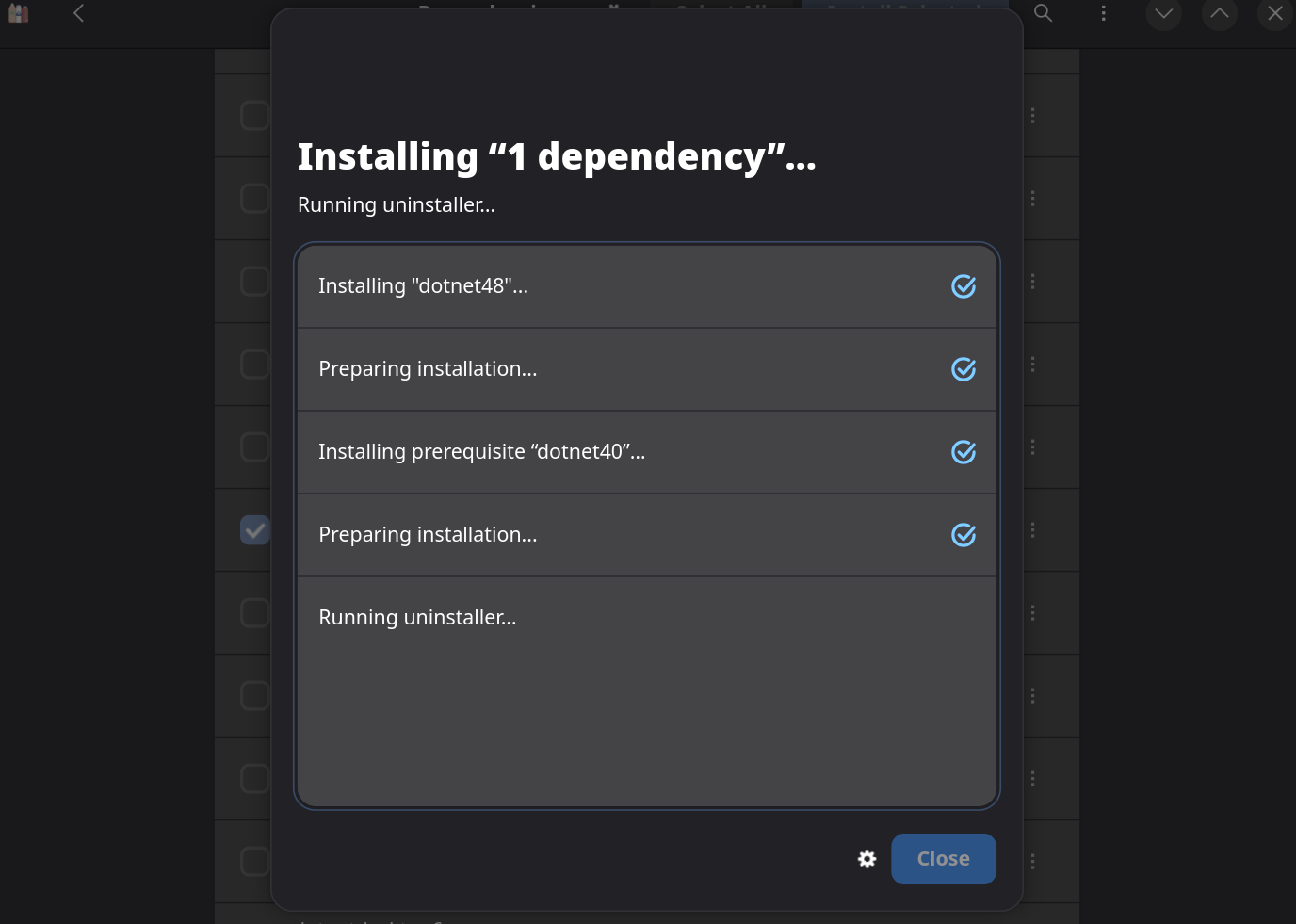
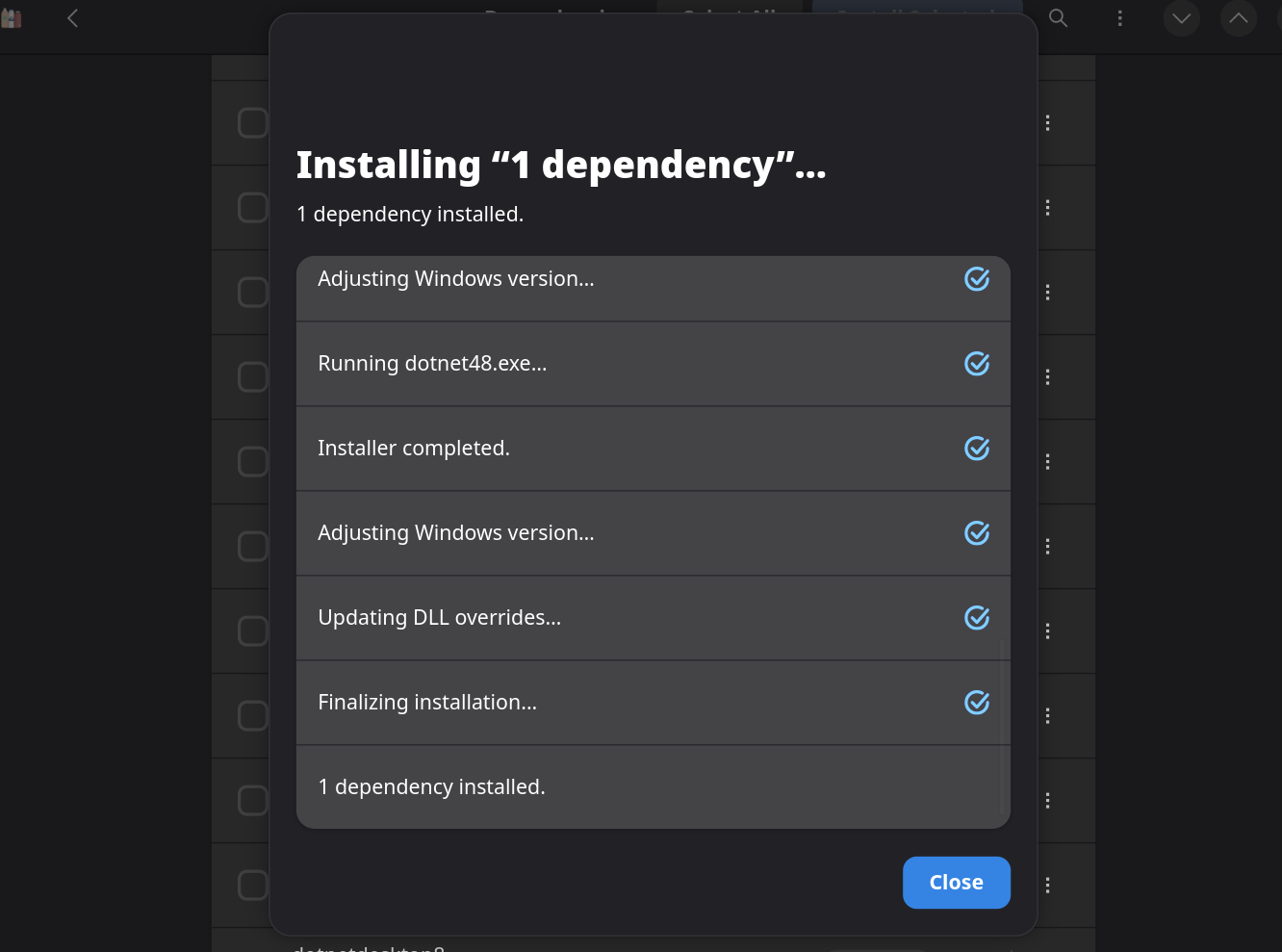
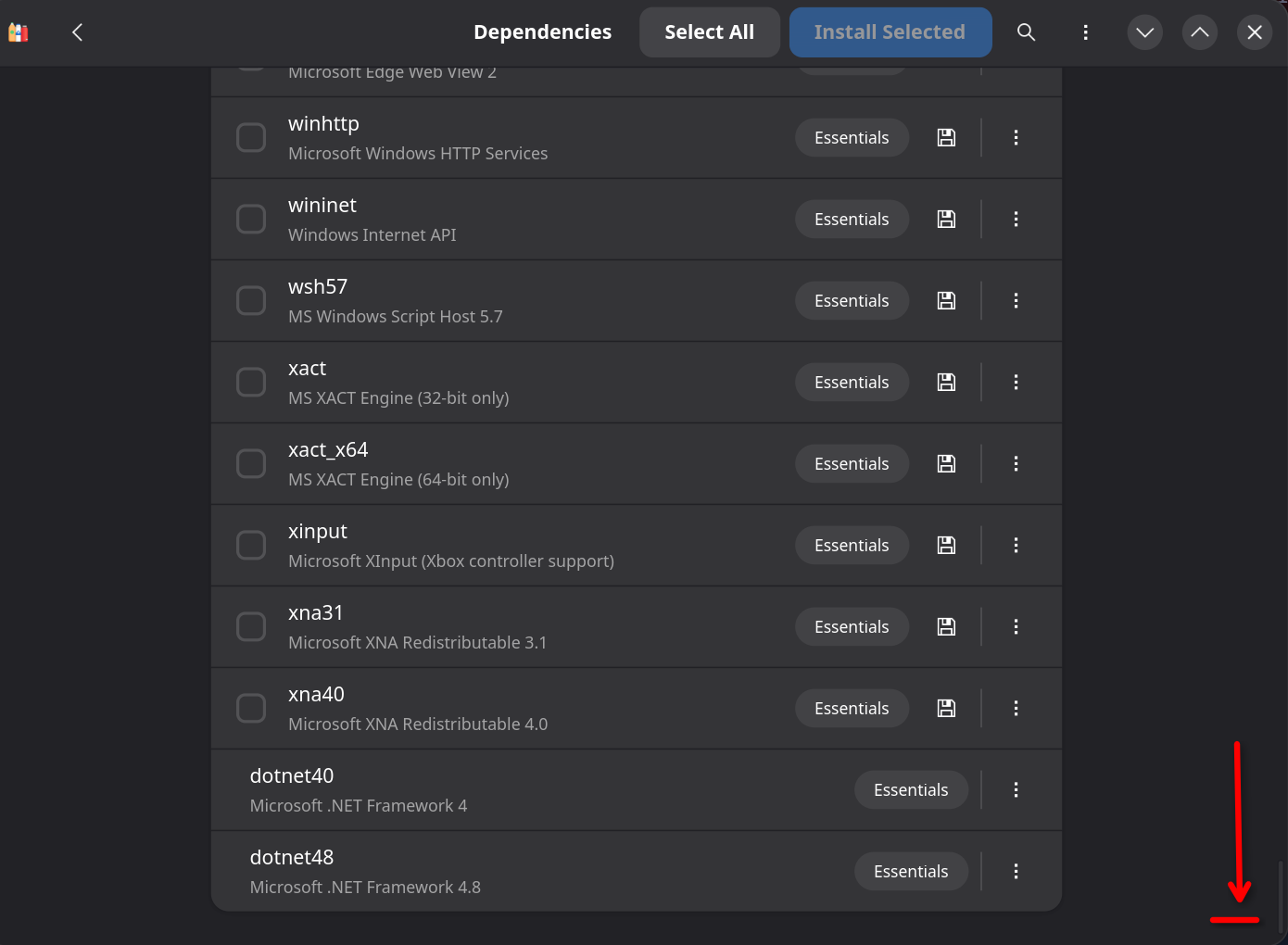
The dependencies list has more entries below dotnet48 if you scroll. You don't need any of the others for Affinity itself.
If you skip this and run Affinity's installer first, you'll see "Failed to start Setup. It looks like Microsoft .NET 3.5 has been turned off on this computer."
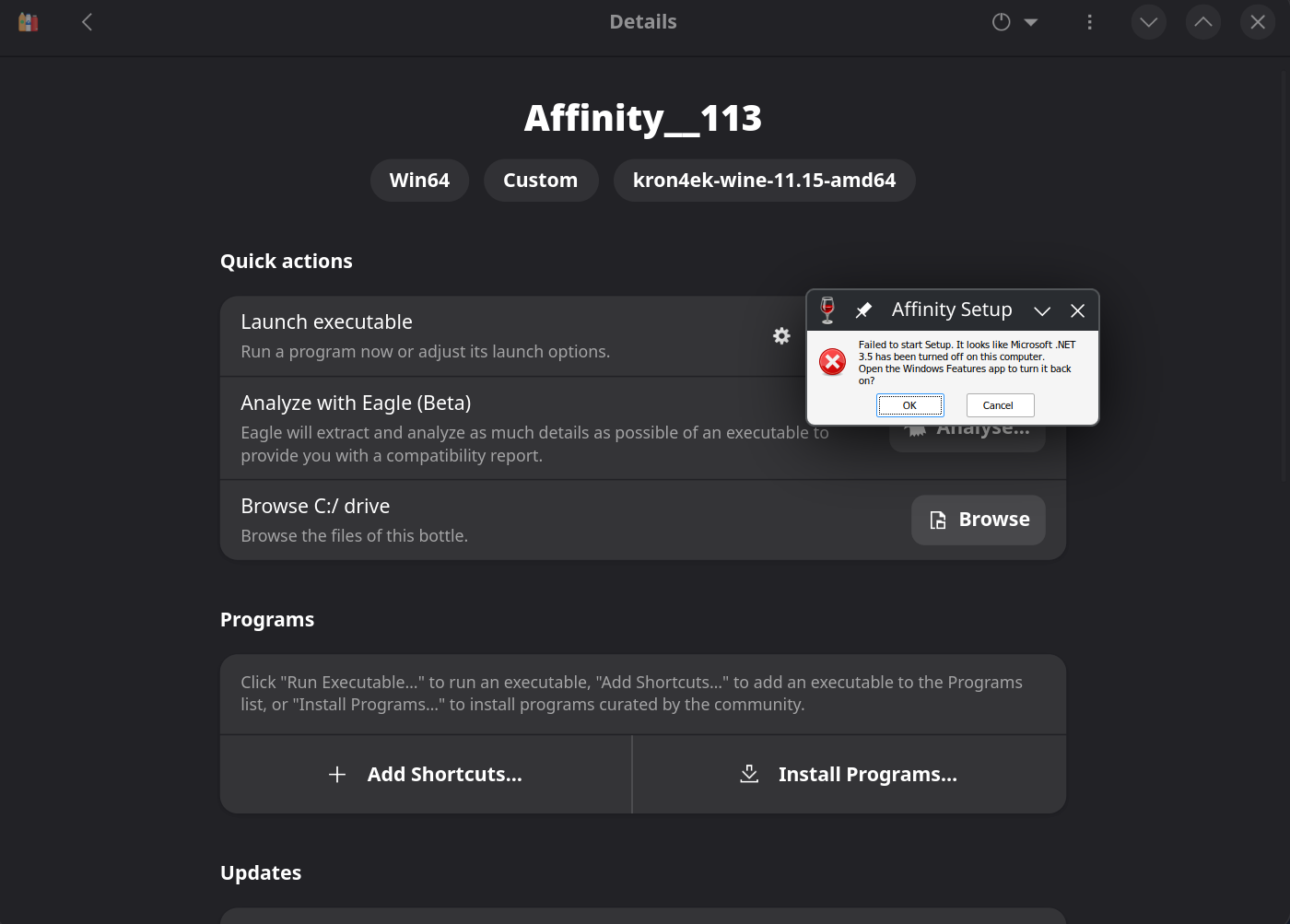
Don't click OK on that dialog. It tries to open a non-existent Windows Features app. Click Cancel, install dotnet48 as above, then try the installer again.
Note
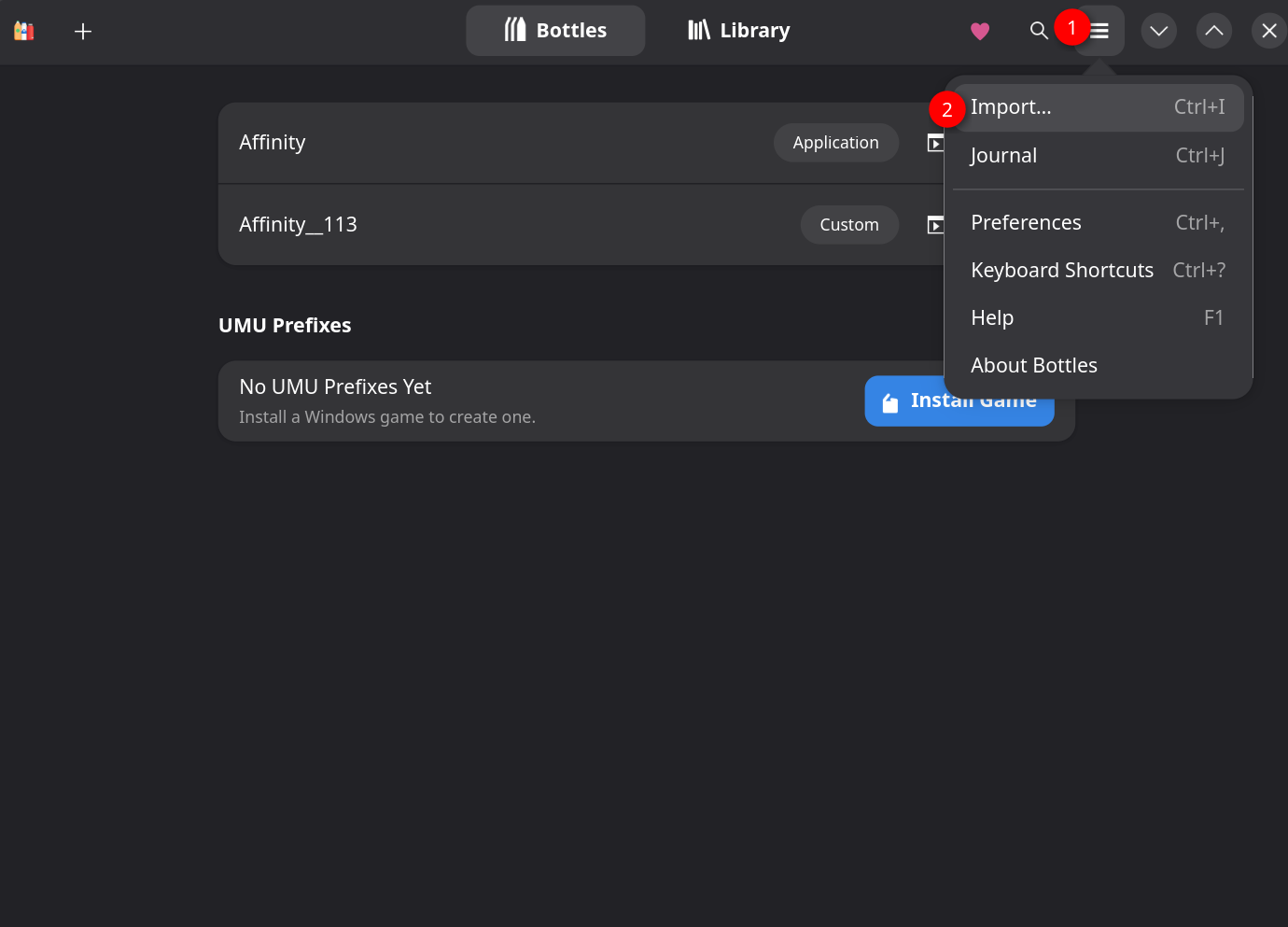
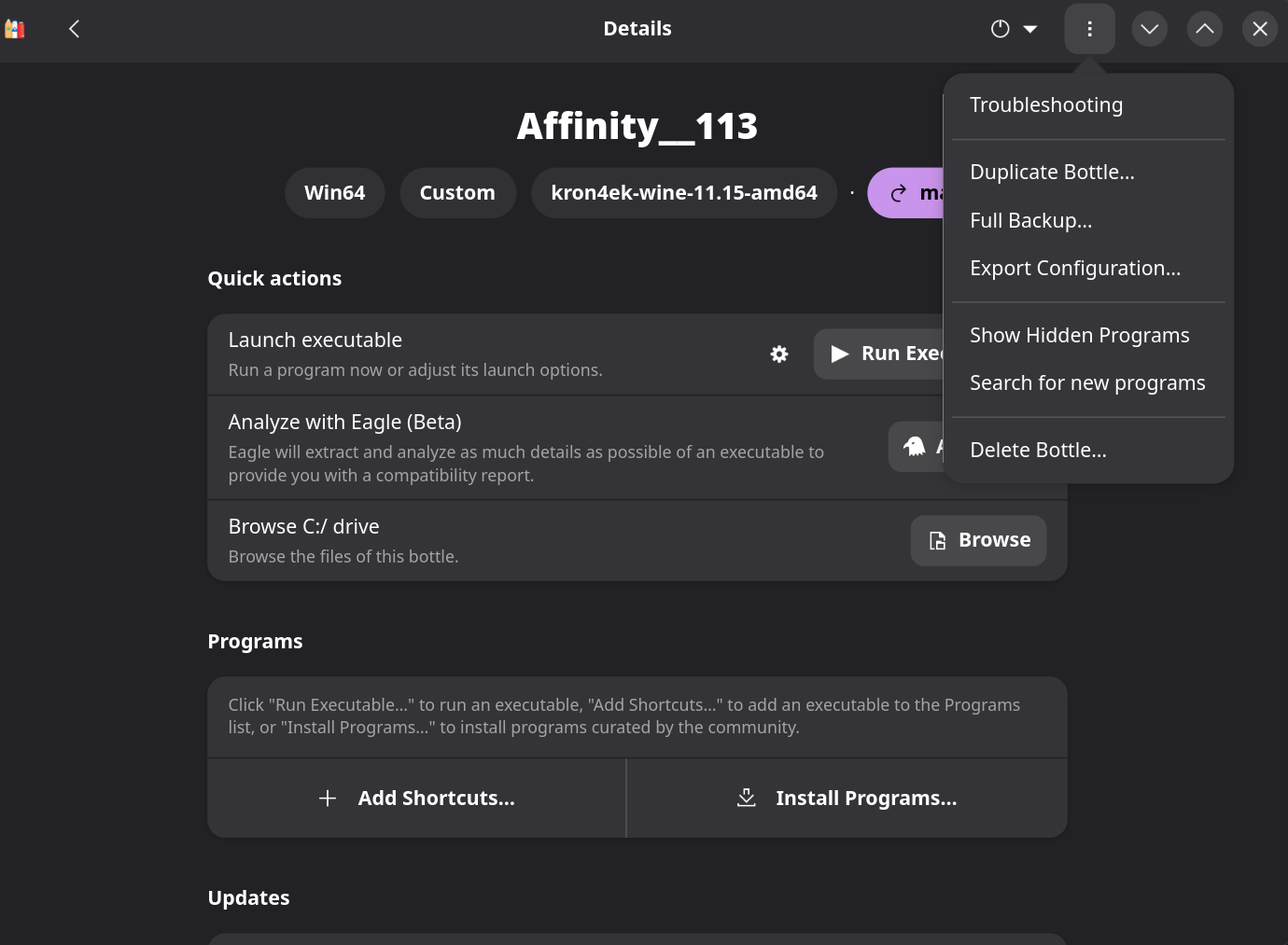
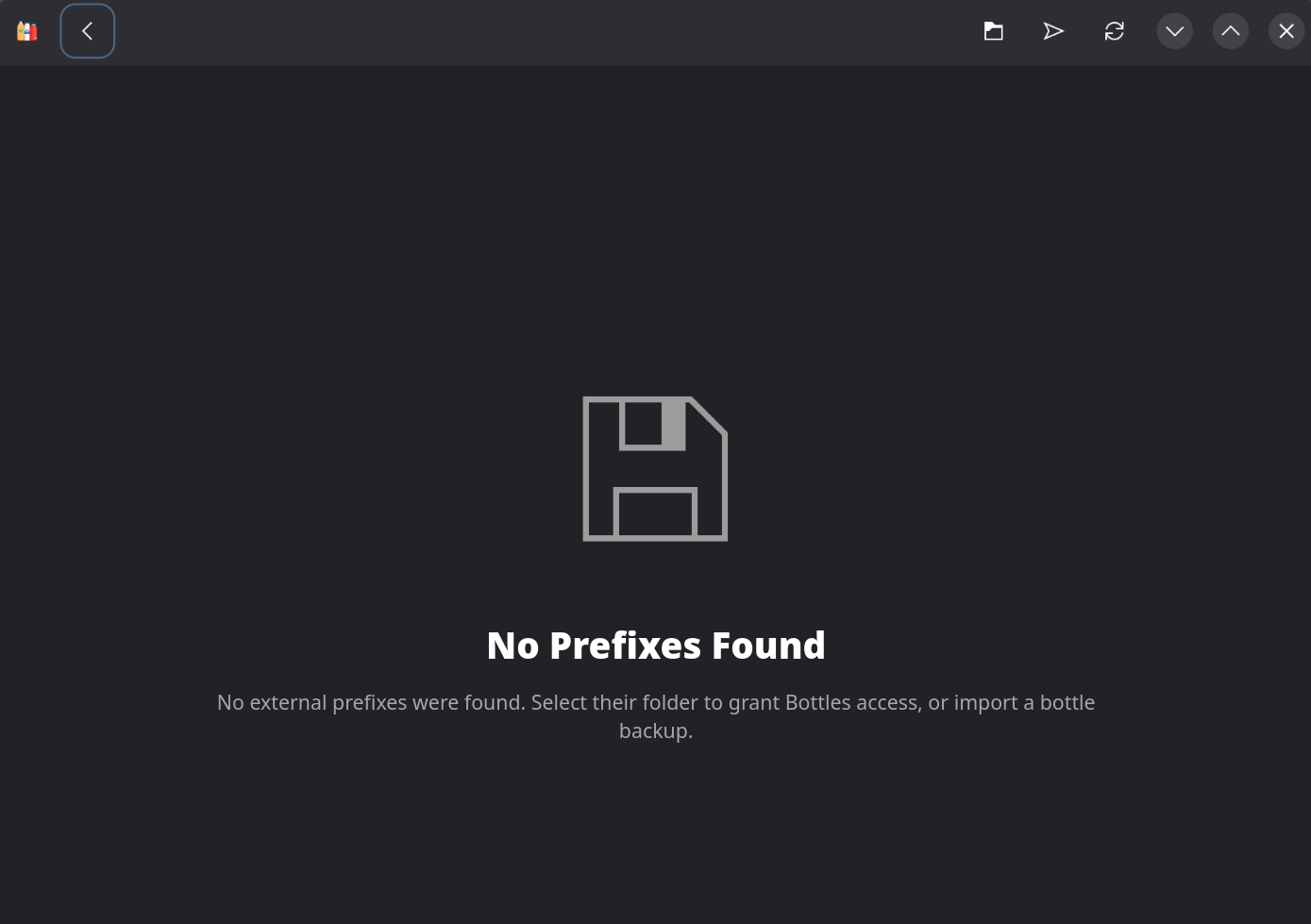
The global menu's Import option and the per-bottle menu's Export are for backing up/restoring a bottle's data, not for importing install scripts. If you go looking for the old .yaml importer, expect "No prefixes found. Import is backup only."
-
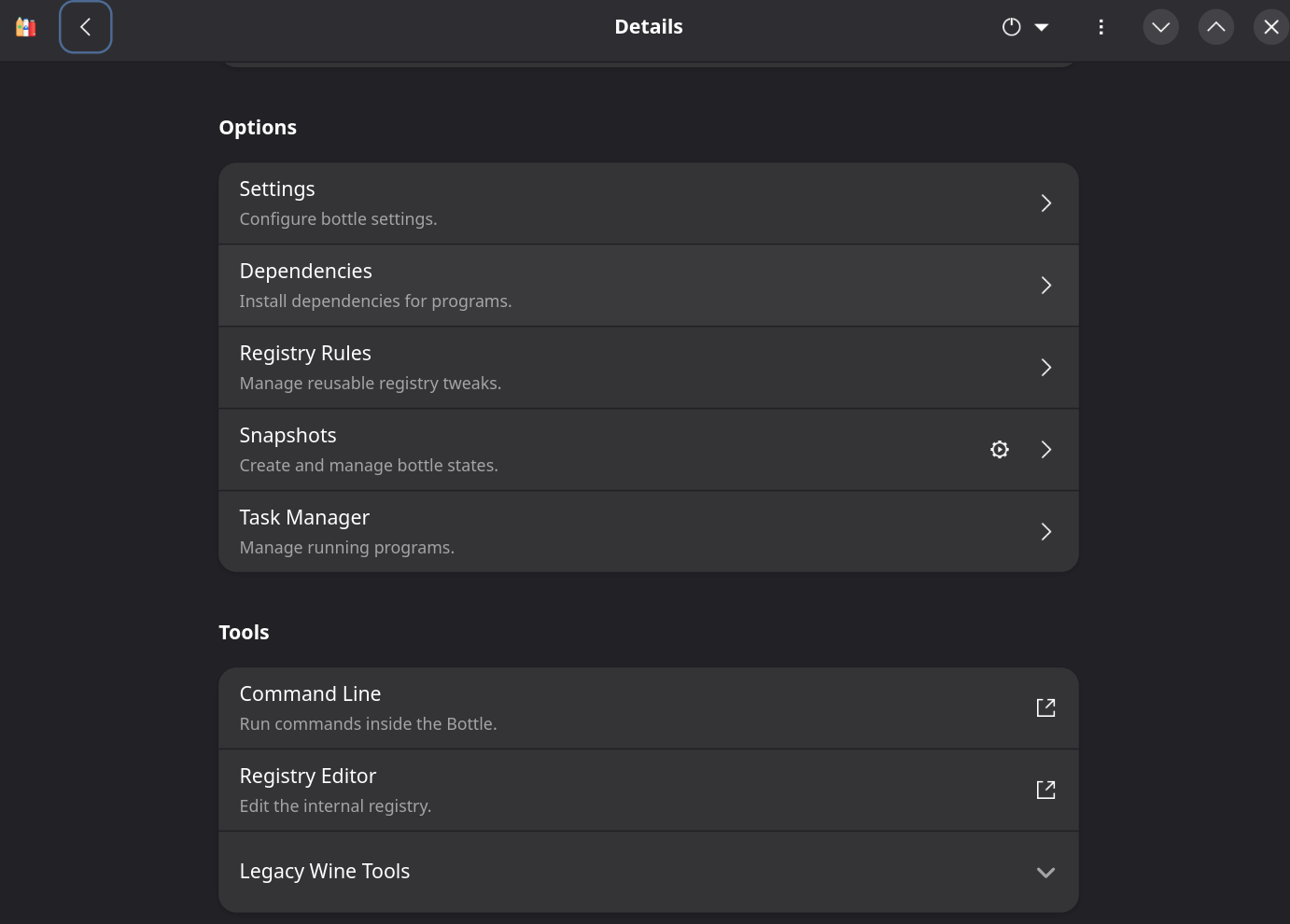
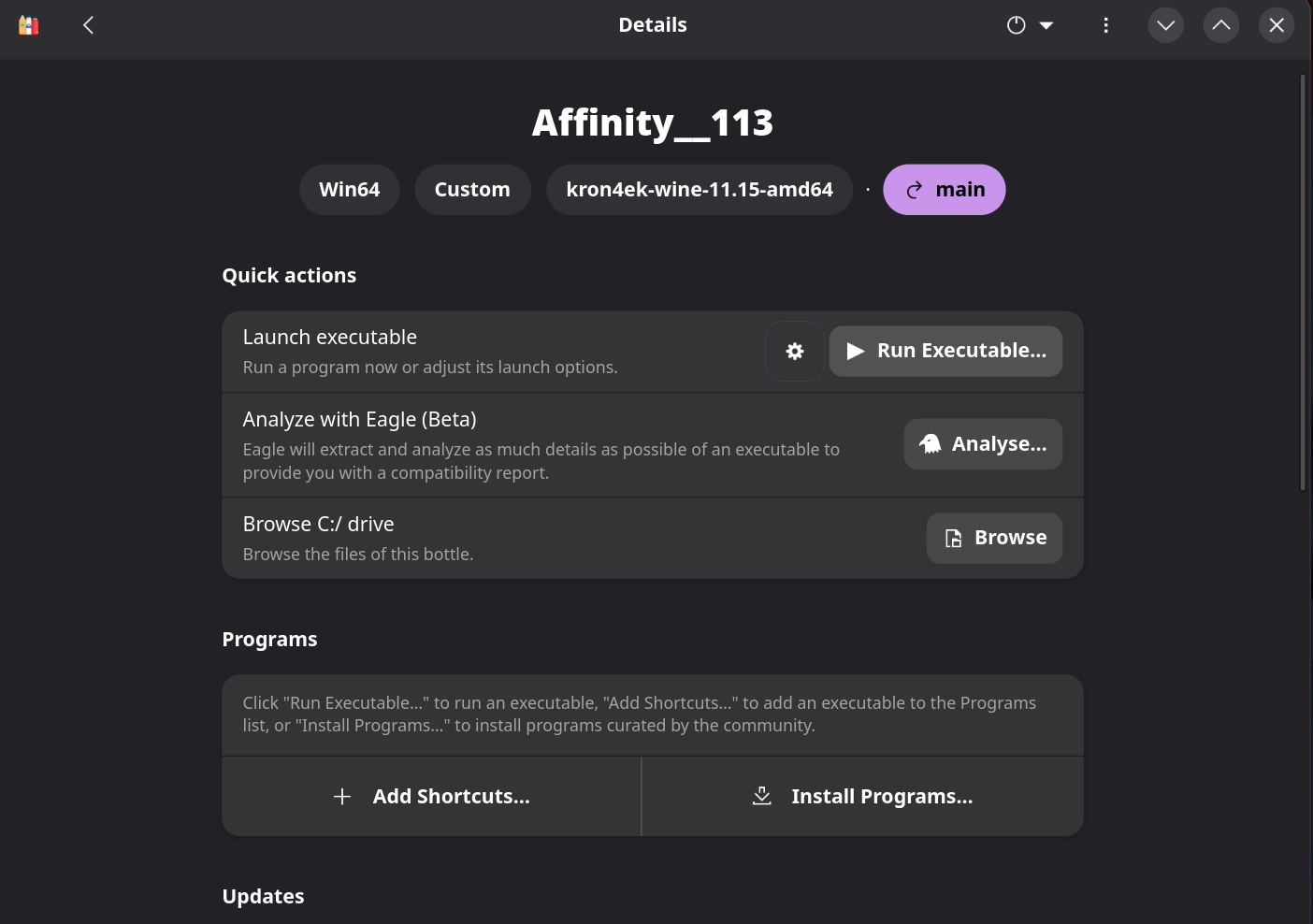
On the bottle's Details page, under Options -> Tools, find Run Executable....
-
Click it and pick the Affinity
.exeyou downloaded.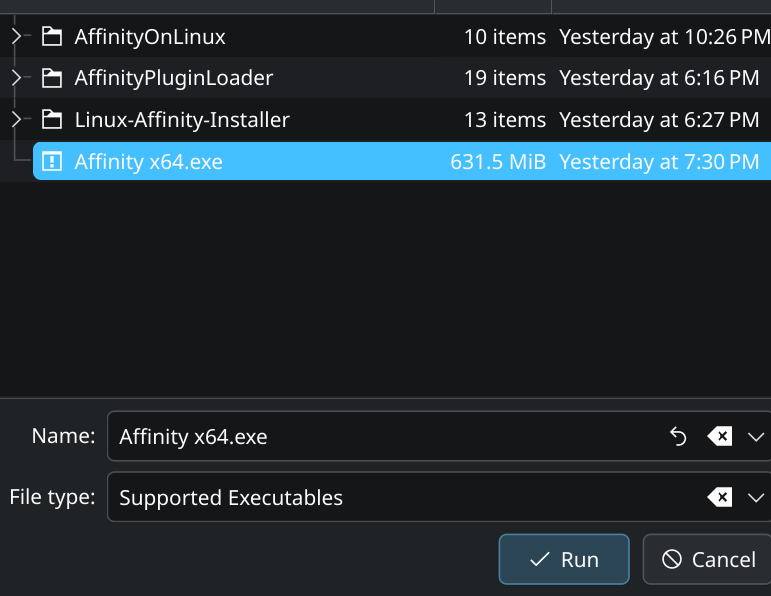
-
You may see a dialog saying "Setup is not recommended... A native installer exists for this CPU type." This is a false positive, click Ignore.
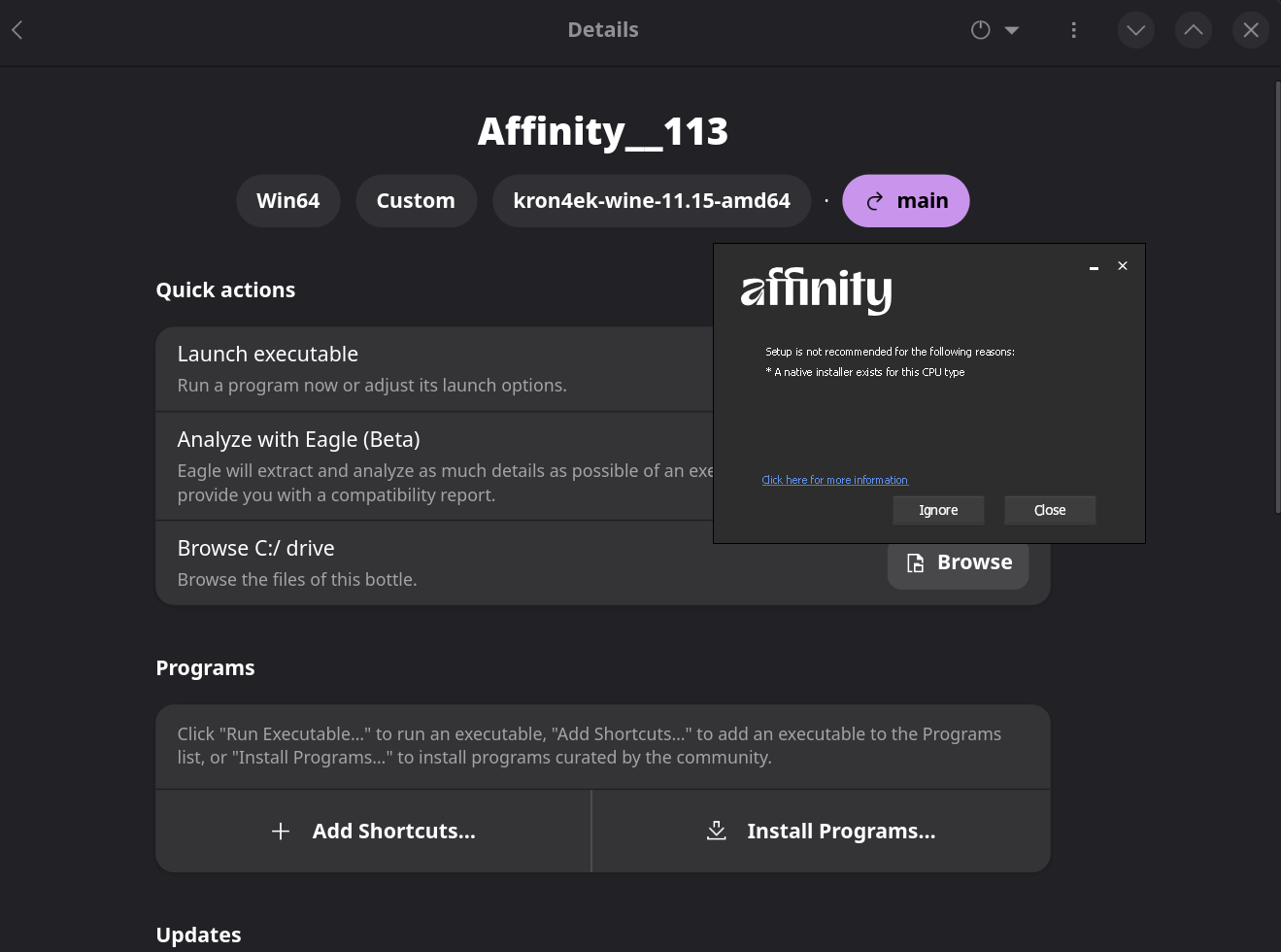
-
Follow the installer to completion. You'll be prompted for an install location.
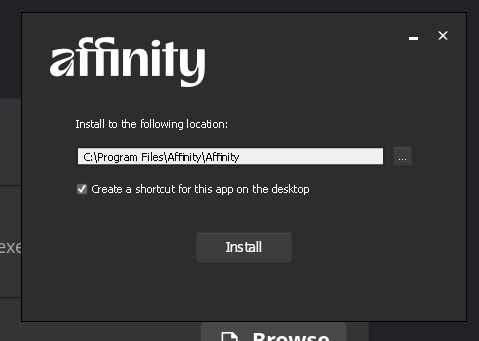
-
Once done, the app appears in the bottle's installed programs list.
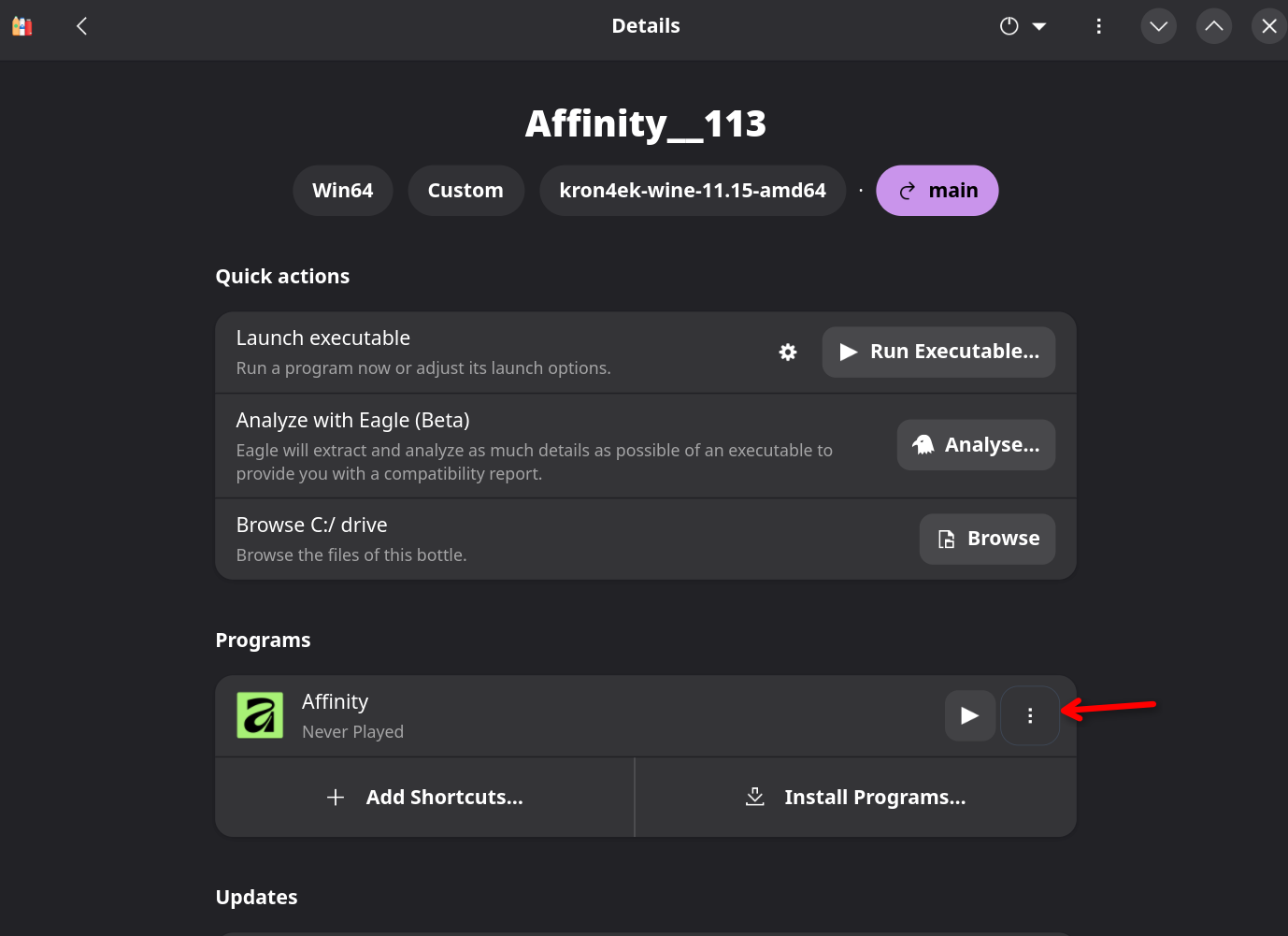
At this point, launching Affinity gets you as far as its splash screen before it crashes, because fonts are not installed yet.
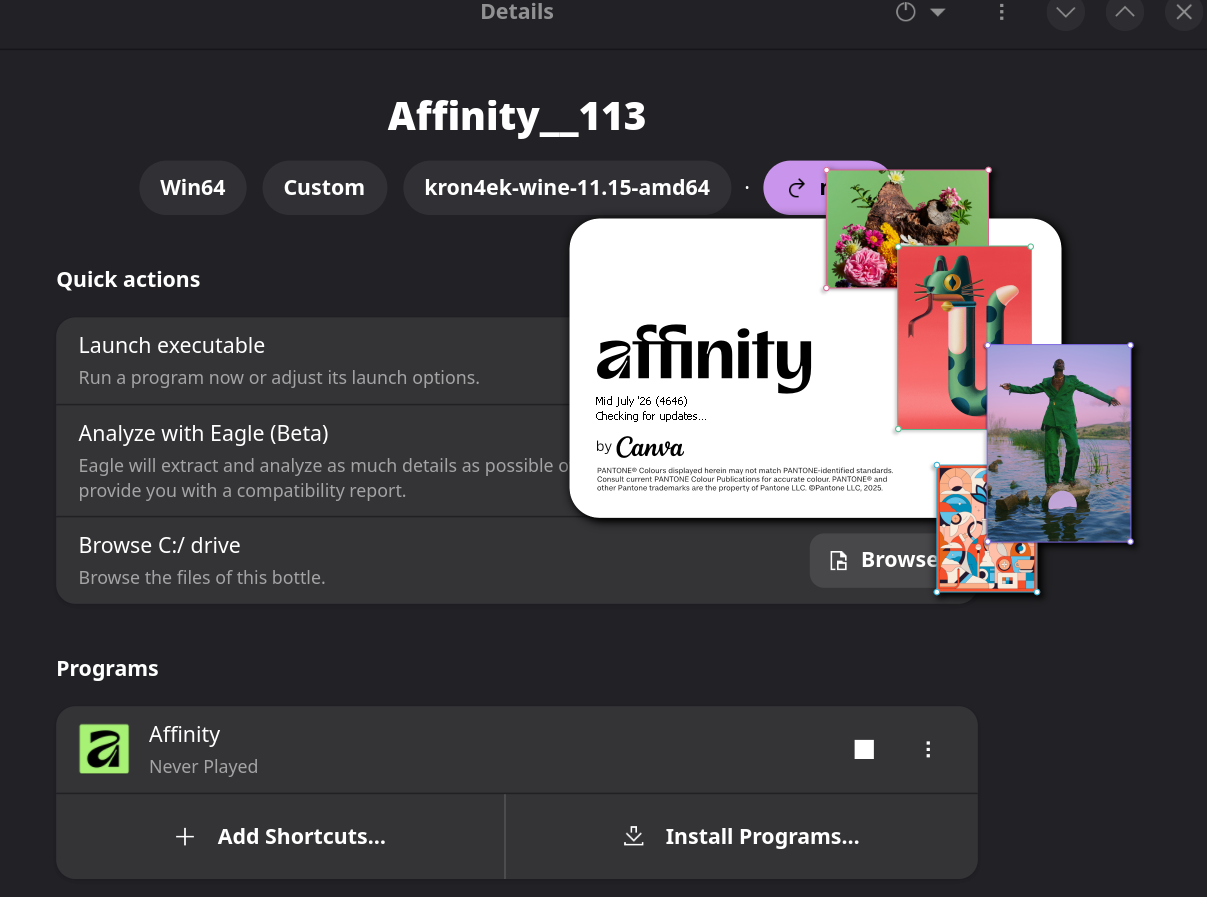
Continue to the next steps, then come back to No fonts / crash when opening a document in Troubleshooting to fix this.
- Download the
Windows.winmdfile. - Insert the
Windows.winmdfile you downloaded intodrive_c/windows/system32/winmetadata.
The Affinity app should now work inside that bottle, once fonts are also in place (see Troubleshooting).
-
Download
wintypes.dll. -
Rename it from
wintypes_shim.dll.sotowintypes.dll. -
For each program installed, copy it into that program's directory. For Affinity Canva that's
drive_c/Program Files/Affinity/Affinity/. -
Open the bottle's settings, and open Wine Configuration from Tools -> Legacy Wine Tools -> Configuration.
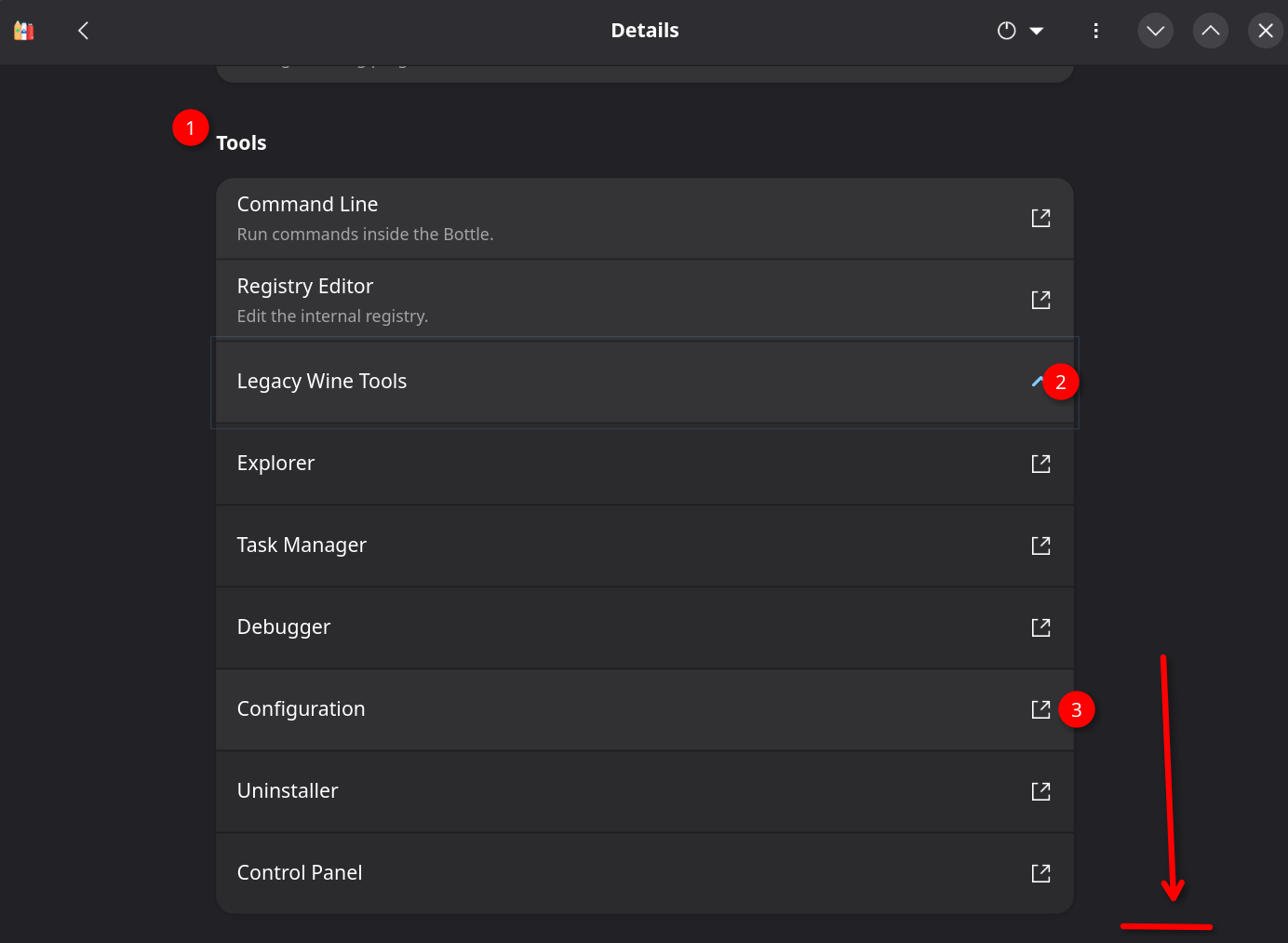
-
In the Libraries tab, add an override for
wintypes.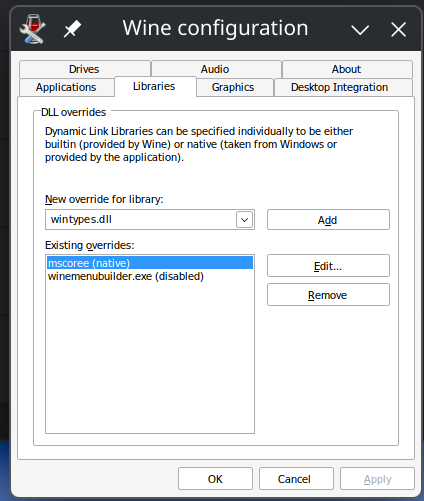
-
Edit it to load Native (Windows).
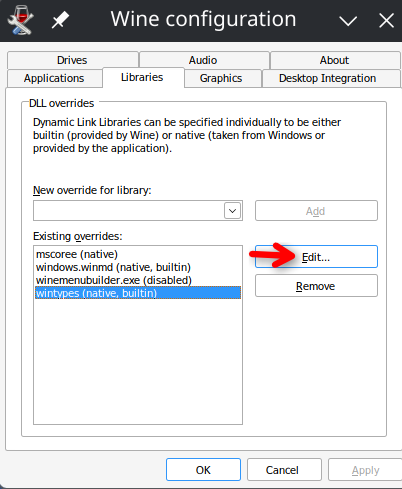
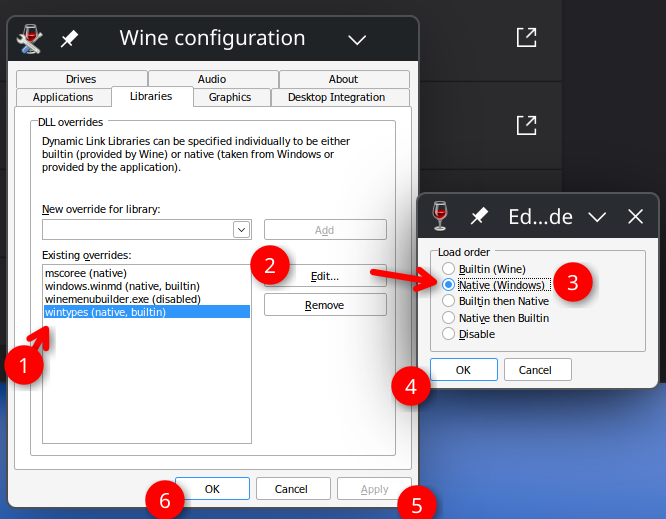

With fonts installed (see Troubleshooting below), Affinity now opens and edits normally.
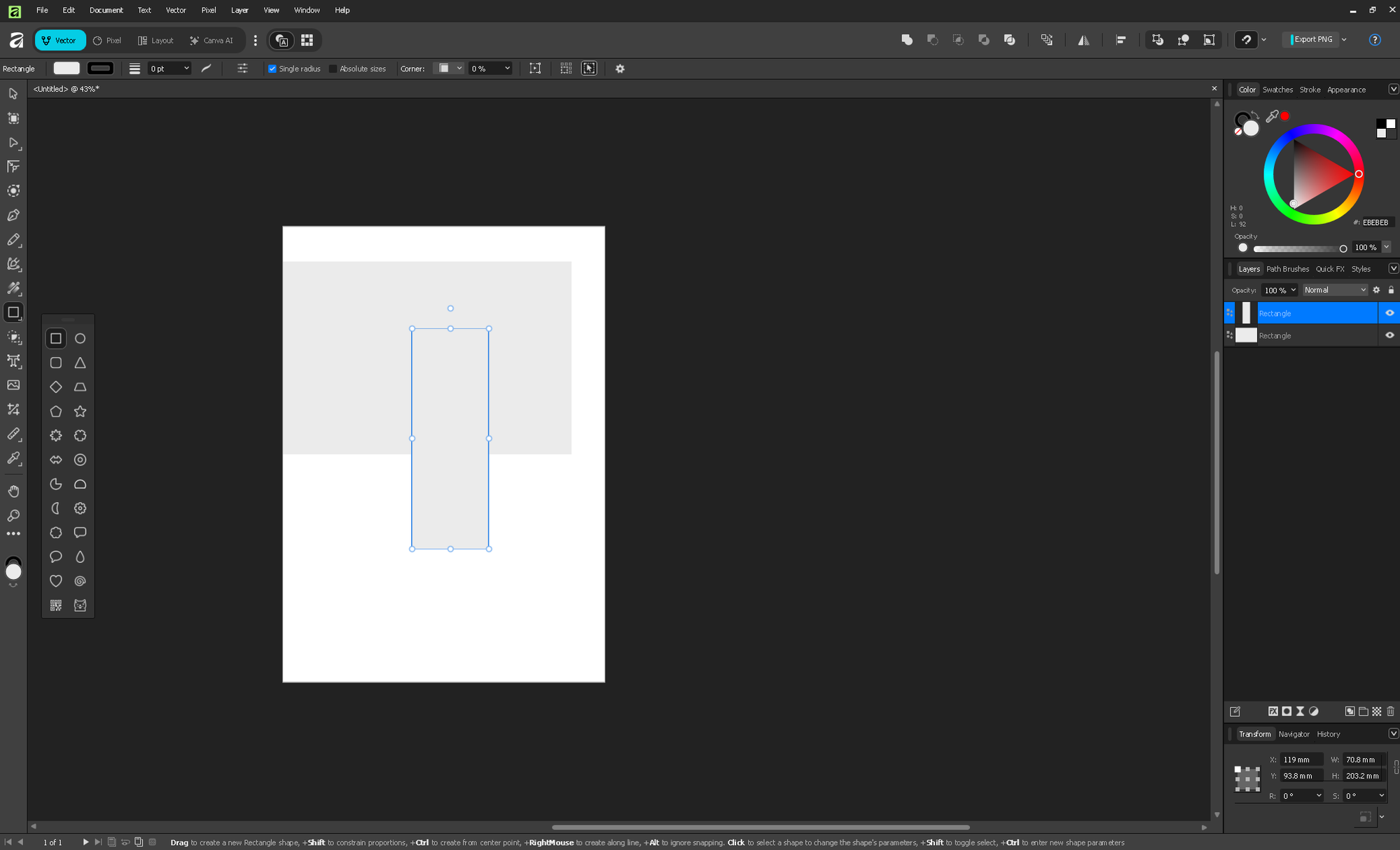
See Tips and Tweaks for the common Bottles install location, fixing stuttering, and enabling dark theme for Wine.
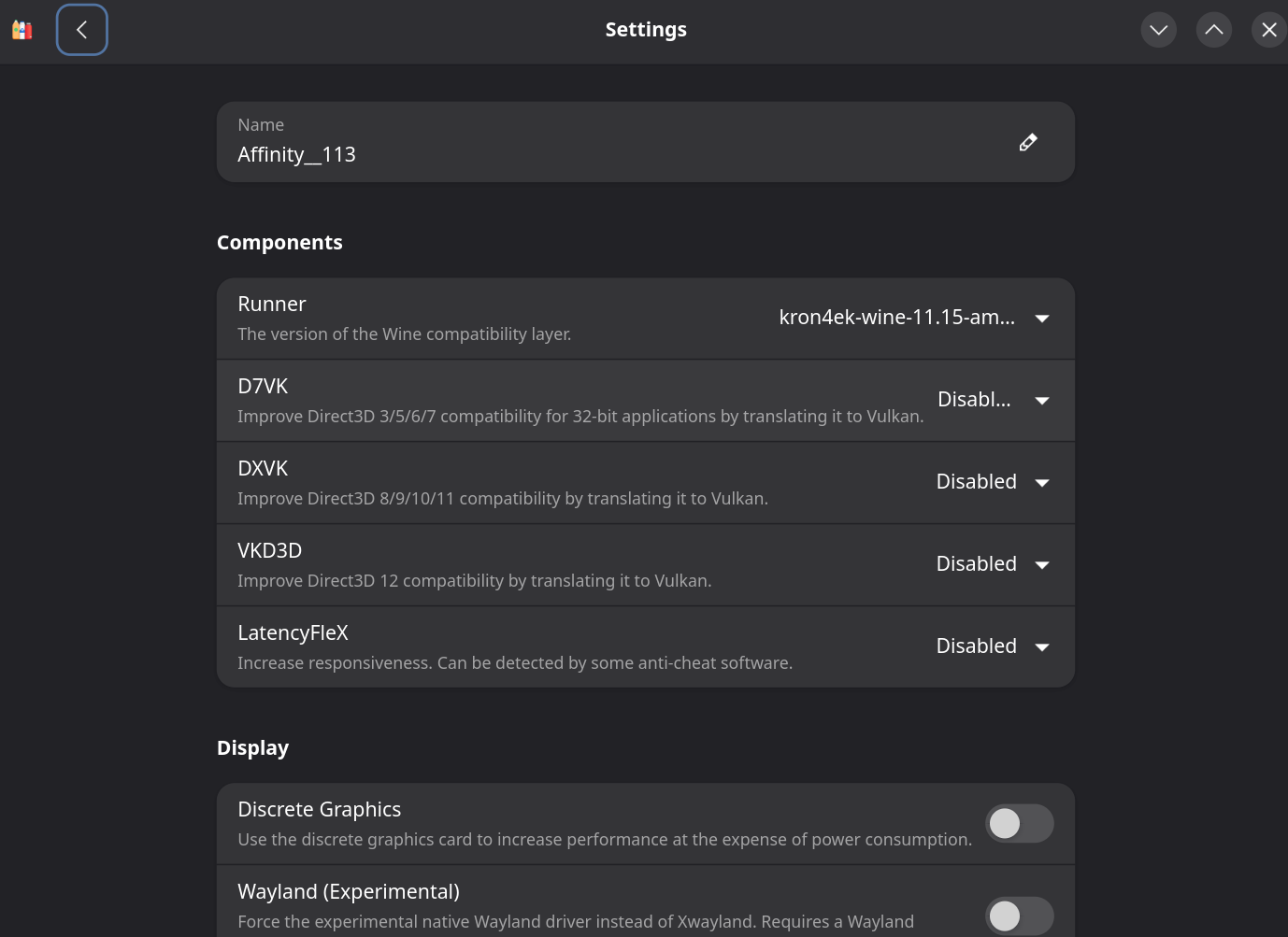
The bottle's Settings -> Components section is also where you confirm which runner and DLL overrides a bottle is using, useful if you need to double check Method B's kron4ek runner is still selected.
This applies to Method B (stock kron4ek runner). A bottle created with the Application or Custom environment starts with zero fonts installed, since Bottles doesn't bundle any by default outside its own dependency installer. Affinity itself launches fine, but crashes the moment it tries to draw text, most visibly when it opens the New Document dialog on first run. The crash log (AppData/Roaming/Affinity/Affinity/3.0/Log.txt) just stops mid-startup with no error text. Running Affinity.exe from the bottle's Tools -> Command Line shows the real cause: an unhandled .NET exception inside WPF's text layout code (FetchLSRun, TextFormatterImp.FormatLine, ...).
The fix is to install fonts. Bottles has a built-in Dependencies -> allfonts entry meant for exactly this.
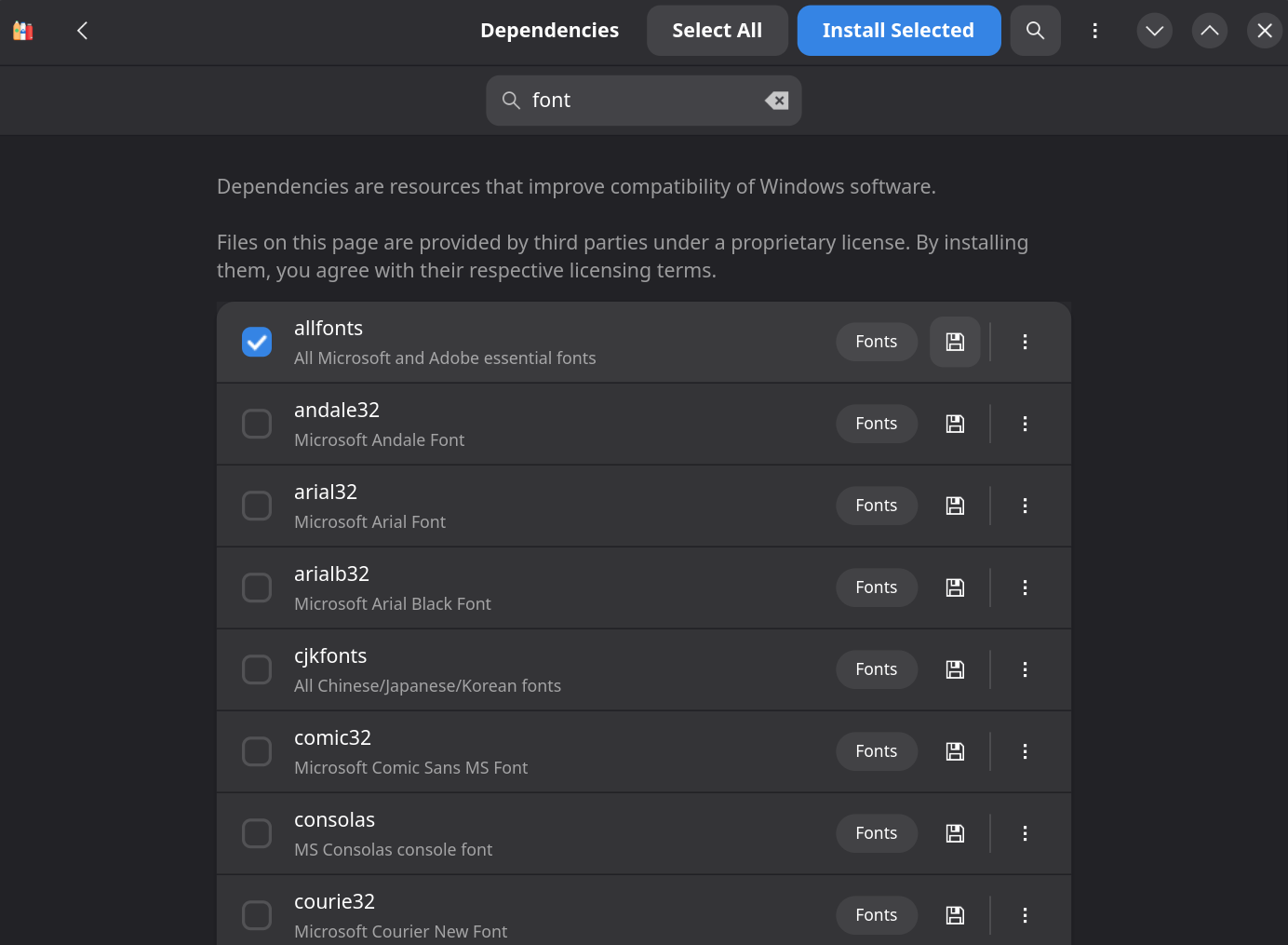
But as of writing, it's broken on Flatpak builds. It fails partway through (for example stuck on "Installing dependency: Microsoft Arial Font" or "Microsoft Andale Font"), even though the font mirrors it downloads from are reachable and correct (confirmed by downloading the same URL and checksum from a normal terminal).
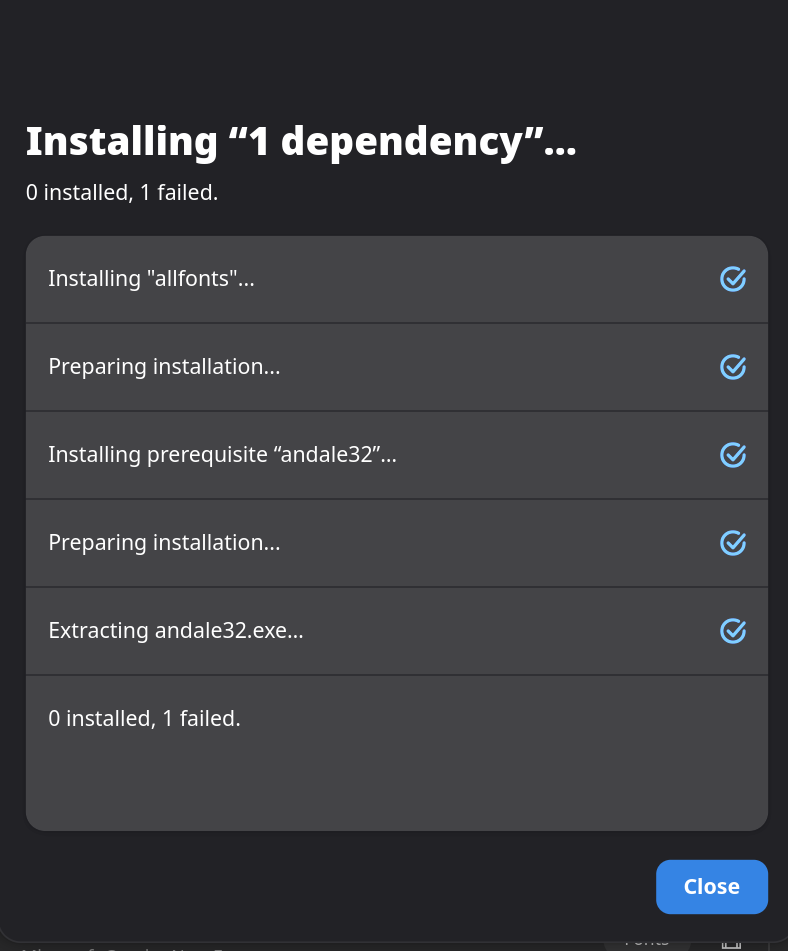
If allfonts fails for you too, install the core fonts by hand instead:
-
Find your bottle's folder. For Flatpak that's
~/.var/app/com.usebottles.bottles/data/bottles/bottles/<BottleName>/. -
Download and extract each of these with
cabextract(sudo pacman -S cabextract,sudo apt install cabextract, etc.), then copy every.ttf/.TTFfile it produces into<bottle>/drive_c/windows/Fonts/:https://sourceforge.net/projects/corefonts/files/the%20fonts/final/arial32.exehttps://mirrors.kernel.org/gentoo/distfiles/5d/arialb32.exehttps://mirrors.kernel.org/gentoo/distfiles/7d/andale32.exehttps://mirrors.kernel.org/gentoo/distfiles/52/comic32.exehttps://mirrors.kernel.org/gentoo/distfiles/1b/courie32.exehttps://mirrors.kernel.org/gentoo/distfiles/f0/georgi32.exehttps://mirrors.kernel.org/gentoo/distfiles/10/impact32.exehttps://sourceforge.net/projects/corefonts/files/the%20fonts/final/times32.exehttps://sourceforge.net/projects/corefonts/files/the%20fonts/final/trebuc32.exehttps://sourceforge.net/projects/corefonts/files/the%20fonts/final/verdan32.exehttps://mirrors.kernel.org/gentoo/distfiles/95/webdin32.exe
For example:
curl -LO <url> && cabextract -d out <file>.exe && cp out/*.[tT][tT][fF] "<bottle>/drive_c/windows/Fonts/" -
Register each font so Windows/WPF actually picks it up. Copying the file in alone isn't enough. From a terminal, for a Flatpak install:
flatpak run --command=bash com.usebottles.bottles -c '
export WINEPREFIX="/var/data/bottles/bottles/<BottleName>"
export PATH="/var/data/bottles/runners/<your-runner>/bin:$PATH"
KEY="HKLM\Software\Microsoft\Windows NT\CurrentVersion\Fonts"
wine reg add "$KEY" /v "Arial (TrueType)" /d "Arial.TTF" /f
# repeat for each font file you copied in, matching name -> filename
'
(
/var/data/...is how paths under~/.var/app/com.usebottles.bottles/data/...appear from inside the Flatpak sandbox.) -
Relaunch Affinity. The New Document dialog and general text rendering should now work.
This is a Bottles bug, not an Affinity or wintypes/winmd issue. It will most likely get fixed upstream. Check whether Dependencies -> allfonts works again in newer Bottles releases before doing this by hand.
Same underlying bug as above, the automatic font install that Bottles runs as part of creating a new Application-profile bottle fails inside the Flatpak sandbox. The bottle is still created (just without fonts). Continue with the rest of this guide, and use the manual font fix above once you get to a document-opening crash.
- Bottles Flatpak builds have a broken font-installer step (allfonts, and the automatic font install during bottle creation) as of writing. Confirmed as a sandbox-only failure, the underlying download URLs work fine outside Flatpak. Manual fix above.
- The
.yamlinstall-script importer used by Method A is not present in recent Bottles releases. Method B's manual wizard works around this.