Install Guide Rum
This guide sets up Wine for Affinity without a GUI launcher like Lutris or Bottles. Instead, it uses rum, a small shell script that manages multiple Wine runners from the command line.
Use this method if you want direct control over your Wine runners and prefixes. It works best if you are also comfortable working in a terminal.
Install these programs (or your distro's equivalent) before you continue:
wgetunzipgit- winetricks
Debian-based distros:
sudo apt update && sudo apt install wget unzip git winetricksArch-based distros:
sudo pacman -Sy wget unzip git winetricksFedora-based distros:
sudo dnf install wget unzip git winetricksCreate two directories in ~/.local/share/ to keep your runners and prefixes organized outside your $HOME:
mkdir -p ~/.local/share/wine/runners
mkdir -p ~/.local/share/wine/prefixes
Download a build of ElementalWarrior's Wine fork and unzip it.
Note
Check the ElementalWarrior-x86_64 releases page for newer builds of ElementalWarrior's Wine fork.
pushd ~/.local/share/wine/runners &&
wget https://github.com/seapear/AffinityOnLinux/releases/download/Legacy/ElementalWarriorWine-x86_64.tar.gz &&
tar xvzf ElementalWarriorWine-x86_64.tar.gz &&
rm ElementalWarriorWine-x86_64.tar.gz &&
popd- Download
ruminto/opt:cd /opt/ sudo git clone https://gitlab.com/xkero/rum.git - Take ownership of the folder as your current user:
sudo chown -R $USER:$USER rum/
- Create a symlink in
/usr/local/bin/:sudo ln -sf /opt/rum/rum /usr/local/bin/rum
- Open
rumin an editor to point it at the custom runners path you set up earlier:nano /opt/rum/rum
- Change the
winesvariable to:wines="$HOME/.local/share/wine/runners" - Run
rumwith no arguments to check the setup. It must print:This confirmsNot enough arguments! Usage: rum <wine-version or /path/to/wine/version> </path/to/wine/prefix> <wine command> [wine arguments...] Wine versions available: ElementalWarriorWine-x86_64rumfoundElementalWarriorWine.
Register an alias so you do not need to type the full path to the Affinity Wine prefix every time.
- Open your
.bashrcor a dedicated.bash_aliasesfile. - Add this alias:
Rename it if you prefer. This name is only an example.
alias wine-ew-affinity='rum ElementalWarriorWine-x86_64 $HOME/.local/share/wine/prefixes/affinity/'
- Source the file you edited:
source ~/.bash_aliases
- Run the alias with no arguments and check that it prints the same message as the
rumtest above.
Note
If Fish is your default shell, manage this alias in Fish's own configuration instead of .bashrc. Edit (or create) ~/.config/fish/config.fish and add:
alias wine-ew-affinity='rum ElementalWarriorWine-x86_64 $HOME/.local/share/wine/prefixes/affinity/'Initialize the prefix that will hold the Affinity install:
wine-ew-affinity wineboot --initImportant
This step uses the remove_mono verb because the .NET Framework version installed next directly conflicts with Wine Mono, as stated in the Wine Mono README. Always remove Wine Mono before installing .NET Framework 4.8 or earlier. It can coexist with .NET Core and .NET 5 or later.
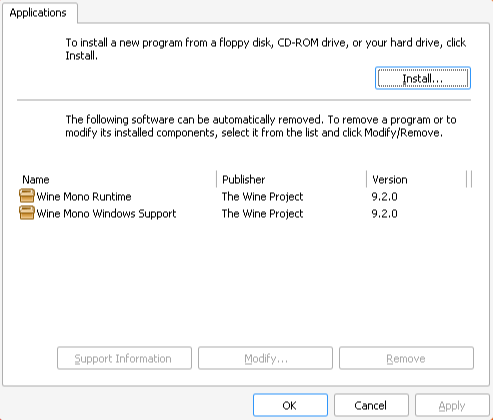
- Run winetricks with these options to install the needed dependencies in your Affinity prefix:
wine-ew-affinity winetricks --unattended --force remove_mono vcrun2022 dotnet48 corefonts tahoma win11
- Set the renderer to Vulkan, as a separate step after the previous winetricks verbs finish:
wine-ew-affinity winetricks renderer=vulkan
Note
Step 1 takes a while and prints many warnings. This is expected. Let it run to completion.
Download some Windows system files and place them in the prefix's C drive:
pushd ~/.local/share/wine/prefixes/affinity/drive_c/windows/system32/ &&
wget https://archive.org/download/win-metadata/WinMetadata.zip &&
unzip WinMetadata.zip &&
rm WinMetadata.zip &&
popdYou need an Affinity installer in EXE format, not MSIX format.
Tip
Official download links for Affinity installers:
| Program | URL |
|---|---|
| Affinity by Canva | https://www.affinity.studio/download |
| Photo V2 | https://store.serif.com/update/windows/photo/2/ |
| Designer V2 | https://store.serif.com/update/windows/designer/2/ |
| Publisher V2 | https://store.serif.com/update/windows/publisher/2/ |
| Photo V1 | https://store.serif.com/update/windows/photo/1/ |
| Designer V1 | https://store.serif.com/update/windows/designer/1/ |
| Publisher V1 | https://store.serif.com/update/windows/publisher/1/ |
Note
For Affinity by Canva, select "Enterprise (Intel/AMD)" from the "Download for Windows" drop-down menu on the official download page to get the EXE installer.
This example uses the Affinity Photo V1 installer.
-
Run the installer:
wine-ew-affinity wine ~/Downloads/affinity-photo-1.10.6.exe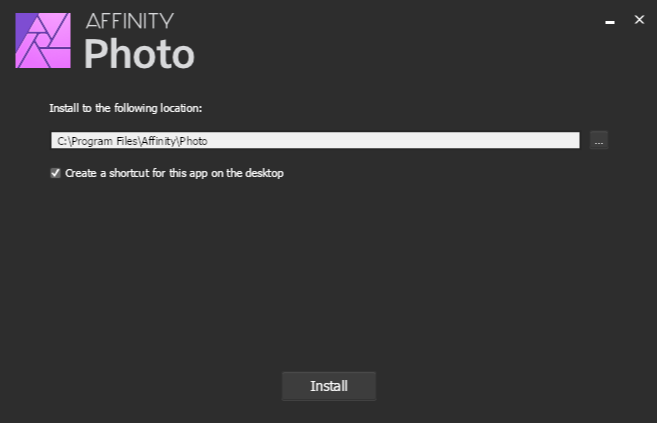
-
Click Install. Ignore any warnings Wine throws.
-
When the installer finishes, close it.
-
Launch the software:
wine-ew-affinity wine ~/.local/share/wine/prefixes/affinity/drive_c/Program\ Files/Affinity/Photo/Photo.exe
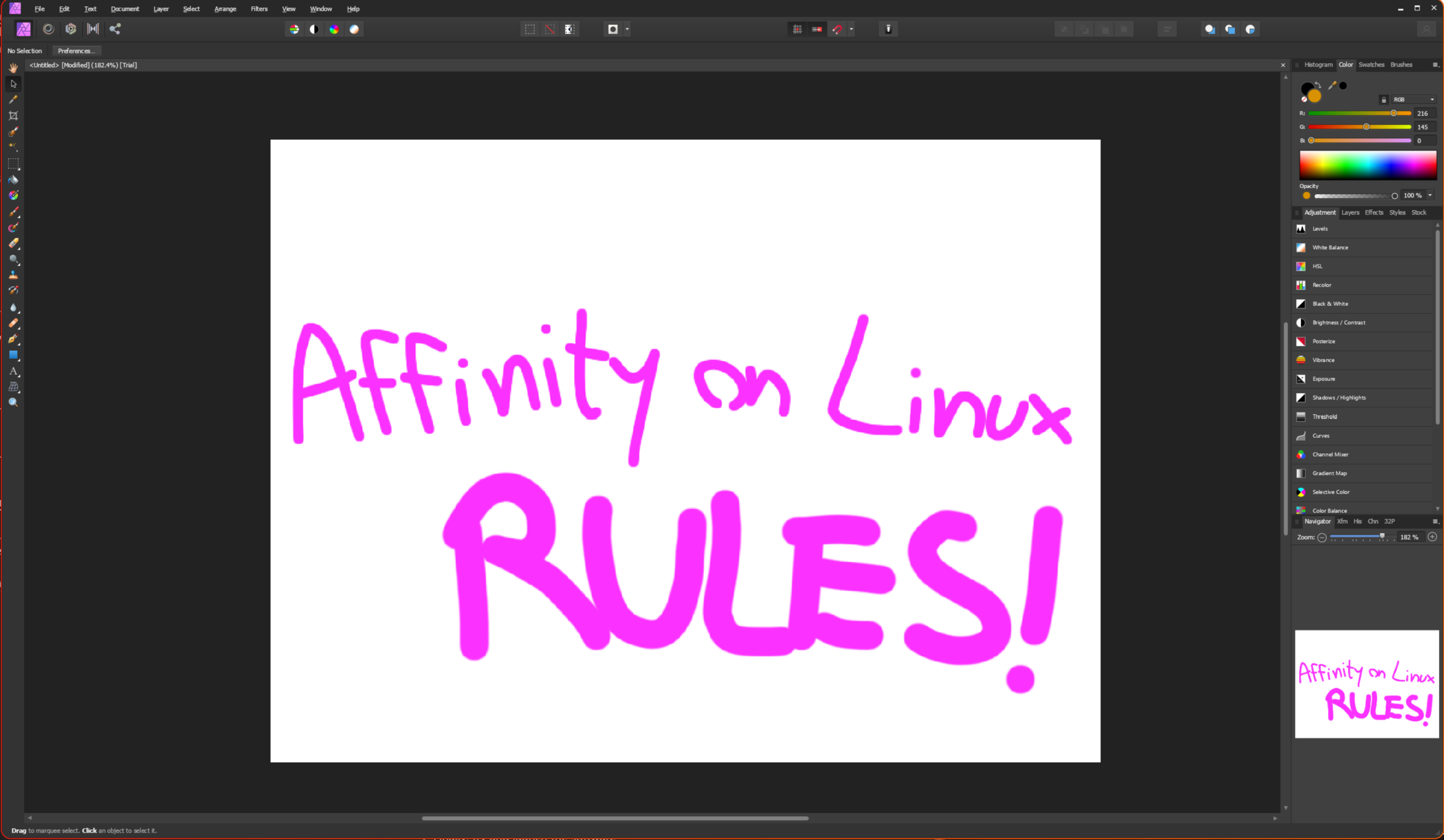
Use these commands to launch each Affinity app:
Affinity by Canva:
wine-ew-affinity wine ~/.local/share/wine/prefixes/affinity/drive_c/Program\ Files/Affinity/Affinity/Affinity.exeAffinity Photo V2:
wine-ew-affinity wine ~/.local/share/wine/prefixes/affinity/drive_c/Program\ Files/Affinity/Photo 2/Photo.exeAffinity Designer V2:
wine-ew-affinity wine ~/.local/share/wine/prefixes/affinity/drive_c/Program\ Files/Affinity/Designer 2/Designer.exeAffinity Publisher V2:
wine-ew-affinity wine ~/.local/share/wine/prefixes/affinity/drive_c/Program\ Files/Affinity/Publisher 2/Publisher.exeAffinity Photo V1:
wine-ew-affinity wine ~/.local/share/wine/prefixes/affinity/drive_c/Program\ Files/Affinity/Photo/Photo.exeAffinity Designer V1:
wine-ew-affinity wine ~/.local/share/wine/prefixes/affinity/drive_c/Program\ Files/Affinity/Designer/Designer.exeAffinity Publisher V1:
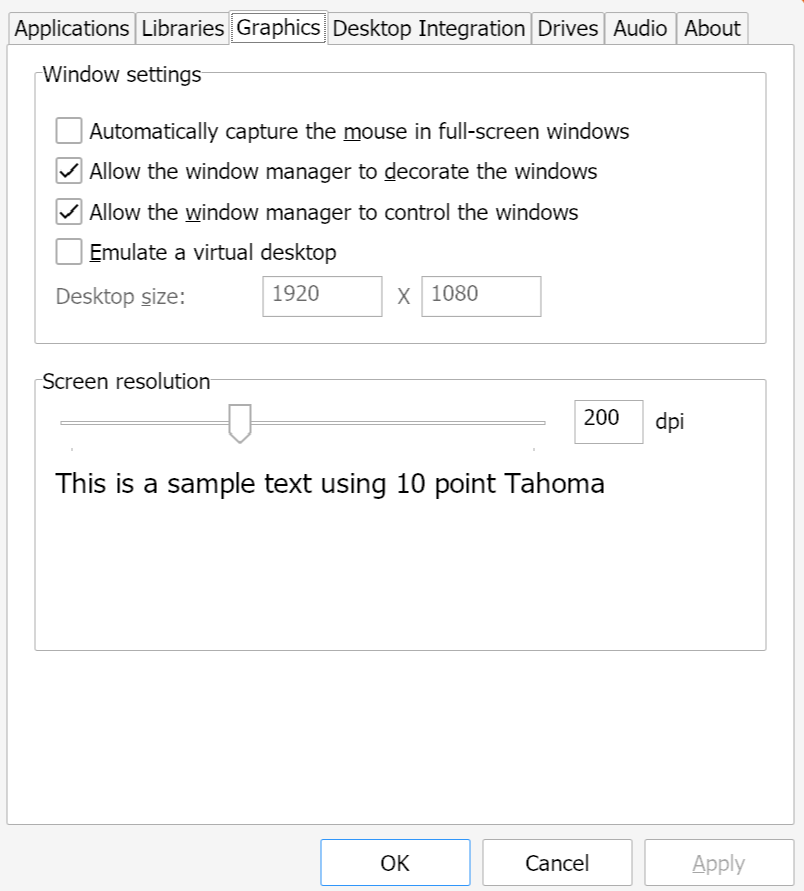
wine-ew-affinity wine ~/.local/share/wine/prefixes/affinity/drive_c/Program\ Files/Affinity/Publisher/Publisher.exeTo adjust scaling on high resolution monitors:
- Run:
wine-ew-affinity winecfg
- Go to the Graphics tab.
- Temporarily enable Emulate a virtual desktop.
- Adjust the Desktop size.
- Disable Emulate a virtual desktop.
- Increase the dpi value to your preference.
Note
The dpi value is a percentage applied to the currently set Desktop Size. For example, on a 4K monitor, setting the desktop size to 1920 x 1080 and scaling it by 200% works well.
- Download the
wine-dark-theme.regfile from this repository. - Save it to your Downloads folder.
- Open a terminal and run
cd Downloads. - Run:
wine regedit wine-dark-theme.reg
- Press
Enter. You may see a message saying "Wine could not find a wine-mono package...". Click Install.
To enable the dark theme for the Affinity prefix specifically, run the following, replacing username with your local username:
WINEPREFIX="/home/username/.local/share/wine/prefixes/affinity" wine regedit wine-dark-theme.regNote
The WINEPREFIX environment variable only accepts an absolute path. A value built from another environment variable, such as $HOME/.local/share/wine/prefixes/affinity, does not work here.
This section sets up a reusable wrapper script and .desktop launchers, so you can pin Affinity apps to your desktop or taskbar with proper icons.
Create an executable wrapper in ~/.local/bin (this folder is usually already in $PATH):
mkdir -p ~/.local/bin
nano ~/.local/bin/wine-ew-affinity
Paste this inside:
#!/usr/bin/env bash
# Wrapper for Affinity Wine prefix
rum ElementalWarriorWine-x86_64 "$HOME/.local/share/wine/prefixes/affinity/" "$@"
Save and exit (CTRL+O, Enter, CTRL+X), then make it executable:
chmod +x ~/.local/bin/wine-ew-affinityTest it. This should launch Publisher 2 manually:
wine-ew-affinity wine "$HOME/.local/share/wine/prefixes/affinity/drive_c/Program Files/Affinity/Publisher 2/Publisher.exe"Download the Affinity app icons from this repository's Assets/Icons folder.
KDE and GNOME both follow the freedesktop.org icon spec.
-
Create the icon theme folder:
mkdir -p ~/.local/share/icons/hicolor/256x256/apps/ -
Copy your downloaded SVG files, renamed consistently.
For Affinity by Canva's default icon:
cp /home/$USER/Downloads/Affinity-Canva.svg ~/.local/share/icons/hicolor/256x256/apps/affinity-canva.svg
For Affinity by Canva's squircle icon:
cp /home/$USER/Downloads/Affinity-Canva-Squircle.svg ~/.local/share/icons/hicolor/256x256/apps/affinity-canva.svg
For Affinity V1 and V2:
cp /home/$USER/Downloads/Designer.svg   ~/.local/share/icons/hicolor/256x256/apps/affinity-designer.svg
cp /home/$USER/Downloads/Photo.svg      ~/.local/share/icons/hicolor/256x256/apps/affinity-photo.svg
cp /home/$USER/Downloads/Publisher.svg  ~/.local/share/icons/hicolor/256x256/apps/affinity-publisher.svg
Create one launcher file per app.
Affinity by Canva (nano ~/.local/share/applications/affinity-canva.desktop):
[Desktop Entry]
Name=Affinity by Canva
Exec=wine-ew-affinity wine "C:/Program Files/Affinity/Affinity/Affinity.exe"
Type=Application
StartupNotify=true
Icon=affinity-canva
Categories=Graphics;Design;Publishing;
Alternative Exec=:
Exec=env 'WINEPREFIX=$HOME/.local/share/wine/prefixes/affinity' wine-ew-affinity '$HOME/.local/share/wine/prefixes/affinity/drive_c/Program Files/Affinity/Affinity/Affinity.exe'Affinity Designer 2 (nano ~/.local/share/applications/affinity-designer.desktop):
[Desktop Entry]
Name=Affinity Designer 2
Exec=wine-ew-affinity wine "C:/Program Files/Affinity/Designer 2/Designer.exe"
Type=Application
StartupNotify=true
Icon=affinity-designer
Categories=Graphics;Design;
Alternative Exec=:
Exec=env 'WINEPREFIX=$HOME/.local/share/wine/prefixes/affinity' wine-ew-affinity '$HOME/.local/share/wine/prefixes/affinity/drive_c/Program Files/Affinity/Designer 2/Designer.exe'Affinity Photo 2 (nano ~/.local/share/applications/affinity-photo.desktop):
[Desktop Entry]
Name=Affinity Photo 2
Exec=wine-ew-affinity wine "C:/Program Files/Affinity/Photo 2/Photo.exe"
Type=Application
StartupNotify=true
Icon=affinity-photo
Categories=Graphics;Photography;
Alternative Exec=:
Exec=env 'WINEPREFIX=$HOME/.local/share/wine/prefixes/affinity' wine-ew-affinity '$HOME/.local/share/wine/prefixes/affinity/drive_c/Program Files/Affinity/Photo 2/Photo.exe'Affinity Publisher 2 (nano ~/.local/share/applications/affinity-publisher.desktop):
[Desktop Entry]
Name=Affinity Publisher 2
Exec=wine-ew-affinity wine "C:/Program Files/Affinity/Publisher 2/Publisher.exe"
Type=Application
StartupNotify=true
Icon=affinity-publisher
Categories=Graphics;Publishing;
Alternative Exec=:
Exec=env 'WINEPREFIX=$HOME/.local/share/wine/prefixes/affinity' wine-ew-affinity '$HOME/.local/share/wine/prefixes/affinity/drive_c/Program Files/Affinity/Publisher 2/Publisher.exe'- Make the launcher files executable:
chmod +x ~/.local/share/applications/affinity-*.desktop
- Update the GNOME / freedesktop menu cache:
update-desktop-database ~/.local/share/applications/ - Update the KDE Plasma menu and icon cache:
kbuildsycoca6
gtk-update-icon-cache ~/.local/share/icons/hicolor
Note
On KDE Plasma 5, use kbuildsycoca5 instead of kbuildsycoca6.
- KDE Plasma: open the App Menu, search Affinity by Canva / Affinity Designer 2 / Publisher 2 / Photo 2, then right-click and choose Pin to Task Manager or Add to Desktop.
- GNOME: open Activities / the App Grid, search for the apps, then right-click and choose Add to Favorites to add them to the dock.
At this point you have a reusable wine-ew-affinity wrapper, all apps showing in your menus with custom icons, and launchers you can pin to your taskbar, dock, or desktop.
Thanks to:
- ElementalWarrior for his Wine fork
- Twig6943 for building the Wine binary
- xkero for his rum script
- foinf for finding a fix for the broken .NET install
- wanesty for the original rum guide
-
Winetricks prints many warnings during the
remove_mono vcrun2022 dotnet48 ...step. This is expected. Let it run to completion instead of cancelling it. -
A "Wine could not find a wine-mono package..." message appears when running
wine regedit. Click Install. This is unrelated to the earlierremove_monostep. Wine is only offering to reinstall Wine Mono for its own regedit process. - The Affinity installer throws warnings after you click Install. Ignore them and let the installer finish. This is expected under Wine.
-
rumprints no Wine versions available. Check that you edited thewinesvariable in/opt/rum/rumto point at$HOME/.local/share/wine/runners, and that the ElementalWarrior build was actually extracted into that folder.
No issues specific to the Rum method are currently tracked. For issues that affect multiple install methods, including Wine itself, see General-Known-Issues.