Tips and Tweaks
This page collects tips that apply no matter which install method you used: Install Guide: Wine, Install Guide: Lutris, Install Guide: Bottles, Install Guide: Heroic, or Install Guide: Rum.
Each install method still keeps its own Troubleshooting section for problems specific to that tool. Check this page first for anything general, like dark theme, performance, or finding your WINEPREFIX.
- Dark Theme for Wine
- Performance and Fixing Stuttering
- Finding Your Wine Prefix
- Desktop and Dock Icon Setup
Wine does not follow your desktop's dark theme by default. A shared registry file fixes this for any Wine prefix, regardless of which install method created it.
-
Download the
wine-dark-theme.regfile from this repository. Click the download button on the top right of the file view. -
Save it to your Downloads folder.
-
Open a terminal and change to that folder.
cd ~/Downloads
-
Apply the file to a WINEPREFIX with
wine regedit.WINEPREFIX="/path/to/your/prefix" wine regedit wine-dark-theme.reg -
You may see a message that Wine could not find a wine-mono package. Click Install and let it finish.
The WINEPREFIX value is the only part that changes between install methods. See Finding Your Wine Prefix below for how to find it for your setup. If you omit WINEPREFIX=... entirely, the command applies to your shell's current default prefix, which only matters if you rely on one.
If Affinity feels stuttery under Bottles:
- Open the bottle's Settings, go to the Performance section, and toggle on Feral GameMode.
- Open the bottle's Settings, go to the Compatibility section, and switch the Windows version from Windows 10 to Windows 11. (Reported fix on Discord)
To reduce latency under Heroic Games Launcher:
- Right-click the game and select Settings.
- Go to the Other tab.
- Check the Game Mode option.
Quote from darkside99: "These are the best settings for improving performance and reducing latency."
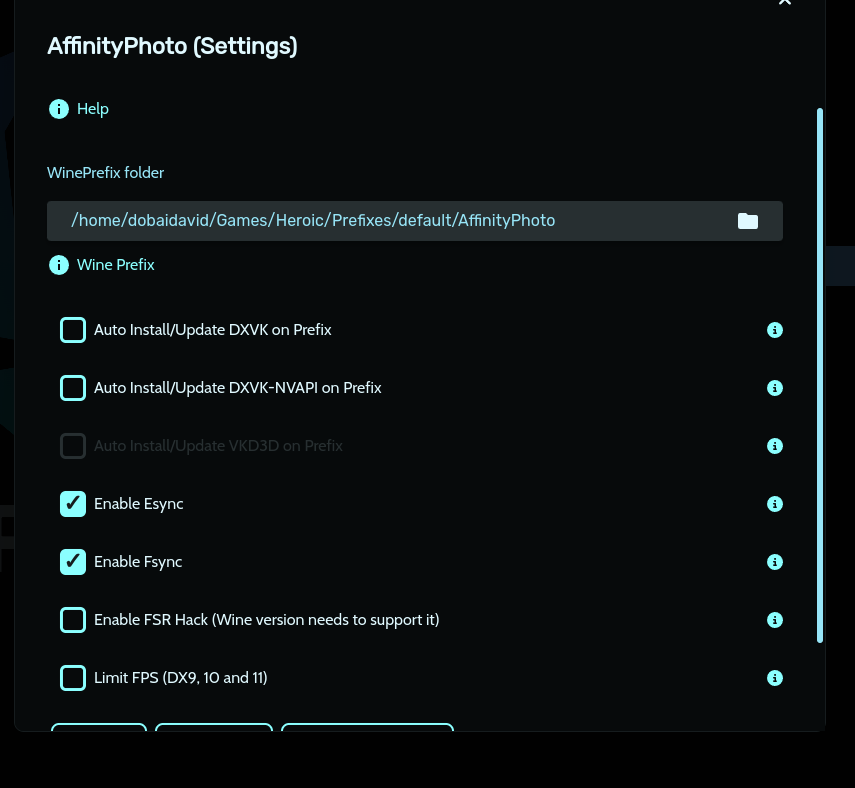
Each install method keeps its WINEPREFIX in a different place. You need this path for the dark theme steps above, and for any other WINEPREFIX=... command.
| Install method | Typical prefix location |
|---|---|
| Wine (manual guide) | Whatever you set with export WINEPREFIX=... in Step 2. The guide uses $HOME/.affinity by convention. |
| Bottles (Flatpak) | ~/.var/app/com.usebottles.bottles/data/bottles/bottles/<BottleName>/ |
| Heroic Games Launcher | Shown under the game's Details page, in Install Info -> WinePrefix folder. The default is /home/$USER/Games/Heroic/Prefixes/default/Affinity. |
| Lutris (legacy guide) | Right-click the app, select Configure, open the Game options tab, and read the Wine prefix field. |
| Lutris (new installer script) |
$GAMEDIR, which defaults to /home/$USER/Games/affinity-suite/. |
Pinning Affinity to your dock, taskbar, or application panel works the same way regardless of which install method created its .desktop entry.
- GNOME / Fedora / Pop!_OS / Ubuntu default: open Activities, search Affinity, right-click, select Add to Favorites.
- KDE Plasma / Manjaro / Arch: right-click the menu entry, select Add to Panel or Pin to Task Manager.
- XFCE / others: right-click the panel, select Add New Item -> Launcher -> Affinity.
Affinity then appears alongside your native apps with its custom blue squircle SVG icon.
If you also install Photo 2, Designer 2, and Publisher 2:
- Duplicate and rename the
.desktopfile for each app. - Change only the
Name,Exec, andIconfields in each copy.