Install Guide Lutris

Lutris is currently the best method for Nvidia GPU users to run Affinity apps on Linux.
This page covers two alternative install methods:
- Legacy Method: a manual Wine runner install using the ElementalWarrior or Wine-TKG forks. More setup steps, but well-tested.
- New Method: an experimental stock-runner install using Wine 10.19 (Staged Portable), with more automation.
Both methods work. Pick whichever fits your situation. If the New Method's automated script gives you trouble, fall back to the Legacy Method.
-
Get a
.exeinstaller for the Affinity app you want to install. Download it from an official source:- Affinity by Canva: select "Enterprise (Intel/AMD)" from the "Download for Windows" drop-down menu.
- Affinity Photo V2
- Affinity Designer V2
- Affinity Publisher V2
- Affinity Photo V1
- Affinity Designer V1
- Affinity Publisher V1
The New Method's install script can also download Affinity by Canva (V3) for you automatically, so a pre-downloaded
.exeis optional in that case. -
Install winetricks. It installs Windows components inside a Wine prefix.
- Debian/Ubuntu:
sudo apt install winetricks - Fedora:
sudo dnf install winetricks - Arch:
sudo pacman -Sy winetricks
- Debian/Ubuntu:
-
Install Lutris. Use the Flatpak version, or visit the Lutris download page and follow the instructions there. An unofficial AppImage is also available. Run it with a tool such as GearLever.
-
Launch Lutris at least once after installing it. This generates the folder structure both methods rely on.
Lutris' Wine-related folders live in a hidden directory inside your home folder. If your file browser hides these, press Ctrl + H to show hidden folders.
- Flatpak install:
/home/$USER/.var/app/net.lutris.Lutris/data/lutris/runners/ - AppImage or other install:
/home/$USER/.local/share/lutris/runners/
The Legacy Method installs a Wine fork manually as a Lutris runner, then runs an install script against it.
Choose one:
-
ElementalWarrior-x86_64 (Recommended): download
ElementalWarriorWine-x86_64.tar.gz, then right-click and extract it. You get a folder namedElementalWarriorWine-x86_64. -
Wine-TKG-affinity: download
wine-tkg-affinity-archbuilt.tar.zst, extract theusr/folder from the archive, then rename that folder towine-tkg-affinity-x86_64.
- Create a folder named
wineinside Lutris' runners directory (see Before You Start) if it doesn't already exist. - Copy the extracted Wine fork folder into it. This is your Wine runner.
-
Download the
.yamlinstall script that matches your Wine fork. Click the download button on the top right of the linked file's page:-
Affinity-ew.yaml(ElementalWarrior) -
Affinity-tkg.yaml(Wine-TKG-affinity)
-
-
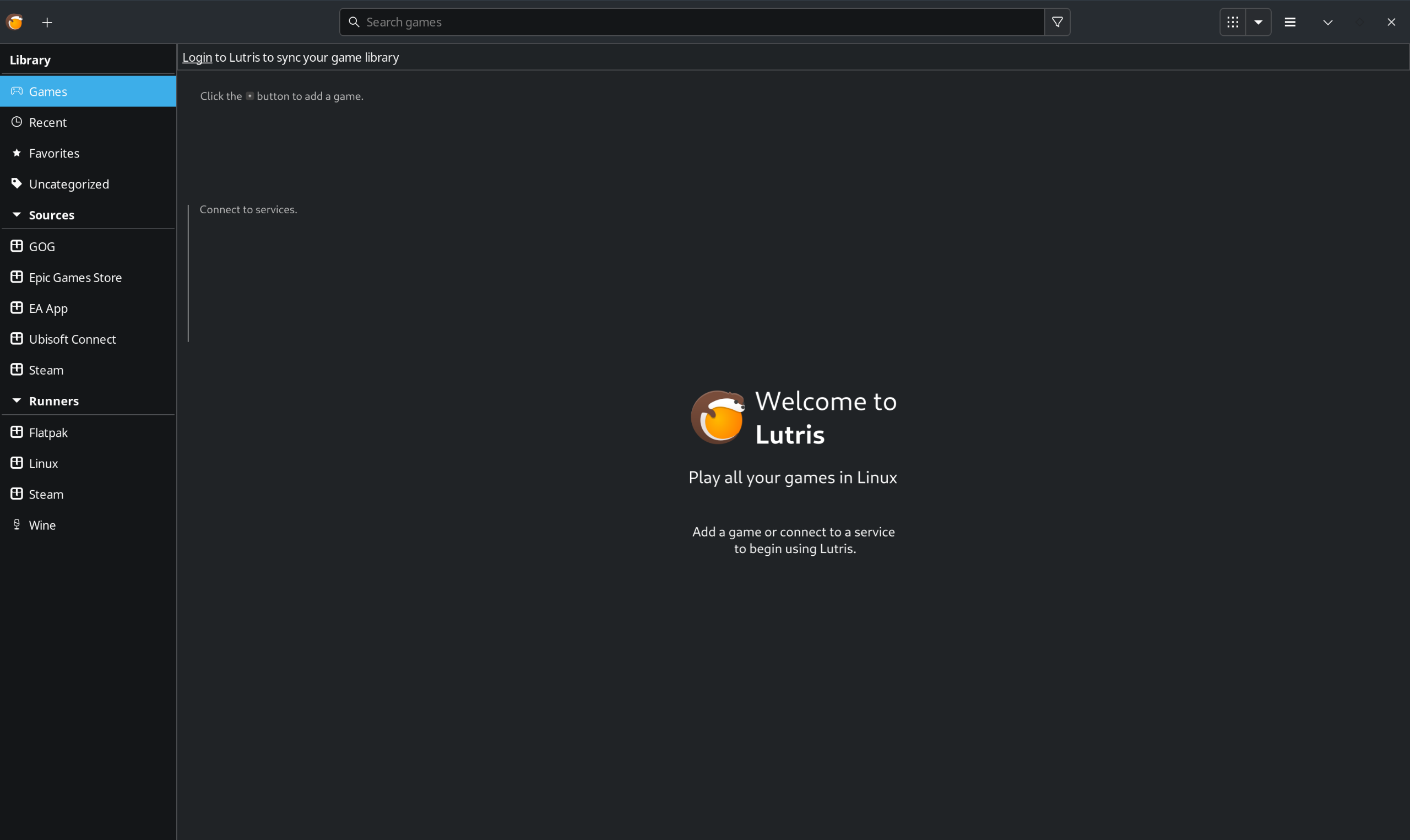
Open Lutris. Click the
+icon in the top left corner.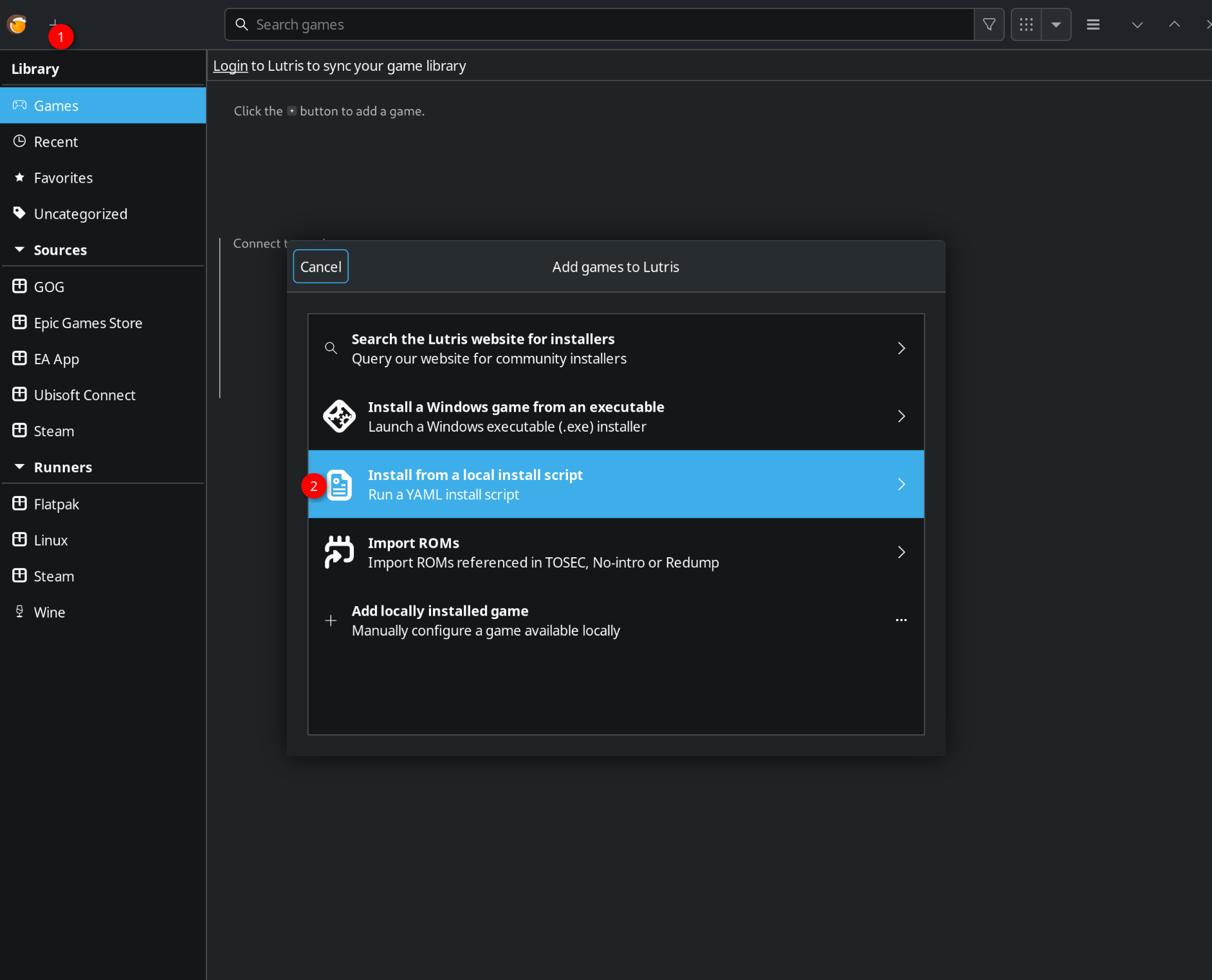
-
Select "Install from a local install script".
-
Click the
⋮button, then select the.yamlfile you downloaded.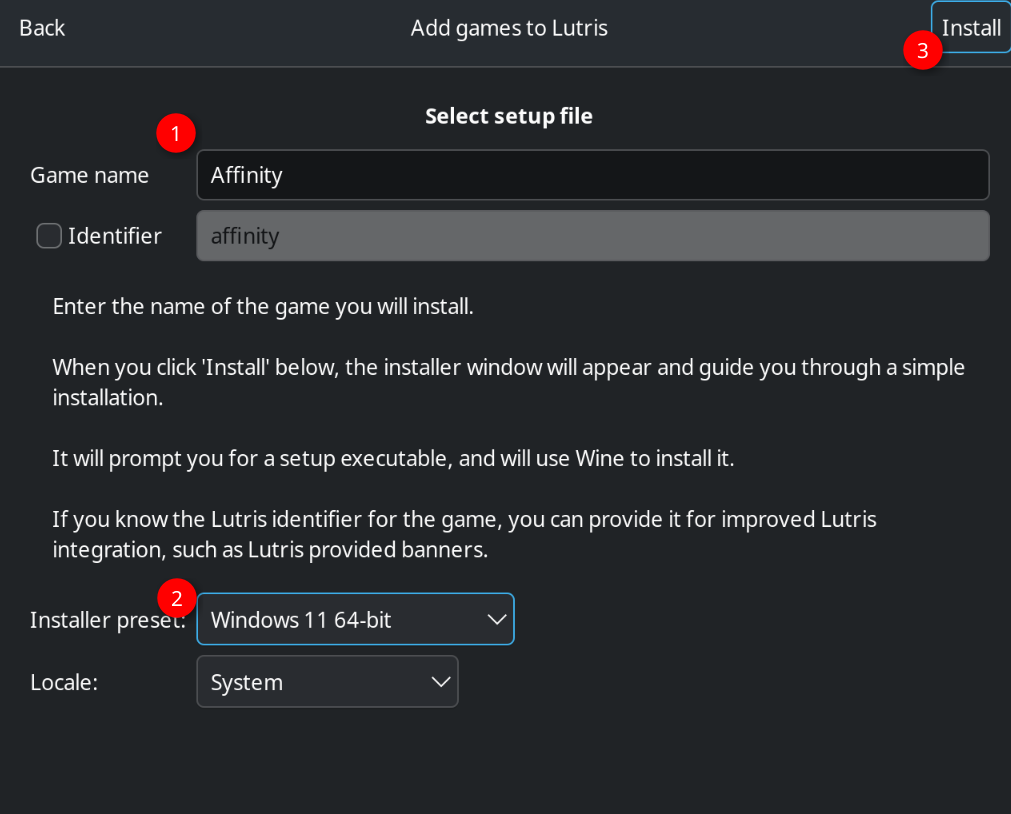
-
Click
Install, then clickInstallagain. -
Choose or create an install path, such as
/home/$USER/AffinityOnLinux.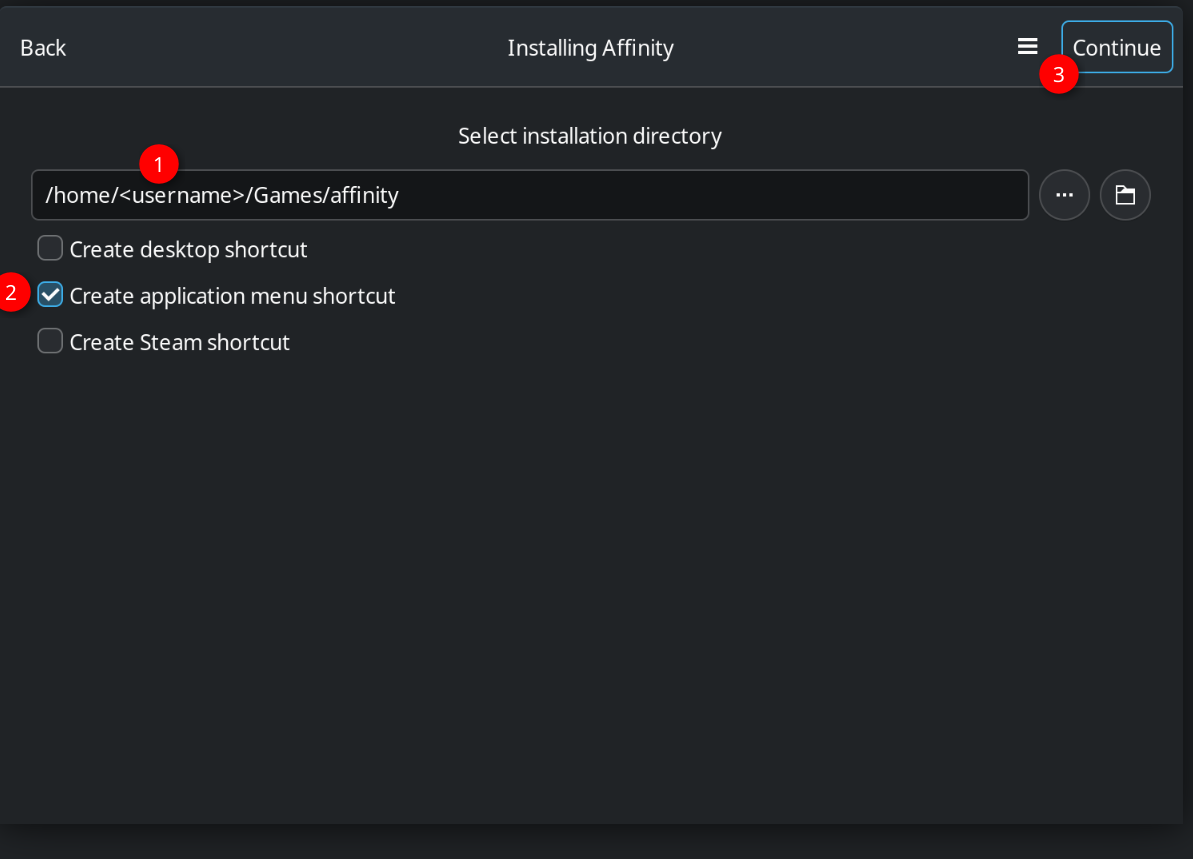
-
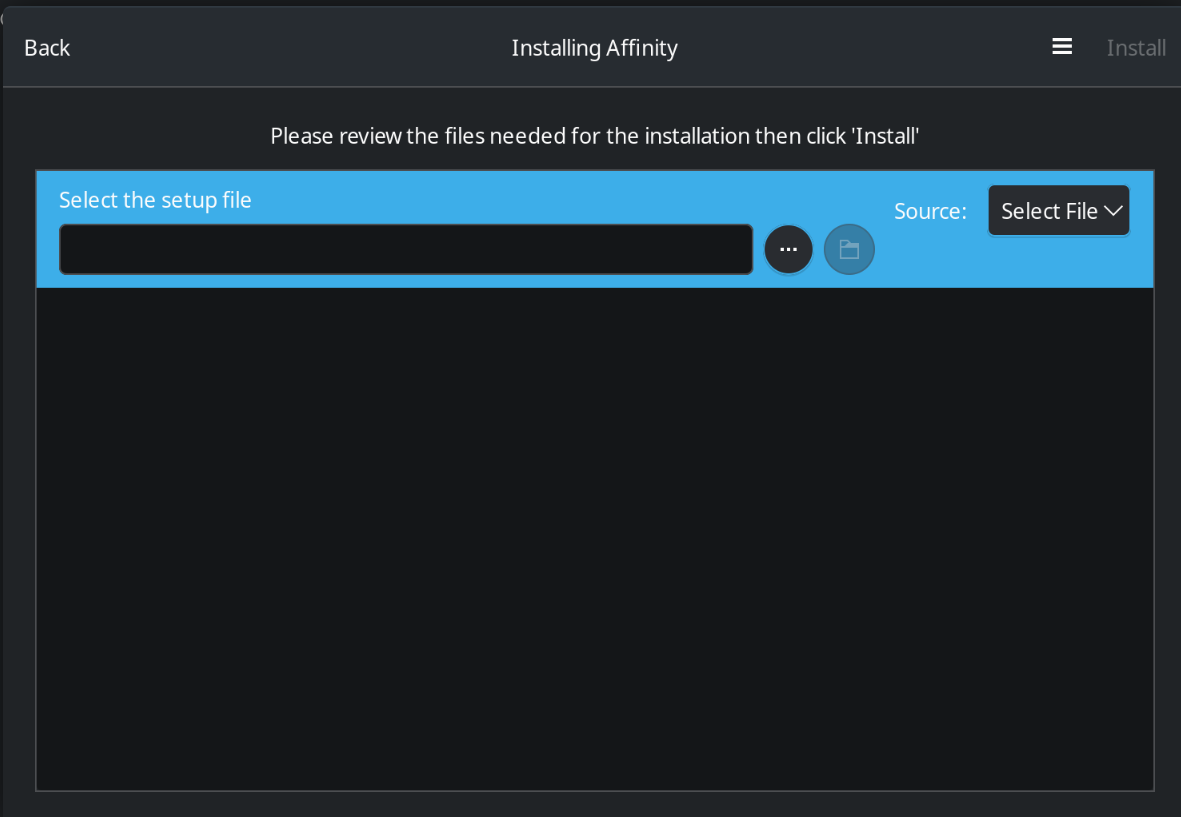
Click the
⋮button and select the.exefile for the Affinity app you downloaded.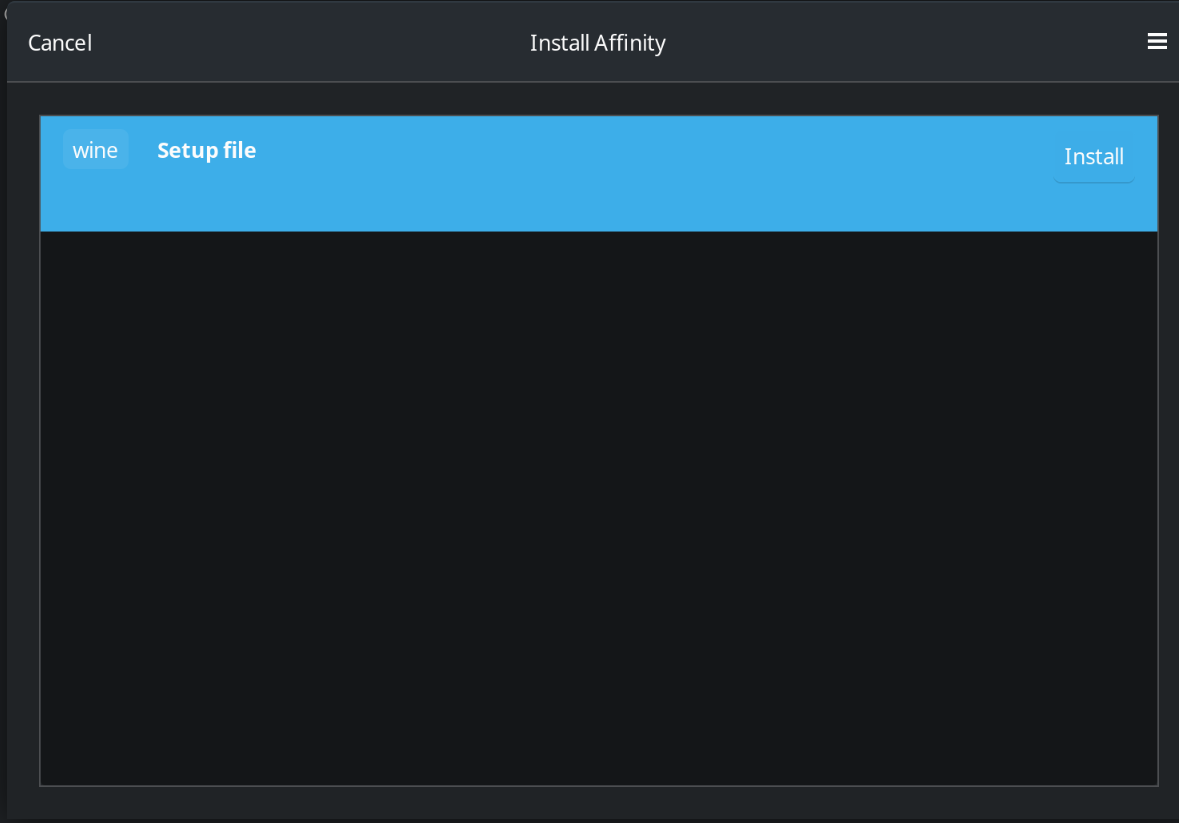
-
Click
Install. Lutris may show a message that Wine could not find a wine-mono package. ClickInstallto continue. A terminal-like log runs for several minutes. You may also see other install-time prompts, including an uninstaller warning dialog that references a GUID. Click through it to continue.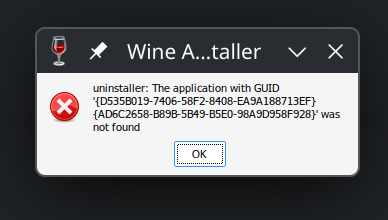
-
When the log finishes, an Affinity window opens with an
Installbutton. Let it install, then clickClose.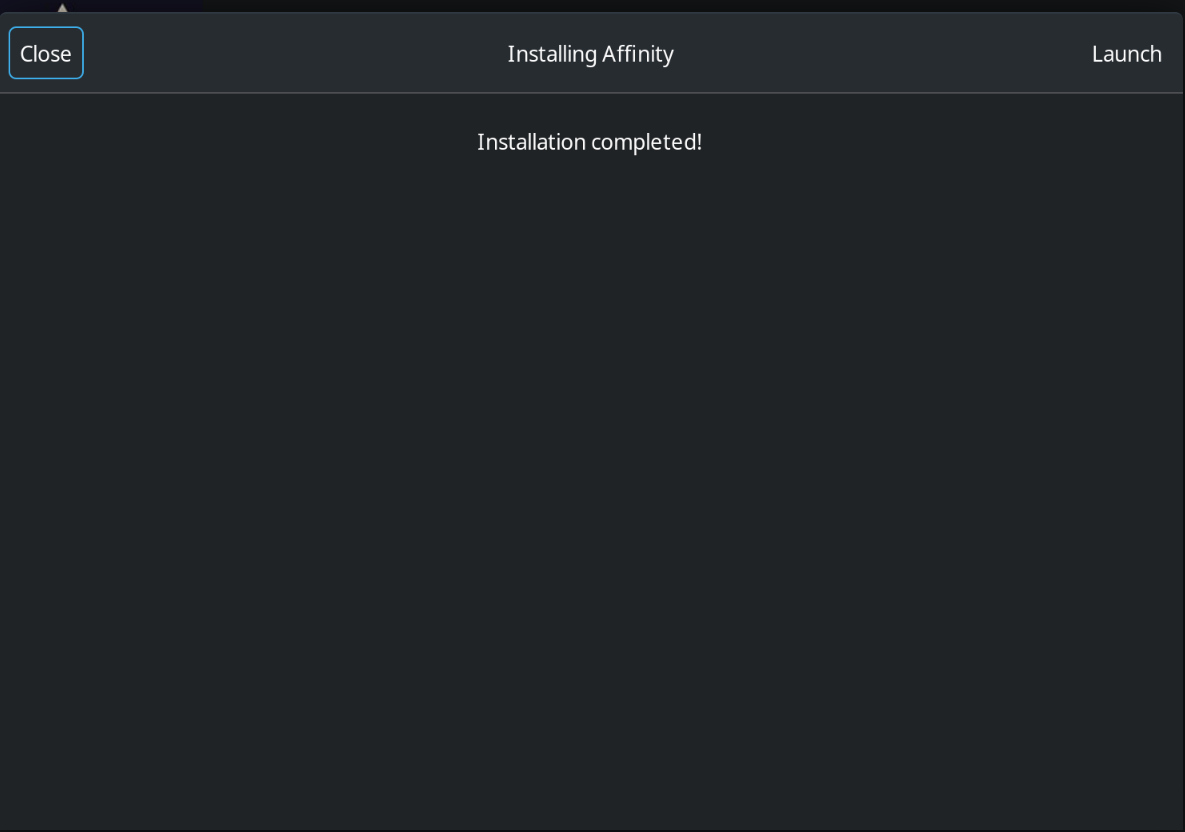
-
Click
Launch. Lutris shows an error: "This game has no executable set. The install process didn't finish properly." ClickOK. The next section fixes this.
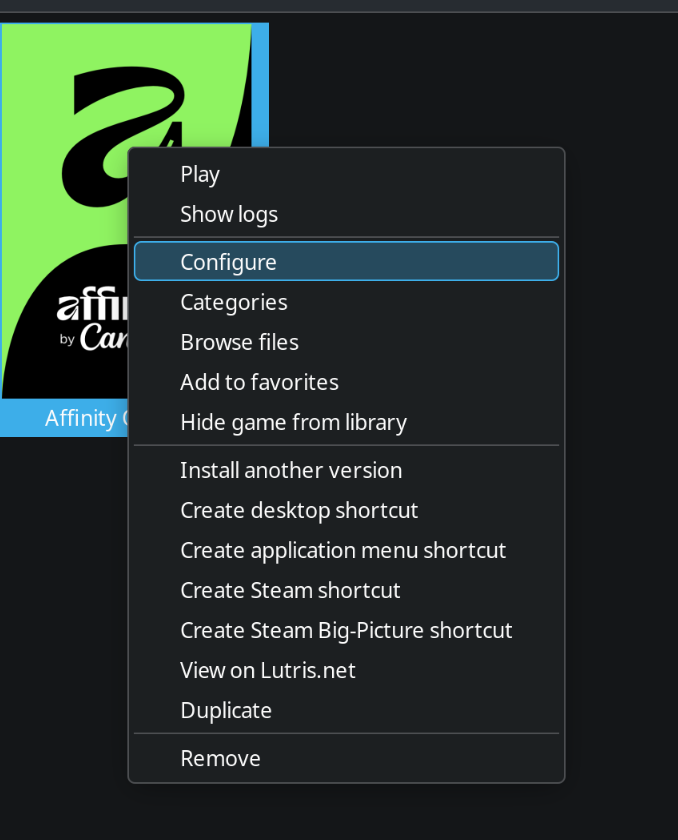
Lutris created a blank entry named Affinity Suite in the Games section. Right-click it and select Configure.
-
Under the
Game infotab, changeNameto the app you installed: Affinity Photo, Affinity Designer, or Affinity Publisher. -
Next to
Identifier, clickChangeand type a lowercase, dash-separated identifier, then clickApply:affinity-canvaaffinity-photoaffinity-designeraffinity-publisher
-
Optional: download icons, cover art, and banners from this repository's
IconsandCoversfolders, then set them underGame info. -
Switch to the
Game optionstab. -
In the
Executablefield, paste the path that matches your app:Affinity by Canva:
drive_c/Program Files/Affinity/Affinity/Affinity.exe
Affinity Photo V2:
drive_c/Program Files/Affinity/Photo 2/Photo.exe
Affinity Designer V2:
drive_c/Program Files/Affinity/Designer 2/Designer.exe
Affinity Publisher V2:
drive_c/Program Files/Affinity/Publisher 2/Publisher.exe
Affinity Photo V1:
drive_c/Program Files/Affinity/Photo/Photo.exe
Affinity Designer V1:
drive_c/Program Files/Affinity/Designer/Designer.exe
Affinity Publisher V1:
drive_c/Program Files/Affinity/Publisher/Publisher.exe
-
Click
Save. -
Click
Playto launch the app.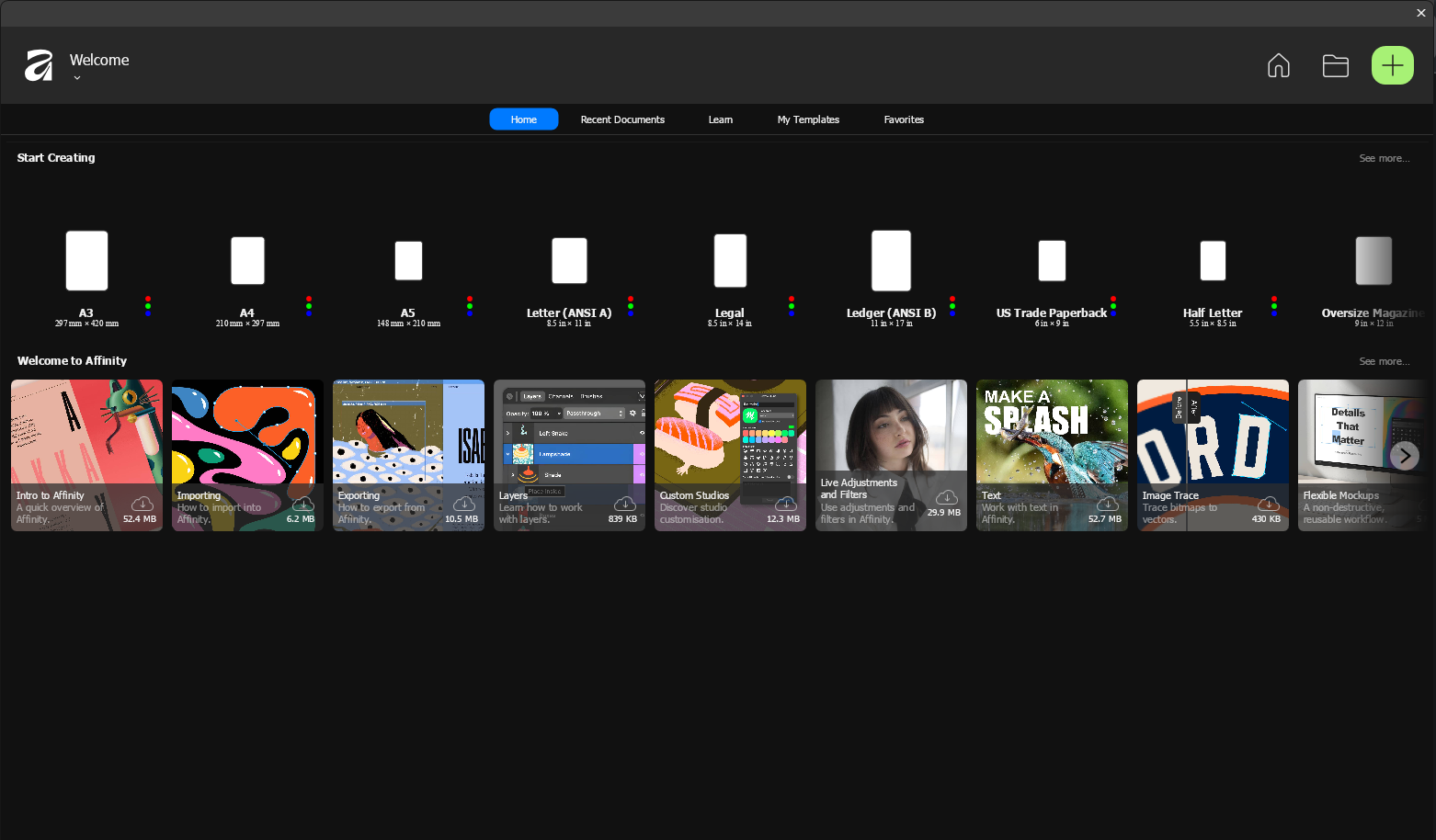
Wine creates application menu shortcuts on its own, but these don't launch the app the way Lutris expects. Use Lutris' shortcuts instead.
- Remove the Wine-created shortcuts, if present, from:
/home/$USER/.local/share/applications/home/$USER/.config/menus/applications-merged
- In Lutris, right-click the installed Affinity app and select
Create desktop shortcut. - Right-click it again and select
Create application menu shortcut.
- Select an existing Affinity app entry in Lutris.
- Open the
^Wine menu at the bottom of the window, then clickRun EXE inside Wine prefix. - Run the installer for the other Affinity app.
- Right-click the first Affinity app entry and select
Duplicate. - Right-click the duplicated entry and select
Configure. - Update
NameandIdentifierunderGame info. - Set the correct
.exeunderGame options.
- In Lutris, select an installed Affinity app.
- Open the
^Wine menu and selectWine configuration. - Go to the
Graphicstab. - Under
Screen resolution, raise thedpivalue until the sample text looks large enough.
This setting applies to every Affinity app you installed with Lutris, since they share one Wine prefix.
See Tips and Tweaks: Dark Theme for Wine for the general steps. For the WINEPREFIX value, right-click an Affinity app in Lutris, select Configure, and copy the path from the Wine prefix field under Game options.
The New Method uses an experimental stock Wine 10.19 runner. It also uses a Lutris install script that automates prefix setup, dependency install, and file placement. It is still in development. Try it, and report feedback if something breaks.
- Visit the Wine 10.19 (Staged Portable Runner) release page.
- Under Assets, download
GameDirectionWine-x86_64.tar.xz, then right-click and extract it. You get a folder namedGameDirectionWine-x86_64. - Create a folder named
wineinside Lutris' runners directory (see Before You Start) if it doesn't already exist. - Copy the extracted folder into it.
You should now have this path:
- Flatpak install:
/home/$USER/.var/app/net.lutris.Lutris/data/lutris/runners/wine/GameDirectionWine-x86_64/bin/wine - Other install:
/home/$USER/.local/share/lutris/runners/wine/GameDirectionWine-x86_64/bin/wine
-
Confirm the runner works by running the matching command in a terminal:
Flatpak install:
/home/$USER/.var/app/net.lutris.Lutris/data/lutris/runners/wine/GameDirectionWine-x86_64/bin/wine --versionOther install:
/home/$USER/.local/share/lutris/runners/wine/GameDirectionWine-x86_64/bin/wine --versionA version number in the output confirms the runner is ready.
-
Download
Affinity-gd.yamlusing the download button on the file's page. -
Open Lutris, click the
+icon. -
Select "Install from a local install script", then select
Affinity-gd.yaml. -
Click
Install, then confirm the install path (for example,/home/$USER/Games/affinity-suite). -
When prompted, either set the script to "download" the latest Affinity by Canva installer, or browse to your own Affinity
.exe. -
Let the script finish. It extracts metadata, installs dependencies, and runs the Affinity installer automatically. You may see an uninstaller warning dialog referencing a GUID during this step. Click through it.
The script sets the game's executable automatically to:
$GAMEDIR/drive_c/Program Files/Affinity/Affinity/Affinity.exe
-
Click
Playto launch the app.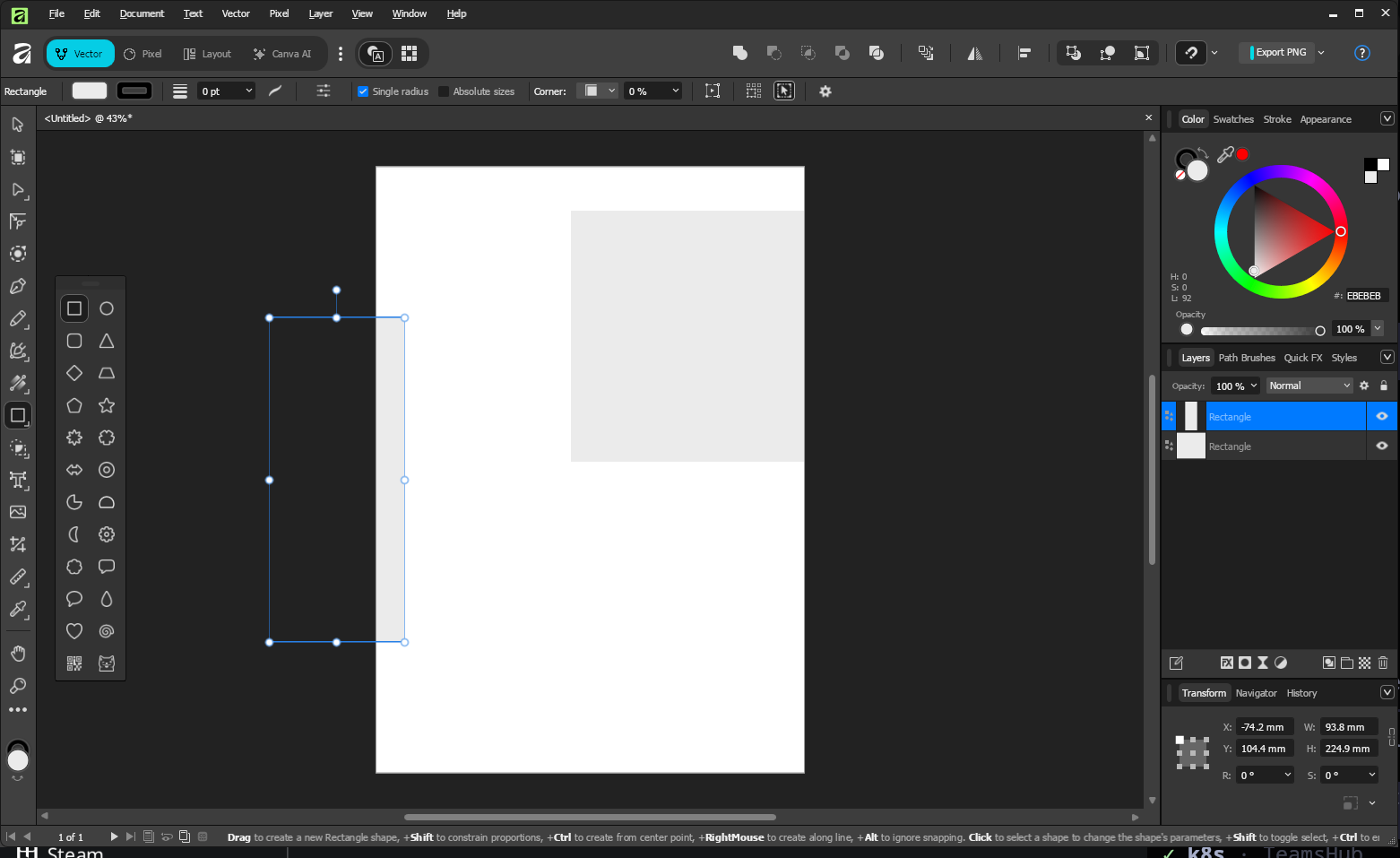
If you'd rather test through Lutris' public game listing instead of the local script:
- Visit lutris.net/games/affinity-by-canva.
- Click
Install, then select your local Affinity installer when prompted.
Note: the official listing may lag behind this guide's runner, since it depends on the official Lutris runner list.
Download icons, cover art, and banners for Affinity apps from this repository's Icons and Covers folders. In Lutris, right-click your Affinity entry, select Configure, then upload each asset under the Game info tab.
-
Runner:
GameDirectionWine-x86_64(based on Wine 10.19 Staged) -
Prefix:
$GAMEDIR(default/home/$USER/Games/affinity-suite/) - Architecture: win64 (default)
-
Dependencies installed automatically:
vcrun2022,dotnet48,corefonts,tahoma, and renderer set to Vulkan -
Helper files installed automatically:
-
Windows.winmd→system32/winmetadata/ -
wintypes.dll→Program Files/Affinity/Affinity/(thewintypesnative DLL override is registered automatically)
-
Note
If you separately install Photo 2, Designer 2, or Publisher 2 (V2 apps), the script only places wintypes.dll into the V3 Affinity/Affinity/ folder. Copy it manually into each V2 app's own Program Files folder too, the same way described in the manual Wine guide's metadata/shim step, until the script handles this per app. Tracked as Issue #131.
| Component | New Method |
|---|---|
| Wine runner | Wine 10.19 (Staged Portable) |
| Installer script | Affinity-gd.yaml |
| Prefix path | /home/$USER/Games/affinity-suite/ |
| Executable | Affinity.exe |
| Status | 🟨 Experimental / working, under development |
Report issues or feedback on the AffinityOnLinux issue tracker.
Confirmed on Lutris on CachyOS and Fedora 43 (Issue #117). This is a Lutris bug caused by a Python 3.14 multiprocessing change, not an Affinity or Wine problem.
If you installed Lutris through your distro's package manager (not Flatpak), edit /usr/bin/lutris and add this line right after the other imports, before anything else runs:
multiprocessing.set_start_method("fork")Restart Lutris and retry the install. See the upstream Lutris forum thread for background. This fix does not apply to the Flatpak build. If you hit this error on a package-manager install, try the Flathub build instead.
Reported during the .NET/dependency install step (Issue #122). Click through the prompt each time it reappears (it can take 3 to 4 clicks). The installer then continues and finishes. If it loops indefinitely instead of finishing, cancel and retry the install rather than leaving it running.
Confirmed cause, verified in live testing on both the New Method's Lutris setup and the equivalent Heroic setup. This guide's winetricks step enables the renderer=vulkan setting. If the runner also auto-installs DXVK, DXVK-NVAPI, or VKD3D into the prefix, it stacks a second Direct3D-on-Vulkan translation layer on top of that setting. The two layers fight over the same swapchain, and the screen flashes or flickers. Affinity does not need DXVK, DXVK-NVAPI, or VKD3D.
Fix: in Lutris, right-click the game, select Configure, go to Runner options, and disable DXVK, DXVK NVAPI, and VKD3D if any are enabled. Relaunch Affinity.
Confirmed in live testing: after setting up a game entry, Lutris can silently launch it with GE-Proton instead of the runner you actually configured (for example ElementalWarriorWine), even though the Legacy Method sets the runner explicitly. This showed up as .NET/dotnet48 and font install steps silently failing to apply, because they were run against the wrong runner's prefix. The install log gives it away. Look for ProtonFixes and umu-run strings where you'd expect plain Wine output:
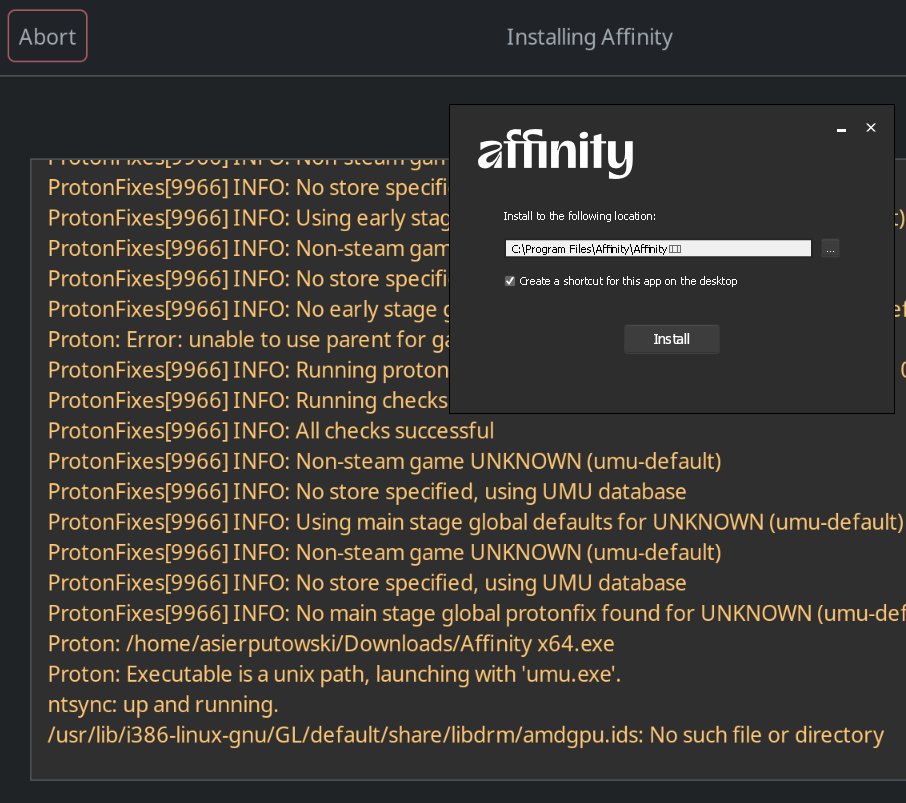
Fix: right-click the game, select Configure, go to the Runner options tab, and confirm the Wine version dropdown actually shows your intended runner (not "GE-Proton (Latest) (default)"). Select the correct one and click Save.
If you switch runners after already running through dependency install once, also reinstall the runtime dependencies against the corrected runner. From a terminal: export PATH="<path-to-correct-runner>/bin:$PATH"; winetricks --unattended --force remove_mono vcrun2022 dotnet48 corefonts win11 renderer=vulkan (adjust the WINEPREFIX to match your game's prefix first).
Reported on the recommended runner (Issue #128). A workaround is switching to the wine-ge-8-26-x86_64 runner instead. That runner has its own rough edges: for example, a new document's window can appear black until you minimize and restore it.
Tracked as Issue #109, likely the same underlying Wine d2d1 limitation as Issue #76 (Designer V2 freezing when deselecting a nested SVG group with snapping enabled). No fix yet.
If it happens, you don't need to force-kill the app. Use your desktop's taskbar to "Terminate" the frozen window, then click Cancel on the save-changes prompt that appears. Affinity should become responsive again, though you may need to close and reopen the affected file before you can select anything.