Whats new in GhostDeck 1.25.0
One click for your whole setup, a tray icon that finally earns its place, and two new hardware switches.
Until now GhostDeck gave you a set of separate controls: a profile here, a fan curve there, a refresh rate somewhere else. This release ties them together. It also teaches the tray icon a few tricks power users have been asking for, and adds two controls straight from MSI's own hardware.
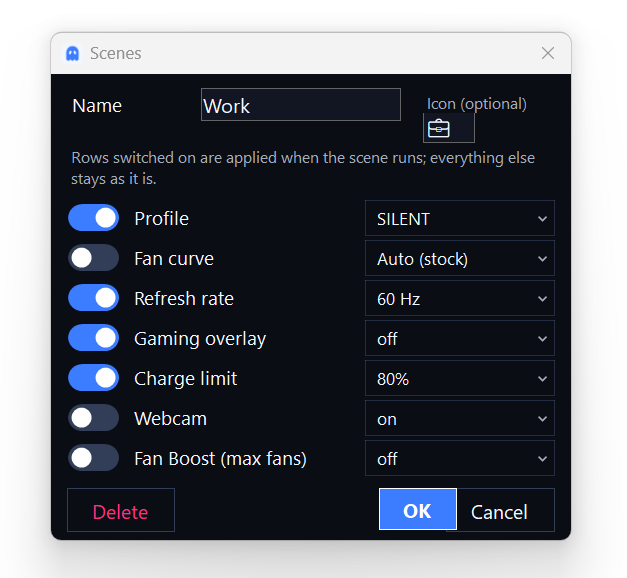
A scene is a named macro over everything GhostDeck already controls: profile, fan-curve preset, display refresh rate, gaming overlay, charge limit, keyboard backlight, webcam and Fan Boost.
The important part is that every field is optional. In the editor each row has a switch: rows you turn on are applied, everything else is left exactly as it is. So a "Cinema" scene can dim the keyboard and nothing else, while "Gaming" rearranges half the machine.
Scenes appear as cards on the Scenarios tab, each with its own buttons: run, move up, move down, edit, delete. Deleting asks for a second click rather than throwing a dialog at you.
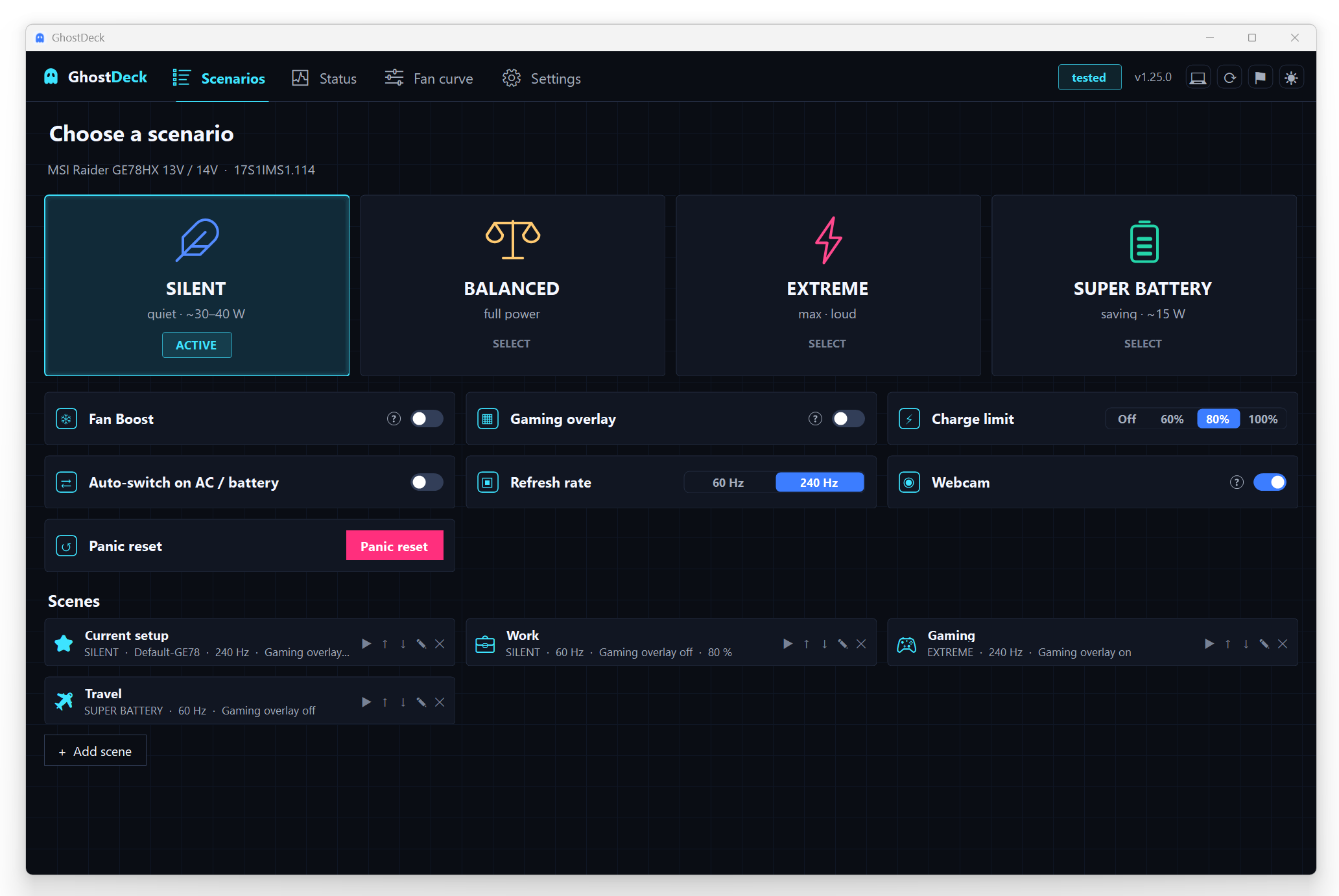
You can run a scene from:
- its card on the Scenarios tab,
- the tray menu,
- its own global hotkey (every scene gets a row in Settings → Hotkeys),
- the tray scroll wheel, if you set the wheel to cycle scenes,
- the command line:
GhostDeck.exe --scene "Gaming".
Start with the examples. One click on Add example scenes creates Gaming, Work and Travel adapted to what your laptop actually supports - plus a "Current setup" scene frozen from your machine exactly as it is at that moment. Try the others freely; that one always brings you back.
Applying a scene is deliberately ordered: the profile goes first (its recipe rewrites the fan byte), then the curve, then everything else. You get one on-screen toast and one change-log entry summarising what changed, instead of a burst of six.
The tray icon now responds to the whole mouse:
- Scroll wheel - switch profiles. Or scenes. Or keyboard-backlight levels. Your choice.
- Middle click - Fan Boost by default.
- Left click - still cycles profiles, unless you'd rather it opened a tab.
All three are configurable in Settings → System → Tray menu, with a long list of actions: profiles, Fan Boost, overlay, panic reset, show current state, or open any tab of the main window.
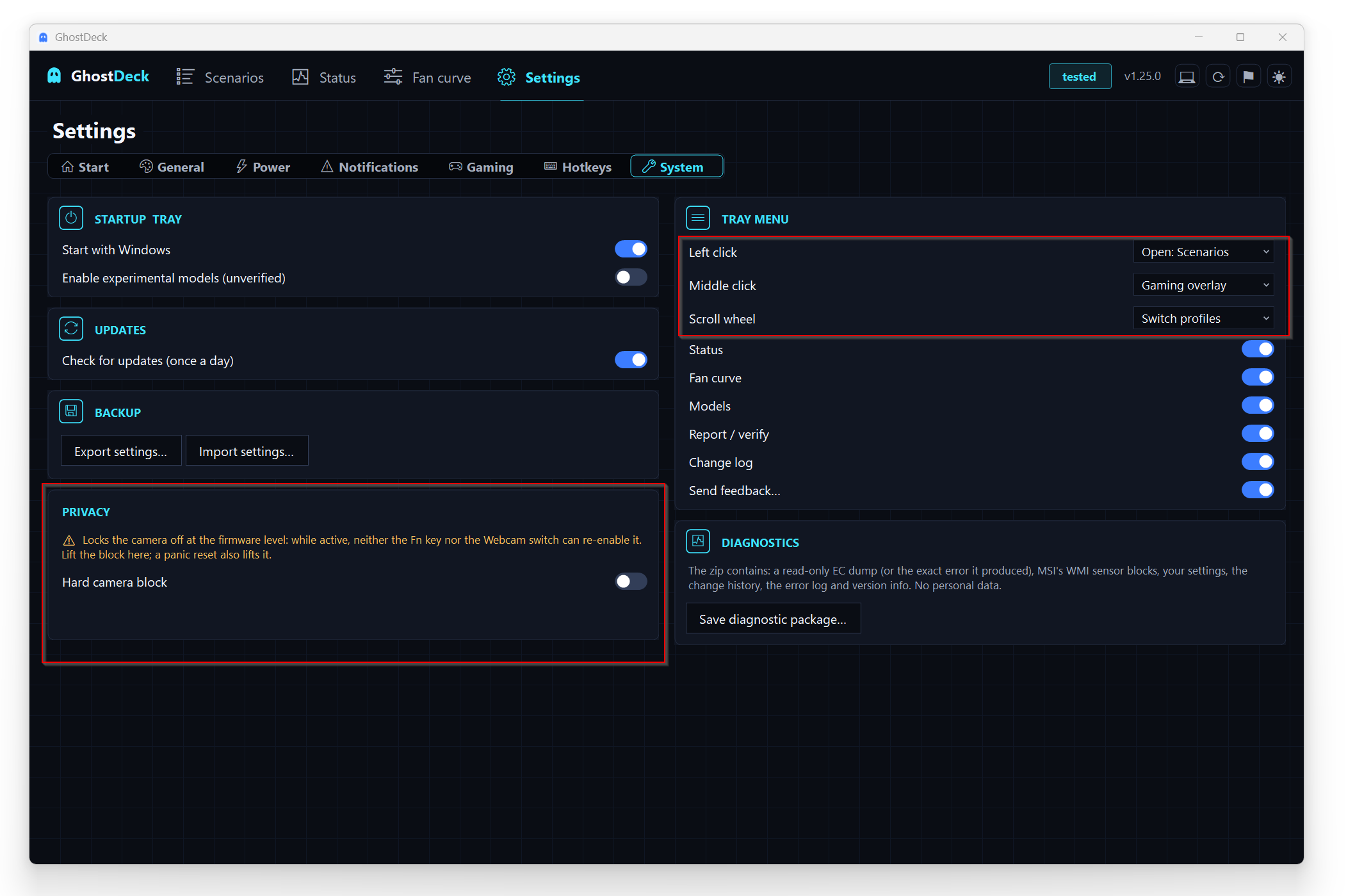
Spinning the wheel quickly is safe: each notch only moves the preview shown on screen, and the change is written once, when the wheel comes to rest. A four-notch flick is one write, not four.
On laptops where the backlight register is documented (82 firmware families, mostly single-colour keyboards), GhostDeck can now set off / low / mid / high: a tile on the Scenarios tab, an assignable hotkey that cycles like the Fn key does, a scroll-wheel mode, --kbd off|low|mid|high on the command line, and a field in scenes. The level is read from the hardware on demand, so pressing your own Fn key keeps everything in sync.
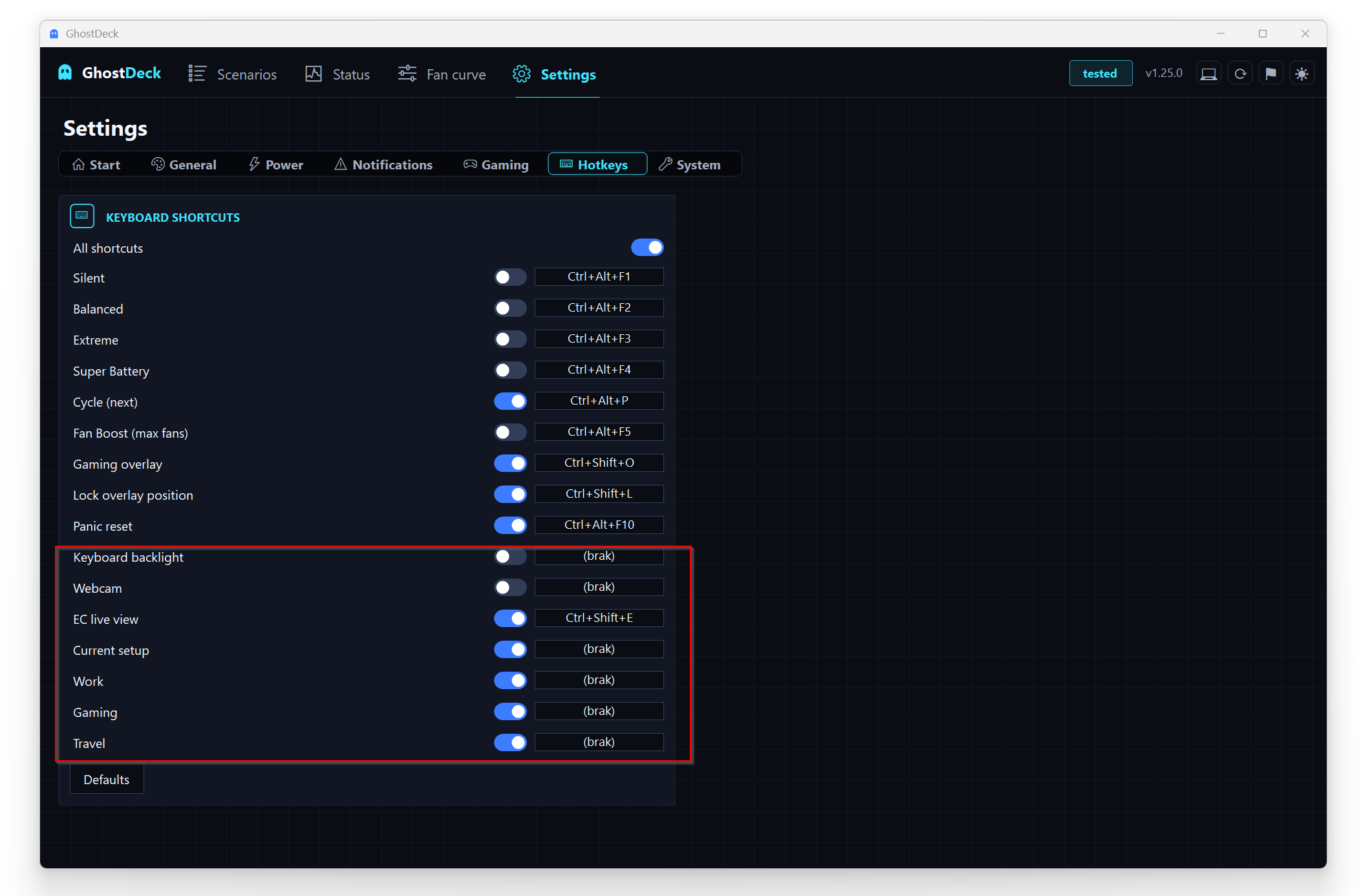
Both new hotkeys ship bound but switched off, so nothing collides with your existing shortcuts until you decide otherwise:
Per-key RGB keyboards are a different story. On those machines the backlight is run by the keyboard's own processor, and its brightness levels never reach Windows at all - the Fn key handles them internally, which is why SteelSeries' own software has no brightness control either. We measured this thoroughly before deciding not to ship anything there: the full write-up, with the evidence.
This is the same EC-level switch your Fn camera key uses: with it off the camera leaves the USB bus entirely, well below Windows privacy settings. No application can see it, because as far as the system is concerned there is nothing there. It works as a tile, a hotkey, --webcam on|off and a scene field, and it stays in sync with the Fn key.
For anyone who wants more certainty there is an advanced hard camera block in Settings → System → Privacy. While it is active, neither the Fn key nor the switch itself can bring the camera back. Because that is a state you could genuinely forget about, turning it on takes a deliberate second click, and a panic reset always lifts it - there is never a way to lock yourself out.
- A refresh-rate switch that works on any laptop, recognised model or not, because it uses Windows' display API rather than the EC.
- A red panic-reset button, so the safe-state action is not hotkey-only.
- Three columns on wide windows instead of two.
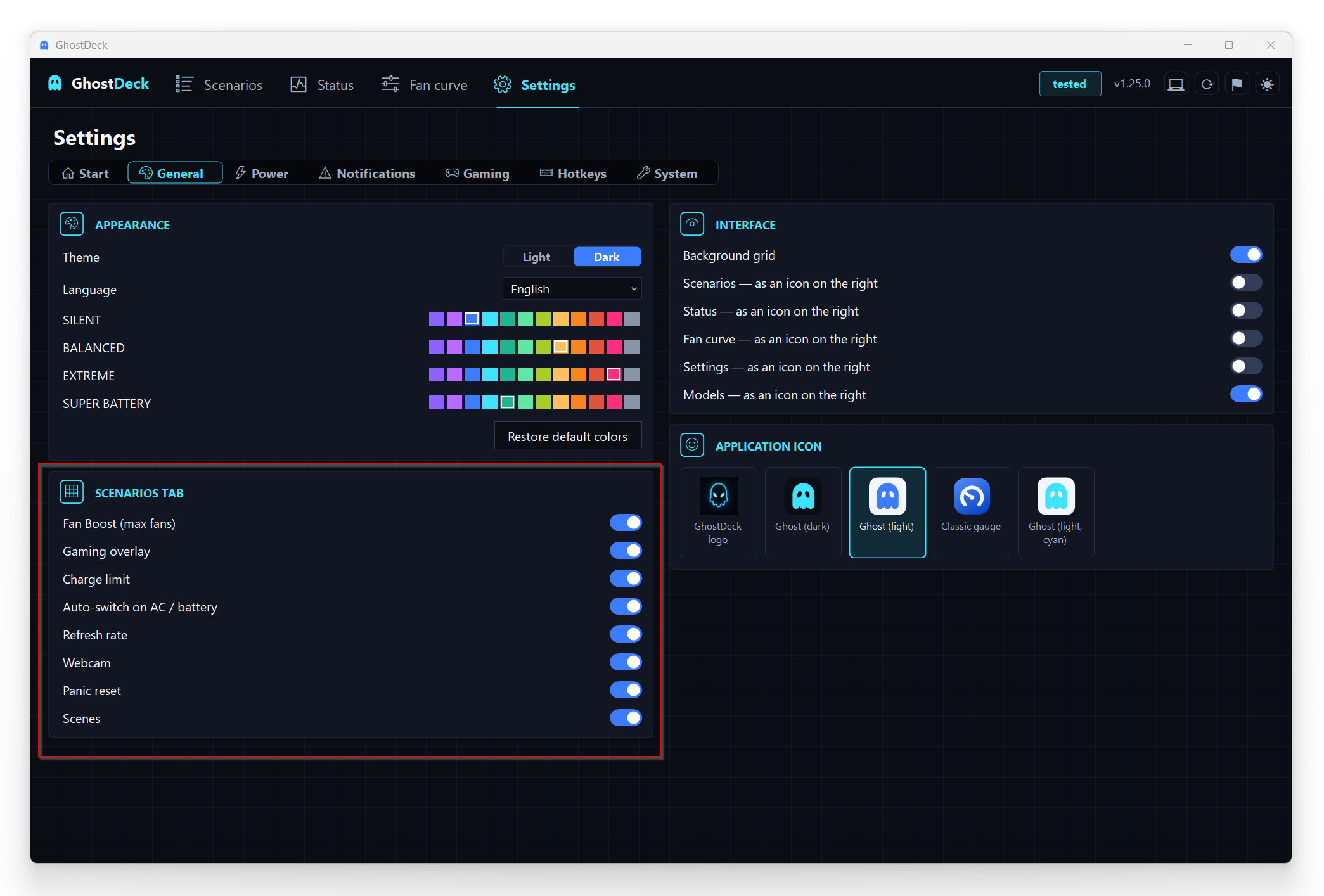
- Hide what you do not use. Every tile, and the whole Scenes section, can be switched off in Settings → General.
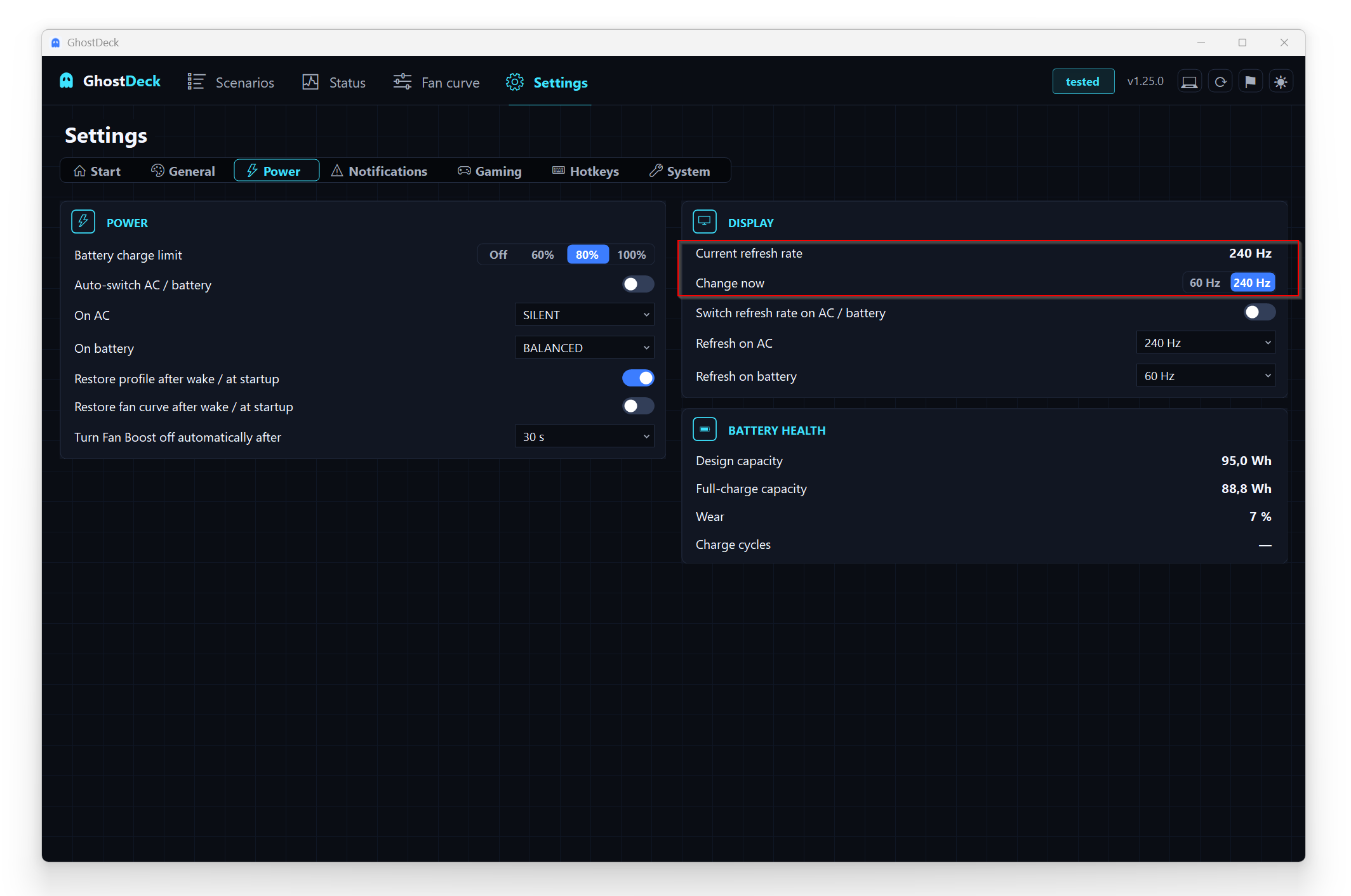
Settings → Power now also shows the current refresh rate with a manual switch next to it:
A read-only window showing all 256 EC bytes, refreshed live. Bytes that just changed glow amber, and every change is logged with a plain-language label: 0xC9: A0 → A3 (fan 1 tachometer). Registers that change constantly, like temperature sensors, are muted automatically so the log stays readable.
It exists to make model support faster: press an Fn key and see immediately which register reacts, instead of comparing diagnostic files by hand. If you have ever been asked for an EC capture, this is now a two-minute job.
- Vector A18 HX A9WHG (#54, thanks @Skullkidsrevenge) - promoted to Tested after the owner confirmed all three hardware checks in daily use.
- Raider A18 HX A7VIG (#55, thanks @afk789) - fan-curve addresses hardware-verified; the wizard capture found the test curve exactly where the shipped map says it is.
- Raider GE76 (#47, thanks @moragab1993) - renamed to 12UE / 12UGS, since the same board ships under both names.
Download: GhostDeck v1.25.0 · Full changelog: CHANGELOG.md
Found a bug or have an idea? Issues and Discussions are both open.