Repository navigation
Background Jobs and Tray
WMT can keep working after you close its main window. Background jobs refresh device and tweak data, build library caches, scan for updates, and run automatic cleaning while WMT is open or hidden in the system tray. Compact recompression is different: it uses an independent Windows Scheduled Task and does not need WMT running at all.
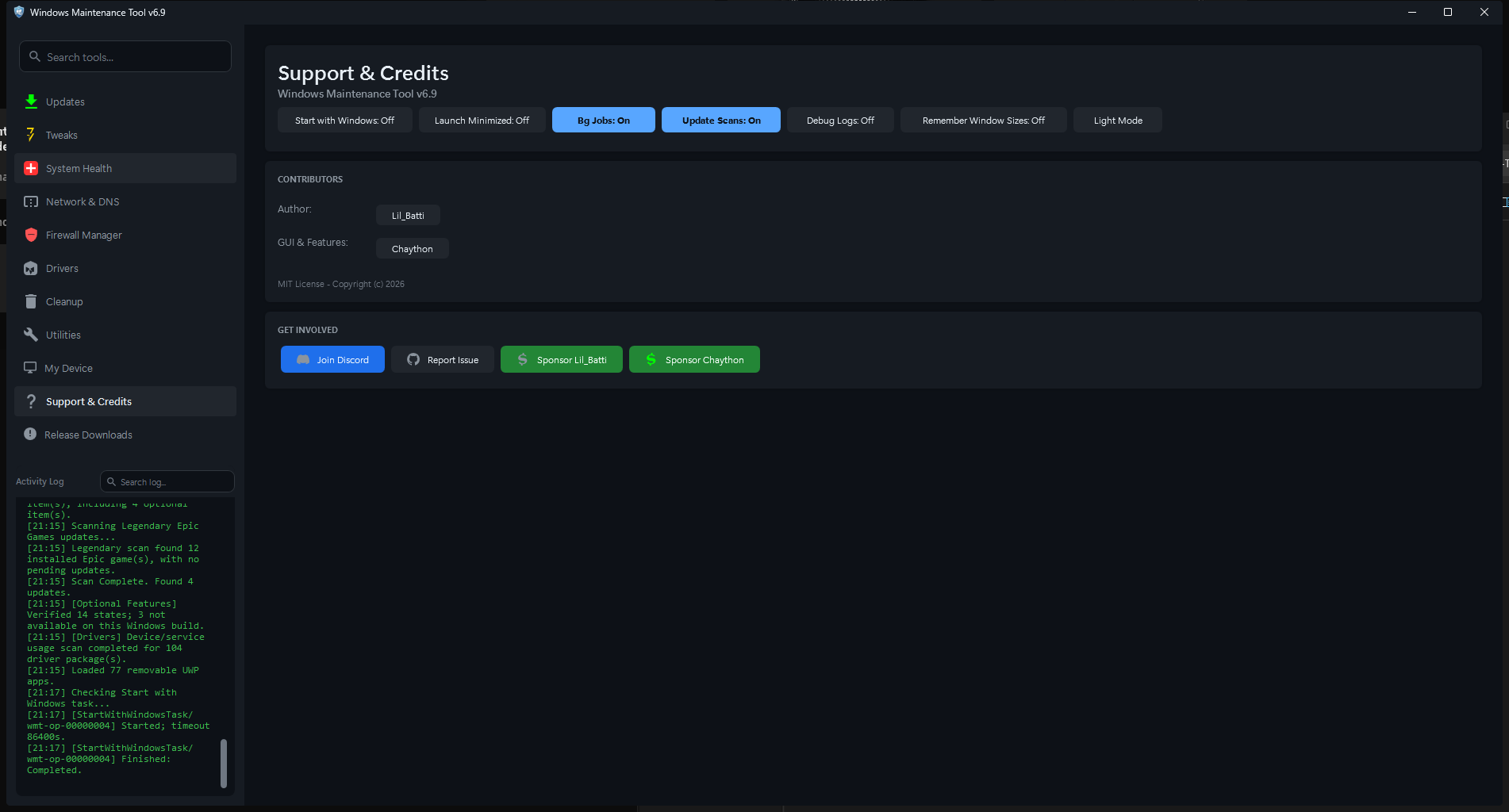
Support & Credits. Startup, tray-adjacent, background-job, update-scan, debug, window-size, and theme controls are grouped here.
| Toggle | Default | Effect |
|---|---|---|
| Start with Windows | Off | Creates a logon scheduled task named WindowsMaintenanceTool that launches WMT at the highest privilege level without a UAC prompt |
| Launch Minimized | Off | Starts WMT hidden in the tray instead of showing the main window |
| Bg Jobs | On | Enables background refresh work: My Device stats, Tweaks state loading, cleaner rule refreshes, library cache building, and scheduled background work |
| Update Scans | On | Enables automatic and tray-triggered update scans. Manual scans still work when this is off |
| Debug Logs | Off | Adds extra internal diagnostic logging for troubleshooting |
| Remember Window Sizes | On | Restores the size and maximized state of resizable tool windows |
| Toggle Theme | Dark | Switches between dark and light themes |
Two more tray-related options live in Updates > Providers under the global options:
-
Run in system tray when closed (
RunInTrayOnClose, default off) -
Reduce RAM while hidden in tray (
ReduceRamInTray, default on)
Enabling Start with Windows registers a Task Scheduler task:
- Trigger: at logon of the current user
- Principal: current user, interactive token, highest run level
- Action: the WMT EXE or script launcher
- Settings: start when available, do not stop on battery, no execution time limit
Because the task runs at the highest run level with the interactive token, WMT starts elevated without a UAC prompt. Disabling the toggle disables the task; it does not delete it. The button label shows On or Off based on the actual task state.
If the task cannot be created (Task Scheduler unavailable, policy restriction, or the launch file cannot be located), WMT logs the failure and leaves the button in its previous state.
Launch Minimized makes WMT start hidden in the tray. It is most useful together with Start with Windows.
- If the tray icon cannot be created, WMT shows the window instead.
- A hidden start still initializes background jobs according to the other settings.
- Left-click the tray icon to show the main window.
When Run in system tray when closed is enabled, closing the main window does not exit WMT. Instead WMT:
- Creates or reuses the tray icon.
- Hides the window and removes it from the taskbar.
- Optionally enters aggressive low-memory tray mode.
- Shows a balloon explaining that background work continues.
When the option is disabled, closing the window exits WMT and stops all in-process background work.
Right-click the tray icon for:
| Item | Action |
|---|---|
| Open WMT | Shows the main window |
| Open Updates | Shows the Updates page |
| Scan updates now | Runs an update scan immediately |
| Open System Health | Shows the System Health page |
| Open Cleanup | Shows the Cleanup page |
| Open Drivers | Shows the Drivers page |
| Open Utilities | Shows the Utilities page |
| Toggle WMT theme | Switches dark/light theme |
| Exit WMT | Fully exits the application |
Left-click or double-click the icon to reopen the window. Balloon notifications can also be clicked to reopen WMT.
Exit WMT is the only tray action that truly exits. It cancels active scans, stops timers, and disposes background workers.
Reduce RAM while hidden in tray
When enabled, hiding to the tray triggers an aggressive memory-saving mode:
- UI-only preload work is cancelled.
- Reloadable page data is unloaded.
- Idle PowerShell runspace pools are reset.
- Managed memory is compacted and trimmed.
- Memory is trimmed again after background jobs finish.
Scheduled update scans and automatic cleaning remain available. When you reopen a page, its data reloads on demand. The first view after reopening may therefore take slightly longer.
This mode is a trade-off: lower idle memory in exchange for reload latency. Disable it if you frequently reopen WMT and prefer instant page data.
| Work | Trigger | Requires WMT running? |
|---|---|---|
| My Device hardware refresh | Page load and background timer | Yes |
| Tweaks state loading | Opening Tweaks | Yes |
| Library cache building | Startup and library refresh | Yes |
| Update auto-scans | Launch, interval timer, tray command | Yes (open or tray) |
| Automatic cleaner runs | Cleaner Auto clean interval | Yes (open or tray) |
| Cleaner rule-list refresh | Local/remote refresh intervals | Yes |
| Compact recompression | Windows Scheduled Task as SYSTEM | No |
When Bg Jobs and Update Scans are enabled, WMT performs one scan at launch even if the auto-scan interval is Disabled.
- The recurring interval is configured in Updates > Providers (Disabled, 1 minute test, 15/30 minutes, 1/2/4/8/12 hours, or daily).
- Scheduled scans run while WMT is open or hidden in the tray.
- Update Scans: Off disables automatic and tray-triggered scans; manual Refresh All still works.
- If an update scan or package action is already running, a new automatic scan is skipped and logged.
- Automatic installs, when enabled, run after a completed scan. Packages known to risk an automatic restart are skipped.
Native notifications in Provider Manager controls Windows notifications for background scans and installs. WMT reports:
- Updates found by a background scan
- Background install started
- Background install completed, with success, skipped, and failed counts
- Background install interrupted by an error
If native notifications are unavailable, WMT falls back to a tray balloon.
The Auto clean interval in Cleanup runs the saved enabled-rule selection in the background. It requires WMT to be open or in the tray and Bg Jobs to be enabled. Results are recorded in data\cleaner-auto-last.json.
The Compact schedule is a standalone Windows Scheduled Task running as SYSTEM. It works even when WMT is closed, not in the tray, or not installed at startup. See Compact Compression.
- Background scans do not prevent sleep by themselves. A sleeping PC does not run timers.
- The startup task is allowed to start on battery and is not stopped when switching to battery.
- Scheduled tasks that were missed while the PC was asleep may run when the system becomes available, depending on the task's own settings.
Desktop that should stay updated:
- Start with Windows: On
- Launch Minimized: On
- Run in system tray when closed: On
- Bg Jobs: On
- Update Scans: On
- Auto scan: every 4 to 12 hours
- Reduce RAM in tray: On
Laptop used occasionally:
- Start with Windows: Off
- Run in system tray when closed: Off
- Bg Jobs: On while in use
- Update Scans: On
- Manual scans when you open WMT
Minimal background activity:
- Bg Jobs: Off
- Update Scans: Off
- Run in system tray when closed: Off
- Use manual scans and manual cleaning