Repository navigation
Updates and Software
The Updates page (titled Package Updates) is WMT's software inventory and update workspace. It scans the package providers you enable, lists installed packages that have a newer version, and can update, ignore, or uninstall them. The same page hosts the Software Catalog and Game Library sub-views.
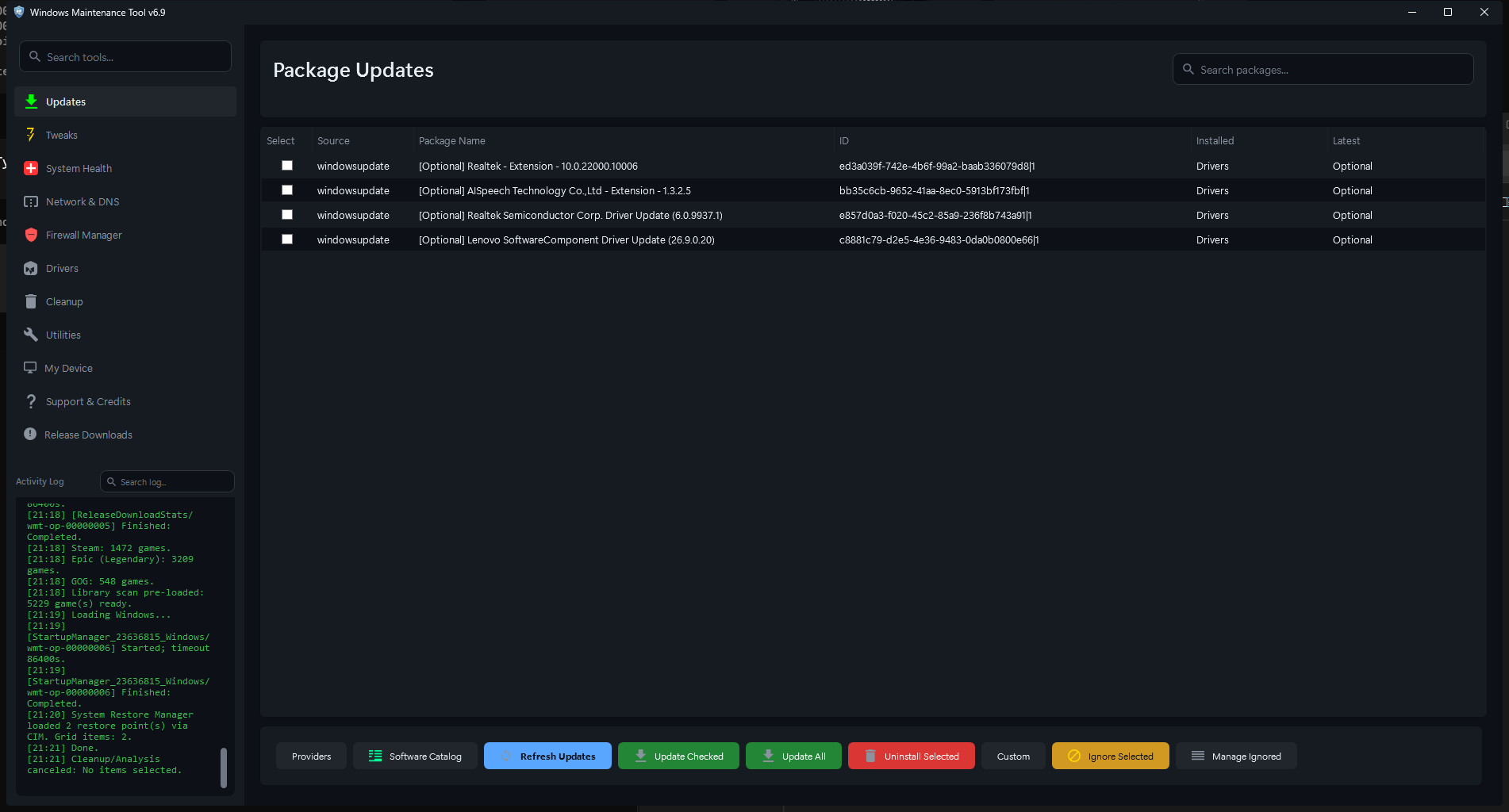
Package Updates after a scan. The list shows one row per installed package with the source, installed version, and available version.
| Area | What it shows |
|---|---|
| Search packages | Searches enabled providers for packages to install; not a filter for the current update list |
| Status line | Current phase, such as ready, scanning, or installing |
| Progress bar and text | Provider-level progress during long scans and installs |
| Last result | Summary of the most recent completed operation |
| Package list | Columns: Select, Source, Package Name, ID, Installed, Latest |
| Action bar | Providers, Software Catalog, Refresh All, Update Checked, Update All, Install (context only), Uninstall, Custom, Ignore, Manage Ignored |
Rows are grouped by provider in the source column. A package that exists in more than one provider can appear more than once unless Hide cross-provider duplicates is enabled; that option only hides unknown-version Winget rows for games already known to Steam, Epic, or GOG.
The search box searches the enabled providers rather than filtering the update list.
- Type a package name, ID, or keyword.
- Press Enter. WMT switches the title to Search Results: query and queries every provider whose Search toggle is enabled.
- Results can include packages that are not installed. Select one and click Install (or use the row context menu).
- Click the X clear button to cancel the search and restore the previous update scan. The title returns to Package Updates.
Search results are not an update scan and do not change installed versions. Search respects the per-provider Search setting in Provider Manager; a provider with Search off is skipped even if it is enabled for scans.
Opening the page does not start a scan.
- Click Refresh All or press F5 to scan every enabled provider.
- Each provider scans independently. A slow or failed provider does not necessarily block the others.
- The status line and progress bar report the active provider; the activity log records start, completion, timeout, and error details.
- The scan can be repeated at any time. Results replace the previous list.
If Background Jobs and update scans are enabled, WMT also performs one scan at launch even when the automatic interval is Disabled. Scheduled scans run while WMT is open or hidden in the tray. See Background Jobs and Tray.
- Scan with Refresh All.
- Review the Installed and Latest columns. Check the rows you want, or select rows without checking them.
- Choose an action:
- Update Checked updates checked rows. If none are checked, it uses the selected rows.
- Update All attempts every eligible row.
- Uninstall removes the selected package after confirmation.
- Watch the activity log. Some providers open their own console or GUI; leave those windows open until the operation finishes.
- Rescan to confirm the new versions.
Updates run through each provider's native mechanism, so behavior differs:
-
Winget uses
winget upgradewith the package ID and exact source. - Windows Update uses the Windows Update Agent and can install updates that are not exposed as packages elsewhere.
- Microsoft Store uses the Store CLI where available.
- Language and tooling providers run their own upgrade commands, such as
pip,npm,choco,scoop,gem,cargo,dotnet tool, and PowerShell module updates. - Steam, Epic (Legendary), and GOG (GOGDL) updates are handled with the game-library workflows and may appear in Your Library.
Some updates require a restart, sign-out, or provider-specific post-install step. WMT reports the provider's exit status but does not force a restart.
When Automatically install available updates after scans is enabled, WMT installs listed packages without a per-package prompt. Packages known to risk an automatic restart are skipped. Notifications report how many updates succeeded, were skipped, or failed.
Uninstall uses the package's provider. System components and some Store apps may be protected or may require Windows Settings. Game uninstalls can also remove local game data; read the confirmation text carefully.
Use Ignore to hide a package from future update results. The ignore list is stored in settings.json as WingetIgnore. The default entry 228980 filters a known Steamworks redistributable false positive.
Manage Ignored opens the saved ignore list, where entries can be reviewed and removed. Ignoring a package does not uninstall it or pin its version; it only suppresses the row.
Custom opens the custom update command manager. You can attach a command to a specific package identity (source plus ID), edit an existing command, or remove it to restore the provider's normal command.
Custom commands are intended for packages whose built-in update path does not work. WMT validates that the row has a stable source and ID before saving a command. Commands run in the provider's update flow and their output appears in the activity log and, when enabled, the provider transcript.
Providers opens Manage Package Providers.

Provider Manager. Each provider has Search, Scan, Log files, Headless, and Auto-update controls; the global section controls automatic scans and installation behavior.
| Provider | Source | Notes |
|---|---|---|
| Winget | Windows Package Manager | Always enabled; supports --include-unknown for unknown installed versions |
| Store CLI | Microsoft Store apps | Uses store.exe; availability depends on the Windows build |
| Windows Update | Windows Update Agent | Scans regular, optional, driver, security, and Insider categories |
| Python (Pip) | pip / pip3 | Updates installed Python packages |
| Node (Npm) | npm global packages | Requires Node.js and npm |
| pnpm | pnpm global packages | Requires pnpm |
| Chocolatey | choco | Requires Chocolatey |
| Scoop | scoop | Requires Scoop |
| Ruby (Gem) | gem | Requires Ruby |
| Rust (Cargo) | cargo | Requires the Rust toolchain |
| .NET Tools | dotnet tool | Requires the .NET SDK |
| PowerShell Modules | PSGallery modules | Updates installed modules |
| Composer | PHP Composer | Requires Composer |
| Steam | Steam libraries | Game updates and library inventory |
| Legendary | Epic Games | WMT-managed portable Legendary tool |
| GOGDL | GOG | WMT-managed portable GOGDL tool |
Provider rows show a detection status and may offer an Install action for the provider tool. A provider that is not installed, not authenticated, or not on PATH cannot be scanned.
Each provider row has five toggles:
| Toggle | Effect |
|---|---|
| Search | Includes the provider in the package search field's provider-specific search, where supported |
| Scan | Includes the provider in update scans. Turning Scan off also disables Headless and Auto-update for that provider |
| Log files | Keeps persistent provider diagnostic and install logs. The on-screen activity log is unaffected |
| Headless: inherit | Three-state: force headless, force interactive, or inherit the global setting. Requires Scan |
| Auto-update: inherit | Three-state: force auto-update, disable it, or inherit the global setting. Requires Scan |
The Winget row also has Include unknown, which adds --include-unknown to Winget scans.
Windows Update exposes category toggles for:
- Updates - regular important and recommended updates
- Optional - optional updates that are not installed automatically
- Driver - driver updates offered by Windows Update
- Security - critical, important, and moderate security updates
- Insider - Insider Preview, beta, dev, and canary builds
Windows Update items must be updated from the WMT list; use Refresh All to rescan offered updates.
| Option | Effect |
|---|---|
| Auto scan | Disabled, every 1 minute (test), 15 or 30 minutes, 1, 2, 4, 8, or 12 hours, or daily |
| Native notifications | Shows a Windows notification when a background scan finds updates or fails |
| Run in system tray when closed | Closing the main window hides WMT instead of exiting |
| Reduce RAM while hidden in tray | Aggressive low-memory tray mode; scheduled work continues and UI data reloads on demand |
| Run update/install commands headless | Experimental: hides CLI, PowerShell, and cmd windows. Provider GUIs can still appear |
| Automatically install available updates after scans | Installs listed packages without confirmation; restart-risk packages are skipped |
| Hide cross-provider duplicates | Hides unknown-version Winget game rows already known to Steam, Legendary, or GOGDL |
Choose Save & Close to apply. Provider settings are stored in settings.json under EnabledProviders, ProviderToggles, ProviderExecutionOverrides, and WuCategoryToggles.
- The Activity Log in the main window is in-memory and is cleared when WMT exits.
- Provider Log files keeps transcripts and install logs, commonly under
data\package-install-logs. - Debug Logs in Support & Credits adds extra internal diagnostic logging.
-
data\last-crash.txtrecords the last captured crash or monitor diagnostic.
Logs can contain usernames, paths, package IDs, and network details. Review them before sharing.
| Symptom | What to check |
|---|---|
| Winget scan fails | Confirm App Installer/Winget is installed and winget --version works in a terminal |
| A provider is missing | Install its CLI and reopen Provider Manager so WMT can detect it |
| A package is listed repeatedly | Enable Hide cross-provider duplicates, or ignore the duplicate row |
| An update fails immediately | Run the provider's own command manually to see whether the failure is in WMT or the provider |
| Windows Update rows do not update | Use Refresh All to rescan; WU rows are updated from the list, not through Winget |
| A game shows a Winget update | Refresh the library data; Steam ownership filtering suppresses many duplicate/unknown-version rows |
| No automatic scans run | Check Update Scans and Bg Jobs in Support & Credits, the auto-scan interval, and whether WMT is running or in the tray |