Repository navigation
Cleanup
Cleanup collects Windows Disk Cleanup, WMT's own rule-based temp-file cleaner, broken-shortcut repair, registry cleaning, Xbox credential cleanup, and a OneDrive space-saving shortcut on one page.
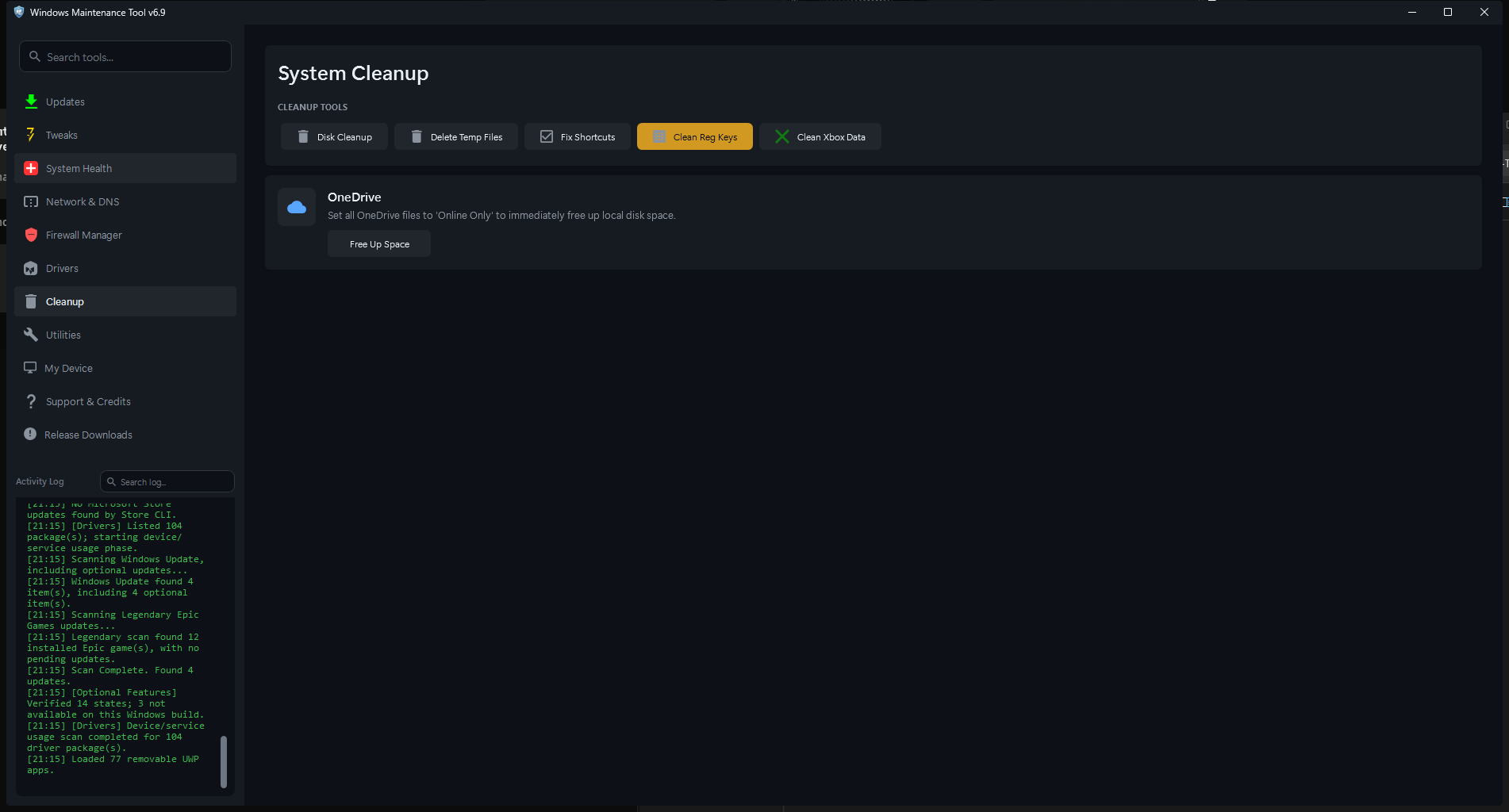
The Cleanup page. Disk Cleanup, Delete Temp Files, Fix Shortcuts, Clean Registry, and Clean Xbox Data sit in the main card; the OneDrive card appears below.
| Control | What it does | Risk |
|---|---|---|
| Disk Cleanup | Opens the built-in cleanmgr.exe
|
Low to moderate; you choose the categories |
| Delete Temp Files | Opens WMT's Advanced Cleanup Selection | Low; preview before deleting |
| Fix Shortcuts | Opens the Broken Shortcut Manager | Low; only changes shortcuts |
| Clean Registry | Opens the registry scan target picker | High; registry changes are hard to reverse |
| Clean Xbox Data | Signs out of Xbox and clears stored credentials | Moderate; you must sign in again |
| Free Up Space (OneDrive) | Marks OneDrive files as Online Only | Moderate; files must re-download to open |
Everything on this page changes the system immediately or after a confirmation. Read the prompt before continuing.
Disk Cleanup starts Windows' own cleanmgr.exe with no preselected categories. Use it when you want the standard Windows cleanup list, including Windows Update cleanup, Delivery Optimization files, previous Windows installations, and system error memory dumps.
WMT does not control which categories Windows offers or which ones are safe for your system. Review the list and the description for each category before clicking OK. Some categories, such as Previous Windows installation(s), remove the ability to roll back a Windows upgrade.
Delete Temp Files opens the Advanced Cleanup Selection dialog. This is WMT's rule-based cleaner. It can use built-in rules plus optional community rule sets, preview what would be removed, and then clean only the selected items.

Advanced Cleanup Selection. Rule toggles sit at the top, the rule list fills the middle, and Analyze / Clean Selected / Clear Event Logs sit at the bottom.
| Toggle | Source | Notes |
|---|---|---|
| Built-in rules | WMT's own definitions | Always available |
| Winapp2.ini | Winapp2 community database | Large third-party rule set; enable only if you trust the definitions |
| Winapp2.ini companion Winapp3.ini | Experimental/beta Winapp3 rules | Unverified rules; may target software you still use |
| CleanerML | BleachBit CleanerML definitions | Cross-platform cleaner definitions adapted for WMT |
| Pending (Beta) | Unverified CleanerML rules from the pending folder | Highest risk of over-cleaning |
Rule sources are cached under data (winapp2.ini, winapp3.ini, cleanerml_cache.json). The Winapp2/Winapp3 toggles are also stored in settings.json as LoadWinapp2 and LoadWinapp3; CleanerML and pending rules have their own settings keys.
| Control | Purpose |
|---|---|
| Search rules | Filters the visible rule list by name or path |
| X | Clears the rule search |
| Skip Downloads | Uses only cached rule files; does not download or update definitions |
| Cache Only | Skips cache validation and parsing and loads the existing cache immediately |
| Show Enabled | Shows only checked/enabled rules. This is a view filter and does not change selections |
| Local refresh | Minutes between validation/rebuilds of the parsed local cleaner cache (minimum 1) |
| List updates | Minutes between upstream rule-list checks; 0 disables automatic checks |
| Auto clean | Minutes between automatic background clean runs; 0 is Off |
| Apply | Saves the three interval values |
| Refresh Lists | Forces a rule-list refresh now |
| Clear Event Logs | Clears Windows event logs; asks for confirmation and shows progress |
| Analyze | Builds a preview without deleting anything |
| Clean Selected | Cleans the checked rules after preview/confirmation |
| Cancel | Closes the dialog without cleaning |
Analyze evaluates the selected rules and opens a preview window. Nothing is deleted during analysis.
Preview columns:
- RuleName
- Type - file, folder, registry, or command action
- Status - protection state and whether the item can be removed
- Path / Command
- Size
Preview controls:
| Control | Purpose |
|---|---|
| Hide protected | Hides entries WMT marks as protected (checked by default) |
| Clean Selected | Deletes the selected preview rows |
| Clean All | Deletes every deletable row shown; external command actions are not run from this preview |
| Close | Closes the preview without cleaning |
Protected entries are never deleted by Clean All. Clean All confirms with a count and a warning that deletion is permanent. The Recycle Bin is not used.
The Auto clean interval runs the cleaner in the background while WMT is open or in the tray and Background Jobs are enabled. It uses the saved enabled-rule selection, not the current dialog selection. Automatic runs are recorded in the activity log and in data\cleaner-auto-last.json. See Background Jobs and Tray.
Fix Shortcuts scans common shortcut locations for targets that no longer exist and lets you delete or repoint them. Each row shows the shortcut, its location, the broken target, and an optional new target.
| Column | Meaning |
|---|---|
| Shortcut | Shortcut file name |
| Location | Folder that contains the shortcut |
| Action | Planned action, such as delete or fix |
| Details | Reason or target information |
| BrokenTarget | The missing target path |
| NewTarget | Replacement target, when one was chosen |
| FullPath | Hidden full path used internally |
| Button | Action |
|---|---|
| Delete Now | Deletes the selected broken shortcuts |
| Browse | Picks a replacement target for the selected row |
| Rescan | Re-scans the shortcut locations |
| Apply Fixes | Repoints shortcuts that have a new target |
| Close | Closes the manager |
WMT scans common Start menu, desktop, and startup shortcut folders. It only edits or deletes shortcut (.lnk) files; the target programs and files are not touched. A shortcut whose target is temporarily offline (for example, on a disconnected drive) can appear broken even though it is valid.
Clean Registry opens the registry cleaner. It is the most consequential tool on this page: registry deletions can break applications or Windows features, and not every "obsolete" key is safe to remove.
See Registry Cleaner for the full workflow, scan categories, review columns, protection rules, and backup behavior.
Clean Xbox Data asks for confirmation, then removes stored Xbox credentials and signs the current user out of Xbox services. Use it when the Xbox app is stuck on the wrong account or keeps failing to sign in.
This does not uninstall games, delete saves, or remove the Xbox app. After cleanup you must sign in again, and any app that depends on the cached Xbox token may ask for credentials.
The OneDrive card appears when OneDrive is detected. Free Up Space runs:
attrib +U -P /s /d "<OneDrive>\*.*"
This marks files as Unpinned (Online Only) and removes the Always keep on this device flag, freeing local disk space. Files remain in OneDrive and re-download when opened.
- The action applies recursively to the OneDrive folder.
- It requires an active network connection to reopen files that are not cached.
- Files that are already Online Only are unaffected.
- If OneDrive is not installed or is disabled, the card's button is disabled and labeled Not Installed.
- It does not uninstall applications. Use Updates and Software or Windows Settings.
- It does not remove drivers. Use Drivers.
- It does not empty the Recycle Bin unless a rule explicitly targets it.
- It does not securely erase data. Deleted files may be recoverable until overwritten.
- It does not clean other user profiles unless a rule targets their folders and WMT has access.
- Close applications that may be using the files you plan to delete.
- Create a restore point if you are using registry cleaning or aggressive rule sets.
- Start with Analyze, review the paths, and uncheck anything you do not recognize.
- Avoid Clean All on community rule sets until you have reviewed them.
- Keep backups of application settings that live in temp or cache folders.