Repository navigation
Interface and Navigation
WMT uses a single main window with a fixed navigation sidebar, a large content area, and a persistent activity log. Most tools open in the content area; some open separate dialogs or consoles.
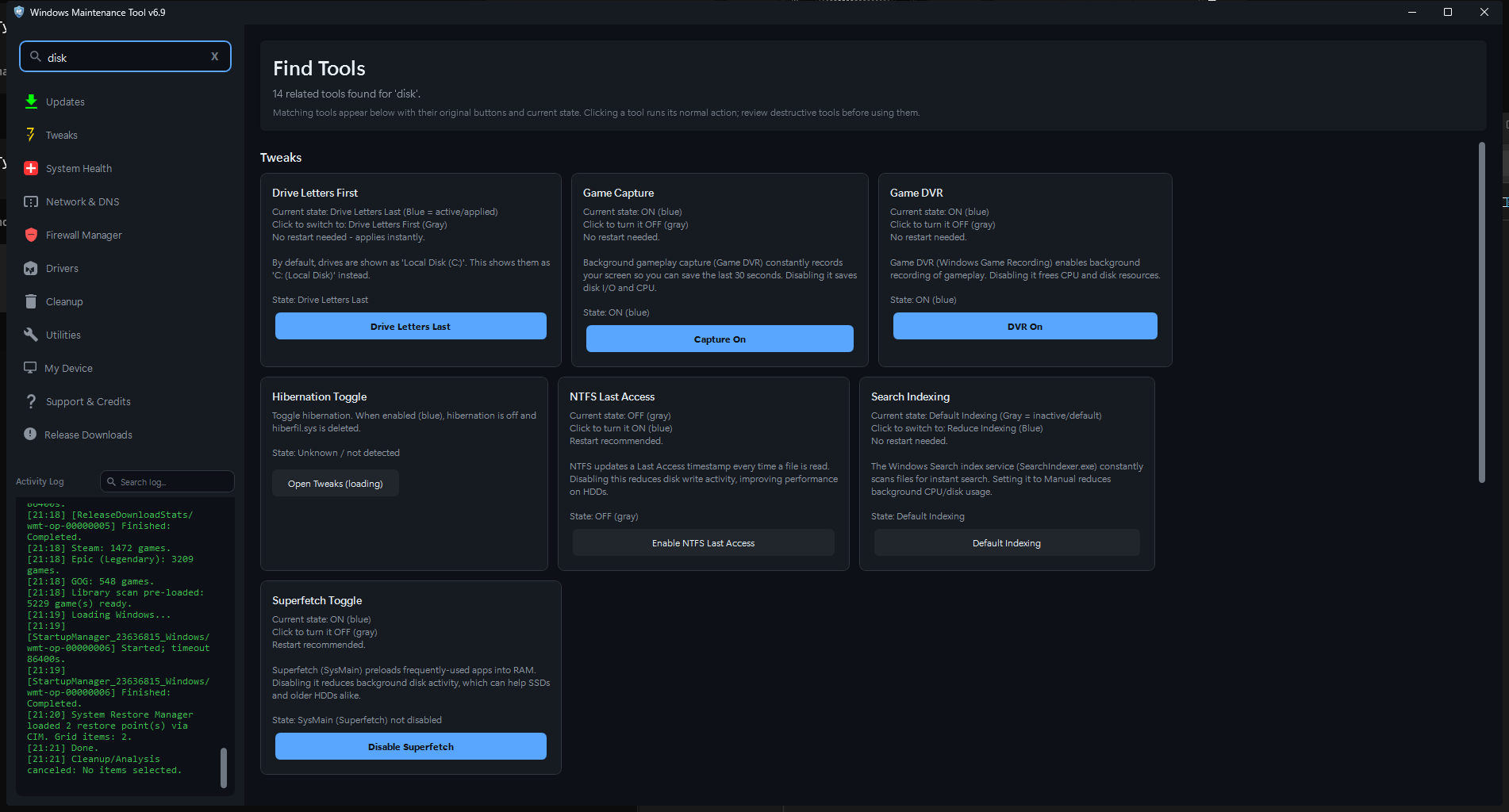
Quick Find replaces the page content with cards built from the original tool buttons. Clicking a card runs the tool's normal action immediately.
| Area | Purpose |
|---|---|
| Quick Find search box | Searches every indexed tool by name, description, or alias |
| Navigation buttons | Switches between Updates, Tweaks, System Health, Network & DNS, Firewall, Drivers, Cleanup, Utilities, My Device, and Support |
| Download Stats | Opens the latest release download-count dialog |
| Activity Log | Shows timestamped operations, results, warnings, and errors |
| Content area | Displays the selected page, sub-view, or search results |
| Page action bars | Hold the primary scan, apply, delete, export, and navigation controls for that page |
The divider above the activity log can be dragged to resize the log. The main window remembers its size and maximized state. Resizable tool windows remember theirs when Remember Window Sizes is enabled. The theme can be switched between dark and light; the choice persists across launches.
| Navigation label | Page title | Main purpose |
|---|---|---|
| Updates | Package Updates | Scan, install, update, ignore, or uninstall packages |
| Tweaks | Tweaks | State-aware Windows setting toggles |
| System Health | System Health | SFC, DISM, CHKDSK, and Quick Fix |
| Network & DNS | Network & DNS | Diagnostics, DNS, DoH, and hosts file |
| Firewall | Firewall Manager | Windows Firewall rule management |
| Drivers | Driver Management | Driver Store inventory and cleanup |
| Cleanup | System Cleanup | Basic and advanced cleanup |
| Utilities | System Tools | Reports, storage, WinRE, startup, restore, and repairs |
| My Device | My Device | Hardware, battery, storage, network, and reports |
| Support | Support & Credits | Startup, background, update-scan, theme, and project links |
| Download Stats | Latest Release Downloads | Informational release asset download counts |
Dedicated guides for each page are listed on the Home page.
Quick Find is the search box at the top of the sidebar. It searches a curated index of WMT tools, including synonyms such as "wifi fix", "speed up pc", or "app updates".
When you type:
- The content area switches to the Find Tools page.
- Matching tools are grouped by their original page.
- WMT hosts the actual buttons from those pages, preserving their current label, icon, enabled state, and click handler.
- Clicking a hosted button runs its normal action immediately, not merely a link to the page.
- Clearing the query, changing pages, or closing Quick Find restores every control to its original location.
Because a result can perform a destructive action immediately, read the card and any confirmation prompt before clicking. Context-dependent controls, disabled controls, hidden subsection controls, and some search fields instead show Open section or Focus search field.
Broad queries are limited to 16 result cards in the current build. The summary line reports how many tools matched and prompts you to refine the search. This limit keeps WPF layout work responsive.
| Query | Likely result |
|---|---|
wifi fix |
Restart Wi-Fi Adapter |
app updates |
Update All Apps |
speed up pc |
Service Optimization |
hide file extensions |
File Extensions tweak |
windows update security only |
Windows Update Behavior preset |
disk |
Disk Usage Analyzer, Disk Cleanup, CHKDSK, and related tools |
Many pages have their own search field. It filters the visible list rather than searching the whole application.
| Page | Search field behavior |
|---|---|
| Updates | Searches enabled providers for packages to install; press Enter to run the search, X to return to the update list |
| Software Catalog | Filters the curated application list |
| Your Library | Filters by game name or provider ID |
| Firewall | Filters rules by name or port |
| Drivers | Filters by status, class, provider, driver file, or version |
| Cleanup | Filters advanced cleaner rules by name and description |
| Startup Manager | Filters the active tab's rows |
| Activity Log | Highlights matching log lines and shows a match count |
The activity log is the first place to check when something behaves unexpectedly.
- Entries are timestamped and usually name the operation, such as
[Drivers]or[Disk Usage]. - Long operations report start, completion, timeout, or error details.
- The log search box highlights matches and can focus directly with Ctrl+F when the log has keyboard focus.
- Some dialogs and error messages can be copied with Ctrl+C or by right-clicking.
- Logs can contain usernames, paths, package IDs, device names, or network details. Review them before posting.
The log is an on-screen convenience. Persistent diagnostics are controlled by Debug Logs and provider Log files settings; see Background Jobs and Tray and Updates and Software.
Most pages follow the same visual pattern:
- A header card with the page title, search field, status, and progress.
- A list or card area with the main data.
- A footer action bar with the page's operations.
Buttons use color and wording to signal intent:
| Style | Typical meaning |
|---|---|
| Blue/accent | Primary action or navigation |
| Green | Positive or install/apply action |
| Yellow/amber | Caution or reversible change |
| Red | Destructive action |
| Gray | Neutral or secondary action |
Toggle buttons are state-aware. A blue button usually means the named feature is active or the setting is in the described state; a gray button means the opposite. The button label often describes what clicking it will do, so read both the label and the tooltip.
Dialogs generally require a confirmation for destructive work. Some show a details pane, a backup option, or a copyable summary. Esc closes most dialogs without applying changes; Enter accepts the default action where the dialog defines one.
WMT performs expensive work in background runspaces and processes so the window stays responsive.
- The first visit to Drivers, Firewall, Tweaks, or My Device may show partially loaded data.
- Reload or Refresh performs an explicit refresh; revisiting a page may reuse cached rows.
- F5 refreshes the visible Updates, Drivers, Firewall, or Your Library view when the corresponding action is enabled.
- Opening Updates does not scan automatically. F5 or Refresh All is an explicit scan.
- Closing the window may hide WMT to the tray instead of exiting, depending on your settings.
If a page appears empty, check the activity log and the page status line before assuming there is no data. A provider or Windows component may still be loading or may have failed. See Troubleshooting.
- Dark and light themes are available from Support & Credits or the tray menu.
- Text uses the Windows UI font and scales with Windows display settings.
- Lists support keyboard navigation and, on some pages, Ctrl+A and Ctrl+C.
- The activity log uses a monospace font and supports text selection.