Repository navigation
Troubleshooting
Start with the exact error text and the operation that produced it. WMT is a front end for Windows components and optional external providers, so a failure in one area usually does not mean the whole application is broken.
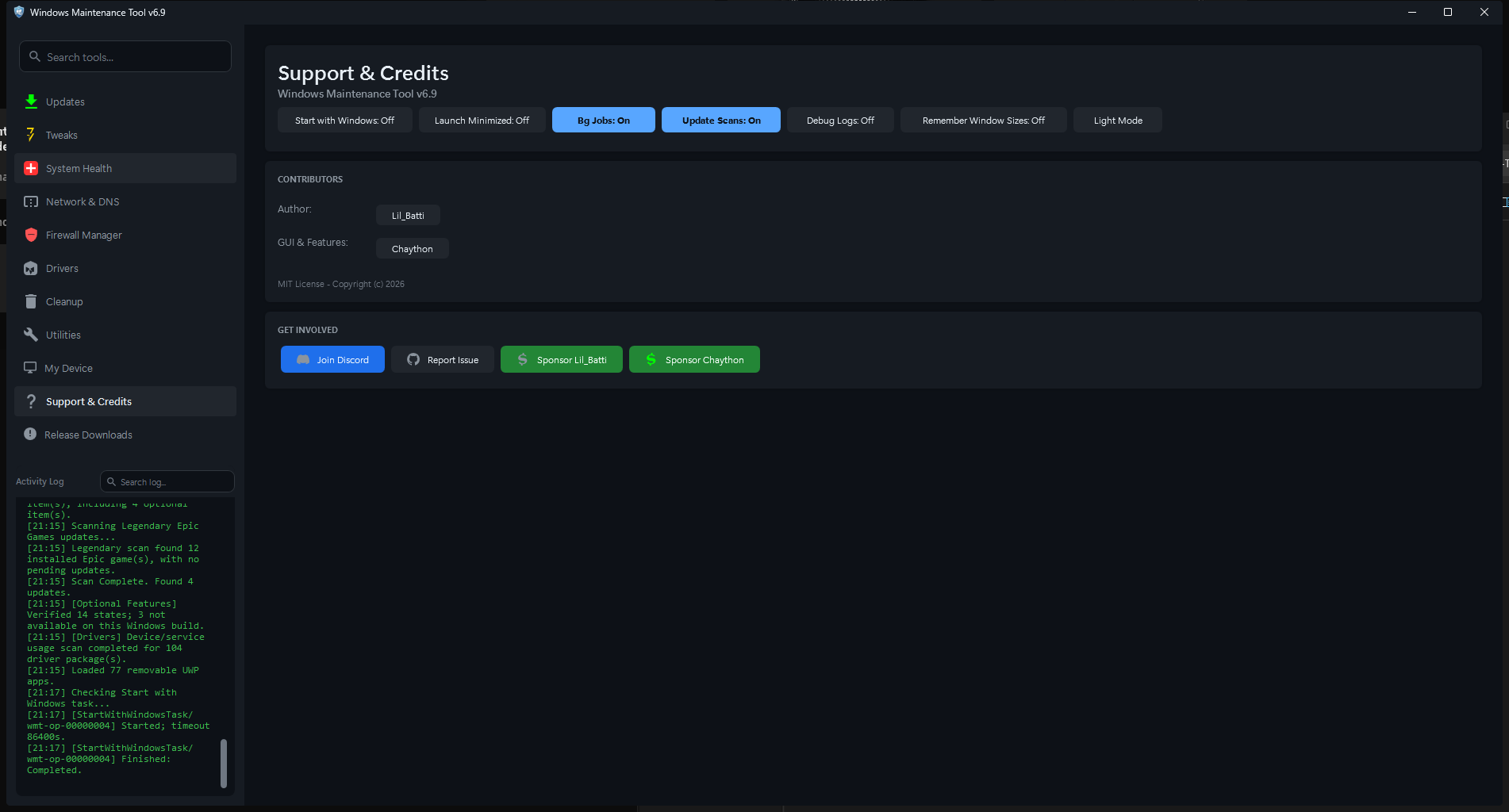
Support & Credits. Debug Logs, Bg Jobs, Update Scans, and window/theme options live here.
| Symptom | First check | Detailed section |
|---|---|---|
| WMT closes immediately or never opens | Run the script directly and read the error | WMT does not start |
| UAC prompt is denied or repeats | Launcher, elevation policy, and account type | Elevation problems |
| Updates list is empty or providers fail | Provider toggles, network, sign-in, provider logs | Updates and provider scans |
| A page is blank, clipped, or frozen | Switch pages, refresh, check window bounds | UI problems |
| A tweak broke Windows behavior | Toggle it back or import a known-good export | Undo a change |
| Cleanup or registry results look wrong | Preview, protected items, backups | Cleanup and registry |
| A device stopped working after driver work | Driver backup, rollback, restore point | Drivers |
| Network, DNS, or firewall stopped working | Reverse the specific change first | Network, DNS, and firewall |
| A scheduled job did not run | Task Scheduler, Bg Jobs, sleep state | Scheduled tasks and background jobs |
| Settings or data disappeared |
settings.json.bak, data folder location |
Data and settings recovery |
Collect this before changing anything:
-
WMT version and how it was installed (WinGet, portable EXE, source checkout).
-
Windows edition, version, and build:
Get-ComputerInfo | Select-Object WindowsProductName, WindowsVersion, OsBuildNumber, OsArchitecture
-
The page, dialog, provider, and exact button or command involved.
-
The full error text, not just the first line.
-
Relevant Activity Log lines and any provider Log files transcript.
-
data\last-crash.txtif WMT crashed. -
Whether a restart, a second attempt, or a different provider changes the result.
Redact computer names, usernames, IP and MAC addresses, paths, package IDs, server names, and account identifiers before posting. Never post passwords, API keys, session tokens, auth.json, or user.json.
-
Open PowerShell in the WMT folder and run the script directly:
powershell -NoProfile -ExecutionPolicy Bypass -File .\WMT-GUI.ps1
This keeps the console visible and usually reveals a parser, assembly, or path error that the compiled EXE hides.
-
Confirm the PowerShell version:
$PSVersionTable.PSVersionWMT targets Windows PowerShell 5.1. A PowerShell 7-only environment can load the script but is not the supported runtime.
-
Confirm the file is the real script, not an HTML error page saved with a
.ps1extension. The launcher performs this check; a direct launch does not. -
Check Windows Security protection history and any third-party antivirus quarantine. Verify the download against the release checksum and attestation before allowing it. See Security.
-
Confirm the
datafolder is writable. WMT resolvesdatanext to the script or EXE. A folder underProgram Filesor a read-only network share can prevent settings and caches from being created. -
Test with a fresh settings file:
- Exit WMT.
- Rename
data\settings.jsontosettings.json.old. - Optionally rename
settings.json.bakas well. - Start WMT again.
WMT recreates defaults if both files are unusable.
-
Check for mixed versions. Do not overlay a new
WMT-GUI.ps1on an olddatafolder while an old EXE is still running, and do not keep two copies sharing one data folder. -
Read
data\last-crash.txt. It contains the captured exception, context, and recent log lines. -
If the EXE fails but the script works, rebuild it with the pinned PS2EXE version described in Developer Guide. Do not assume a locally modified EXE matches the source.
- The launcher checks for newer launcher and script versions from the URLs at the top of
Start_WMT_GUI.bat. If those URLs are unreachable, it continues with the local script; if the local script is missing and the download fails, it shows an error. - A UAC decline produces a launch failure dialog with the launcher exit code.
- An HTML page downloaded in place of the script triggers the invalid-script dialog. Download the raw script or use a release EXE.
- If the batch file was updated while running, it restarts itself. Run it again if the window closes during the update.
-
Confirm that WinGet is available and the package installation completed:
winget list --id Chaython.WindowsMaintenanceTool --exact
-
If the package is missing, install it:
winget install --id Chaython.WindowsMaintenanceTool --exact
-
Close and reopen PowerShell or Windows Terminal so the command environment refreshes.
-
Try launching WMT from the Start menu.
If Start menu launch works but the command does not, the issue is likely the package command alias or terminal environment rather than WMT itself.
Most maintenance actions need administrator rights. The compiled EXE embeds a RequireAdmin manifest, so Windows always prompts. The batch launcher starts PowerShell with Start-Process -Verb RunAs. A direct powershell -File WMT-GUI.ps1 launch does not elevate automatically.
- Approve the prompt only when you started WMT intentionally.
- If elevation is denied by policy, use an account or device that permits it; do not disable UAC to work around the policy.
- An elevated process may not see mapped network drives created in the unelevated session. Use a UNC path instead.
- Files downloaded from the internet can carry the Mark-of-the-Web. If PowerShell refuses to run a script from a network share, copy it to a local writable folder and verify its origin.
- If a single action prompts separately, that action may use its own elevated console. Approving WMT's main elevation does not automatically approve every child process.
First distinguish "no updates found" from "the scan failed." A provider that is disabled, signed out, missing from PATH, or blocked by the network can return no results without crashing the page.
-
Open Updates > Providers and confirm the provider is enabled for the operation you are running. Update scanning, package search, and library search can have separate controls.
-
Run one provider at a time to isolate the failure.
-
Check that the provider's own command-line tool works outside WMT. Examples:
winget --version
choco --version
scoop --version
dotnet --list-sdks
-
Check internet access, proxy settings, VPN/firewall rules, and provider terms or agreement prompts.
-
For Windows Update, confirm the service is running and the desired categories are selected. A failed update install can leave a pending reboot that blocks the next attempt.
-
For Steam, Epic/Legendary, or GOG/GOGDL, confirm the provider's installation, sign-in state, and library paths. Refresh the library after changing a path.
-
Read the provider's Log files transcript. Installer exit codes and HTTP errors are usually more useful than the summary dialog.
The search box on Updates is a provider package search, not a filter for the current update list:
- Type a package name and press Enter.
- The title changes to Search Results: query and matching packages appear with an Install action.
- Click the X to clear the search and restore the previous update list.
If you expected to filter installed updates, use the page search or Quick Find instead. See Updates and Software.
- Update Scans must be on. Refresh All still works manually when it is off.
- WMT must be running, either open or hidden in the tray.
- The auto-scan interval is configured in Updates > Providers. Disabled means no recurring scan, although a launch scan may still occur when background jobs are enabled.
- A scan is skipped if another scan or package action is already running.
- A sleeping or powered-off PC does not run timers. Missed work may run after the system resumes, depending on the feature.
- Wait for the loading overlay to finish; some pages load provider or device data in the background.
- Switch to another page and back to force a reload.
- Use the page's Refresh or Refresh All control where available.
- Restart WMT if the page remains empty.
- If only one page fails, note the page name and check the activity log for an exception.
WMT can remember tool-window sizes when Remember Window Sizes is enabled.
- Move the window with Alt+Space, then Move, or use the keyboard arrow keys.
- If the window cannot be reached, exit WMT and remove the relevant entry from
SubwindowBoundsindata\settings.json, or disable Remember Window Sizes and restart. - For the main window, reset
WindowStateandWindowBoundsinsettings.jsonwhile WMT is closed.
- Check the Windows display scale. Mixed-DPI multi-monitor setups can leave a window sized for the previous monitor.
- Toggle the theme and reopen the page.
- Try
-Debugtheme diagnostics when running from source, or-end -Debugfor the EXE, and include the output in a report. - Do not edit XAML or theme files in a running installation; reinstall or rebuild instead.
- Open Quick Find with Ctrl+Shift+F.
- Broad queries display at most 16 result cards, even though older documentation mentioned 40.
- Controls that depend on their original page context show Open section instead of a live button.
- Disabled controls and controls inside hidden sections are not offered as live buttons.
- Clear the query or press Esc to close the results.
- Check the notification-area overflow menu.
- Run in system tray when closed must be enabled for closing the window to hide WMT instead of exiting.
- If WMT is hidden and the icon is unavailable, start WMT again or end the process from Task Manager. Avoid killing it during a disk, driver, registry, or update operation.
- Enable Reduce RAM while hidden in tray. The first visit to a page after reopening may be slower because page data is reloaded.
- Disable Bg Jobs if you do not need background refreshes, update scans, or automatic cleaning.
- Large libraries, long activity logs, and many provider results increase memory use. Restart WMT after heavy use.
Use the narrowest undo first:
| Change | Undo |
|---|---|
| A tweak toggle | Click the same button again; its label shows the current state |
| Bulk service changes | Revert Services on Tweaks |
| Bulk scheduled-task changes | Restore Tasks on Tweaks |
| Explorer/shell behavior | Restart Explorer |
| Tweak configuration | Import JSON from a known-good export |
| Registry cleaning | Restore the matching DeepClean_Backup_*.reg from data\RegistryBackups
|
| Hosts file | Restore the backup from data\hosts_backups or the manual hosts_bk_*.bak
|
| Firewall | Import the exported .wfw policy |
| Driver removal | Restore in Drivers, or Device Manager rollback |
| DNS | Reset the adapter to automatic DNS, then flush the resolver cache |
| System change | Use a restore point created before the change |
If the system no longer boots or signs in, use Windows Recovery Environment or a restore point from outside Windows. Do not keep applying changes while the system is unstable.
- Always use Analyze or preview before Clean Selected. Review the rule name, type, status, and path/command.
- Protected items are intentionally skipped. Do not force-delete a file just because a cleaner listed it.
- Files in use may be skipped; close the application and rescan rather than deleting the file manually.
- Registry results marked review-only are informational. WMT does not remove them automatically.
- Registry cleaning creates backups under
data\RegistryBackupsand attempts a WMT DeepClean restore point. Confirm both exist before relying on them. - If cleaning appears to finish instantly, check whether any rules were selected and whether the preview found items.
- Community rule sets can be stale or wrong. Disable Winapp2/Winapp3/CleanerML if a rule targets something you need.
- Do not run WMT's cleaner at the same time as another system cleaner. Conflicting deletions can produce misleading errors.
- Driver status labels are inventory hints, not proof that a package is safe to remove.
- In Use and boot-critical drivers should not be removed. Old, Unattached, and Inactive packages still need review.
- Export or back up drivers before removing anything.
- If a device stops working, use Restore in Drivers or Device Manager's Roll Back Driver.
- Remove Ghosts removes device records for hardware that is not present. Reconnecting the hardware usually recreates the device, but settings may be lost.
- Disable Auto-Drivers changes Windows driver-search behavior. Re-enable it if new hardware is not detected.
- If a driver install fails, read the provider/installer log and check the device's Hardware Ids and compatible drivers.
Record the working configuration before changing DNS, hosts, or firewall rules.
-
Revert the DNS servers to automatic/DHCP, or restore the previous addresses.
-
Flush the resolver cache:
ipconfig /flushdns -
Renew the lease if the adapter uses DHCP:
ipconfig /release
ipconfig /renew
-
Check the hosts file for entries added by an ad-block list; restore the backup if needed.
-
As a last resort, Full Repair in Network and DNS resets Winsock and TCP/IP. It can disconnect the session and requires a restart.
-
Check VPN, proxy, and security software. A Winsock reset can affect VPN clients.
- Identify the specific rule instead of resetting the whole policy.
- Import the exported
firewall_rules_*.wfwbackup if you exported one before the change. -
Defaults runs
netsh advfirewall resetand removes all custom rules. Delete All removes every rule. Both are broad, destructive actions. - Re-enable the firewall profile after testing. Do not leave the firewall disabled to work around a rule problem.
On a managed work or school device, contact the administrator before changing DNS, firewall, hosts, or policy settings.
- Open Compact Compression and confirm the target is tracked and the schedule is not Off.
- The scheduled task is named Windows Maintenance Tool - Compact Recompress and runs as SYSTEM.
- Tracker state, the worker script, and logs live under
ProgramData\WindowsMaintenanceTool. - If WMT or its data moved, re-save the schedule so the task points to the current path.
- Check Task Scheduler's history and last-run result. A disabled task, a policy restriction, or a missed trigger can prevent a run.
- A sleeping PC does not run the task until it wakes, depending on the task's settings.
- The Auto clean interval must be greater than zero.
- Bg Jobs must be enabled, and WMT must be open or in the tray.
- The cleaner uses the saved enabled-rule selection, not the current dialog selection.
- Check
data\cleaner-auto-last.jsonand the activity log for the last result.
- Toggle Start with Windows off and on after moving WMT.
- The task is named
WindowsMaintenanceTooland runs at logon with the interactive token at the highest run level. - Check Task Scheduler for a disabled task, a changed path, or a policy block.
- If Launch Minimized is on, WMT starts in the tray rather than showing a window.
- WMT stores settings in
data\settings.jsonand keeps the previous valid copy assettings.json.bak. - If settings are corrupt, WMT tries the backup, then defaults.
- Do not edit
settings.jsonwhile WMT is running; the next save overwrites your changes. - If the data folder is missing, confirm you are launching the same copy of WMT. The folder is resolved relative to the script or EXE, not a fixed user-profile path.
- Provider caches and optional authentication files may also exist in
%APPDATA%or%LOCALAPPDATA%. Do not delete those whole folders. - Before deleting
data, copy registry backups, hosts backups, driver exports, firewall exports, reports, and provider logs you want to keep. - See Settings and Data for the full file list and reset procedures.
- First launch and first page visits are slower because WMT loads settings, device data, provider state, and library caches.
- A recursive Disk Usage Analyzer scan can take minutes on large or slow drives. Access-denied folders may be omitted.
- SFC, DISM, CHKDSK, driver operations, and package installs can run for a long time. Do not interrupt them repeatedly.
- Background provider scans may compete for network and CPU. Disable providers you do not use.
- If WMT appears frozen during a long operation, check the activity log and wait for the operation's timeout before killing the process.
Open an issue at GitHub Issues and include:
- WMT version and installation method (WinGet, portable EXE, rolling build, or source).
- Windows edition, version, build, and architecture.
- The affected page, dialog, provider, or operation.
- Steps to reproduce, expected result, and actual result.
- Complete error text, activity-log lines, exit codes, and relevant provider logs.
- Whether a restart or a second attempt changes the result.
- Screenshots or copied row data when they clarify the problem.
Before attaching anything, remove personal and network identifiers. Never attach passwords, API keys, session tokens, credential files, or unredacted registry exports.