Repository navigation
Disk Usage Analyzer
The Disk Usage Analyzer is a WinDirStat-style space map. It scans a local folder or drive, draws a treemap of the largest items, and lists folders, files, and file types so you can find what is consuming disk space.
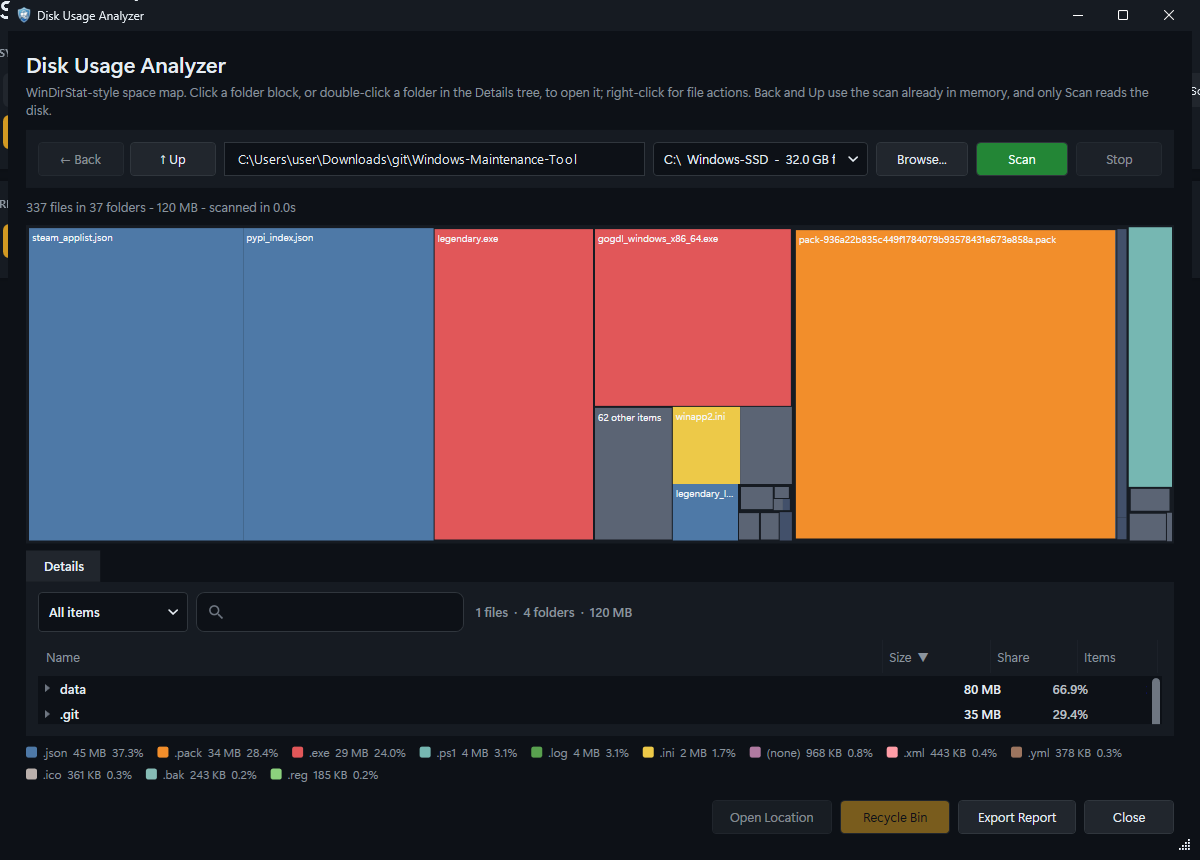
The analyzer after scanning a folder. The treemap shows relative size; the Details tab lists folders and files with size, share, and item counts.
- Utilities > Disk Usage
- My Device > Storage Drives > Disk Usage
The analyzer opens in its own window. It starts with a suggested path, usually the system drive, but does not scan until you choose Scan.
| Control | Purpose |
|---|---|
| ← Back | Returns to the previous folder using the scan already in memory |
| ↑ Up | Goes to the parent folder; uses the cached scan when the parent was scanned |
| Path box | Folder or drive to analyze; press Enter or click Scan |
| Drive selector | Picks a local drive and fills the path box |
| Browse... | Chooses a folder; selecting a folder starts a fresh scan |
| Scan | Reads the target from disk. This is always a fresh scan |
| Stop | Cancels the running scan; totals become partial |
| Treemap | Click a folder block to open it; right-click for file actions |
| Details tab | Tree and list of the scanned hierarchy |
| View filter | All items, Folders only, or Largest files |
| Filter box | Searches within the selected folder and its descendants. Include a backslash to match full paths |
| Folder summary / count | Shows the selected folder's size and the number of listed items |
| File-type legend | Color key for the treemap |
| Open Location | Opens the selected item in File Explorer |
| Recycle Bin | Sends the selected item to the Recycle Bin |
| Export Report | Writes a text report to data
|
| Close | Closes the analyzer |
Back and Up do not read the disk again. Only Scan performs a new disk read, which keeps navigation fast on large trees.
- Type a path, choose a drive, or click Browse....
- Click Scan (or press Enter in the path box).
- Watch the progress bar and status line. Stop cancels the scan.
- When the scan completes, click folder blocks in the treemap or expand the Details tree.
- Use Back and Up to move around the cached results.
Scan behavior:
- Reparse points are skipped, so junctions and symlinks do not cause loops or double-counting.
- The scan records file sizes, folder totals, file counts, and extension groups.
- Files can change or disappear while the scan runs. A vanished item may still appear in the cached view until you rescan.
- A stopped scan is marked as partial in the exported report.
- Local paths are supported. Network shares and special reparse targets are not traversed.
- Each rectangle represents a folder or file; area is proportional to size.
- Colors group items by file type, matching the legend.
- Click a folder block to make it the current root.
- Right-click a block or a Details row for Open, Explore in File Explorer, Copy Path, Open Command Prompt Here, Properties, and Send to Recycle Bin.
- Hovering shows the item path and size.
The treemap is a visual aid; the Details tab is better for precise comparisons and sorting.
The tree shows the selected folder's descendants. Columns are Name, Size, Share, and Items.
- All items shows folders and files.
- Folders only hides files.
- Largest files flattens the view to the biggest files under the current folder.
- The filter box searches names and paths within the current subtree.
- Double-click a folder in the tree to open it as the current root.
- Selecting a row enables Open Location, Recycle Bin, and the context-menu actions.
Recycle Bin sends the selected item to the Windows Recycle Bin. It is not a secure erase and does not bypass the Recycle Bin's own size limits. Review the path in the confirmation and make sure you are not deleting a parent folder that contains something you need.
The analyzer is a read-only inventory tool until you explicitly recycle an item. It does not clean temporary files or uninstall applications; use Cleanup for that.
Export Report writes a UTF-8 text file:
data\DiskUsage_YYYY-MM-DD_HHMMSS.txt
The report contains:
- Root path, total size, file count, and folder count
- A note when the scan was stopped early
- The 200 largest folders
- The 200 largest files
- File-type totals with size, share, and file count
Reports contain full local paths and can reveal usernames and project names. Redact them before sharing.
- Scanning a whole drive can take minutes and produce a large in-memory tree.
- Very large scans use more memory; close other applications if the system is memory-constrained.
- Back/Up reuse cached results; repeated full scans are unnecessary unless files changed.
- The analyzer skips reparse points by design, so the total may be smaller than the value reported by some other tools that follow links.