Repository navigation
Software Catalog
The Software Catalog is a curated list of popular free applications that can be installed with WinGet without leaving WMT. It shares the Updates page with Your Library and is intended for quick first-time setup rather than full package discovery.
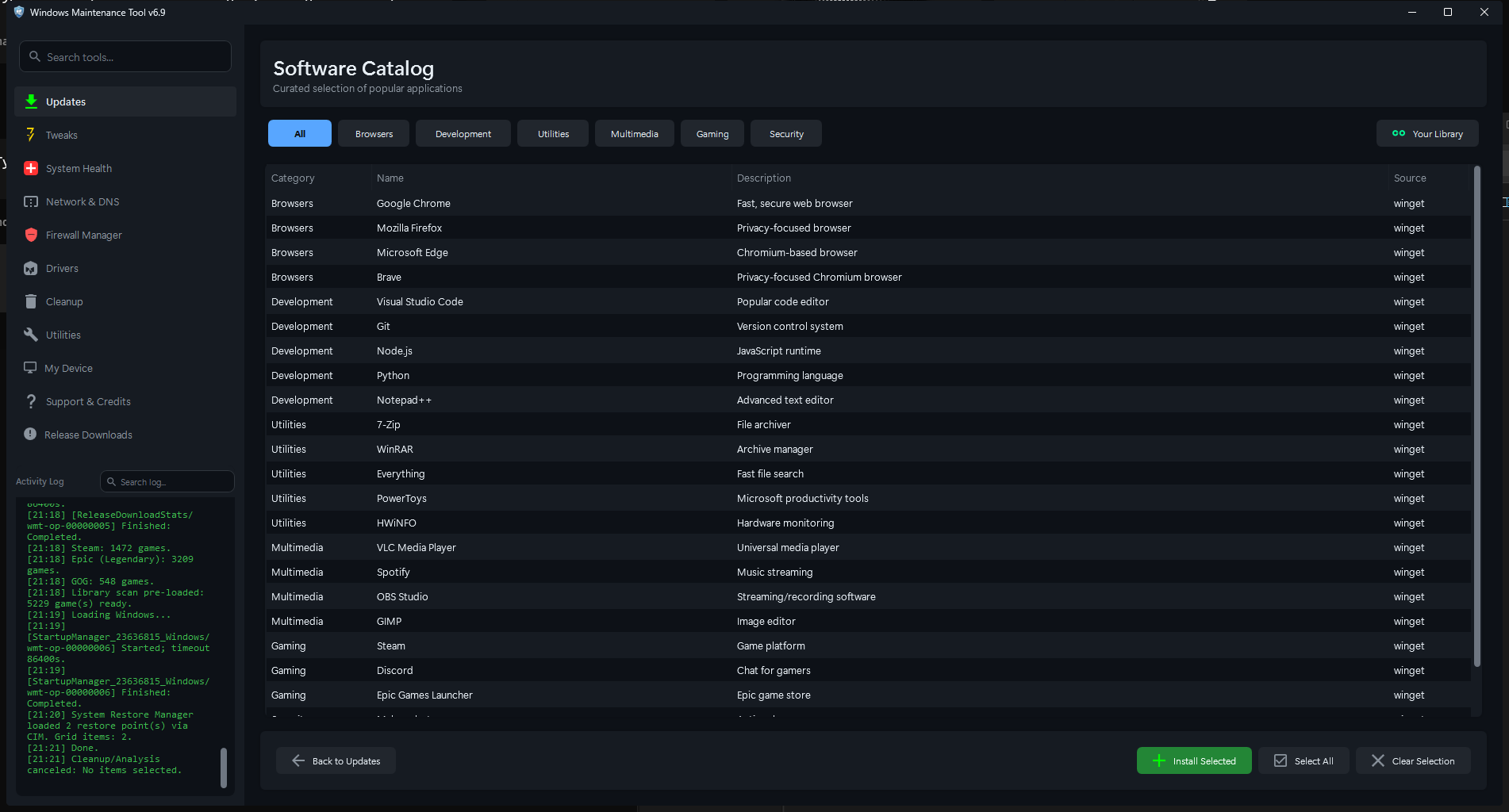
The catalog lists a fixed set of 23 applications with category, name, description, and source.
- Go to Updates.
- Click Software Catalog.
- Use the category buttons to filter, select one or more rows, then click Install Selected.
- Click Back to Updates to return to the package update list.
The catalog is a sub-view of the Updates page. It does not scan the system or contact providers until you install something.
| Control | Purpose |
|---|---|
| All | Shows every catalog entry |
| Browsers, Development, Utilities, Multimedia, Gaming, Security | Filter by category |
| Your Library | Switches to the installed/owned game library |
| Select All | Selects every visible row |
| Clear Selection | Clears the current selection |
| Install Selected | Installs the selected applications with WinGet |
| Back to Updates | Returns to Package Updates |
The list has four columns: Category, Name, Description, and Source. All entries currently use the winget source.
There is no free-text search box on the catalog itself. Use the category filters, or use the Updates search box to search all enabled providers for a package that is not in the catalog.
WMT v6.9 ships the following fixed entries.
| Category | Application | WinGet ID |
|---|---|---|
| Browsers | Google Chrome | Google.Chrome |
| Browsers | Mozilla Firefox | Mozilla.Firefox |
| Browsers | Microsoft Edge | Microsoft.Edge |
| Browsers | Brave | Brave.Brave |
| Development | Visual Studio Code | Microsoft.VisualStudioCode |
| Development | Git | Git.Git |
| Development | Node.js | OpenJS.NodeJS |
| Development | Python | Python.Python.3 |
| Development | Notepad++ | Notepad++.Notepad++ |
| Utilities | 7-Zip | 7zip.7zip |
| Utilities | WinRAR | RARLab.WinRAR |
| Utilities | Everything | voidtools.Everything |
| Utilities | PowerToys | Microsoft.PowerToys |
| Utilities | HWiNFO | REALiX.HWiNFO |
| Multimedia | VLC Media Player | VideoLAN.VLC |
| Multimedia | Spotify | Spotify.Spotify |
| Multimedia | OBS Studio | OBSProject.OBSStudio |
| Multimedia | GIMP | GIMP.GIMP |
| Gaming | Steam | Valve.Steam |
| Gaming | Discord | Discord.Discord |
| Gaming | Epic Games Launcher | EpicGames.EpicGamesLauncher |
| Security | Malwarebytes | Malwarebytes.Malwarebytes |
| Security | Bitwarden | Bitwarden.Bitwarden |
Catalog entries are hard-coded in the application. They are not downloaded from a remote catalog, and updating WMT is the only way the list changes.
- Select one or more rows. Use Ctrl or Shift for multi-selection, or Select All.
- Click Install Selected.
- Review any WinGet agreement or confirmation prompt.
- Watch the activity log and the install progress. Large applications can take several minutes.
- Rescan Updates afterward to see whether the new application has a pending upgrade.
Behavior details:
- Already-installed rows are skipped. If every selected row is already installed, WMT reports Nothing to Install.
- WinGet runs with
--accept-source-agreements --accept-package-agreements --disable-interactivityand the exact package ID. - Game sources such as Epic or GOG route through the Game Library install flow instead of a silent WinGet install.
- A failure is reported per package. One failed install does not necessarily stop the remaining selection.
- When provider Log files is enabled, install transcripts are kept under
data\package-install-logs.
The catalog does not pin versions. WinGet installs the current version offered by its configured sources.
-
WinGet/App Installer must be installed and working. Test with
winget --versionin a terminal. - Internet access is required to download installers.
- Some installers request elevation or open their own setup window even when WinGet is used.
- The catalog is intentionally small and opinionated. For anything else, use the Updates search box, which queries all search-enabled providers.
- Installing software changes the system. Review the application and publisher before approving installation.