Repository navigation
Drivers
The Drivers page lists the third-party driver packages in the Windows Driver Store, shows whether each package is in use, and provides tools to export, remove, and restore drivers.
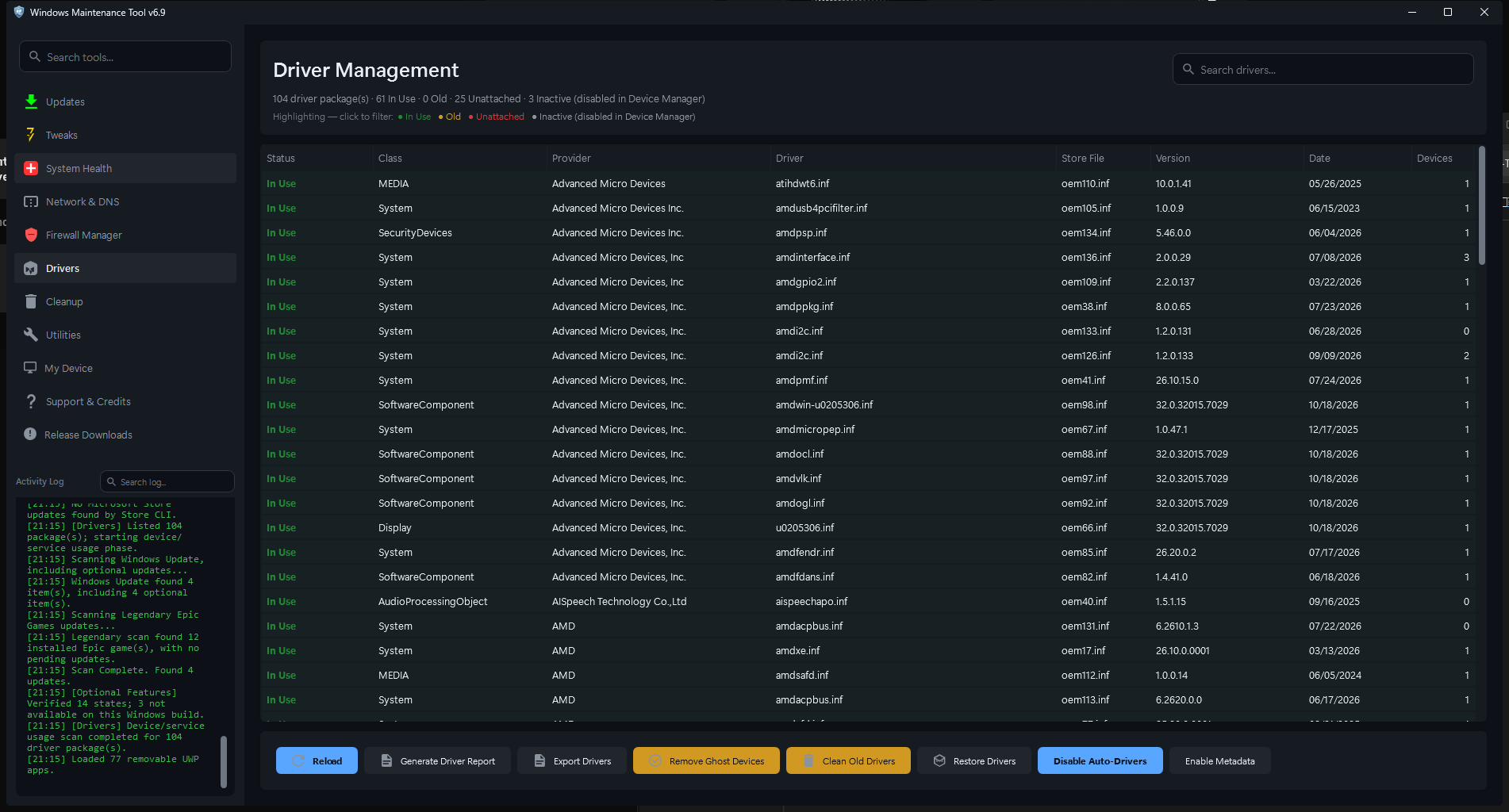
Drivers after the driver store inventory completes. Status highlighting is also a filter: click a status in the legend to show only those packages.
| Column | Meaning |
|---|---|
| Status | In Use, Old, Unattached, or Inactive |
| Class | Driver class, such as Display, Net, or USB |
| Provider | Driver vendor |
| Driver | Original INF name |
| Store File | Published name in the Driver Store (oemXX.inf) |
| Version | Driver version |
| Date | Driver date |
| Devices | Number of devices using the package; hover for details |
| Status | Meaning |
|---|---|
| In Use | At least one attached device is using the package |
| Old | A superseded duplicate copy; a newer package for the same device exists |
| Unattached | The package has no device currently attached |
| Inactive | The package's devices are disabled in Device Manager |
The legend at the top is clickable. Click a status to filter to those packages; click it again to show all.
The driver inventory is built in the background when you open the page. It uses pnputil /enum-drivers plus device and service data to decide which packages are in use.
- Results are cached for about 10 minutes.
- Reload forces a fresh inventory.
- The page reports when the inventory is incomplete. Do not remove packages while usage is unknown; WMT refuses the cleanup in that case.
- A slow or timed-out
pnputilscan is treated as an error, not as an empty driver store.
| Button | Action |
|---|---|
| Reload | Rebuilds the driver inventory |
| Generate Report | Writes data\Installed_Drivers.txt and data\Driver_Store_Packages.csv
|
| Export Drivers | Opens the Driver Export Tool to back up selected or all drivers |
| Remove Ghosts | Opens the ghost-device dialog for disconnected devices |
| Clean Old | Opens the old-driver cleanup preview |
| Restore | Imports drivers from a backup folder |
| Disable Auto-Drivers | Toggles automatic driver updates through Windows Update |
| Disable Metadata | Toggles device metadata (icons and device info) downloads |
The report contains two files in data:
-
Installed_Drivers.txt- readable list of installed drivers -
Driver_Store_Packages.csv- machine-readable package list
Both can include device names, hardware IDs, and vendor details. Review them before sharing.
Export Drivers opens the Driver Export Tool:
- Filter by class or search text.
- Select one or more drivers, or choose Export All.
- Pick an output folder.
- WMT uses
pnputil /export-driverfor each package.
Backups are written to a DriverBackup_* or Drivers_Backup_* folder. Keep the folder intact; Restore expects that layout.
Exporting drivers is strongly recommended before removing any driver package.
Restore lists backup folders under data and lets you choose another folder. It imports the backed-up INF packages into the Driver Store.
- Restoring adds drivers to the store; it does not automatically bind them to a device.
- After a restore, use Device Manager or Pick Compatible Driver for Device... to assign the driver.
- Restoring an older package does not remove the newer one.
A ghost device is a device record for hardware that is no longer connected. Remove Ghosts opens a dialog that scans for disconnected devices and removes the selected records.
- Removing a ghost device does not delete its driver package.
- Use it after hardware changes when Device Manager shows old, disconnected devices.
- Do not remove ghost devices for hardware that is temporarily unplugged if you rely on its settings.
Clean Old opens a preview of superseded driver packages. WMT groups packages by device identity and version, keeps the newest usable package, and protects packages that are currently bound to a device or registered as a service.
- Review the preview before deleting.
-
Clean Old uses
pnputil /delete-driverand can require a reboot. - Removing the wrong package can leave a device without a working driver. Export drivers first.
Toggles automatic driver updates delivered through Windows Update. When disabled, Windows Update no longer offers driver packages automatically; you can still install drivers manually or from the Drivers page workflows.
This is a policy change. Re-enable it if you want Windows to manage drivers again.
Toggles device metadata downloads from the internet. Metadata provides device icons and descriptive information in Devices and Printers and Device Manager. Disabling it does not affect driver function.
Right-click a driver package for:
| Action | Purpose |
|---|---|
| Driver Details | Shows INF, version, date, provider, hardware IDs, and related devices |
| Open INF Location | Opens the Driver Store folder that contains the package |
| Find Devices Using This Driver | Lists matching devices |
| Pick Compatible Driver for Device... | Assigns this package to a compatible device |
| Enable on Compatible Device... | Enables a device and binds the package |
| Copy Store File Name | Copies the oemXX.inf name |
| Copy Driver INF Name | Copies the original INF name |
| Copy as Table (Ctrl+C) | Copies the visible rows as a table |
| Copy Full Details | Copies all details for the selected packages |
| Check on VirusTotal | Looks up the INF by SHA256, offers an upload flow, or falls back to a name search |
Check on VirusTotal opens a themed chooser:
- Search by Hash performs an instant database lookup by the staged INF's SHA256. A hash VirusTotal has never seen returns no results.
- Upload Sample opens virustotal.com and File Explorer with the INF selected for drag-and-drop.
- If the INF cannot be hashed, WMT falls back to a name search.
VirusTotal is a third-party service. Uploading a driver INF discloses the file to that service.
WMT applies several protections:
- Packages bound to an attached device are treated as in use.
- Packages registered as services are protected even when no device is currently attached.
- If driver usage is unknown or the inventory is incomplete, cleanup is refused.
- Version comparison prefers the driver version, then the newest date. Vendors sometimes ship a newer build with an older date.
- Removing a package that is the only copy for a device can break that device until a driver is reinstalled.
- Open Drivers.
- Click Export Drivers.
- Choose Export All and select a folder outside the WMT data folder.
- Keep the folder with your upgrade backups.
- Export drivers first.
- Click Clean Old.
- Review the grouped preview and confirm the old package is not bound to the active GPU.
- Delete the selected package and reboot if prompted.
Open Remove Ghosts, find the disconnected device, and remove it. Reconnect the hardware and let Windows reinstall the driver, or restore the exported package.