Repository navigation
Help
Part of Map Making Tools
The Help button is the last button on the rail, at its foot. It is always on the rail, however short the window. Click it to open Help in the column beside the map, where the inspector opens.
Help doesn't change anything you are working on: the tool's panel, the bar, the mode you are in and what you have chosen all stay as they are. While Help shows, the Help button is pressed. Close Help with its ×, with Escape, or by clicking Help again, and whatever the inspector was showing before comes back. If you open an object (a region, a pin, a style) while Help shows, the object takes its place, and changing tool closes Help.
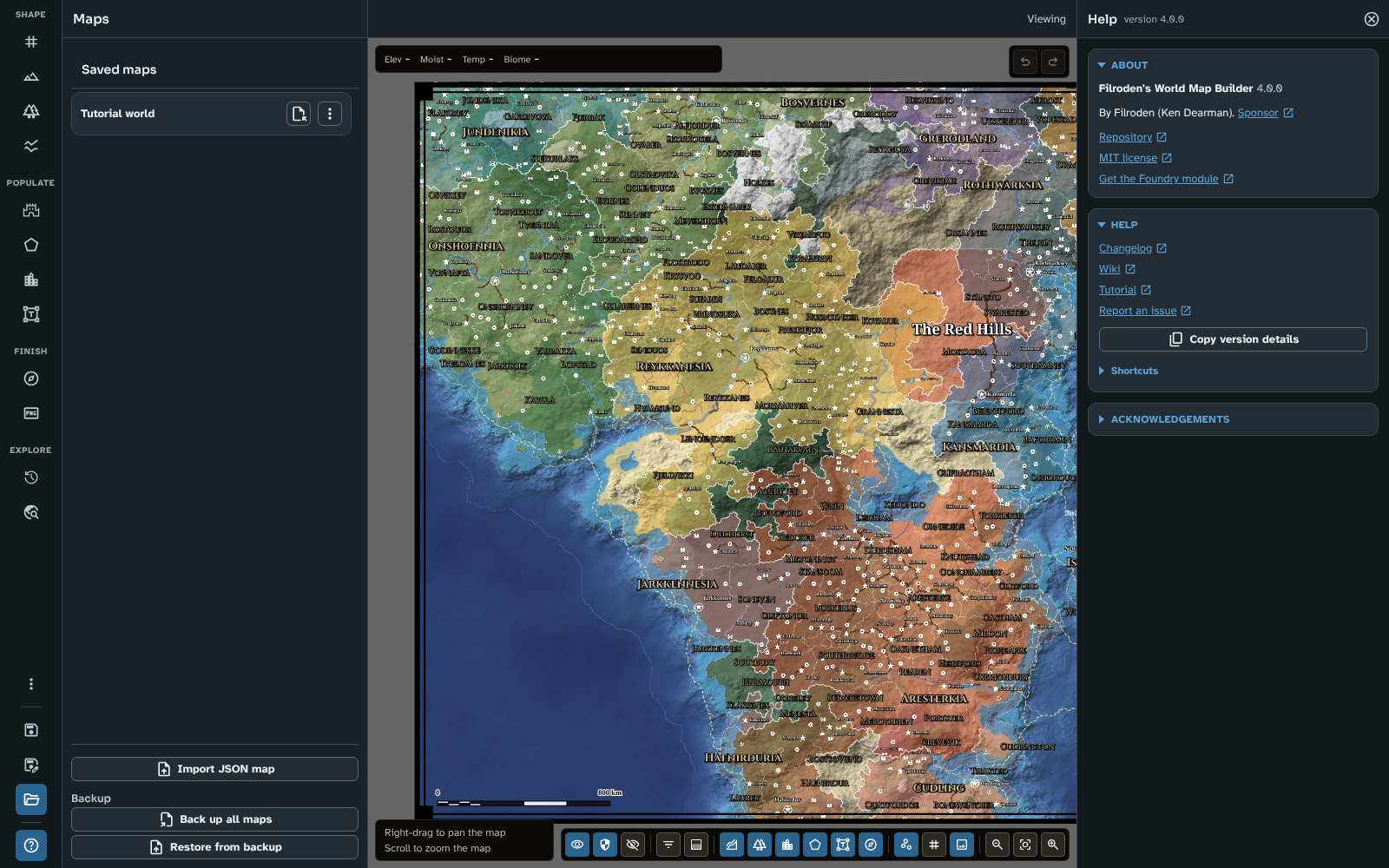
Help, open beside the map, with About and Help.
- The module's name and version (the version also shows under Help's title).
- "By Filroden (Ken Dearman)." with a Sponsor link.
- Repository: the module's code on GitHub.
- MIT licence: the module's licence.
- The other version: Use it on the web in Foundry (the web version at fwmb.filroden.com), or Get the Foundry module on the web (the module's page on the Foundry website).
Every link opens in a new tab, and is marked with an icon to say so.
- Changelog: what changed in each version.
- Wiki: these pages.
- Tutorial: the twelve-page tutorial in these pages, which builds a whole map with nearly every tool (see Tutorial 01 A new world).
- Report an issue: opens a new issue on GitHub.
-
Copy version details: copies what a bug report needs to your clipboard, ready to paste into an issue. A notice says when it is copied. It copies five lines:
- the module's name and version;
- Host: Foundry VTT and its version, or Web;
- Browser: your browser's own description of itself;
- WebGL: the WebGL version and the largest texture your graphics card allows;
- Map: the open map's size in pixels and its number of cells.
- Shortcuts: a fold holding one fold for each tool (and one each for what works everywhere, for holding an item, for the reference image and for the 3D view), each listing that tool's mouse and keyboard actions mode by mode. Show all shortcuts opens the whole list at once in the Keyboard and mouse shortcuts sheet.
You can also open the shortcuts sheet at any time by pressing ? (when you are not typing in a field). See Map Canvas.

Help's Shortcuts, with the Regions tool's actions unfolded.
This fold starts closed. It lists the code, icons and fonts the module includes, each under its own licence: each library with its version, what it does in the module and its licence, then the icon sets, then the fonts in a fold of their own (its title shows how many fonts there are). Each name is a link to more about it.
- Before you report a problem, click Copy version details and paste the result into your report. It tells the author your version, browser and graphics card without you having to look them up.
- Help is a quick way to check which version you are running, in Foundry or on the web.
Related: Map Canvas, Map Making Tools, Module Settings, FAQ